How to Handle Message Reactions in the Microsoft 365 Agents SDK in C#

A like on your agent's answer is feedback you'd otherwise never hear about. In the Microsoft 365 Agents SDK, adding or removing a reaction reaches your agent as a messageReaction activity, and two route methods let you handle both.
Syntax
OnMessageReactionsAdded(handler);
OnMessageReactionsRemoved(handler);
OnMessageReactionsAddedmatchesmessageReactionactivities that add at least one reaction.OnMessageReactionsRemovedmatches the ones that remove at least one. Both are methods ofAgentApplication; call them in your agent's constructor.handleris the method that runs, with the signatureTask Name(ITurnContext turnContext, ITurnState turnState, CancellationToken cancellationToken).- In the handler,
turnContext.Activity.ReactionsAddedorReactionsRemovedlists the reactions, each with aTypesuch aslike, andturnContext.Activity.ReplyToIdis the id of the message they're on.
The Example
The agent for this post answers every message and asks for a reaction. It thanks you when you react, and notices when you take the reaction back:
using Microsoft.Agents.Builder;
using Microsoft.Agents.Builder.App;
using Microsoft.Agents.Builder.State;
using Microsoft.Agents.Core.Models;

namespace ReactionsDemo;

public class FeedbackAgent : AgentApplication
{
    public FeedbackAgent(AgentApplicationOptions options) : base(options)
    {
        OnActivity(ActivityTypes.Message, AnswerAsync);
        OnMessageReactionsAdded(ReactionsAddedAsync);
        OnMessageReactionsRemoved(ReactionsRemovedAsync);
    }

    private async Task AnswerAsync(ITurnContext turnContext, ITurnState turnState, CancellationToken cancellationToken)
    {
        await turnContext.SendActivityAsync("Here's my answer. React to this message to tell me what you think.", cancellationToken: cancellationToken);
    }

    private async Task ReactionsAddedAsync(ITurnContext turnContext, ITurnState turnState, CancellationToken cancellationToken)
    {
        // ReplyToId is the id of the message the reaction is on.
        foreach (MessageReaction reaction in turnContext.Activity.ReactionsAdded)
        {
            await turnContext.SendActivityAsync($"Thanks for the {reaction.Type} on message {turnContext.Activity.ReplyToId}!", cancellationToken: cancellationToken);
        }
    }

    private async Task ReactionsRemovedAsync(ITurnContext turnContext, ITurnState turnState, CancellationToken cancellationToken)
    {
        foreach (MessageReaction reaction in turnContext.Activity.ReactionsRemoved)
        {
            await turnContext.SendActivityAsync($"You took back your {reaction.Type} on message {turnContext.Activity.ReplyToId}.", cancellationToken: cancellationToken);
        }
    }
}
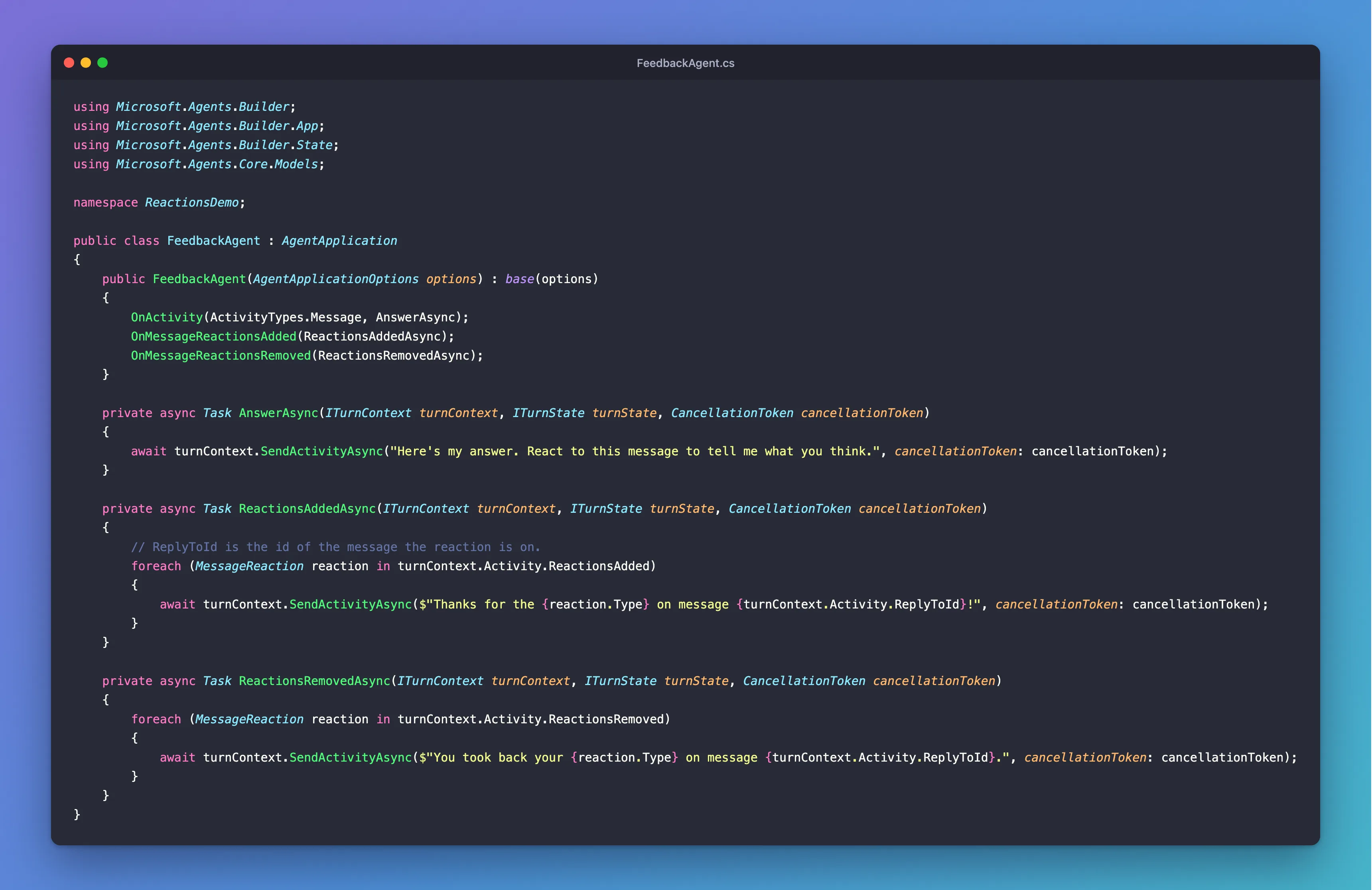
It's one class in an ASP.NET Core project with the Agents SDK, hosted with AddAgent<FeedbackAgent>() and listening on port 3978.
Prerequisites
- The Microsoft 365 Agents Playground, to send reactions on your own machine.
agentsplayground --versionshould print0.2.30; if the command isn't found, install it withnpm install -g @microsoft/m365agentsplayground.
Step 1: Register the Reaction Routes
public FeedbackAgent(AgentApplicationOptions options) : base(options)
{
    OnActivity(ActivityTypes.Message, AnswerAsync);
    OnMessageReactionsAdded(ReactionsAddedAsync);
    OnMessageReactionsRemoved(ReactionsRemovedAsync);
}
A messageReaction activity isn't a message, so the message route never takes it: each reaction route gets the reactions of its kind.
Step 2: Read the Reactions
One activity can carry several reactions, so the handlers loop over the list:
private async Task ReactionsAddedAsync(ITurnContext turnContext, ITurnState turnState, CancellationToken cancellationToken)
{
    // ReplyToId is the id of the message the reaction is on.
    foreach (MessageReaction reaction in turnContext.Activity.ReactionsAdded)
    {
        await turnContext.SendActivityAsync($"Thanks for the {reaction.Type} on message {turnContext.Activity.ReplyToId}!", cancellationToken: cancellationToken);
    }
}
reaction.Type is the reaction's name, such as like. ReplyToId tells you which of your messages it's on, which is what makes a reaction useful as feedback: store your answers with the ids SendActivityAsync returns, and you can tell which answer was liked. The handler for removed reactions is the same, with ReactionsRemoved.
Step 3: Get a Message to React To
Run the agent with dotnet run, start the Agents Playground in a second terminal, and send any message, such as How do I reset my password?:
agentsplayground -e http://localhost:3978/api/messages -c emulator
A reaction needs the id of the message it's on. In the Playground's Log Panel, click the message 201 line of the agent's answer and open its Response tab, which shows the id the channel gave that answer:
{
  "id": "1795245112010"
}
Step 4: Send a Reaction
Choose Mock an Activity → Custom activity. The dialog opens with an activity already addressed to your agent, ending in "type": "<custom-activity-type>". Replace that line with these three, using your own id:
"type": "messageReaction",
"reactionsAdded": [{ "type": "like" }],
"replyToId": "1795245112010"
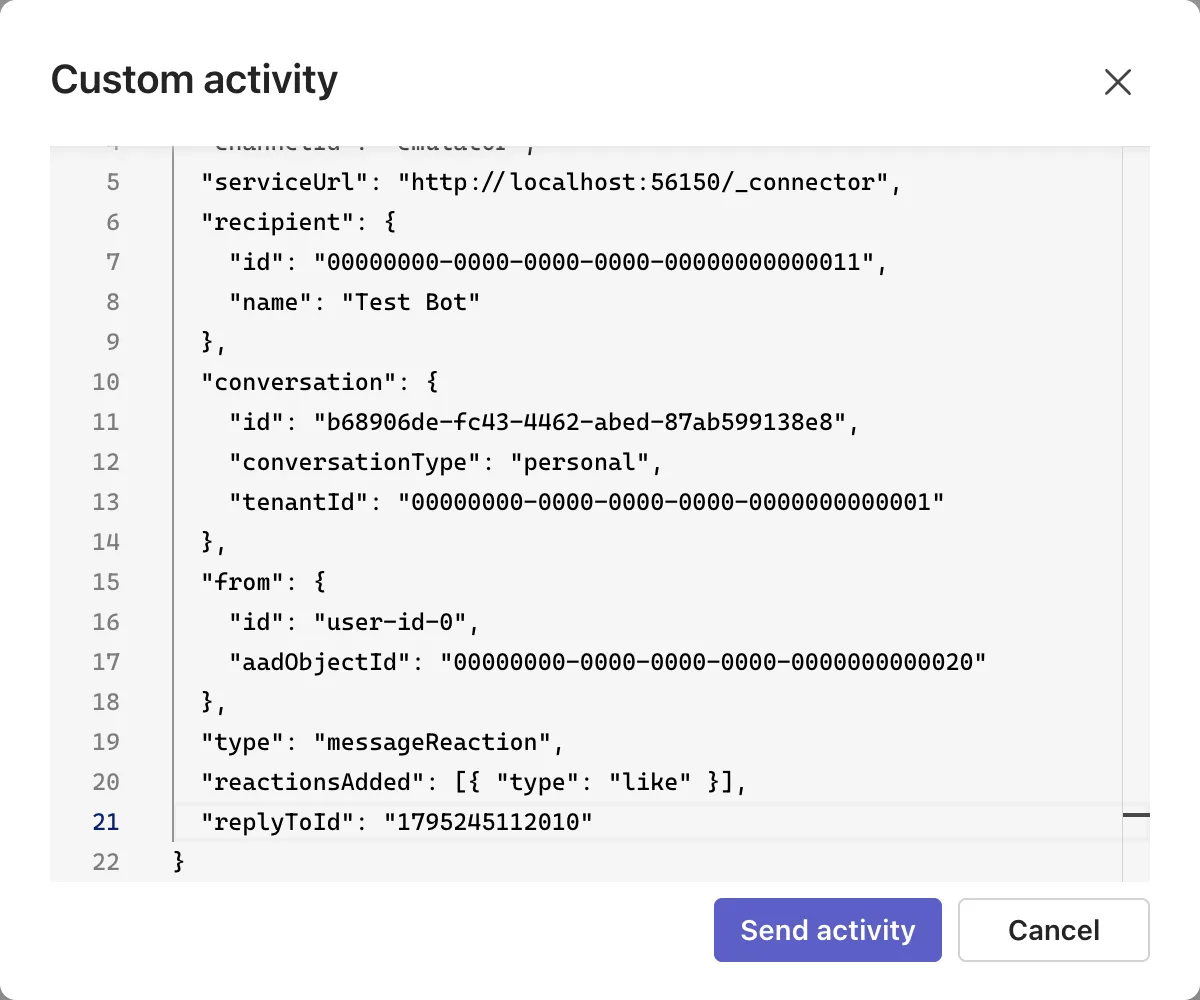
Select Send activity. Then open Custom activity once more and send the same like as removed, with reactionsRemoved in place of reactionsAdded:
"type": "messageReaction",
"reactionsRemoved": [{ "type": "like" }],
"replyToId": "1795245112010"
Each route answers its own kind of reaction:
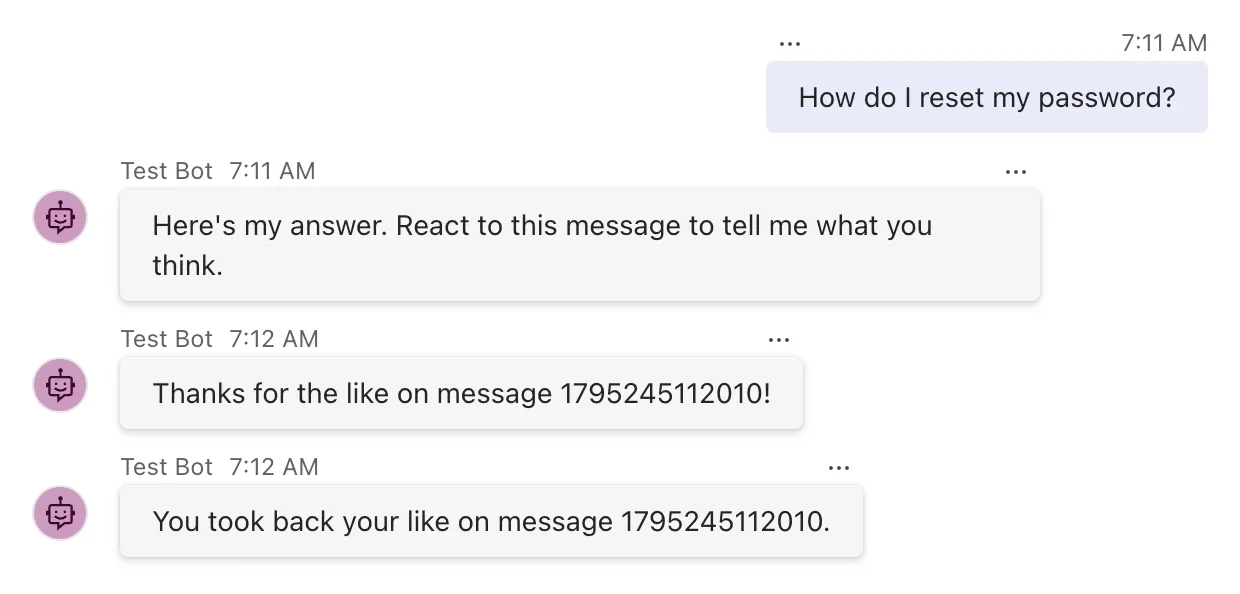
The Playground doesn't draw the like on the message itself, because you sent the activity by hand, but the agent's answers show both routes received what they were meant to.
Common Mistakes
| Mistake | What happens | Do this instead |
|---|---|---|
| Handling only the first reaction | Others in the same activity are lost | Loop over ReactionsAdded or ReactionsRemoved |
| Expecting the reacted message's text in the activity | It isn't there, only its id | Store your messages with their ids when you send them |
Expecting OnActivity(ActivityTypes.Message, ...) to see reactions | Reactions are messageReaction activities, not messages | Register the reaction routes |
| Replying to every reaction in a busy channel | The conversation fills with thank-yous | Record the feedback quietly, or answer only once |
Troubleshooting
| Symptom | Likely cause | Fix |
|---|---|---|
| No answer to the reaction | No reaction route, or the activity has no reactionsAdded list | Register OnMessageReactionsAdded, and check the JSON you sent |
| The id in the answer is empty | The activity has no replyToId | Copy the id from the Response tab of the message's message 201 line |
FAQ
Which reactions does Microsoft Teams send?
Microsoft's Teams documentation lists like, heart, laugh, surprised, sad and angry. Teams sends a messageReaction activity when someone adds or removes a reaction on a message your agent sent; reactions on other people's messages don't reach it.
Does the reaction tell me what the message said?
No. Teams documents that the event doesn't contain the original message, only its id in replyToId. If you need the text, keep your messages and their ids when you send them.
Can I react to reactions in other channels?
The routes work the same in every channel that sends messageReaction activities. Whether a channel sends them is up to the channel.
Conclusion
Register OnMessageReactionsAdded and OnMessageReactionsRemoved, loop over ReactionsAdded or ReactionsRemoved, and use ReplyToId to know which of your messages the reaction is on. In the Agents Playground, a custom messageReaction activity with the id of the agent's answer tests both without Teams.
Additional Resources
- Conversation events for agents: Message reaction events — what Teams sends for reactions.
- Microsoft 365 Agents Playground — the Playground's activity triggers.
