How to Go to Another Screen in Power Apps with Navigate

A button that opens another screen needs one formula: Navigate, with the name of the screen. Put it in the button's OnSelect, and selecting the button changes the screen.
Syntax
Navigate( Screen [, Transition [, UpdateContextRecord ] ] )
- Screen is the screen to show.
- Transition is optional: how the screens change. The default, ScreenTransition.None, replaces the screen at once. The others are Cover, CoverRight, Fade, UnCover and UnCoverRight.
- UpdateContextRecord is optional: a record that sets context variables on the new screen, the way UpdateContext does.
Navigate works only in behavior properties such as OnSelect (Back and Navigate functions).
Prerequisites
- Two screens and a button on the first (How to Add a New Screen in Power Apps, How to Add a Button in Power Apps). The example uses the My plan button,
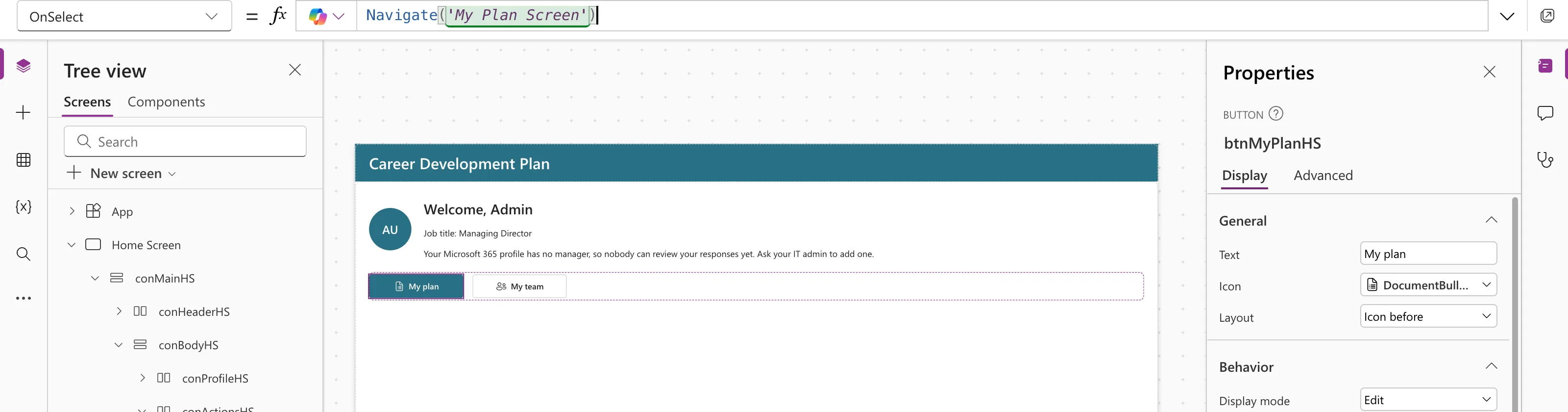
btnMyPlanHS, on the Career Development Plan app's Home screen.
Step 1: Set the Button's OnSelect
Select the button, choose OnSelect in the property list, and type:
Navigate('My Plan Screen')
The screen name has spaces, so it goes in single quotes, like any name with spaces or special characters (Operators and identifiers). Studio shows no errors:
Step 2: Test It
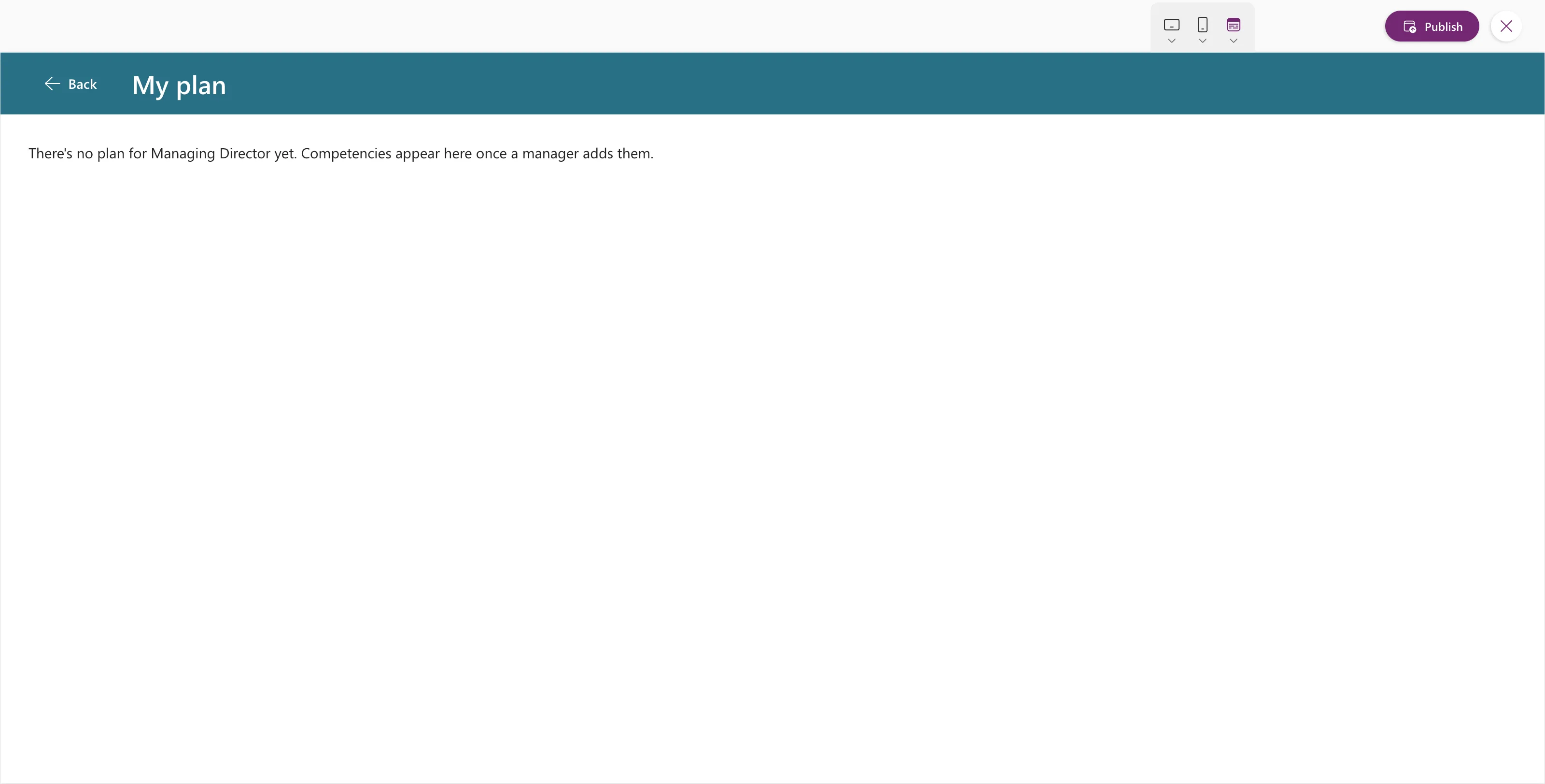
Preview the app with F5 (How to Preview a Canvas App in Power Apps Studio) and select the button. In the example, My plan opened the My Plan screen:
You can also test on the canvas without previewing: hold Alt and select the button. Studio itself suggests this in a Did you know? tip after you close preview.
When the new screen appears, its OnVisible formula runs (How to Run a Formula When a Screen Opens in Power Apps).
Passing Values to the Screen
The third argument sets context variables on the screen you open, which is the only way to set one from another screen:
Navigate('Details Screen', ScreenTransition.Fade, { locItemId: 12 })
On Details Screen, locItemId is then 12, ready for its formulas to use.
Common Mistakes
| Mistake | What happens | Do this instead |
|---|---|---|
| Writing the screen name without quotes when it has spaces | A formula error | Navigate('My Plan Screen') |
| Putting Navigate in a non-behavior property such as Text | Behavior function in a non-behavior property | Use OnSelect |
| Using Navigate to go back where you came from | It always goes to that one screen | Use Back |
Troubleshooting
| Symptom | Likely cause | Fix |
|---|---|---|
| Nothing happens when you click the button on the canvas | Clicking on the canvas selects the control | Preview with F5, or hold Alt while clicking |
| Name isn't valid on the screen name | A typo in the name | Pick the name from the suggestions as you type |
FAQ
Which transition should I use?
The default, None, is the fastest. Use another only if it helps people see where they went.
Can I navigate to a screen in another app?
No. Navigate works between screens of the same app.
Conclusion
Navigate('Screen Name') in a button's OnSelect opens the screen. Add a transition or a record of context variables when you need them, and test with F5 or Alt+click.
Additional Resources
- Back and Navigate functions: syntax, transitions and examples.
- Add and navigate screens: adding navigation to an app.
