How to Give a Security Group Access to a SharePoint Site

When an app keeps its data in SharePoint, everyone who uses the app needs permission on the SharePoint site too. SharePoint's obvious Share site button can't give the permission an app's users usually need, and its other sharing dialog quietly adds people to the site's Members group. This guide gives a security group exactly Contribute, and nothing more.
What You Will Build
In this guide you'll give the security group Career Development Plan Users the Contribute permission level on the Career Development Plan site, without sending anyone an email. Then you'll check what one member of the group can do.
The group and the site come from the Career Development Plan app series, whose app reads and writes two lists on this site. The steps work for any security group and any site.
Permission Levels in Two Minutes
SharePoint doesn't grant single rights one at a time. It grants permission levels, named bundles of rights. These are the ones you'll meet:
| Permission level | What it allows |
|---|---|
| Full Control | Everything, including managing permissions. Can't be changed or deleted |
| Design | Edit, plus creating lists and libraries, editing pages and changing the look |
| Edit | Contribute, plus adding, changing and deleting lists and their columns |
| Contribute | Viewing, adding, updating and deleting list items and documents |
| Read | Viewing pages and items, and downloading documents |
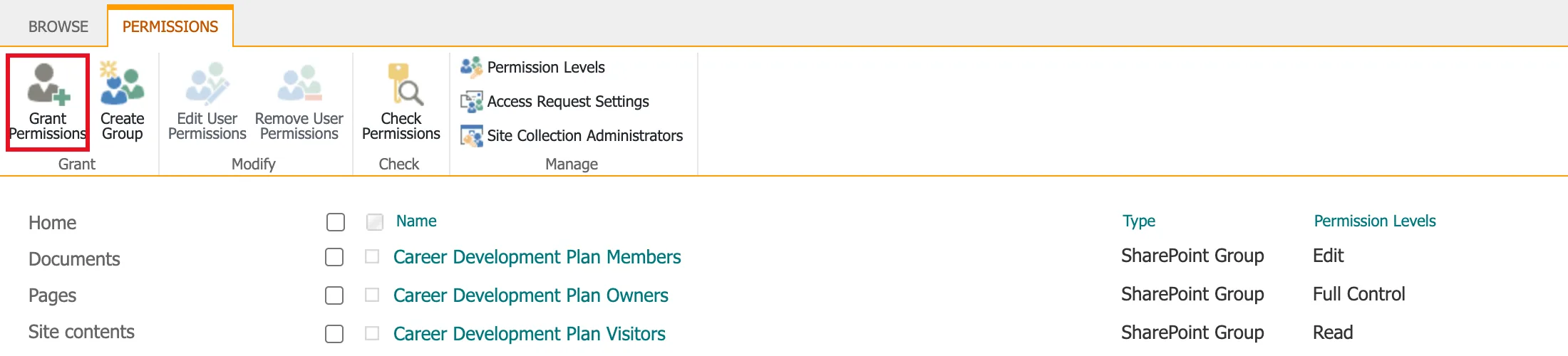
A communication site starts with three SharePoint groups, each holding one of these levels. This is what the Career Development Plan site showed right after it was created:
| SharePoint group | Permission level |
|---|---|
| Career Development Plan Owners | Full Control |
| Career Development Plan Members | Edit |
| Career Development Plan Visitors | Read |
The difference between Edit and Contribute is the right to manage lists. A member with Edit can delete a whole list, or remove a column from it. The people using an app only need to read and write items, so Contribute is the least you can give them that still works. That's why this guide grants it directly to the security group instead of adding the group to Members.
Prerequisites
- Owner of the site (Full Control). The person who creates a site is its owner. To create one, see How to Create a SharePoint Communication Site.
- A Microsoft Entra security group with the right people in it. See How to Create a Security Group in the Microsoft Entra Admin Center.
Step 1: Open Site Permissions
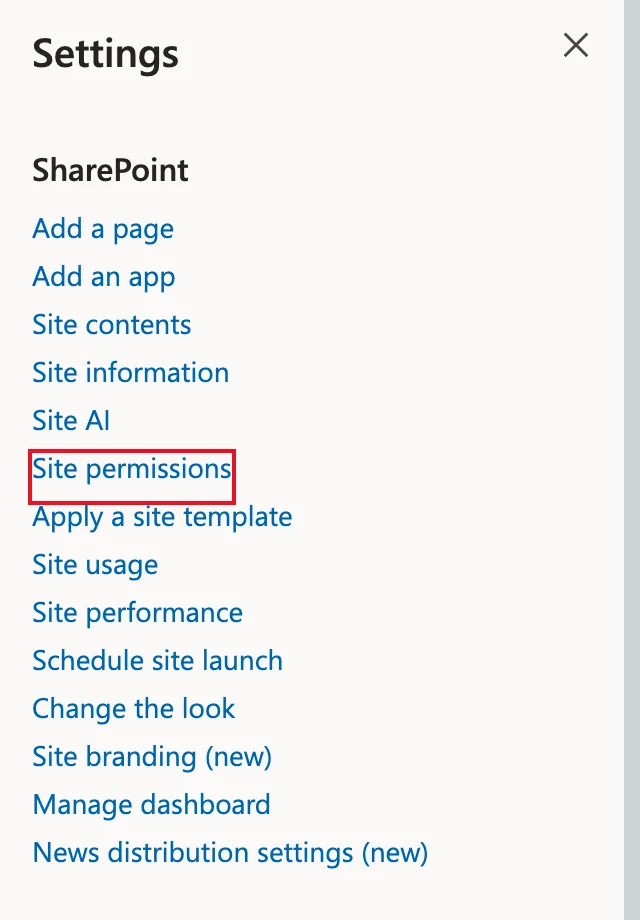
On the site, select Settings (the gear at the top right), then Site permissions.
Step 2: Go to Advanced Permissions Settings
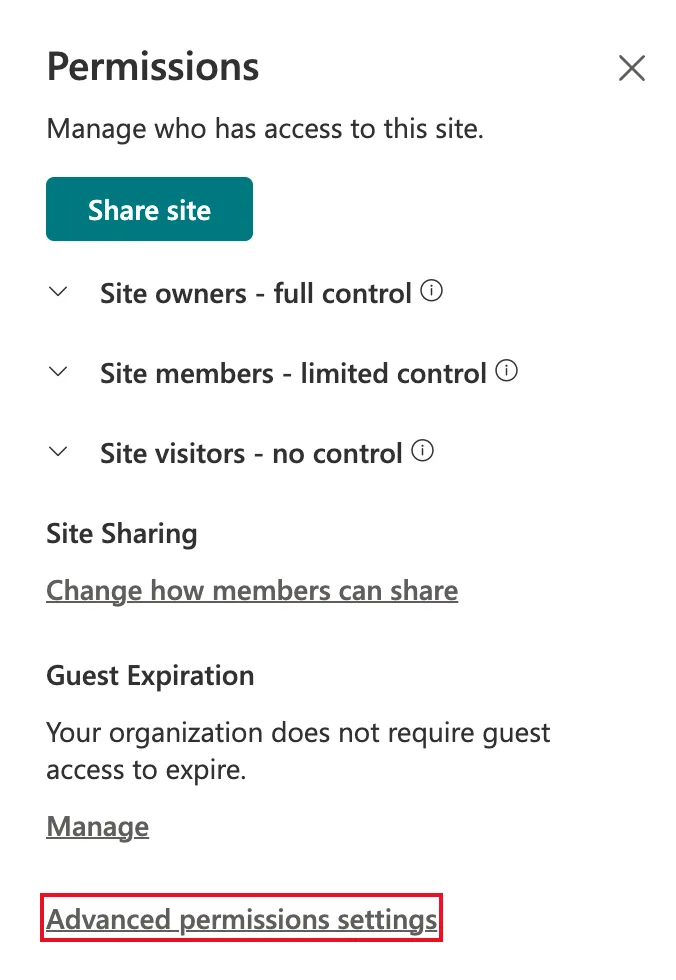
The Permissions panel shows Share site, the three site groups and the site's sharing settings. Select Advanced permissions settings at the bottom.
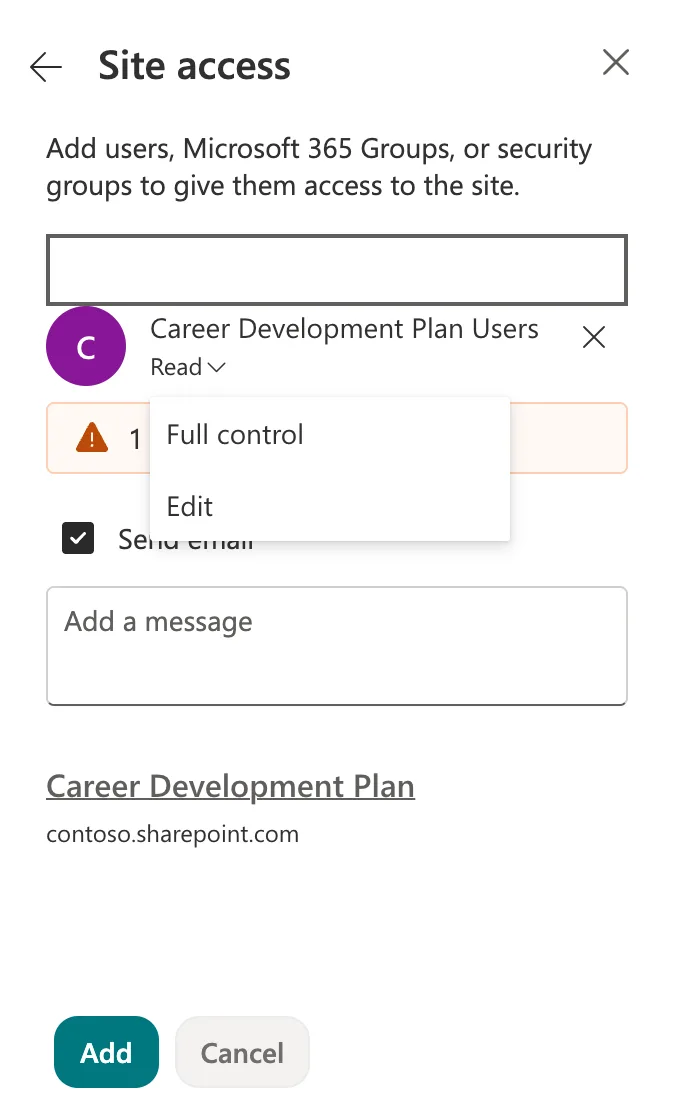
Share site opens a Site access panel that adds users, Microsoft 365 groups and security groups to the site. Its permission list, which defaults to Read, only offers Full control and Edit besides. There's no Contribute, so use the advanced settings to choose it.
Step 3: Select Grant Permissions
The classic Permissions page lists everything with access to the site: the three SharePoint groups and their permission levels. On the Permissions tab of the ribbon, select Grant Permissions.
Step 4: Add the Group with Contribute
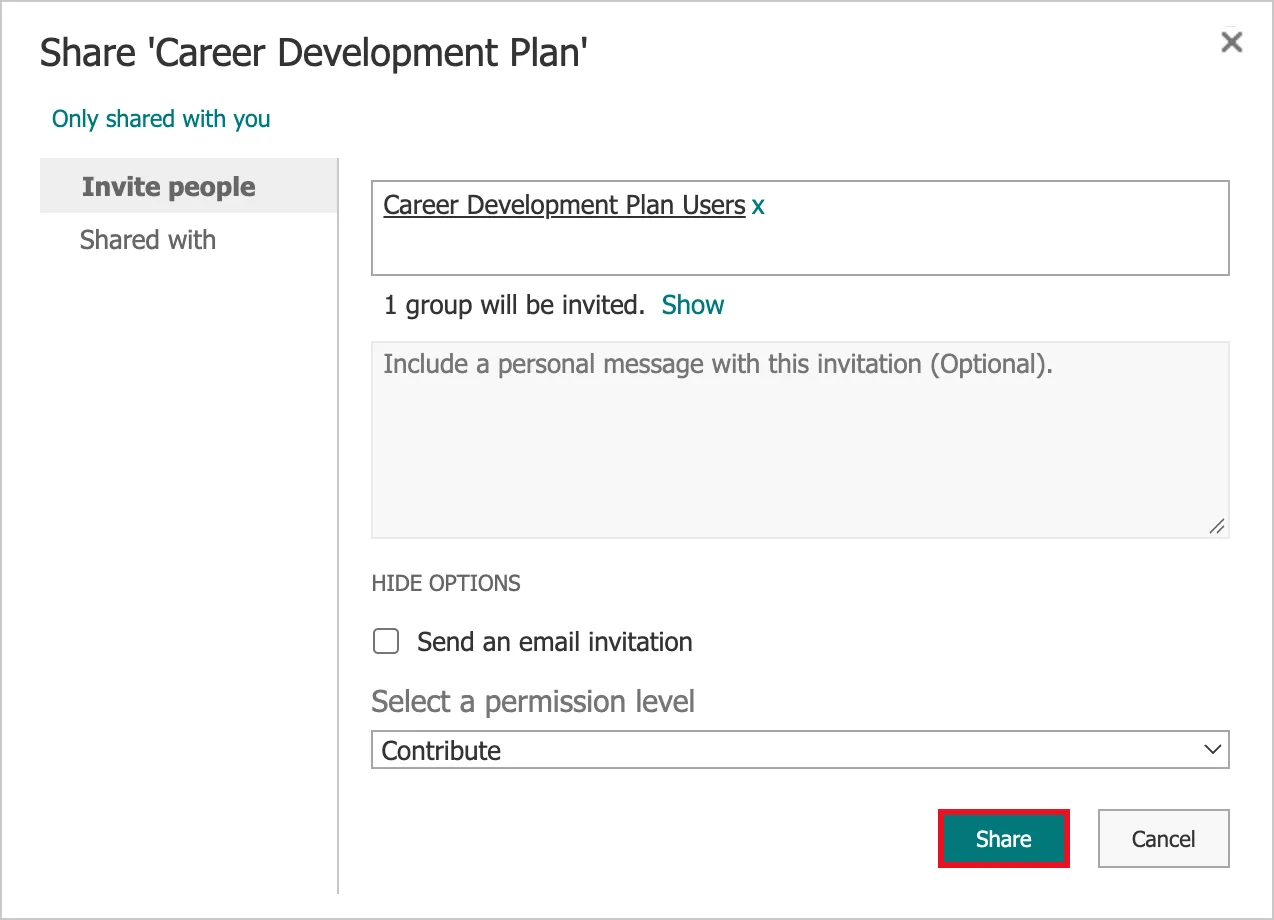
The Share dialog opens. In Invite people, type the group's name, Career Development Plan Users, and select it from the suggestions. Then select SHOW OPTIONS.
The options show the trap: by default, this dialog adds whoever you invite to the site's Members group, which has Edit, and it sends them an email invitation.
![The Share Career Development Plan dialog with Career Development Plan Users added, the email invitation ticked, and Select a permission level outlined in red showing the default Career Development Plan Members [Edit]](https://strdewiridedevblogsprod.blob.core.windows.net/images/blog/microsoft-365/sharepoint/2026/sp-g5-05-share-default-members-edit.webp)
Change two things:
- Clear Send an email invitation. The people in the group use the site through the app and don't need an email about it.
- Under Select a permission level, choose Contribute. The list offers both the site's groups, such as Career Development Plan Members [Edit], and the permission levels themselves (Full Control, Design, Edit, Contribute and Read).
Select Share.
Step 5: Check the New Entry
SharePoint briefly confirms that the site was shared with the group. Reload the page: Career Development Plan Users now appears with Contribute. Its type, Domain Group, is how SharePoint labels a Microsoft Entra security group.
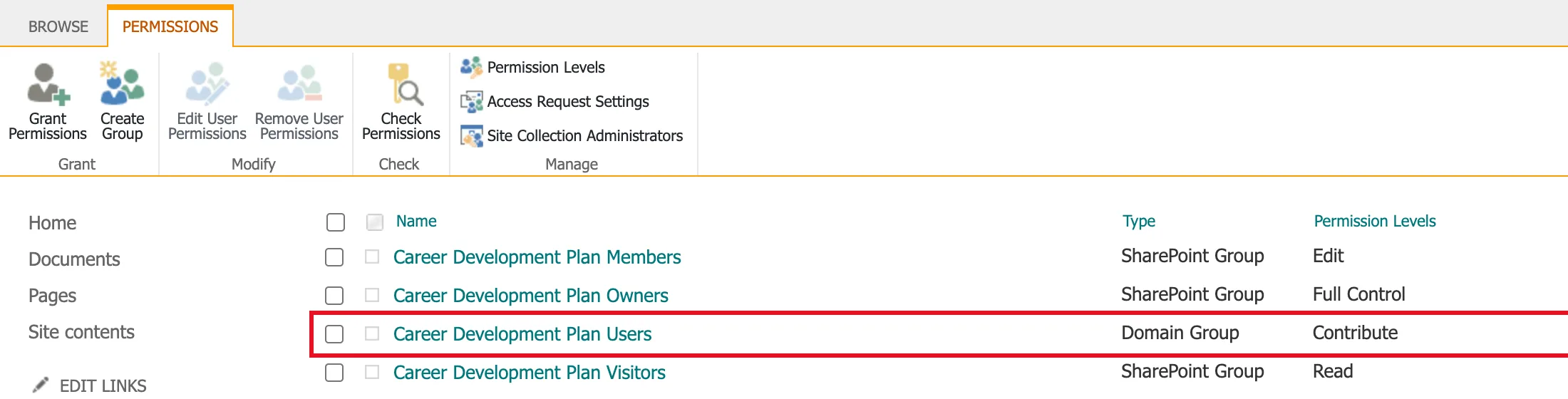
From now on, adding someone to the security group gives them Contribute on this site, and removing them takes it away. You manage the people in Microsoft Entra, not in SharePoint.
Step 6: Check What One Person Can Do
To see what a particular person ends up with, select Check Permissions on the ribbon. In User/Group, type a member of the group (Aisha Khan, in the demo team), pick her from the suggestions and select Check Now.
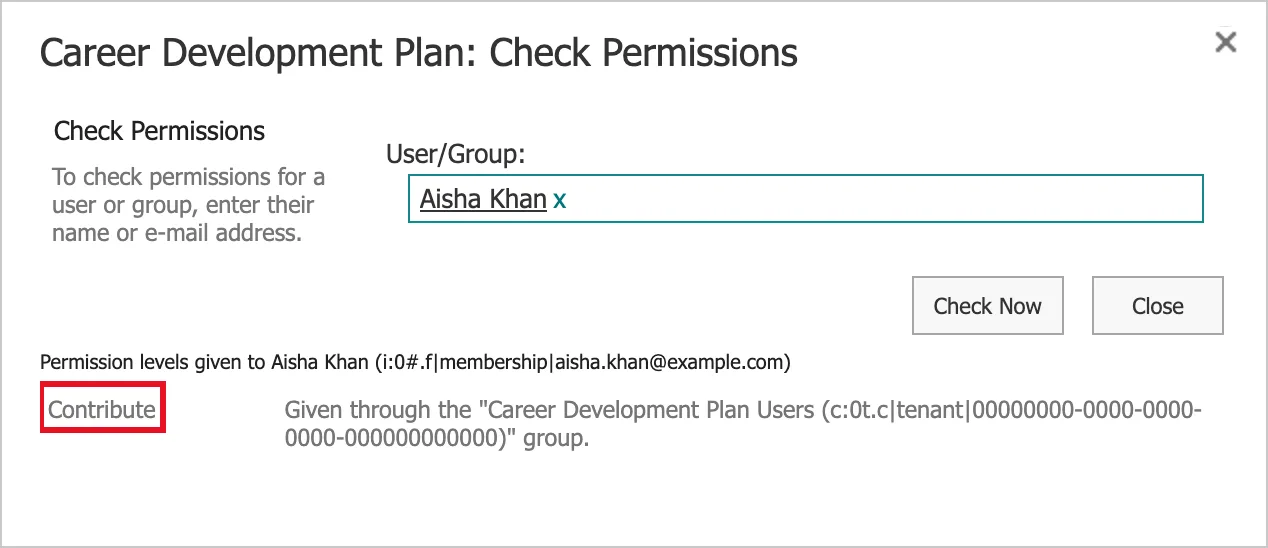
She has Contribute, given through the Career Development Plan Users group. Because Check Permissions shows where a person's access comes from, it's the quickest way to answer "why can this person see this?".
Common Mistakes
| Mistake | What happens | Do this instead |
|---|---|---|
| Sharing without opening SHOW OPTIONS | The group lands in Members with Edit and can delete lists and columns | Open SHOW OPTIONS and pick Contribute |
| Using Share site | It only offers Read, Edit and Full control | Use Advanced permissions settings → Grant Permissions |
| Leaving Send an email invitation ticked | Everyone in the group gets an email about a site they don't need to visit | Clear it |
| Adding people one by one | Every joiner and leaver means another permissions change | Grant access to the security group once |
| Giving Edit "to be safe" | People can change or delete the lists an app depends on | Give Contribute for working with items |
Troubleshooting
| Symptom | Likely cause | Fix |
|---|---|---|
| Advanced permissions settings or Grant Permissions is missing | You aren't an owner of the site | Ask a site owner, or a SharePoint admin, to do it |
| The group doesn't appear in the suggestions | The name is mistyped, or the group is a distribution list rather than a security group | Check the group's exact name and type in Microsoft Entra |
| Contribute isn't in the permission list | The list is the Site access panel's | Use Grant Permissions on the classic Permissions page |
| Check Permissions shows no permission level for someone | They aren't in the group, or the group wasn't added | Check the group's members, then the site's Permissions page |
FAQ
Why not add the security group to the site's Members group?
Members have Edit, which includes managing lists: creating and deleting them, and adding and removing columns. People who only work with an app's items don't need that. Microsoft generally recommends managing a communication site's access through its SharePoint groups. If you'd rather do that here, use Create Group on the same page to make a SharePoint group with Contribute, and add the security group to it.
Does Contribute let people delete items?
Yes. Contribute covers viewing, adding, updating and deleting list items. It doesn't let them delete the lists themselves or change their columns.
Can people open the lists directly, outside the app?
Yes. A permission on the site applies everywhere the site's content can be reached: the site itself, search, the app, flows. An app can limit what it shows, but the permission is what decides what people can reach.
How do I take the access away again?
On the Permissions page, tick Career Development Plan Users and select Remove User Permissions. To remove one person, take them out of the security group instead.
Do I need to do this again for each list?
No. Lists inherit their site's permissions unless someone breaks the inheritance, so Contribute on the site covers every list on it.
Conclusion
To give a security group access to a SharePoint site, use Settings → Site permissions → Advanced permissions settings → Grant Permissions, then open SHOW OPTIONS before you share. Pick Contribute for people who only work with list items, and clear the email invitation. The dialog's default, the Members group with Edit, would also let them delete lists and columns.
After that, access follows the group: add and remove people in Microsoft Entra, and use Check Permissions whenever you need to see why someone can or can't open something.
Next, create the lists that people will work in: How to Create a List and Add Columns in SharePoint Online.
Additional Resources
- Build a Career Development Plan App in Power Apps — Part 1: the app whose users this group holds.
- Permission levels in SharePoint: every default level and the rights inside it.
- SharePoint site permissions: Microsoft's steps for granting access, including Grant Permissions and Show options.
- Customize permissions for a SharePoint list or library: the email invitation option, and permissions on single lists.
- Sharing and permissions in the SharePoint modern experience: how communication sites and team sites handle access.
- Access Denied or You need permission errors in SharePoint Online: using Check Permissions to troubleshoot.
