How to Give a Microsoft Agent Framework Agent the Tools of an MCP Server in C#

An MCP server's tools work as a Microsoft Agent Framework agent's own tools: list them with the official MCP C# SDK and pass them to the agent. This guide builds a small agent that answers questions from Microsoft's documentation, using the tools of the Microsoft Learn MCP server.
Syntax
IList<McpClientTool> <mcpTools> = await <mcpClient>.ListToolsAsync();

AIAgent <agent> = <projectClient>.AsAIAgent(
    model: "<model deployment>",
    instructions: "<instructions>",
    tools: [.. <mcpTools>]);
| Part | What it is |
|---|---|
<mcpClient> | A connected McpClient, from McpClient.CreateAsync |
<mcpTools> | The server's tools. The MCP C# SDK's guide explains why an agent can use them: McpClientTool inherits from AIFunction, the type of every function tool in Agent Framework |
<projectClient> | An AIProjectClient for your Microsoft Foundry project |
<model deployment> | The name of your model deployment |
<instructions> | What the agent is for. Microsoft's MCP page advises: Provide clear instructions that align with the capabilities of your MCP tools |
tools: [.. <mcpTools>] | The spread .. copies the server's tools into the agent's list of tools. Add your own tools to the same list if the agent has any |
The Example
A console app connects to the Microsoft Learn MCP server, gives its three tools to an agent, and asks How do I create an Azure storage account with the Azure CLI? It prints which tools the model called, then the answer.
Prerequisites
- A model deployment in a Microsoft Foundry project, and the Foundry User role on the Foundry resource for your account. The app calls the model as you.
- The .NET 10 SDK (
dotnet --versionprints a version that starts with10.0) and the Azure CLI, signed in withaz login.
Step 1: Create a Console App
In a terminal, in the folder where you keep your projects, run:
dotnet new console -n DocsAgent
cd DocsAgent
dotnet add package ModelContextProtocol.Core --version 2.4.0
dotnet add package Microsoft.Agents.AI.Foundry --version 1.28.0-preview.261106.1
dotnet add package Azure.Identity --version 1.21.0
| Package | What it gives the app |
|---|---|
ModelContextProtocol.Core | The official MCP C# SDK's client: McpClient and McpClientTool |
Microsoft.Agents.AI.Foundry | AsAIAgent, which turns a model in a Foundry project into an agent |
Azure.Identity | AzureCliCredential, which signs the app in to Foundry with your Azure CLI sign-in |
Microsoft Agent Framework 1.28.0 is generally available, but its Foundry package ships only as a preview of the same release, so it needs its exact --version. Open the DocsAgent folder in VS Code, or DocsAgent.csproj in Visual Studio.
Step 2: Connect to the Server and Get Its Tools
Replace everything in Program.cs with:
using Azure.AI.Projects;
using Azure.Identity;
using Microsoft.Agents.AI;
using Microsoft.Extensions.AI;
using ModelContextProtocol.Client;

// Connect to the Microsoft Learn MCP server, and get its tools.
await using McpClient learn = await McpClient.CreateAsync(
    new HttpClientTransport(new HttpClientTransportOptions
    {
        Endpoint = new Uri("https://learn.microsoft.com/api/mcp"),
        TransportMode = HttpTransportMode.StreamableHttp,
    }),
    new McpClientOptions { ProtocolVersion = "2025-06-18" });
IList<McpClientTool> learnTools = await learn.ListToolsAsync();
- The connection is the one from How to Connect to an MCP Server in C# with the MCP C# SDK: Streamable HTTP, with the protocol version the server supports.
await usingkeeps the connection open until the program ends. The tools call the server through it, so it must stay open for as long as the agent runs.
Step 3: Give the Tools to the Agent
Add these lines to the end of Program.cs:
// An agent that answers from Microsoft's documentation, with the server's tools as its own.
AIAgent agent = new AIProjectClient(
        new Uri("https://foundry-devblogs-exp.services.ai.azure.com/api/projects/proj-devblogs-exp"),
        new AzureCliCredential())
    .AsAIAgent(
        model: "gpt-5.6-luna",
        instructions: "You answer questions about Microsoft products from Microsoft Learn. Search it first, " +
                      "answer in at most three short steps, and end with the link to the page you used. Write plain text.",
        tools: [.. learnTools]);

AgentResponse response = await agent.RunAsync("How do I create an Azure storage account with the Azure CLI?");

// Which tools did the model call?
foreach (FunctionCallContent call in response.Messages.SelectMany(message => message.Contents).OfType<FunctionCallContent>())
{
    Console.WriteLine($"(called {call.Name})");
}

Console.WriteLine(response.Text);
- The
AIProjectClientURI andgpt-5.6-lunaare my Foundry project's endpoint and model deployment. Use your own; How to Create a Microsoft Foundry Resource and Deploy a Model shows where to find them. tools: [.. learnTools]gives the agent the server's tools. When the model calls one, Agent Framework runs it like any function tool, and the tool sends the call to the server.- The instructions tell the agent when to use the tools and what to do with the result: search first, keep it short, and give the link.
FunctionCallContentis a tool call the model made during the run. Printing their names shows which tools it used.
Run the app:
- VS Code
- Visual Studio
In the terminal, in the DocsAgent folder, run:
dotnet run
Press Ctrl+F5 (Debug > Start Without Debugging). The output appears in a console window.
(called microsoft_docs_search)
1. Sign in to Azure:
   az login

2. Create a resource group:
   az group create --name storage-resource-group --location eastus

3. Create the storage account. Replace <account-name> with a globally unique, lowercase name:
   az storage account create \
     --name <account-name> \
     --resource-group storage-resource-group \
     --location eastus \
     --sku Standard_RAGRS \
     --kind StorageV2 \
     --min-tls-version TLS1_2 \
     --allow-blob-public-access false

Microsoft Learn: https://learn.microsoft.com/azure/storage/common/storage-account-create#create-a-storage-account
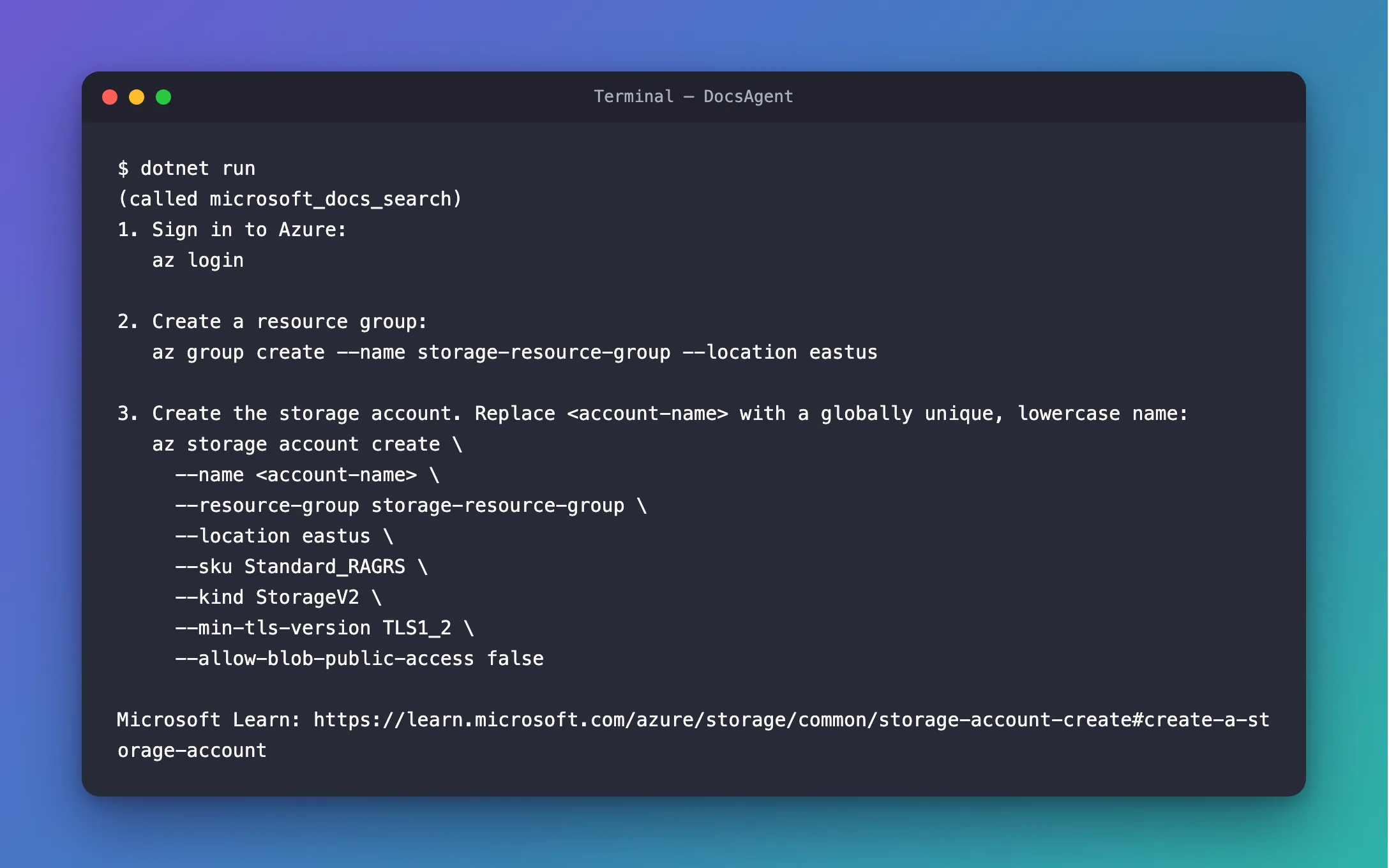
The model searched Microsoft Learn once with microsoft_docs_search, and answered from the result: three steps with the commands from Microsoft's page, and the link to the section they came from.
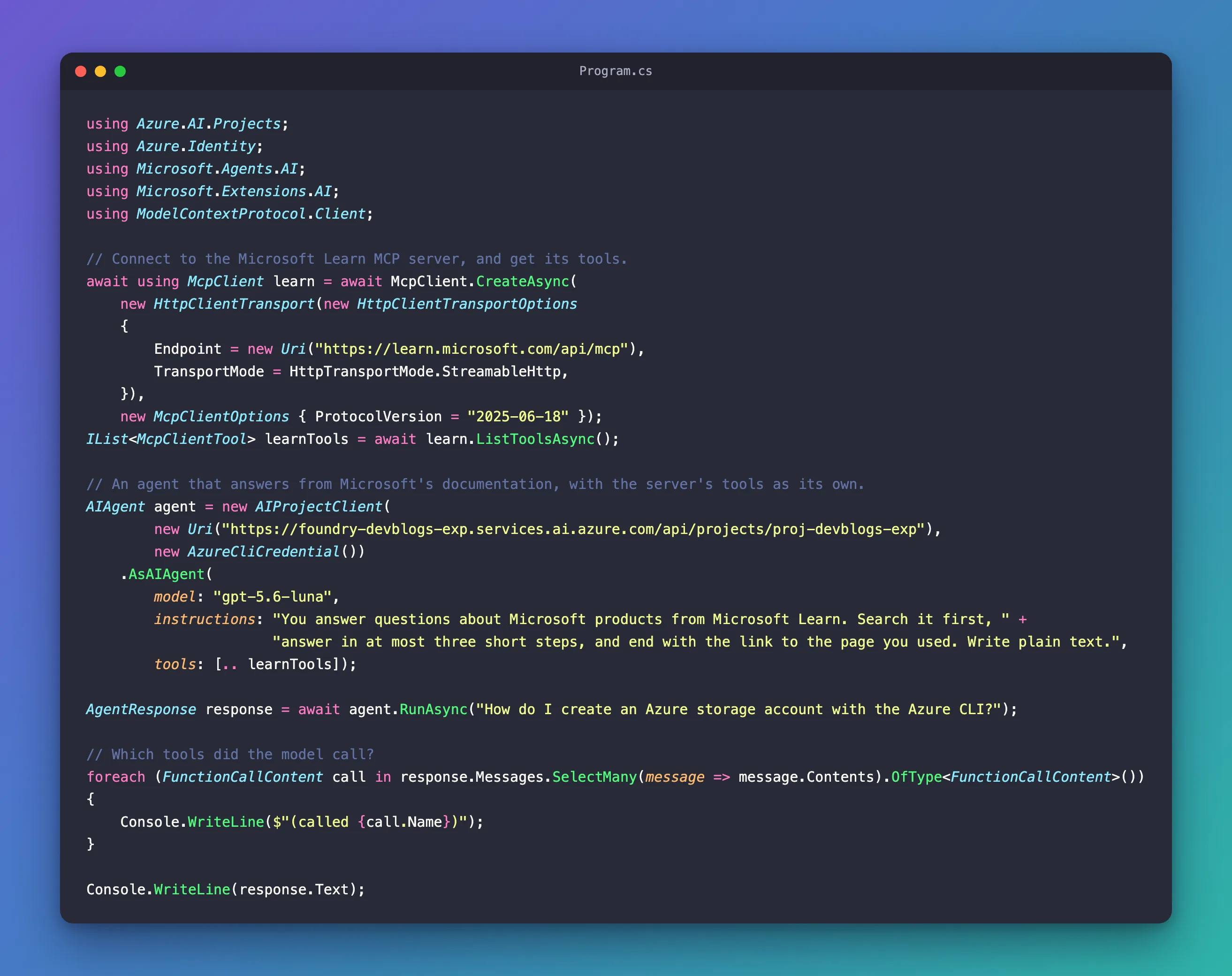
The Complete File
using Azure.AI.Projects;
using Azure.Identity;
using Microsoft.Agents.AI;
using Microsoft.Extensions.AI;
using ModelContextProtocol.Client;

// Connect to the Microsoft Learn MCP server, and get its tools.
await using McpClient learn = await McpClient.CreateAsync(
    new HttpClientTransport(new HttpClientTransportOptions
    {
        Endpoint = new Uri("https://learn.microsoft.com/api/mcp"),
        TransportMode = HttpTransportMode.StreamableHttp,
    }),
    new McpClientOptions { ProtocolVersion = "2025-06-18" });
IList<McpClientTool> learnTools = await learn.ListToolsAsync();

// An agent that answers from Microsoft's documentation, with the server's tools as its own.
AIAgent agent = new AIProjectClient(
        new Uri("https://foundry-devblogs-exp.services.ai.azure.com/api/projects/proj-devblogs-exp"),
        new AzureCliCredential())
    .AsAIAgent(
        model: "gpt-5.6-luna",
        instructions: "You answer questions about Microsoft products from Microsoft Learn. Search it first, " +
                      "answer in at most three short steps, and end with the link to the page you used. Write plain text.",
        tools: [.. learnTools]);

AgentResponse response = await agent.RunAsync("How do I create an Azure storage account with the Azure CLI?");

// Which tools did the model call?
foreach (FunctionCallContent call in response.Messages.SelectMany(message => message.Contents).OfType<FunctionCallContent>())
{
    Console.WriteLine($"(called {call.Name})");
}

Console.WriteLine(response.Text);
Common Mistakes
| Mistake | What happens | Do this instead |
|---|---|---|
Disposing the McpClient before the agent runs | The tools can't reach the server any more | Keep the client open for as long as the agent uses its tools |
| Giving the agent every tool of a server you haven't reviewed | The model can call any of them, including tools that change things | Connect only servers you trust, and pass on only the tools you mean to allow |
| Instructions that don't mention the tools' purpose | The model answers from what it already knows instead of searching | Say when to search and what to do with the result |
FAQ
Do MCP tools cost tokens?
Yes, twice. Each tool's name, description and parameters go to the model with every request, like any tool's, and each result the model reads is input too. A search result from Microsoft Learn can be thousands of tokens; How to Limit the Size of Microsoft Learn MCP Search Results with maxTokenBudget shows how to shrink it.
Is this the same as hosted MCP tools?
No. Here your app connects to the server and runs the tools: Microsoft's tools overview calls these local MCP tools, MCP servers running locally or on custom hosts. With hosted MCP tools, MCP servers invoked by the provider runtime, the model service calls the server for you instead.
Can I keep the agent and the connection for many runs?
Yes. Create both once and reuse them; in a web app, a long-lived connection should also survive the server being unavailable for a while. Connecting on the first run with a context provider is one way to do that.
Conclusion
To give a Microsoft Agent Framework agent the tools of an MCP server, connect with the official MCP C# SDK, list the tools with ListToolsAsync, and pass them to AsAIAgent with tools: [.. mcpTools]. Every McpClientTool is an AIFunction, so the agent calls it like its own tools, and the call goes to the server. Keep the connection open while the agent runs, and tell the agent in its instructions when to use the tools.
Additional Resources
- Using MCP tools with Agents — local MCP tools in Agent Framework.
- Tools Overview — local and hosted MCP tools, and the other kinds of tools.
- MCP C# SDK: Getting Started — clients, and using their tools with a chat client.
- Microsoft Learn MCP Server overview — the server used in this example.
