How to Give a Group Read-Only Access to a SharePoint Site

When a group of people needs to look at a SharePoint site but not change it, give them Read. On a communication site, Share site does it in one panel: it adds the group to the site's Visitors group, which holds the Read permission level.
This guide gives the security group Overtime Timesheet Users read access to the site of the Overtime Timesheet series. Its people need to read the Departments list; other lists get more or less access of their own later. The steps work for any site and any security group.
What Read Allows
Microsoft's Permission levels in SharePoint describes Read as: "View pages and items in existing lists and document libraries and download documents." People with Read can't add, change or delete anything.
A communication site starts with three SharePoint groups, and Visitors is the one with Read. The same page recommends using them: "use the built-in SharePoint groups for communication sites." Putting a security group inside Visitors follows that advice, and joiners and leavers are handled in Microsoft Entra, not in SharePoint.
Prerequisites
- Owner of the site. The person who creates a site is its owner. See How to Create a SharePoint Communication Site.
- A Microsoft Entra security group with the right people in it. See How to Create a Security Group in the Microsoft Entra Admin Center.
Step 1: Open Site Permissions
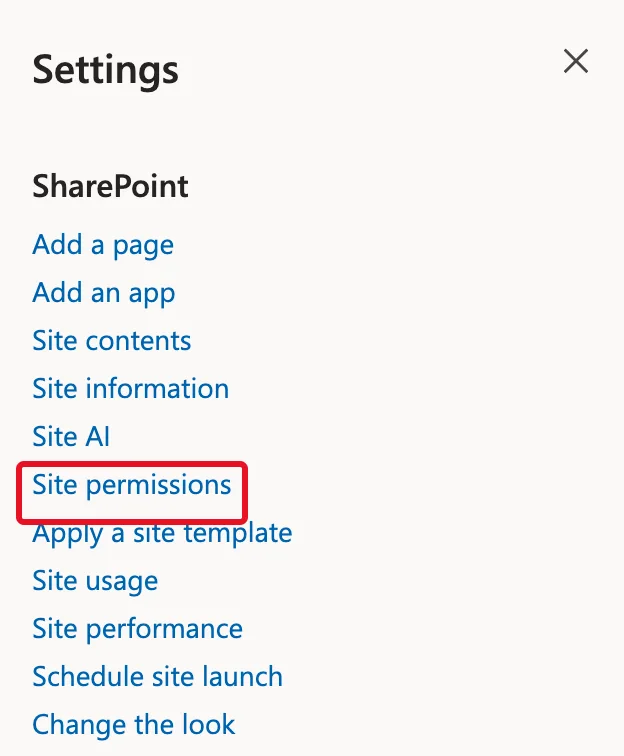
On the site, select Settings (the gear at the top right), then Site permissions:
Step 2: Select Share Site
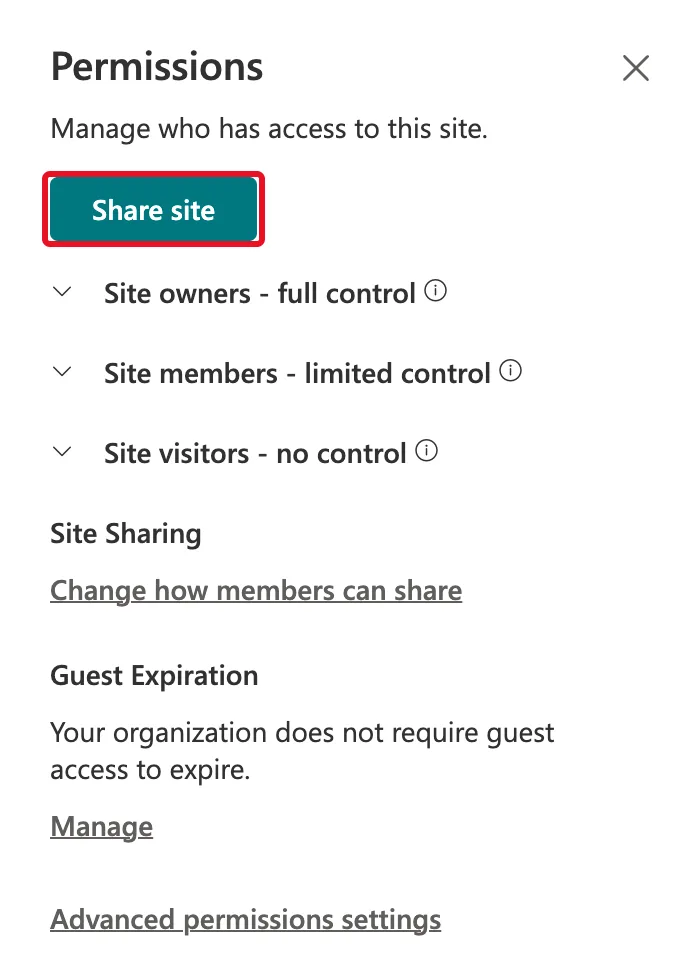
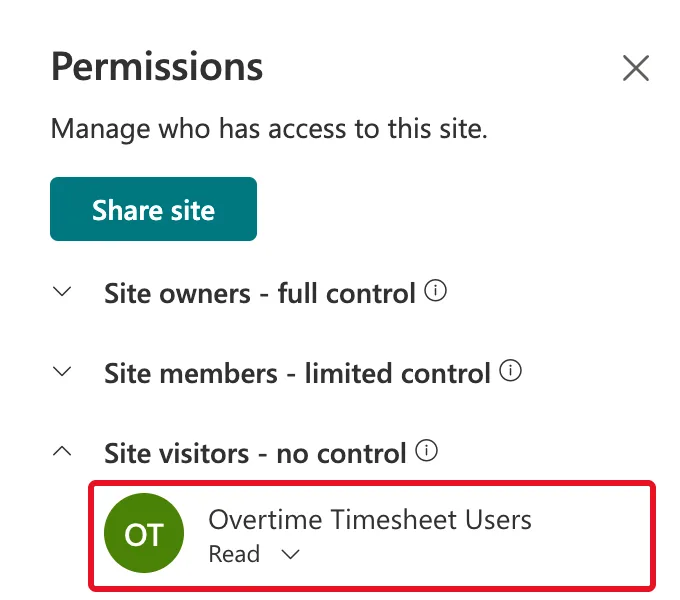
The Permissions panel lists the site's three groups as Site owners - full control, Site members - limited control and Site visitors - no control. Select Share site:
Step 3: Add the Group
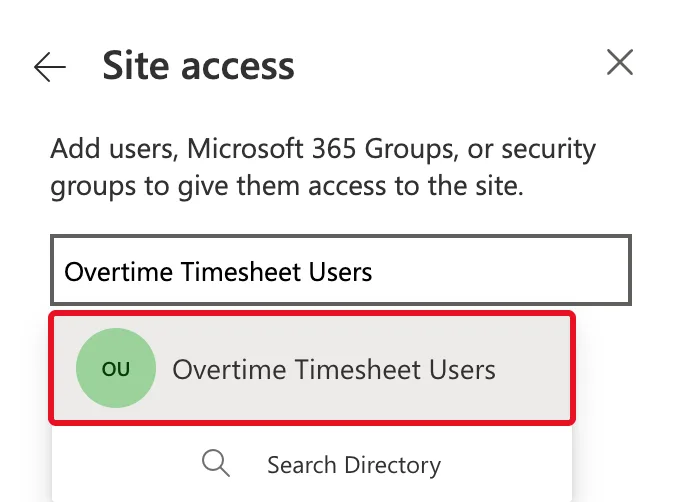
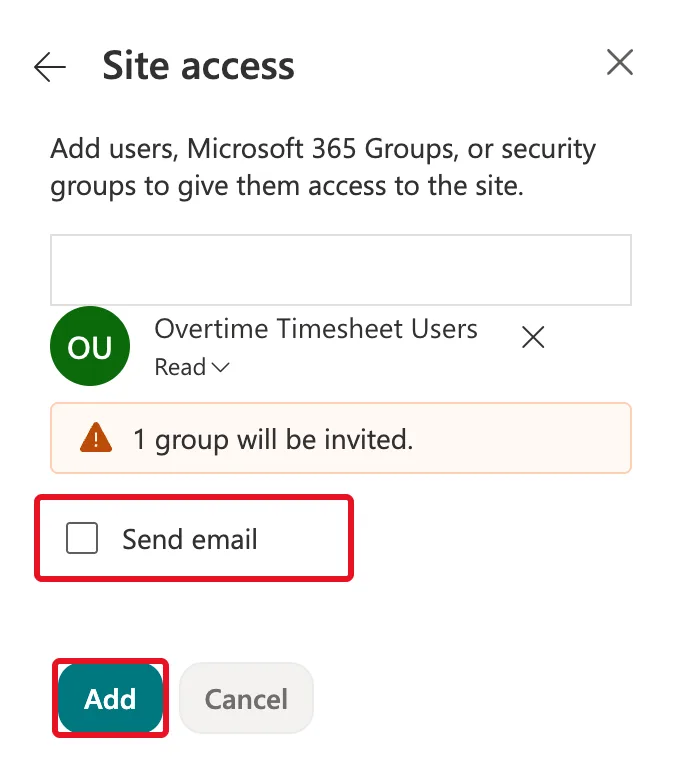
The Site access panel says: "Add users, Microsoft 365 Groups, or security groups to give them access to the site." Type the group's name and select it in the suggestions:
Step 4: Keep the Permission at Read
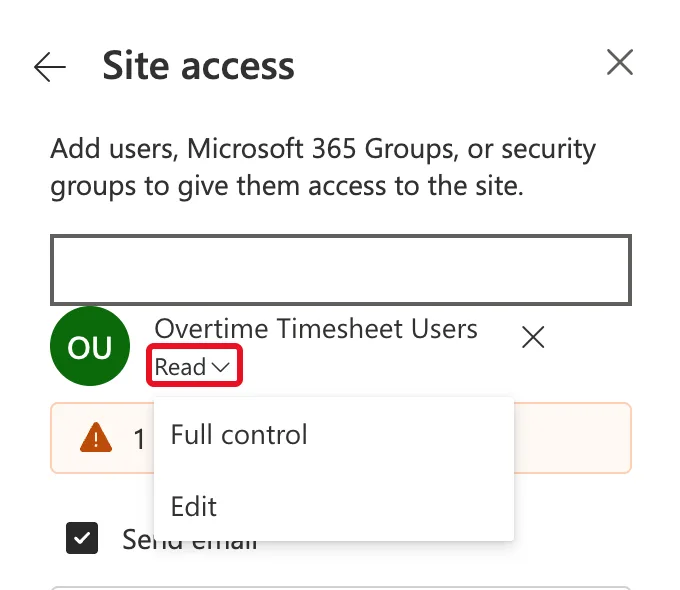
The group appears with Read under its name. That's the level this guide wants, so leave it. Its drop-down offers only Full control and Edit besides:
If a group needs to add and edit items without managing lists, none of these fits: How to Give a Security Group Access to a SharePoint Site grants Contribute through Advanced permissions settings instead.
Step 5: Clear Send Email and Add
Send email is ticked, which would email everyone in the group about the site. People who use the site through an app don't need that, so clear it. The panel still says 1 group will be invited. Select Add:
Step 6: Check the Result
The panel goes back to Permissions. Expand Site visitors - no control: the group is there, with Read:
To see what Share site did behind the scenes, select Advanced permissions settings at the bottom of the panel, then the Overtime Timesheet Visitors group. The security group is now one of its members:
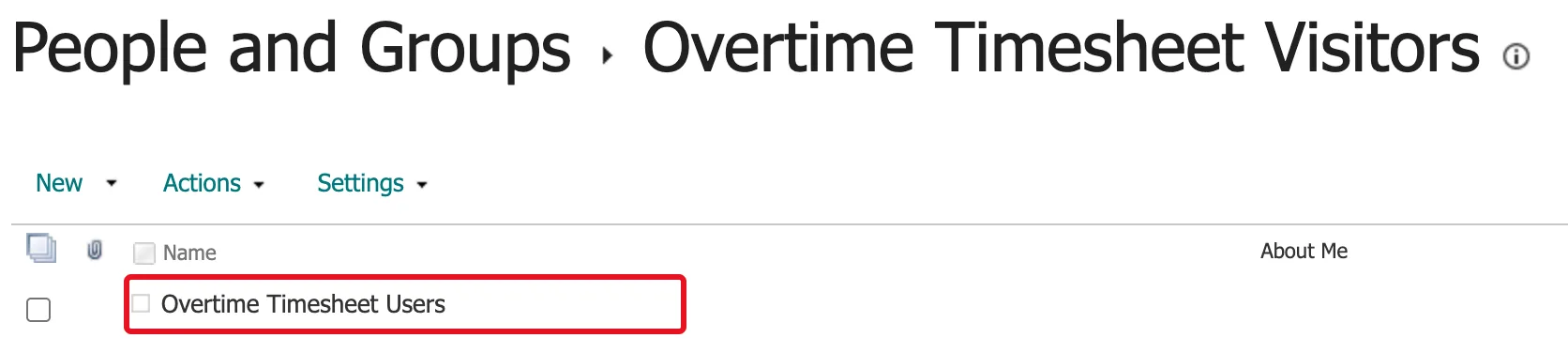
The group's description on that page reads: "Use this group to grant people read permissions to the SharePoint site: Overtime Timesheet." Everything that inherits the site's permissions now gives the group Read.
Lists With Their Own Permissions
Read reaches every list and library that inherits the site's permissions. A list that has its own permissions keeps them, and if it was given its own permissions after this step, it holds a copy of Visitors. The Overtime Timesheet series uses both facts: Departments keeps the Read, and the payroll library has the copy removed so staff can't open it. How to Stop Inheriting Permissions on a SharePoint List explains the copy.
Common Mistakes
| Mistake | What happens | Do this instead |
|---|---|---|
| Leaving Send email ticked | Everyone in the group gets an email about the site | Clear it before Add |
| Choosing Edit for people who only need to read | They can change and delete lists and items | Keep Read |
| Adding people one by one | Every joiner and leaver means another change in SharePoint | Add the security group once |
| Expecting a list with its own permissions to change | It keeps its own permissions | Check the list's own Permissions page |
Troubleshooting
| Symptom | Likely cause | Fix |
|---|---|---|
| No Share site button | You aren't an owner of the site | Ask a site owner |
| The group isn't suggested | Name mistyped, or it's a distribution list | Check the group's name and type in Microsoft Entra |
| Someone in the group still can't open a list | That list has its own permissions | Check the list's Permissions page |
FAQ
Can people with Read change anything?
No. Read is view and download only. To let them work with items, see How to Give a Security Group Access to a SharePoint Site.
Why "no control" in the panel's group names?
It's how the modern panel describes the groups: owners have full control of the site, visitors have none. The permission level behind Site visitors is still Read.
Does the group need a Microsoft 365 group?
No. A security group works; the panel's text names both kinds.
Conclusion
Settings → Site permissions → Share site, add the group, keep Read, clear Send email, Add. The group joins the site's Visitors group, so everything that inherits the site's permissions becomes readable to it.
