How to Give a Group Access to One SharePoint List

To let a group work in one SharePoint list, and only that list, grant the group a permission level on the list itself. Grant Permissions on the list's Permissions page opens a Share dialog that defaults to Edit with an email invitation, so open Show options and change both before you share.
This guide gives the staff group of the Overtime Timesheet series, Overtime Timesheet Users, the level Contribute Without Delete on the OvertimeEntries list.
Prerequisites
- Owner of the site.
- The list has its own permissions. Grant Permissions only appears on a list that doesn't inherit: How to Stop Inheriting Permissions on a SharePoint List.
- A security group: How to Create a Security Group in the Microsoft Entra Admin Center.
- The permission level you'll grant. This guide uses a custom one: How to Create a Custom Permission Level in SharePoint. Any built-in level works the same way.
Step 1: Open the List's Permissions and Grant
Settings → List settings → Permissions for this list, then Grant Permissions on the ribbon. The list here already has only its owners, after How to Remove a Group's Permissions from a SharePoint List.
Step 2: Add the Group and Show Options
The Share 'OvertimeEntries' dialog opens on Invite people. Type the group's name, pick it from the suggestions, and select SHOW OPTIONS. The defaults appear: Send an email invitation ticked and Select a permission level set to Edit:
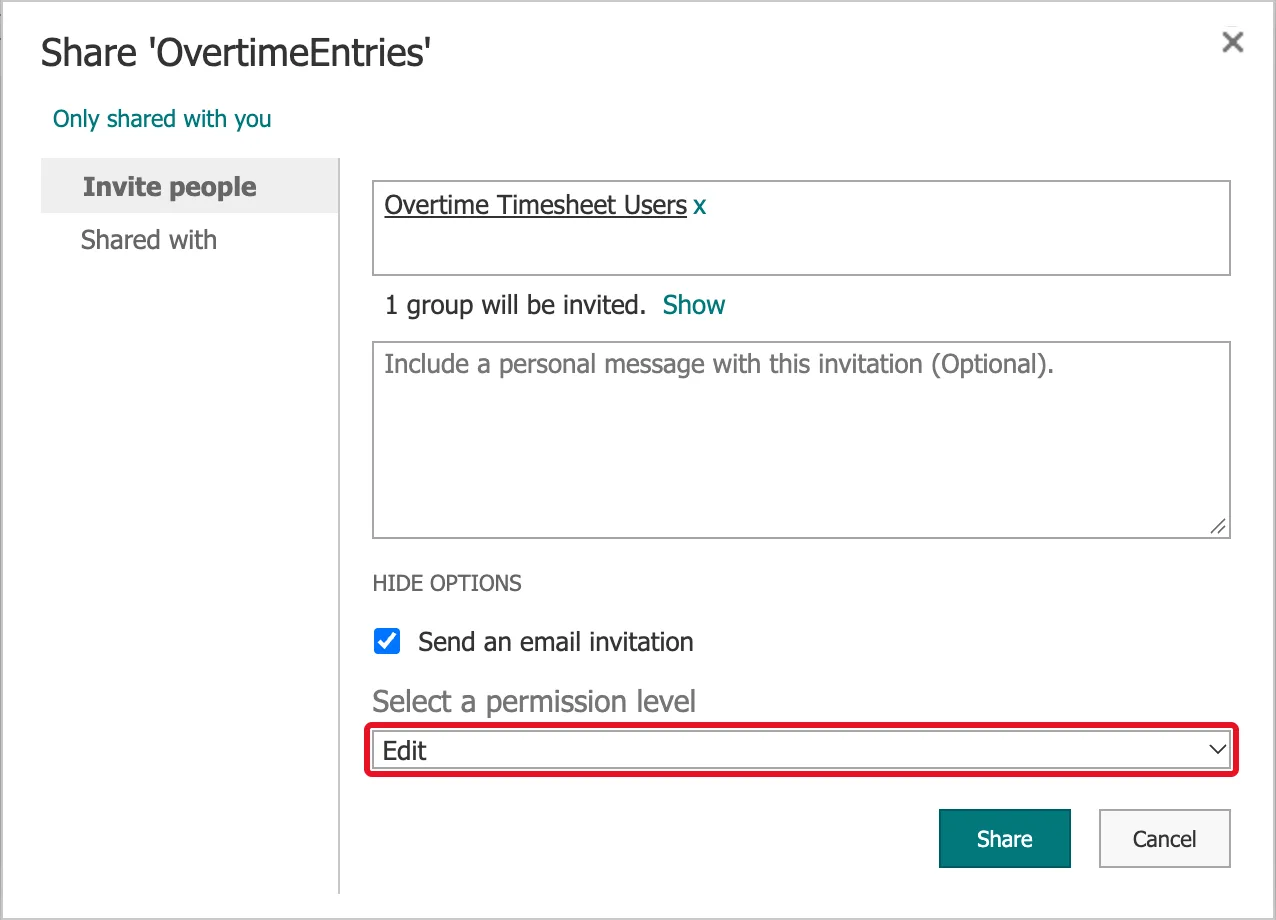
Microsoft's Customize permissions for a SharePoint list or library confirms both: "The permission level granted is set to Edit by default" and "An email message will be sent to everyone in the Invite people box."
Edit includes Manage Lists, which lets people change or delete the list itself. For people who only work with items, it's too much.
Step 3: Choose the Level and Clear the Email
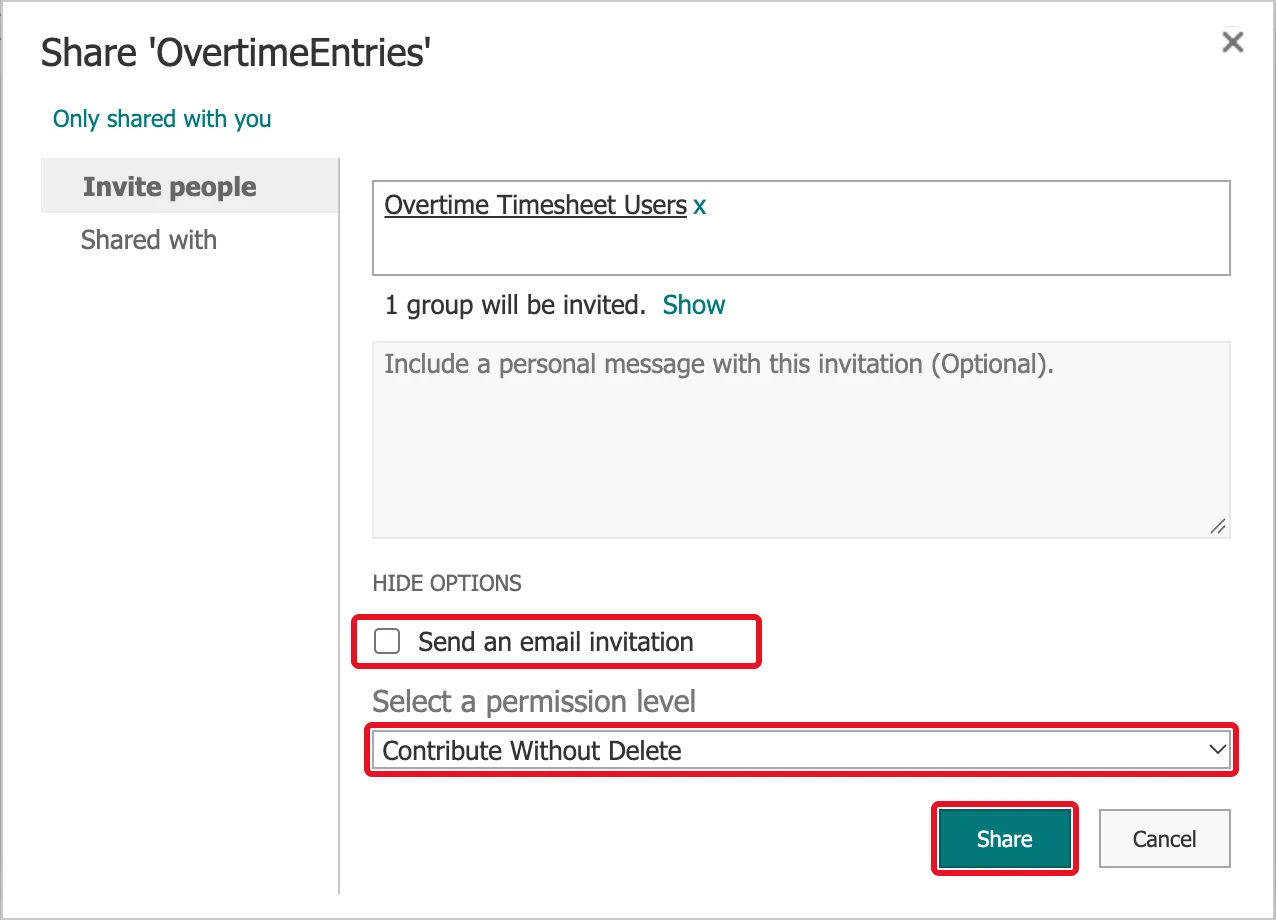
- Clear Send an email invitation.
- In Select a permission level, choose the level. The list holds the site's levels: Full Control, Design, Edit, Contribute, Read, and any custom ones, here Contribute Without Delete.
Then select Share:
Step 4: Check the Result
SharePoint briefly confirms Shared with: Overtime Timesheet Users. Reload the page: the group is listed with its level. Domain Group is how SharePoint labels a Microsoft Entra security group:

To confirm what a member of the group gets, use Check Permissions on the same ribbon with one of their names. For Aisha Khan, a staff nurse on the demo team:
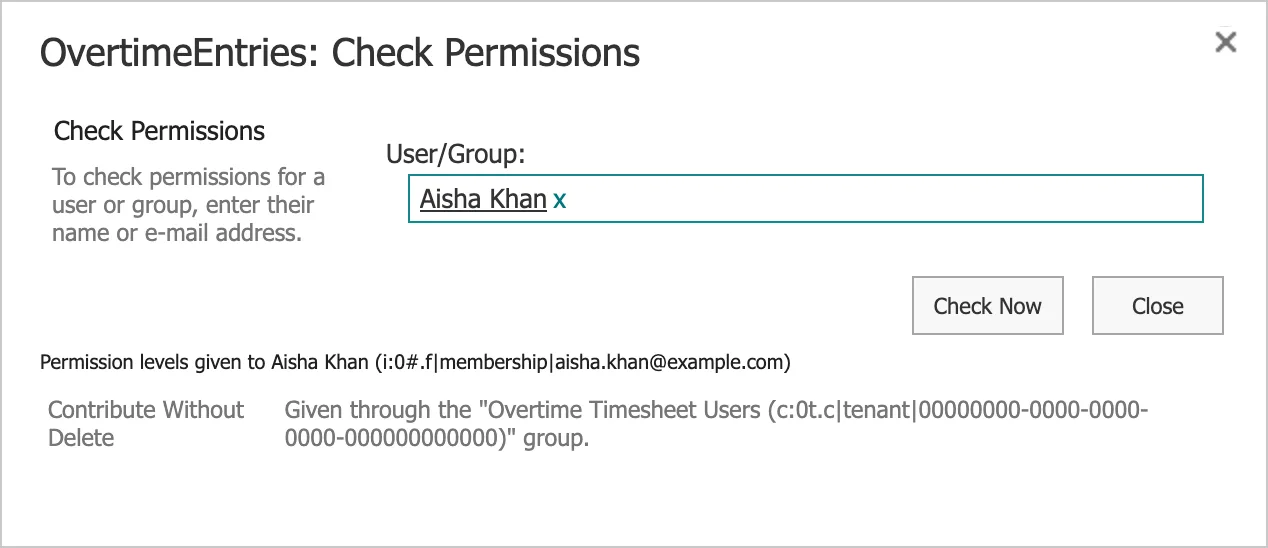
How to Check a User's Permissions in SharePoint explains the dialog.
Does the Group Also Need the Site?
To open a list, a person needs some access to the site above it. SharePoint handles that on its own: Microsoft's Permission levels in SharePoint says it gives Limited Access "to other required locations, such as the site or library in which the single item is located," and that Limited Access "doesn't grant any additional permissions to the user." After this step, the site's Permissions page showed the note There are limited access users on this site.
In the Overtime Timesheet series, staff also have Read on the whole site through its Visitors group, so they can open the site's pages too: How to Give a Group Read-Only Access to a SharePoint Site.
Common Mistakes
| Mistake | What happens | Do this instead |
|---|---|---|
| Sharing without SHOW OPTIONS | The group gets Edit and an email | Open the options first |
| Granting to people one by one | Every joiner and leaver means another change | Grant to a security group |
| Granting on a list that still inherits | There's no Grant Permissions on its page | Stop inheriting first |
Troubleshooting
| Symptom | Likely cause | Fix |
|---|---|---|
| Your custom level isn't in the list | It was made on another site collection | Create it on this site |
| The group isn't suggested | It's a distribution list, or the name is mistyped | Microsoft's article: "You cannot grant access to a distribution group that is not a Windows security group." |
| The group doesn't appear after Share | The page hasn't refreshed | Reload it |
FAQ
What does "Only shared with you" mean at the top of the dialog?
It summarises who the list is shared with before you add anyone. With only the owners on the list, it read Only shared with you.
Can I grant more than one level?
Yes, though one is clearer. Microsoft's SharePoint site permissions explains that several levels combine into "the union of the individual permissions."
Conclusion
Permissions for this list → Grant Permissions → add the group → SHOW OPTIONS → clear the email → choose the level → Share. Check the result with Check Permissions.
