How to Give a Group Access to a SharePoint List with the REST API in Power Automate

A flow can give a Microsoft Entra security group access to one SharePoint list with three REST requests: add the group to the site, read the permission level's ID, and assign that level to the group on the list. All it needs from you is the group's Object ID.
Syntax
All three requests go through Send an HTTP request to SharePoint (How to Use Send an HTTP Request to SharePoint), with the header Accept: application/json;odata=nometadata.
Add the group to the site
| Field | Value |
|---|---|
| Method | POST |
| Uri | _api/web/ensureuser |
| Headers | Content-Type: application/json;odata=verbose, as well as Accept |
{
  "logonName": "c:0t.c|tenant|<group object ID>"
}
<group object ID>: the group's Object ID in Microsoft Entra (How to Find a Group's Object ID in Microsoft Entra).
Microsoft's Webs REST API reference describes EnsureUser as: Checks whether the specified login name belongs to a valid user in the site. If the user doesn't exist, adds the user to the site. It works for groups too, and its answer's Id is the number SharePoint uses for the group on that site.
c:0t.c|tenant| is how SharePoint names a security group. Microsoft documents the name of a Microsoft 365 group, c:0o.c|federateddirectoryclaimprovider|<id>, in Modernize your sites: connect to a Microsoft 365 group, but I found no page that documents the one for security groups. c:0t.c|tenant|<Object ID> is the form SharePoint itself showed for every security group on my sites, in the site's users and in Check Permissions.
Read the level's ID
| Field | Value |
|---|---|
| Method | GET |
| Uri | _api/web/roledefinitions/getbyname('<level name>')?$select=Id |
<level name>: the name on the site's Permission Levels page, such asReadorContribute.
Assign the level
| Field | Value |
|---|---|
| Method | POST |
| Uri | _api/web/lists/getbytitle('<list name>')/roleassignments/addroleassignment(principalid=<group ID>,roledefid=<level ID>) |
<list name>: the list's title, as in Site contents.<group ID>: theIdfromensureuser.<level ID>: theIdfromgetbyname.
The request has no body. Microsoft's Users, groups, and roles REST API reference defines principalid as the ID of the user or group to assign permissions to, and adds: To use this method on an object that inherits permissions, you first have to call the BreakRoleInheritance method on the object.
The Example
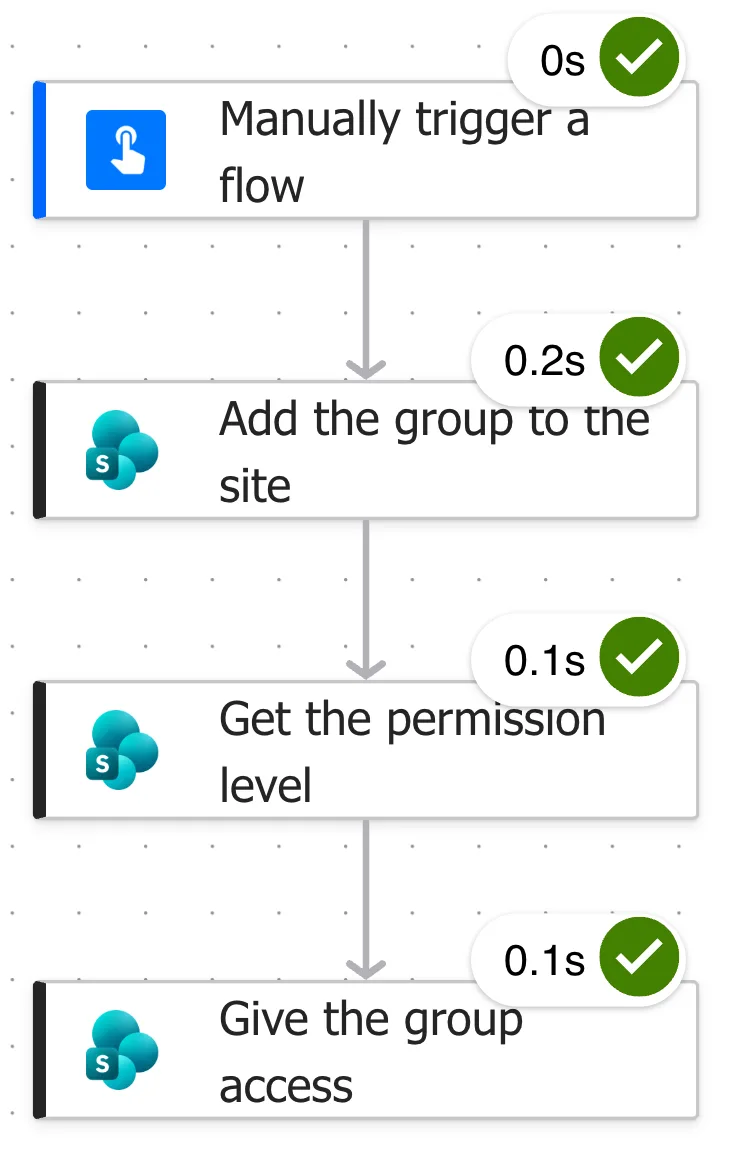
A security group in Microsoft Entra, Suggestions Team, gets the Read and Add level on the Suggestions list of the root site contoso.sharepoint.com. The list already has its own permissions (How to Stop Inheriting Permissions on a SharePoint List with the REST API in Power Automate), and Read and Add is a custom level (How to Create a SharePoint Permission Level with the REST API in Power Automate). The flow, Give a Group Access to a List, has four parts:
- Manually trigger a flow, with a text input Group ID.
- Add the group to the site, the
ensureuserPOST. - Get the permission level, the GET.
- Give the group access, the
addroleassignmentPOST.
Prerequisites
- Full Control of the site for the account the flow's SharePoint connection uses. Changing a list's permissions needs the Manage Permissions permission, which only Full Control includes by default.
- The list has its own permissions. A list that still inherits its site's permissions has to stop inheriting first.
Step 1: Ask for the Group's Object ID
Create an instant flow with Manually trigger a flow (How to Create an Instant Cloud Flow Inside a Solution in Power Automate) and add a text input called Group ID, with the description The Object ID of the group in Microsoft Entra (How to Add a Text Input to a Manually Triggered Flow in Power Automate):
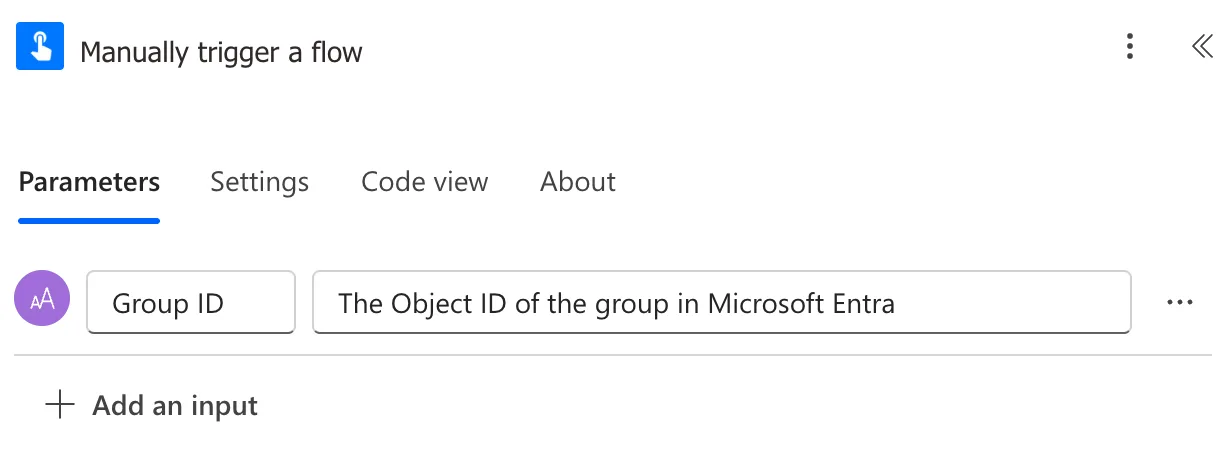
An input keeps the ID out of the flow, so the same flow works for any group.
Step 2: Add the Group to the Site
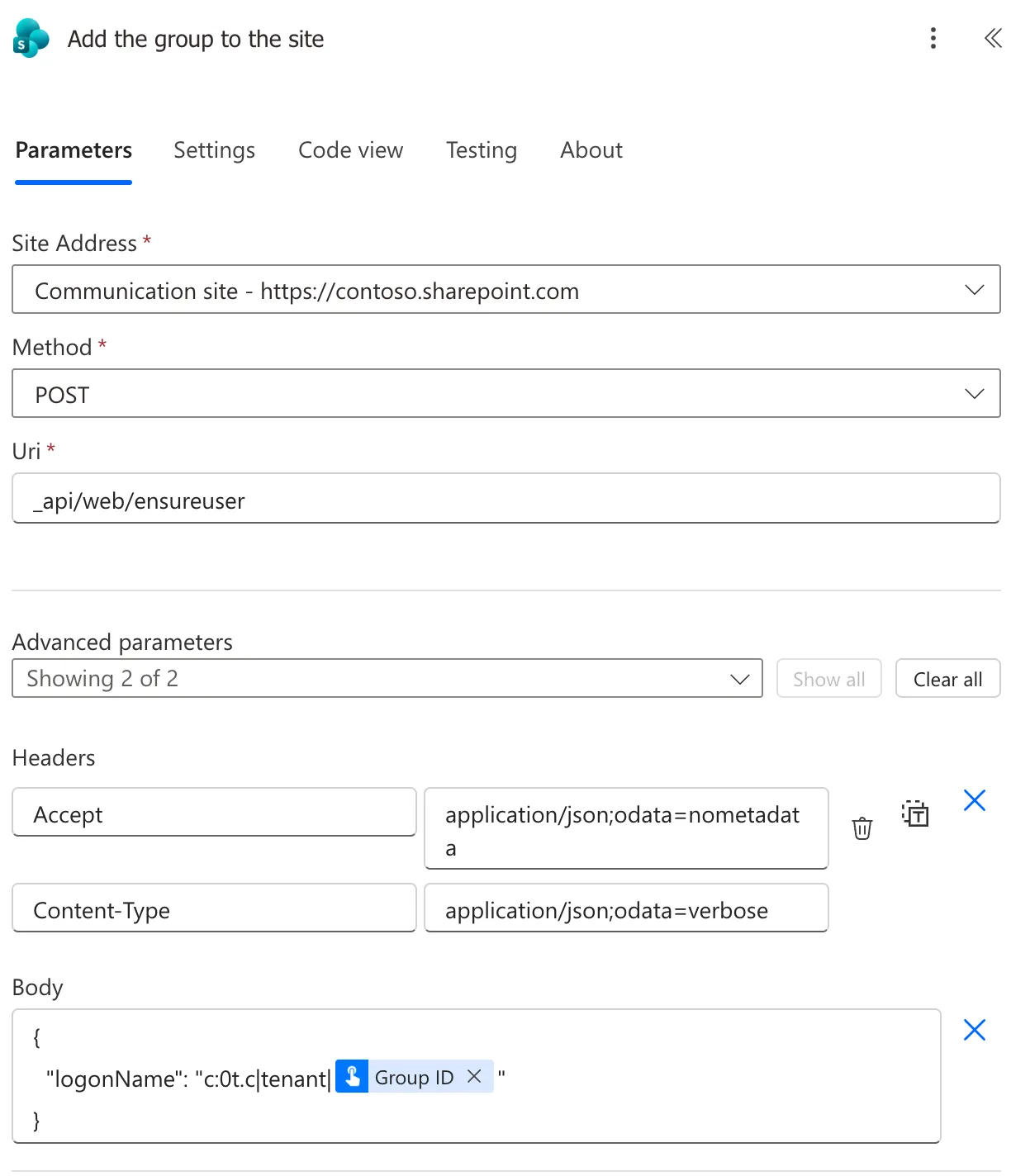
Add Send an HTTP request to SharePoint and rename it Add the group to the site:
| Field | Value |
|---|---|
| Site Address | Your site |
| Method | POST |
| Uri | _api/web/ensureuser |
| Headers | Accept: application/json;odata=nometadata |
Content-Type: application/json;odata=verbose |
In Body, type the JSON and put the Group ID from the trigger's dynamic content right after tenant|:
{
  "logonName": "c:0t.c|tenant|@{triggerBody()?['text']}"
}
Step 3: Read the Level's ID
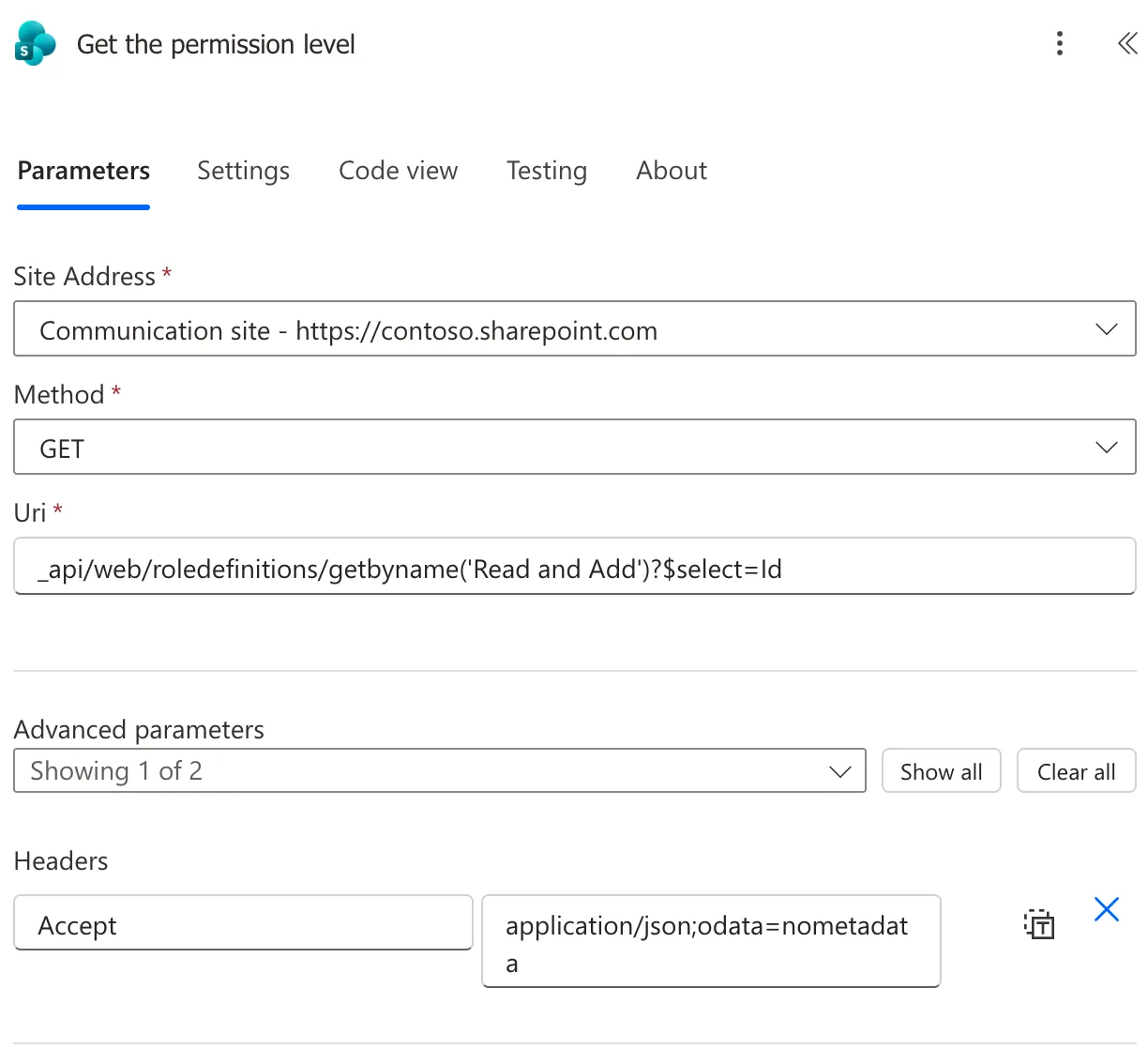
Add Get the permission level:
| Field | Value |
|---|---|
| Site Address | Your site |
| Method | GET |
| Uri | _api/web/roledefinitions/getbyname('Read and Add')?$select=Id |
| Headers | Accept: application/json;odata=nometadata |
Step 4: Give the Group Access
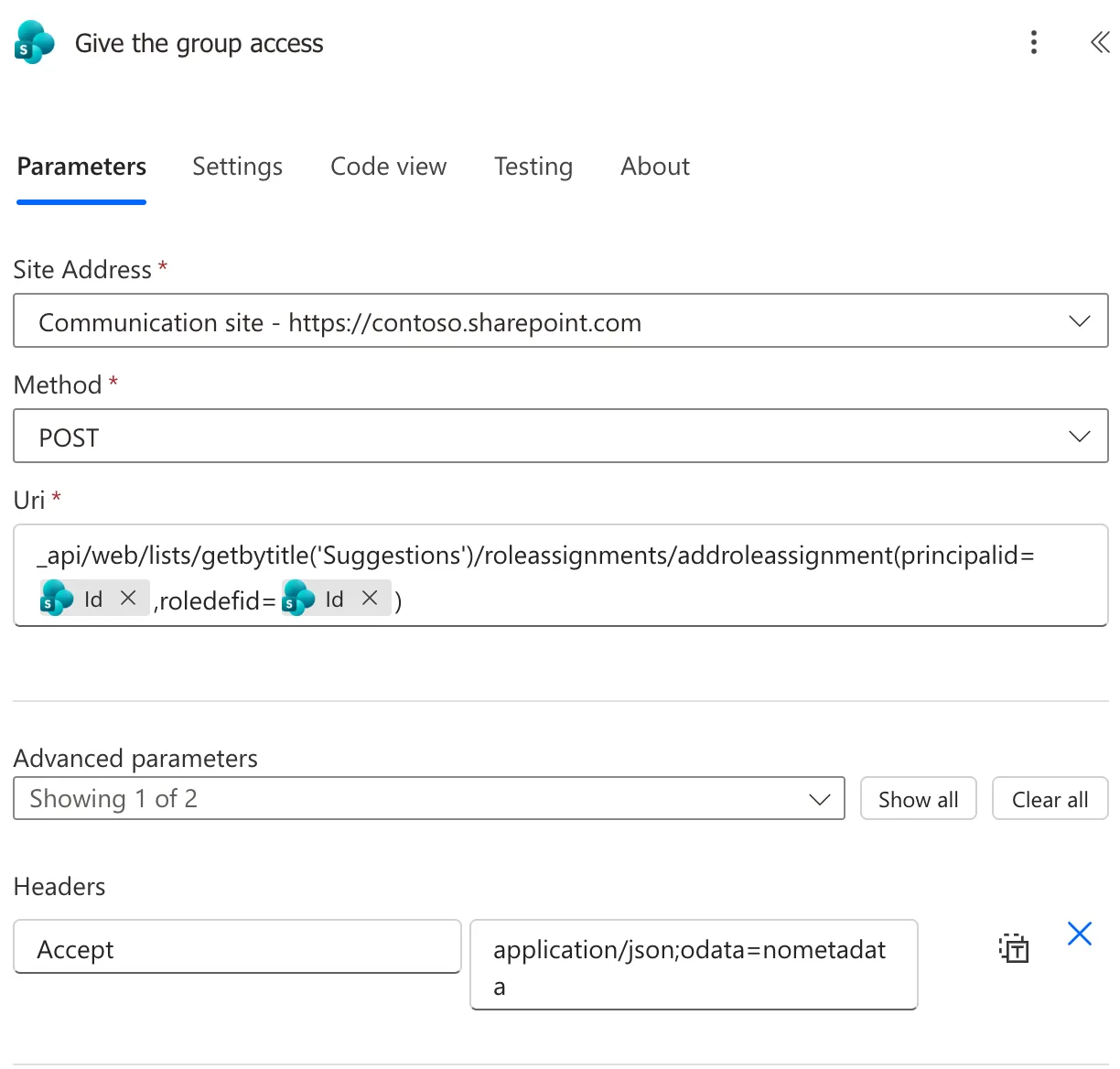
Add Give the group access. Type the Uri, and add these two expressions where the IDs go (How to Add an Expression in Power Automate):
body('Add_the_group_to_the_site')?['Id']
body('Get_the_permission_level')?['Id']
| Field | Value |
|---|---|
| Site Address | Your site |
| Method | POST |
| Uri | _api/web/lists/getbytitle('Suggestions')/roleassignments/addroleassignment(principalid= Id ,roledefid= Id ) |
| Headers | Accept: application/json;odata=nometadata |
The designer shows each expression as an Id token:
Step 5: Run the Flow
Save the flow and run it (How to Run an Instant Cloud Flow in Power Automate). Paste the group's Object ID into Group ID and select Run flow. All four steps succeeded:
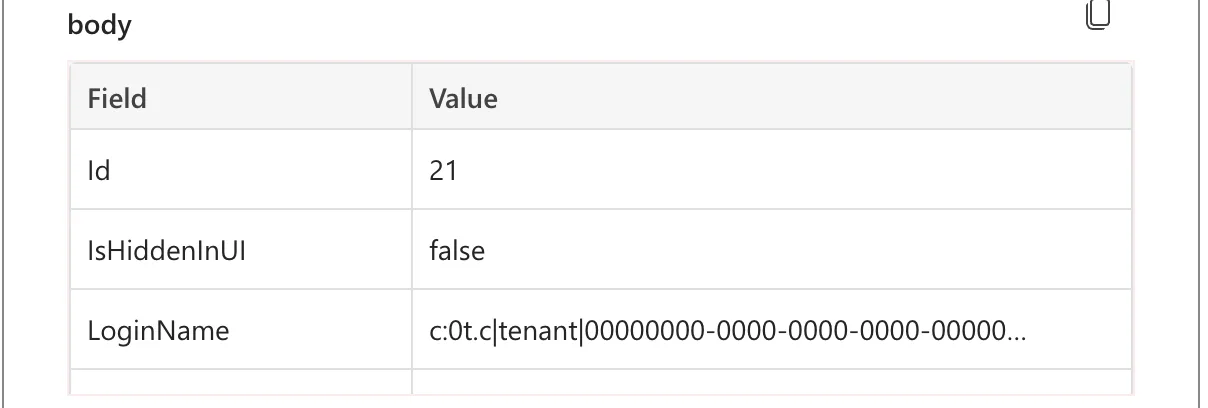
The body of Add the group to the site shows the group as SharePoint sees it: Id 21 on this site, and the login name c:0t.c|tenant| followed by the Object ID. Further down it had Title Suggestions Team and PrincipalType 4, which Microsoft's PrincipalType enum lists as a security group:
The Result
The list's permissions page, List settings > Permissions for this list, lists Suggestions Team as a Domain Group with Read and Add:

Everyone you add to the group in Microsoft Entra gets that access, without another change in SharePoint.
Common Mistakes
| Mistake | What happens | Do this instead |
|---|---|---|
Using the Object ID as principalid | principalid is SharePoint's own number for the group on that site | Use the Id from ensureuser |
Using the group's name in logonName | The login name is built from the Object ID | Use c:0t.c|tenant| and the Object ID |
| Assigning on a list that still inherits | Microsoft's reference says to break inheritance first | Stop inheriting before you assign |
| Typing the level's ID by hand | A custom level's ID belongs to one site | Read it with getbyname |
Troubleshooting
| Symptom | Likely cause | Fix |
|---|---|---|
| Add the group to the site fails | The Object ID is wrong or incomplete | Copy it again from Microsoft Entra |
| Get the permission level fails | No level with that name on the site | Check the name on Permission Levels |
| An access-denied error | The connection's account can't manage permissions | Use an account with Full Control |
FAQ
What happens if I run the flow again?
The same requests succeed again, and the list still has one entry for the group. I saw this when the Overtime Timesheet setup flow ran twice with these requests: nothing was added a second time.
Does this work for one person instead of a group?
Yes. Send the person's login name to ensureuser instead, as in How to Get a Person's SharePoint User ID with EnsureUser in Power Automate, and use the Id it returns as principalid. A group is easier to keep up to date.
Can I do this without a flow?
Yes, with Grant Permissions on the list's permissions page: How to Give a Group Access to One SharePoint List.
Conclusion
POST {"logonName": "c:0t.c|tenant|<group object ID>"} to _api/web/ensureuser for the group's Id on the site, read the level's Id with roledefinitions/getbyname('<level name>'), and POST to …/roleassignments/addroleassignment(principalid=<group ID>,roledefid=<level ID>). The group then has that level on the list.
Additional Resources
- Set custom permissions on a list by using the REST interface
- Users, groups, and roles REST API reference:
AddRoleAssignmentandGetByName. - Webs REST API reference:
EnsureUser.
