How to Get the Smallest Value in Power Apps with Min

Min returns the smallest of its numbers. Besides finding the lowest value in a list, it's the simplest way to give a control a maximum size: "as wide as the screen allows, but never wider than 640 pixels".
Syntax
Min( NumericalFormula1, [ NumericalFormula2, ... ] )
Min( Table, NumericalFormula )
From Microsoft's aggregate functions reference:
NumericalFormula1,NumericalFormula2, ...: the numbers to compare. The first is required.TableandNumericalFormula: a table, and a formula worked out for each of its records, often a column. Min returns the smallest result.- The result is the smallest number. The reference adds that these functions operate on numeric values only, and that other types of values, such as text, are ignored.
Max works the same way for the largest value (How to Get the Largest Value in Power Apps with Max).
The example is the Reports screen of the Overtime Timesheet app. Its list of people, the gallery galPeopleRS, sits in a vertical container. On a laptop, cards as wide as the screen would be hard to read; on a phone, they should use the whole width.
Step 1: Write the Width
Select the gallery, choose Width in the property list, and enter:
Min(640, Parent.Width - 48)
640is the widest the gallery may be.Parent.Width - 48is the width of the container the gallery is in, less 48 pixels of margin (How to Use Self and Parent in Power Apps).- Min takes whichever is smaller.
Step 2: Check the Result on a Wide Screen
Select the formula bar to see what the formula returns (How to See What a Formula Returns in Power Apps Studio). At Studio's default size, 1366 by 768, the container is wider than 688 pixels, so Min returns 640:

Step 3: Check It on a Small Screen
Studio's status bar, under the canvas, has buttons that show the screen at other sizes; they don't change the app. With Small 600x768 selected, the same formula returns 536, the container's width less 48:

Select Default 1366x768 again when you've checked.
The Result
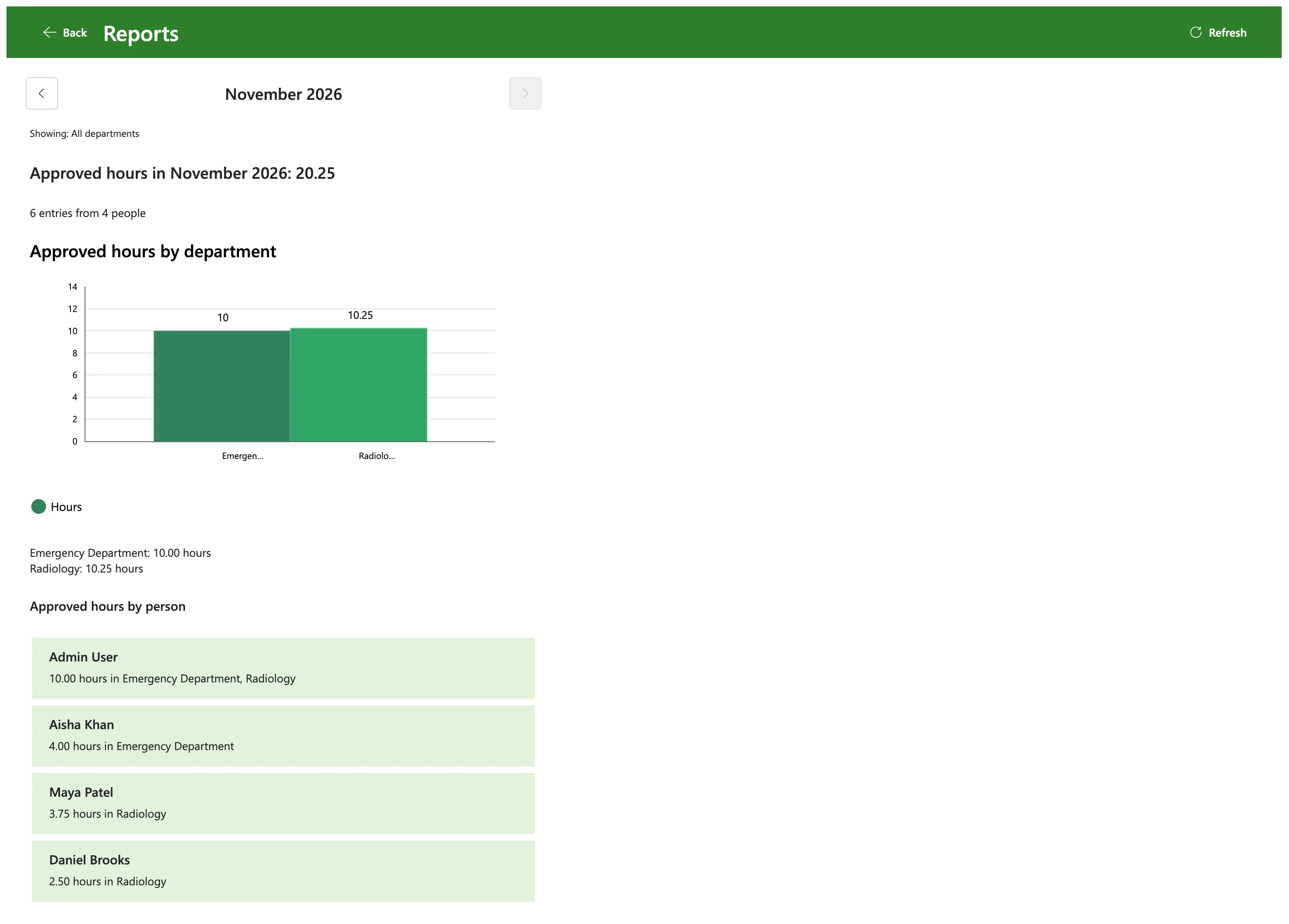
In the app on a laptop, the cards stop at 640 pixels, on the left under the chart:
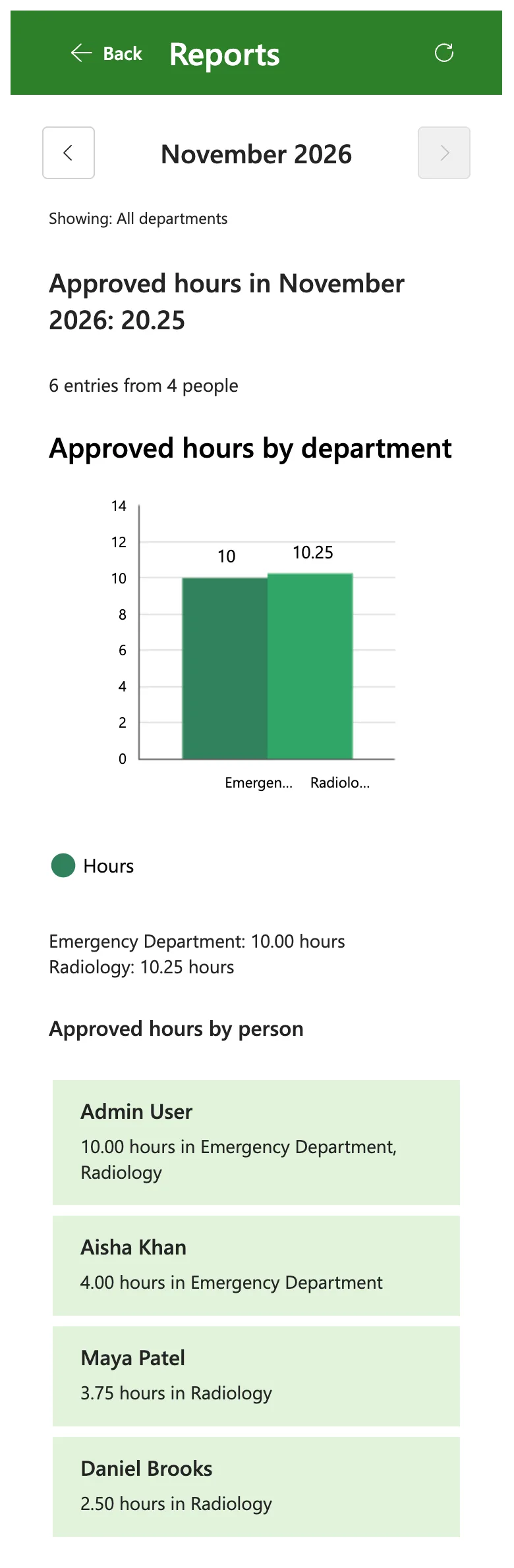
On a phone, they fill the width, less the margins:
Common Mistakes
| Mistake | What happens | Do this instead |
|---|---|---|
| Max for a maximum width | The control is never narrower than the limit, even on a phone | Min for an upper limit |
Parent.Width without a margin | The control touches both edges of its container | Subtract the margins |
Text numbers, such as "640" | The reference says other types are ignored | Use numbers, or convert with Value |
| Min over a large SharePoint list without checking | Only the rows downloaded may be counted | Check the delegation warning |
Troubleshooting
| Symptom | Likely cause | Fix |
|---|---|---|
| The width is always 640 | Studio is showing its default size | Check at a small size, or on a phone |
| The control is wider than the screen on a phone | The width is a fixed number | Min(<limit>, Parent.Width - <margins>) |
| A delegation warning on Min | The table is a data source that can't do it on the server | See Microsoft's delegation notes for the source |
FAQ
Can Min take more than two numbers?
Yes: Min(a, b, c, ...) returns the smallest of them all.
What's the table form for?
The smallest value in a column, such as the shortest shift: Min(Entries, Hours) works out Hours for each record and returns the smallest.
Should I set a minimum width too?
Max(<minimum>, Min(<maximum>, Parent.Width - 48)) keeps the width between the two. The example has no minimum.
Conclusion
Min(a, b) returns the smaller number, so Min(640, Parent.Width - 48) makes a control as wide as its container allows, up to 640 pixels. The formula bar's preview strip, at Studio's sizes, shows both cases before you run the app.
