How to Get the Signed-In User in Power BI with USERPRINCIPALNAME

USERPRINCIPALNAME returns the signed-in user's user principal name (UPN), the sign-in name that looks like an email address. It's what row-level security rules compare with a table of emails, so each person sees only their rows. Here's its general form and a measure that shows who is viewing a report.
Syntax
USERPRINCIPALNAME()
From Microsoft's USERPRINCIPALNAME function reference:
- No parameters. The parentheses are still required.
- The result is the userprincipalname at connection time: the user viewing the report.
Microsoft's row-level security article adds that in the Power BI service, username() and userprincipalname() will both return the user's User Principal Name (UPN). This looks similar to an email address.
The example is a measure on the Expenses table of a semantic model, shown on a card.
Step 1: Create the Measure
Select the Expenses table and New measure (How to Create a Measure in Power BI in the Browser), and enter:
Signed in as = USERPRINCIPALNAME()

Press Enter.
Step 2: Show It on a Card
On a card (How to Add a Card to a Power BI Report), Signed in as shows the sign-in name of whoever is viewing the report, here the report's author:
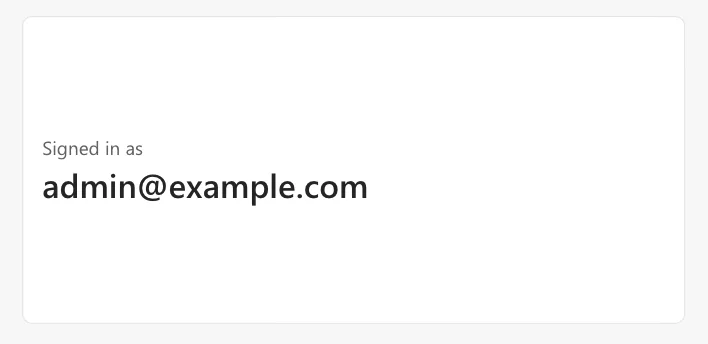
Each viewer sees their own name on the same card.
Use It in Row-Level Security
A role rule that keeps a person's own rows compares an email column with the function (How to Add Row-Level Security Roles in Power BI in the Browser):
[SubmitterEmail] = USERPRINCIPALNAME()
A Signed in as card is a quick way to check that the emails in your data match what the function returns.
Common Mistakes
| Mistake | What happens | Do this instead |
|---|---|---|
| Leaving out the parentheses | An error | USERPRINCIPALNAME() |
| Comparing it with display names | Nothing matches | Compare it with emails or UPNs |
| Assuming the UPN is always the email | People whose UPN differs from their email see nothing | Check a few users with the card |
Troubleshooting
| Symptom | Likely cause | Fix |
|---|---|---|
| A role shows no rows for someone | Their UPN isn't in the email column | Compare the card's value with the data |
| The card shows your own name while testing a role | Test as role evaluates the function as you | Test as a specific person instead (How to Test Row-Level Security in Power BI) |
| Guests see nothing | Microsoft's article says a guest's UPN can take a different form | Check what the card shows for a guest |
FAQ
What's the difference from USERNAME?
In the Power BI service, both return the UPN; in Power BI Desktop, USERNAME returns DOMAIN\User, as the row-level security article describes.
Does every viewer see their own name?
Yes. The function is worked out for whoever has the report open, so the same card shows a different name to each viewer.
Conclusion
USERPRINCIPALNAME() returns the viewer's user principal name. The example's Signed in as card showed the author's sign-in name, and the same function filters rows in a role rule.
Additional Resources
- USERPRINCIPALNAME function (DAX)
- Row-level security with Power BI: using the username() or userprincipalname() DAX function
