How to Get the Profile of the Person Running a Flow in Power Automate

Get my profile (V2), from the Office 365 Users connector, returns the profile of the account behind its connection. When that connection is provided by the person running the flow, the action tells the flow who they are: their name, email and department.
The example is Get Waiting Approvals, a flow the Overtime Timesheet app runs. It needs to know which approver opened the screen, so it can return only the entries waiting for them.
Prerequisites
- A flow that other people run, such as one with the Power Apps trigger (How to Create a Flow That Power Apps Can Run in Power Automate).
Step 1: Add Get My Profile (V2)
Add an action, search for Get my profile, and choose Get my profile (V2) under Office 365 Users. I renamed it Get the caller, so expressions that use it read clearly.
It needs no input. Its only option, under Advanced parameters, is Select fields, to return fewer fields. The pane shows which connection it uses:
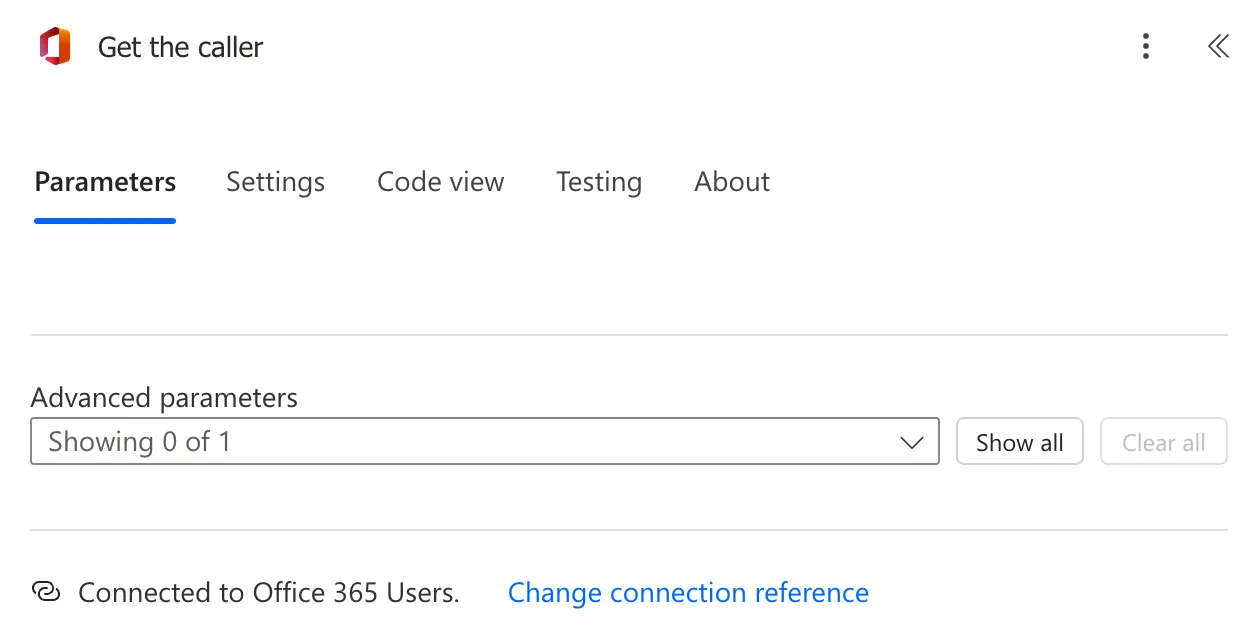
Microsoft's Office 365 Users reference describes it: Retrieves the profile for the current user. The current user is the account of the connection the action runs with.
Step 2: Read the Fields You Need
The output has fields such as displayName, givenName, department and mail. To use the email in an expression (How to Add an Expression in Power Automate):
outputs('Get_the_caller')?['body/mail']
Inside the action's name, spaces become underscores. The flow compares emails in lower case, so it wraps this in toLower().
Step 3: Make Sure It's the Runner's Connection
When the owner shares the flow with the people who run it, each connection is either the owner's or Provided by run-only user (How to Choose the Connections Run-Only Users Use in Power Automate). For this action, keep Office 365 Users as Provided by run-only user. With the owner's connection, the action would read the owner's profile for everyone.
The Result
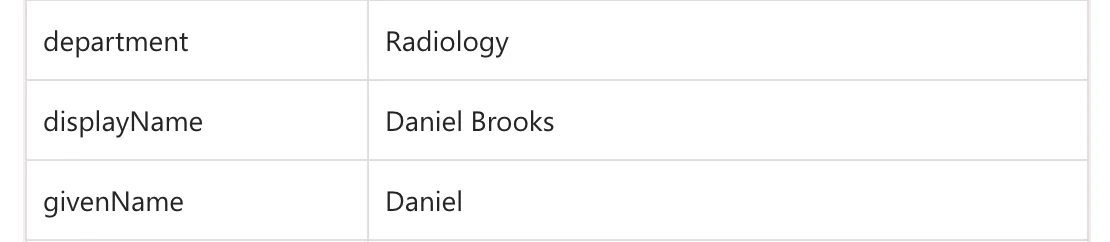
In a run started from an approver's session, Get the caller returned his own profile:
Common Mistakes
| Mistake | What happens | Do this instead |
|---|---|---|
| Using the owner's Office 365 Users connection | Every run returns the owner's profile | Provided by run-only user |
| Sending the user's email from the app as an input | Anyone could send someone else's email | Get it in the flow with Get my profile (V2) |
Comparing mail without toLower() | Capital letters stop a match | toLower() on both sides |
Troubleshooting
| Symptom | Likely cause | Fix |
|---|---|---|
| The flow always sees the same person | The connection isn't the runner's | Check Connections Used in the run-only settings |
mail is empty | The account has no mailbox email set | Check the user's email in Microsoft 365 |
| The expression can't find the action | Spaces in the action name | Use underscores: Get_the_caller |
FAQ
Why not pass the user's email from Power Apps?
Microsoft's Power Automate pane article warns that the arguments an app sends to a flow can be seen as network traffic, and to validate them in the flow. Getting the profile in the flow means a person can't ask for someone else's data by sending another email.
Does the person need a license for this?
The Office 365 Users connector is a standard connector. The flow runs on the license of the person who starts it (How to Create a Flow That Power Apps Can Run in Power Automate).
Conclusion
Get my profile (V2) with the runner's own Office 365 Users connection tells a flow who's running it. Read their email with outputs('Get_the_caller')?['body/mail'], and never take it from the app.
