How to Get the Options of a SharePoint Choice Column in Power Apps with Choices

A SharePoint Choice column already knows its options. Choices gives them to your app as a table with one column, Value. Use it as a combo box's Items, and the app lists exactly the options defined in SharePoint, with nothing typed twice.
Syntax
Choices(ColumnReference [, TextFilter])
- ColumnReference is the column, written directly on the data source, such as
RoleCompetencies.Level. Microsoft's reference says it can't go through a function, a variable or a control. - TextFilter is optional and returns only the choices that start with that text.
Microsoft's Choices function reference describes it for lookup columns, which it says work with SharePoint and Dataverse. On the SharePoint Choice column below, it returned the column's four options. The same reference notes that Choices can't be delegated, which doesn't matter for a short list of options.
Prerequisites
- A SharePoint list with a Choice column, added to the app as a data source. The example is the Level column of RoleCompetencies in the Career Development Plan app, with the options Beginner, Intermediate, Advanced and Expert (Part 2).
Step 1: Give the Options a Name
Several controls may need the same options, so name them once in App.Formulas (How to Use Named Formulas in Power Apps):
LevelOptions = Choices(RoleCompetencies.Level);

Step 2: Check What It Returns
Use the name in a property, such as a combo box's Items, and select it in the formula bar. The strip below shows Data type: Table. Selecting the arrow next to the name opens the result:
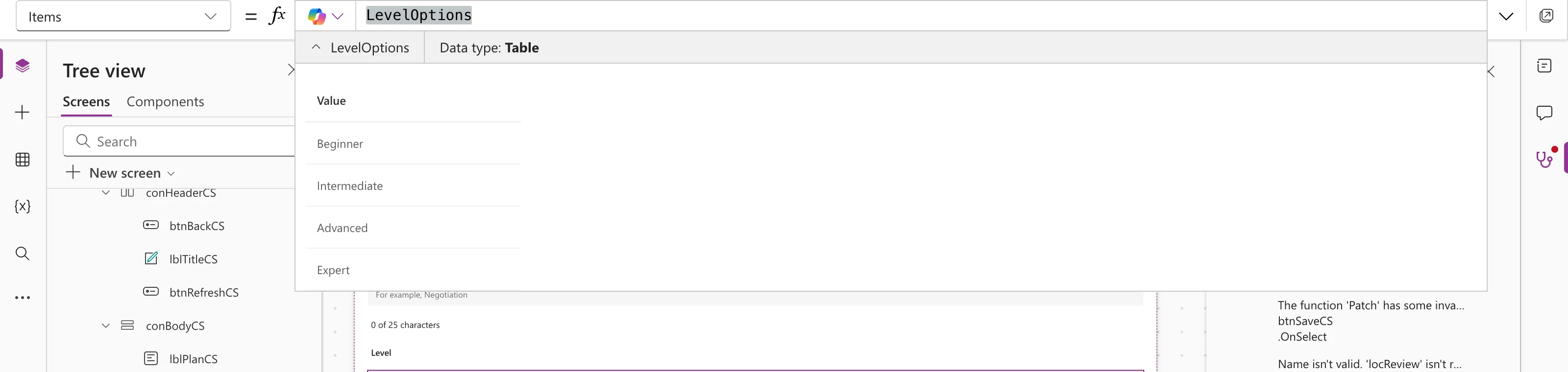
A table with one column, Value, and one row per option, in the column's order.
Step 3: Use It
As a combo box's options (How to Add a Combo Box in Power Apps):
| Property | Value |
|---|---|
| Items | LevelOptions |
| ItemDisplayText | ThisItem.Value |
To save the chosen option back to the column, Patch it as a record with Value (How to Write to a SharePoint Choice Column with Patch):
Level: {Value: cmbLevelCS.Selected.Value}
Why Not Type the Options in the App?
["Beginner", "Intermediate", "Advanced", "Expert"] works until someone renames or adds a level in SharePoint. Then the app's list and the column disagree, and someone has to remember to update the app. With Choices, the column is the only place the options are defined.
Common Mistakes
| Mistake | What happens | Do this instead |
|---|---|---|
Choices(locCompetency.Level) | Not allowed: the reference must be direct | Choices(RoleCompetencies.Level) |
Showing ThisItem in a combo box | The options don't show their text | ThisItem.Value |
| Typing the options into the app | The app and SharePoint drift apart | Read them with Choices |
Troubleshooting
| Symptom | Likely cause | Fix |
|---|---|---|
| The combo box shows sample items | Items still has the sample data | Set Items to the named formula |
| The options show no text | ItemDisplayText reads a column the table doesn't have | ThisItem.Value |
| Saving the choice fails | The value was saved as text | Patch {Value: ...} |
FAQ
Can I sort or filter the options?
Yes. Choices returns a table, so Filter, Sort and the other table functions work on it. The optional second argument keeps only the options that start with a given text.
Does Choices work with Dataverse?
Yes. Microsoft's reference uses a Dataverse lookup column as its main example.
Conclusion
Choices(List.Column) turns a Choice column's options into a table with a Value column. Name it once in App.Formulas, use it as a combo box's Items, and SharePoint stays the one place where the options live.
