How to Get the Email from a SharePoint Person Column in Power Query

A SharePoint Person column doesn't arrive in Power Query as a name or an email. In the SharePoint Online list connector's implementation 2.0, it shows as [List] or [Table]: a structured value with the person's id, name, email and more. Expanding it gives you a plain email column. Here's how, for a column that holds one person and for one that holds several.
The examples are two lists read with the SharePoint Online list connector (How to Get Data from a SharePoint List in Power BI in the Browser):
- Expenses has SubmittedBy, a Person column that holds one person. Power Query shows it as [List].
- Expense Categories has Managers, a Person column that allows several people. Power Query shows it as [Table]. The Meals category has two managers.
Emails are useful in a semantic model: row-level security matches them with the signed-in user (How to Get the Signed-In User in Power BI with USERPRINCIPALNAME).
A Column with One Person
Step 1: Expand the List
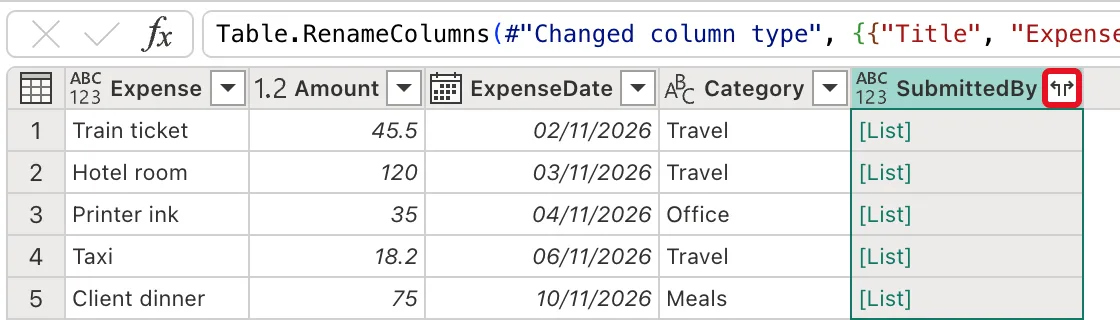
Select the expand icon at the right of the SubmittedBy header:
In the example, Power Query expanded the list to new rows straight away, with no menu. Each list holds one person, so there's still one row per expense, and each cell now shows [Record]:
Table.ExpandListColumn(#"Renamed columns", "SubmittedBy")
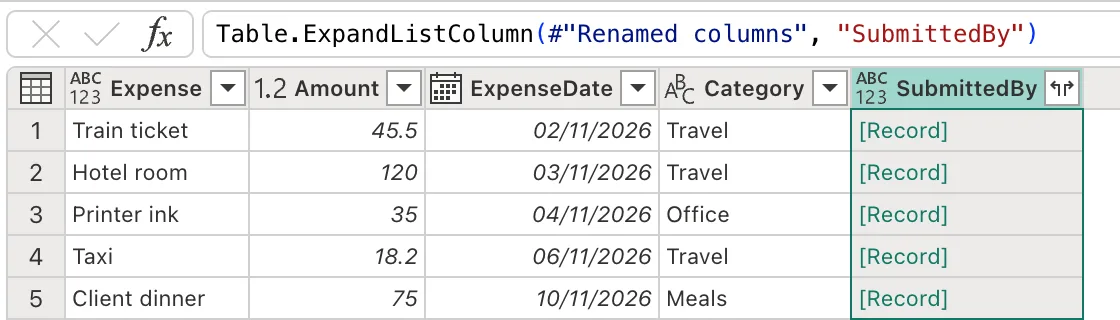
Microsoft's Table.ExpandListColumn reference says it splits the list into a row for each value, duplicating the other columns, so a list of two people would make two rows.
Step 2: Pick the Email Field
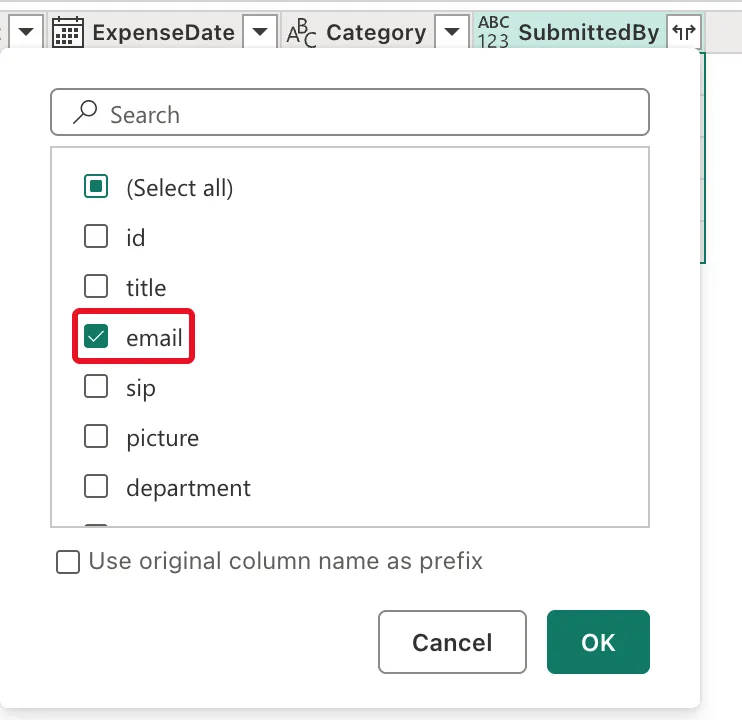
Select the expand icon again. A box lists the record's fields: id, title, email, sip, picture, department and more. Untick (Select all), tick email, and untick Use original column name as prefix, so the new column is called email rather than SubmittedBy.email:
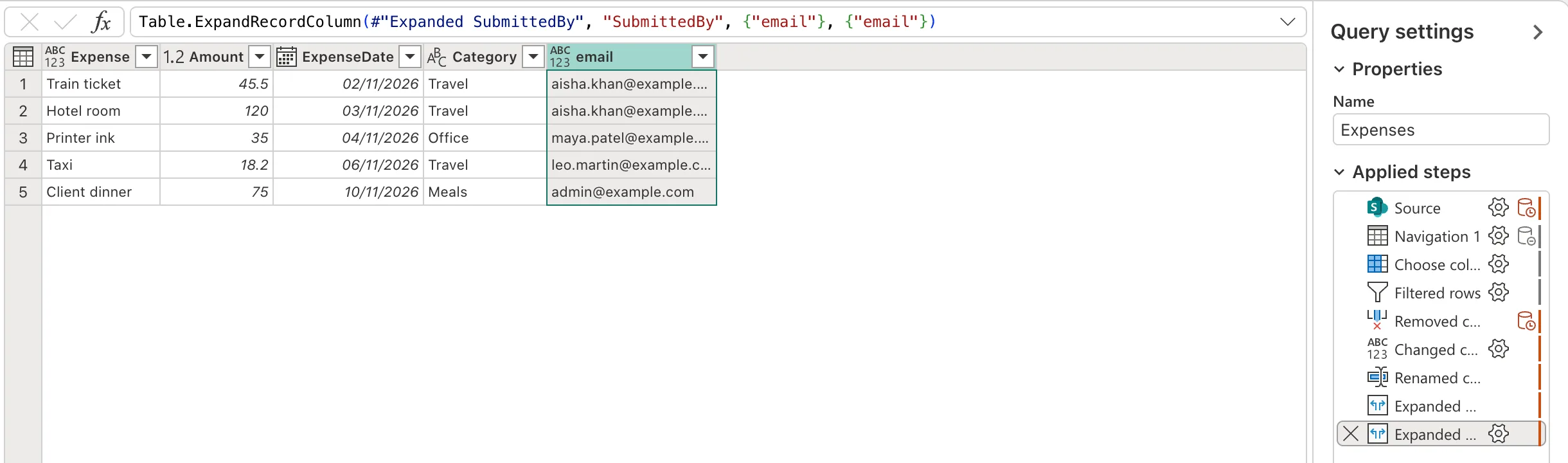
Select OK. The column becomes email, with each person's address:
Table.ExpandRecordColumn(#"Expanded SubmittedBy", "SubmittedBy", {"email"}, {"email"})
{"email"}is the fields to take from each record.- The second
{"email"}is the new columns' names.
A Column with Several People
The Managers column of Expense Categories shows [Table]: one row per person. Its expand icon opens the same kind of box, with the fields id, value, title, email, sip and picture. Tick only email, untick the prefix option, and select OK:
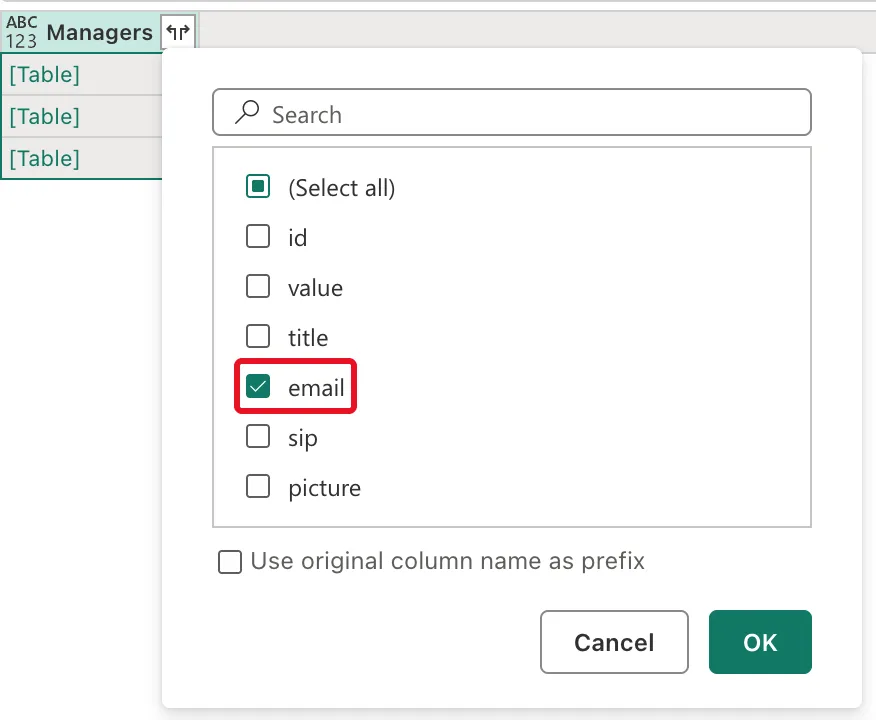
This time one step does it:
Table.ExpandTableColumn(#"Choose columns", "Managers", {"email"}, {"email"})
The three categories become four rows, because Meals has two managers:
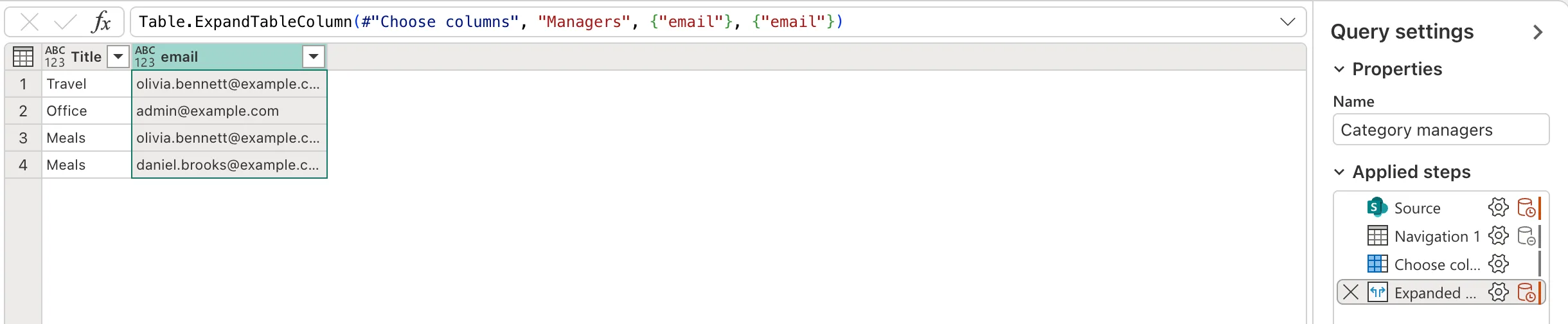
The example did this in a copy of the query, Category managers, so the original Expense Categories keeps one row per category (How to Duplicate a Query in Power Query).
The new email columns have the ABC 123 icon, any type. Give each a clearer name, such as SubmitterEmail or ManagerEmail (How to Rename a Column in Power Query), and the Text type (How to Change a Column's Data Type in Power Query).
Common Mistakes
| Mistake | What happens | Do this instead |
|---|---|---|
| Expanding a multi-person column in the main table | Rows with several people are repeated, and totals double count | Expand it in a separate query |
| Leaving the prefix option ticked | The column is called SubmittedBy.email | Untick Use original column name as prefix |
| Taking title for matching people | Names aren't unique and can change | |
| Leaving the new column as any type | The model guesses its type | Set Text |
Troubleshooting
| Symptom | Likely cause | Fix |
|---|---|---|
| The expand box lists no email | The column isn't a Person column | Check the column's type in SharePoint |
| Some emails are empty | The item has nobody in the column | Filter out empty emails if you need to |
| More rows than items | The column holds several people | Expected for a multi-person column; use a separate query |
FAQ
Why does one person come in as a list?
That's how implementation 2.0 of the connector returned it in the example: a list with one record. Expanding the list, then the record, gives one email per row.
Can I get the person's name too?
Yes: tick title as well as email in the expand box.
Does this work in Power BI Desktop?
Yes. The expand icon and the three functions are the same in every Power Query.
Conclusion
A single-person column: expand the list, then pick email from the record. A multi-person column: expand the table and pick email, which makes one row per person. Untick the prefix option, rename the column and set it to Text.
Additional Resources
- Table.ExpandListColumn
- Table.ExpandRecordColumn
- Table.ExpandTableColumn
- Power Query SharePoint Online list connector
