How to Get the Current User's Profile and Job Title in Power Apps (MyProfileV2)

User() gives you a name and an email, but not a job title, department or first name. For those, the Office 365 Users connector has Get my profile (V2), called Office365Users.MyProfileV2() in Power Apps. Here's how to call it, how to ask for only the fields you need, and where to keep the result.
Prerequisites
- The Office 365 Users data source in your app. It's a standard connector, included with Microsoft 365 licenses. Part 3 of the Career Development Plan series adds it; see Part 3: Create the Solution, Environment Variables and Canvas App.
- Named formulas. See How to Use Named Formulas in Power Apps. The example is the Career Development Plan app, from Part 4 of the series.
Step 1: Call MyProfileV2 in a Named Formula
In App → Formulas, add:
MyProfile = Office365Users.MyProfileV2({'$select': "id,displayName,givenName,mail,userPrincipalName,jobTitle"});

Two things about this formula:
'$select'is the connector's Select fields parameter: a comma-separated list of the fields to return. The name starts with$, so it goes in single quotes inside the record.- The field names are camelCase, such as
jobTitleandgivenName, because MyProfileV2 returns a Microsoft Graph user.
Use V2: the original Get my profile (V1) is marked deprecated in the connector reference.
Step 2: Read a Field
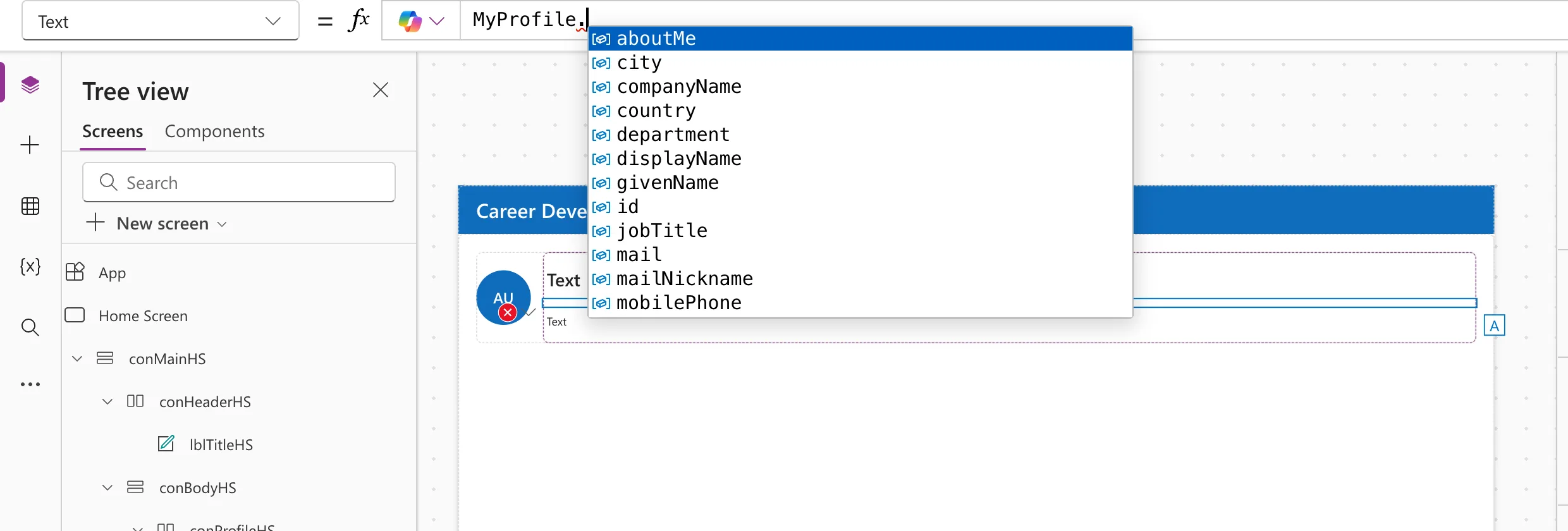
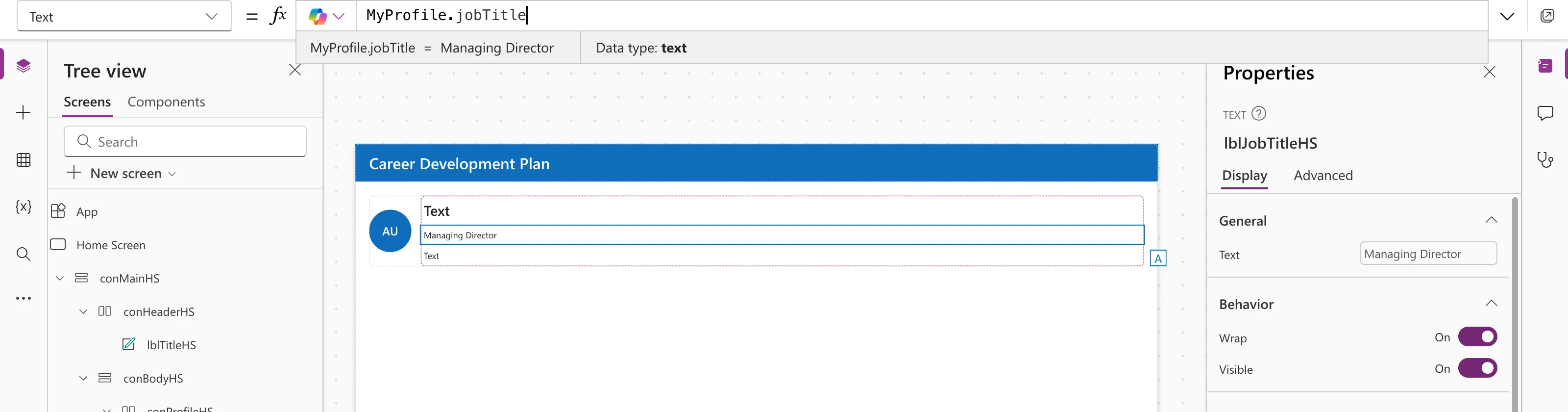
Use the named formula and a field name. Type MyProfile. and IntelliSense lists the fields:
MyProfile.jobTitle
Step 3: Know That Unselected Fields Are Blank
IntelliSense lists every field the connector can return, but only the ones in '$select' come back with a value. mailNickname wasn't in the example's list, so:
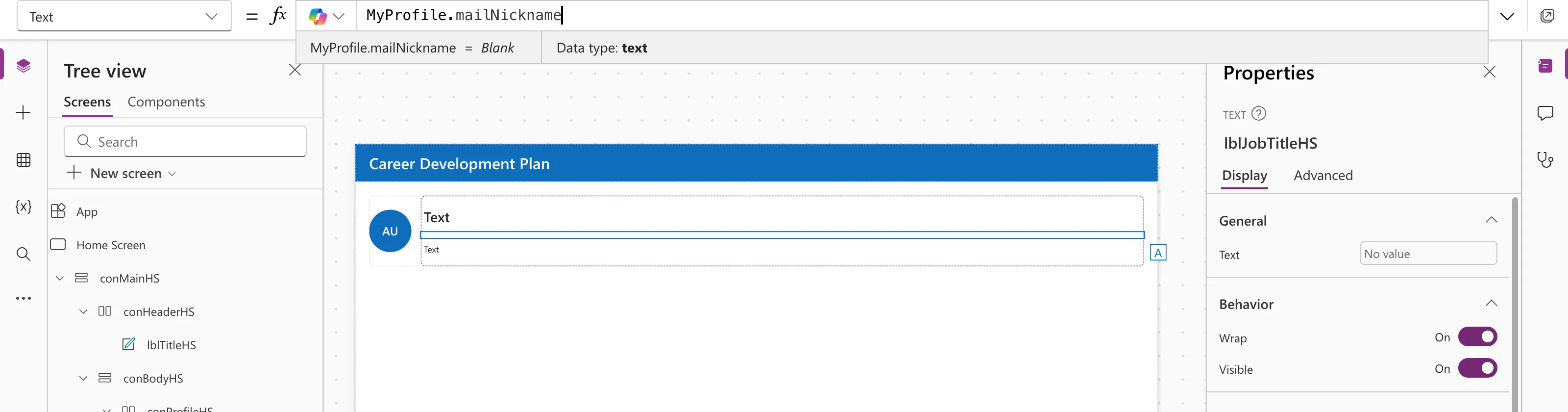
If a field is unexpectedly blank, check it's in the list.
Why Use $select at All?
- It avoids a known error. Without
'$select', the connector requests a long list of default fields. Microsoft's known issues say the call can fail with 403 Forbidden if a tenant's policies block some of them, and the fix is to specify Select fields explicitly. - It's smaller and faster. You fetch only what you show.
Fields Worth Knowing
| Field | Holds |
|---|---|
id | The Microsoft Entra object ID |
displayName | Full name |
givenName | First name |
mail | Mailbox email address |
userPrincipalName | Sign-in name |
jobTitle | Job title |
department | Department |
Common Mistakes
| Mistake | What happens | Do this instead |
|---|---|---|
$select without single quotes | A syntax error | {'$select': "..."} |
JobTitle with a capital J | An unknown name | Use camelCase: jobTitle |
| Reading a field you didn't select | Blank | Add it to '$select' |
Troubleshooting
| Symptom | Likely cause | Fix |
|---|---|---|
| 403 Forbidden from MyProfileV2 | Default fields blocked by tenant policy | Add '$select' |
| Job title is blank | Not filled in Microsoft 365, or not selected | Check the user's profile; check '$select' |
Office365Users is unknown | The data source isn't added | Add Office 365 Users in Data |
FAQ
Do users need a premium license?
No. Office 365 Users is a standard connector. Its connections aren't shared, so the connector reference says each person the app is shared with is prompted to create their own connection.
How often is it called?
As a named formula, when something first needs it. Microsoft's connector reference lists a limit of 1,000 calls per connection per 60 seconds, far more than one call per session needs.
Where does the job title come from?
From the person's Microsoft 365 profile, set by an admin; see How to Set a User's Manager and Job Title in Microsoft Entra.
Conclusion
Put Office365Users.MyProfileV2 with a '$select' list in a named formula, read camelCase fields such as MyProfile.jobTitle, and remember that anything not selected comes back blank.
Additional Resources
- Office 365 Users connector reference: Get my profile (V2), its fields and known issues.
- Connect to Office 365 Users from Power Apps: adding and using the connection.
- Search for Users (V2) Example in Power Automate: the same connector in a flow.
