How to Get the Current User in Power Apps with the User Function

User() tells a canvas app who's using it: their full name, email address, Microsoft Entra object ID and photo. It needs no connector and no setup, which makes it the quickest way to greet someone or fill in "requested by". Here's what each part returns, as seen in Studio, and what User() can't tell you.
What User() Returns
| Formula | Returns | Type |
|---|---|---|
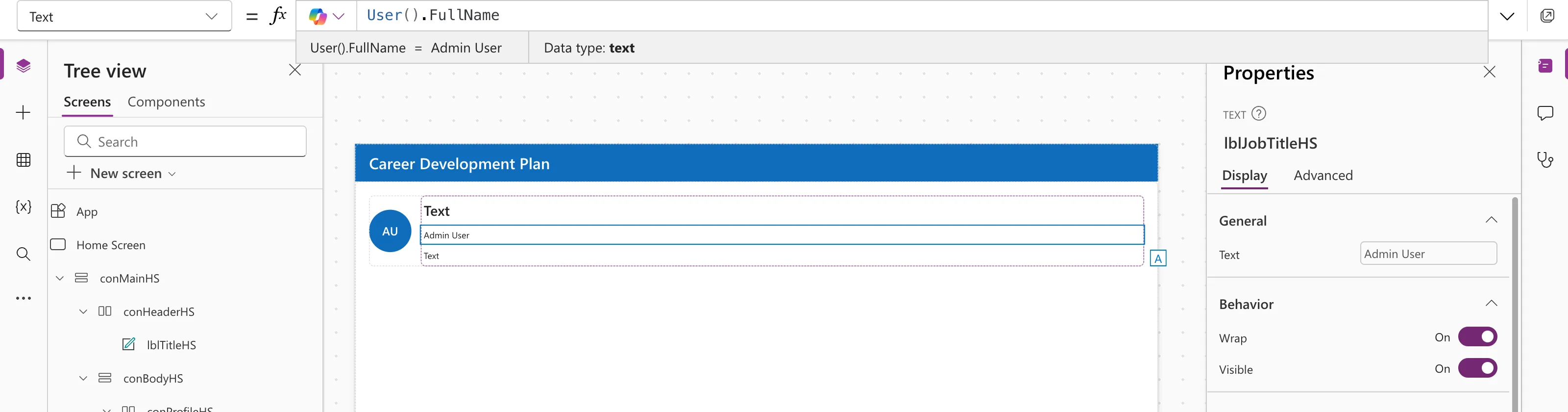
User().FullName | The person's full name | Text |
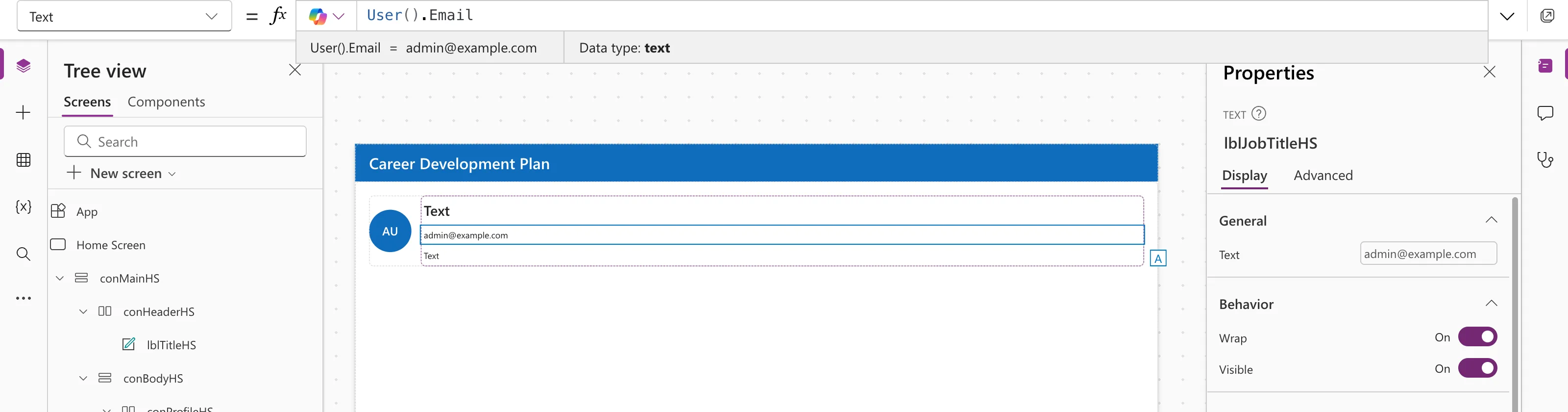
User().Email | Their sign-in name (UPN) | Text |
User().EntraObjectId | Their unique Microsoft Entra ID | GUID |
User().Image | Their photo | Image |
Microsoft's User function reference has one important note: User().Email returns the user principal name (UPN), the name they sign in with, not necessarily their SMTP email address. In most organizations the two are the same, but not always.
Prerequisites
- A canvas app open in Power Apps Studio, with a Text control to try formulas in. See How to Add a Text Control in Power Apps. The example uses a Text control on the Career Development Plan app's Home screen, from Part 4 of the series.
Step 1: Full Name
User().FullName
Step 2: Email (Sign-In Name)
User().Email
Step 3: Microsoft Entra Object ID
User().EntraObjectId
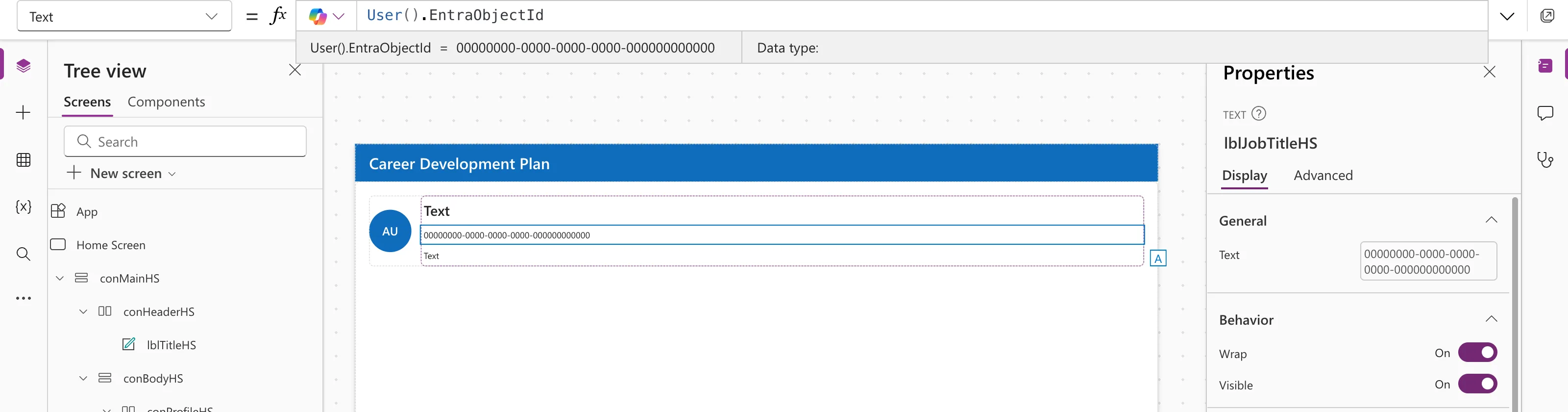
This ID never changes, even if the person's name or email does, which makes it the safest way to store who did something.
Step 4: Photo
User().Image is the default image of the modern Avatar control; see How to Add an Avatar Control in Power Apps. In the example, for an account with no photo, it still returned an image: a grey person icon. Fixed: Power Apps Avatar Shows a Grey Person Icon Instead of Initials shows how to fall back to initials.
What User() Can't Tell You
User() has no job title, department, manager or direct reports. For those, use the Office 365 Users connector:
- How to Get the Current User's Profile and Job Title in Power Apps
- How to Get a User's Manager in Power Apps
- How to Get a User's Direct Reports in Power Apps
Common Mistakes
| Mistake | What happens | Do this instead |
|---|---|---|
Treating User().Email as the mailbox address | Wrong where the UPN differs from the email | Use Office 365 Users' mail when you need the mailbox |
| Storing the name to identify people | Breaks when a name changes | Store User().EntraObjectId |
Expecting a job title from User() | There isn't one | Use Office 365 Users |
Troubleshooting
| Symptom | Likely cause | Fix |
|---|---|---|
| A grey icon instead of initials | User().Image returns a default image | See the fix post above |
| The email looks like an internal name | It's the UPN | Use mail from Office 365 Users |
| Values differ from Microsoft 365 | Microsoft notes they may not match | Use Office 365 Users for profile data |
FAQ
Does User() need a connection?
No. It works in any canvas app, with no data source.
Is User().EntraObjectId text?
It's a GUID. Wrap it in Text() if you need it as text, for example to store in a text column.
Can I get another person's details?
Not with User(), which is always the signed-in person. Use Office 365 Users for others.
Conclusion
User() gives you the signed-in person's name, sign-in name, Entra object ID and photo, with no setup. Use the object ID to identify people, and Office 365 Users for anything beyond those four.
Additional Resources
- User function: every property, including the UPN note.
- Show information about a user in a canvas app: a step-by-step sample.
