How to Get Only Approved Items from a SharePoint List in Power Automate

When a SharePoint list has content approval turned on, each item has an Approval Status: Approved, Rejected, Pending and so on. A flow that should only work with approved items can ask SharePoint for those alone, in the Filter Query of Get items, with OData__ModerationStatus eq 0.
Syntax
OData__ModerationStatus eq <status number>
OData__ModerationStatusis the Approval Status column, by the name a filter uses. Its internal name is_ModerationStatus. SharePoint's REST responses putOData_in front of a name that starts with an underscore: Microsoft's lists and list items reference shows_UIVersionStringasOData__UIVersionString. So there are two underscores in the middle.eqmeans equals.nemeans not equal.<status number>is one of these, from Microsoft's column formatting reference:
| Number | Approval Status |
|---|---|
0 | Approved |
1 | Rejected (Denied in the reference) |
2 | Pending |
3 | Draft |
4 | Scheduled |
To combine it with other conditions, join them with and, as in Microsoft's example Location eq 'Midwest' and Status eq 'Approved' (Get items and Get files):
<column> eq '<value>' and OData__ModerationStatus eq <status number>
The example is Get Overtime Report, a flow of the Overtime Timesheet app. It counts a month's overtime only when two things agree: the entry's own Status column says Approved, and SharePoint's Approval Status says Approved. Status can be changed by anyone allowed to edit the entry. Approval Status can only be set by people allowed to approve, and in this app that's the approval flow (How to Approve or Reject a SharePoint Item in Power Automate).
Prerequisites
- Content approval turned on for the list.
- A connection that can see items that aren't approved yet, if the flow needs those too. People who can't approve only see approved items and their own.
Step 1: Open Get Items' Advanced Parameters
Select the Get items action, here Get the approved entries on the OvertimeEntries list. Under Advanced parameters, show Filter Query (and Top Count, if more than 100 items can match: How to Sort SharePoint Items and Get More Than 100 in Power Automate).
Step 2: Write the Filter
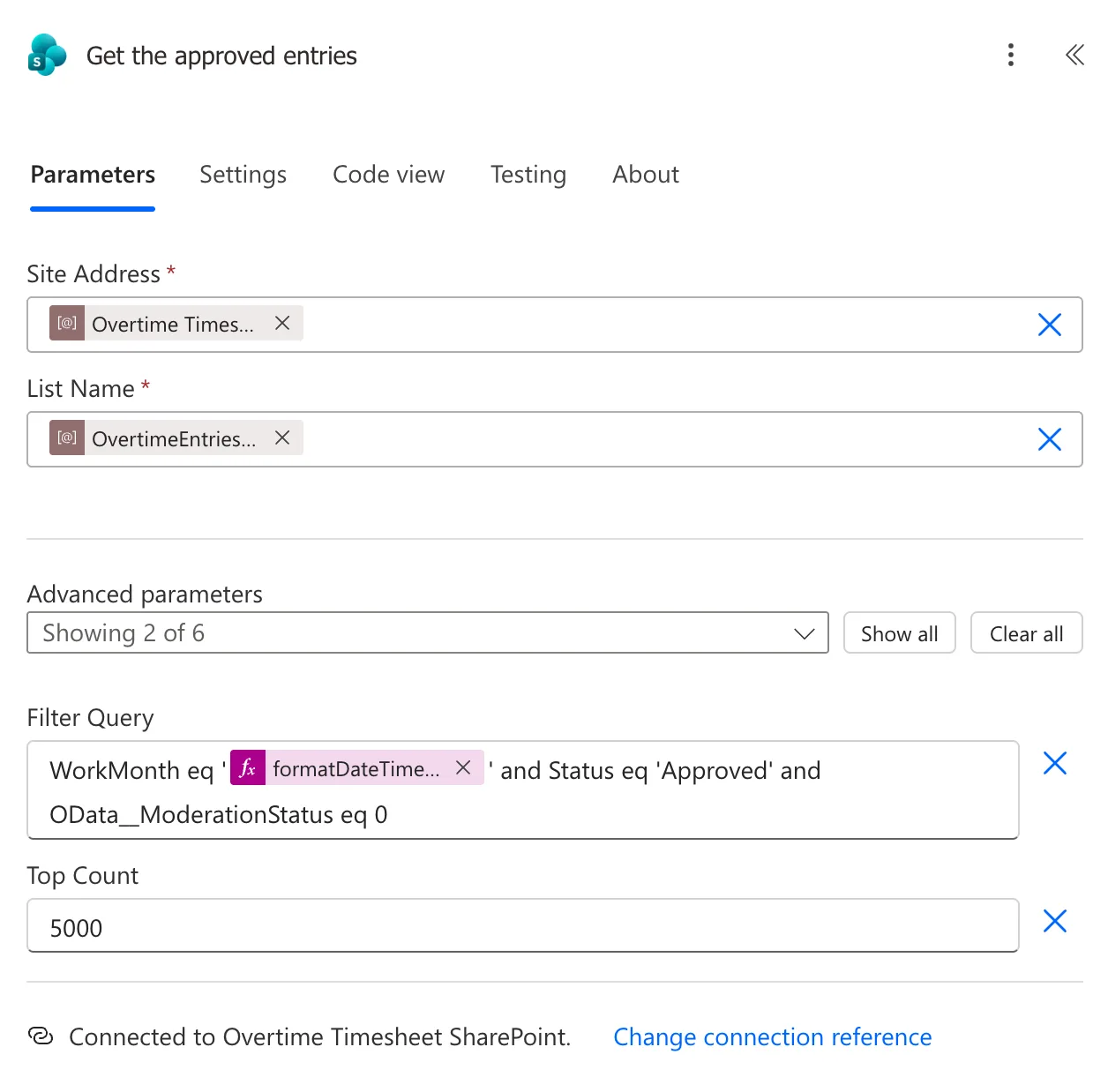
Type the filter into Filter Query. The example asks for one month's entries, with Status Approved and Approval Status Approved:
WorkMonth eq '@{formatDateTime(triggerBody()?['date'], 'yyyy-MM')}' and Status eq 'Approved' and OData__ModerationStatus eq 0
The part in @{...} is an expression that writes the month, like 2026-11 (How to Format a Date in Power Automate with formatDateTime). In the designer it's a token, and the rest is typed around it:
Save the flow.
Step 3: Check the Filter in a Run
In a run, the action's inputs show the filter as it was sent, with the month filled in:

The Result
In a test run for November, Get the approved entries left out the month's rejected entry. For October, the app's report shows one entry of 2 hours:
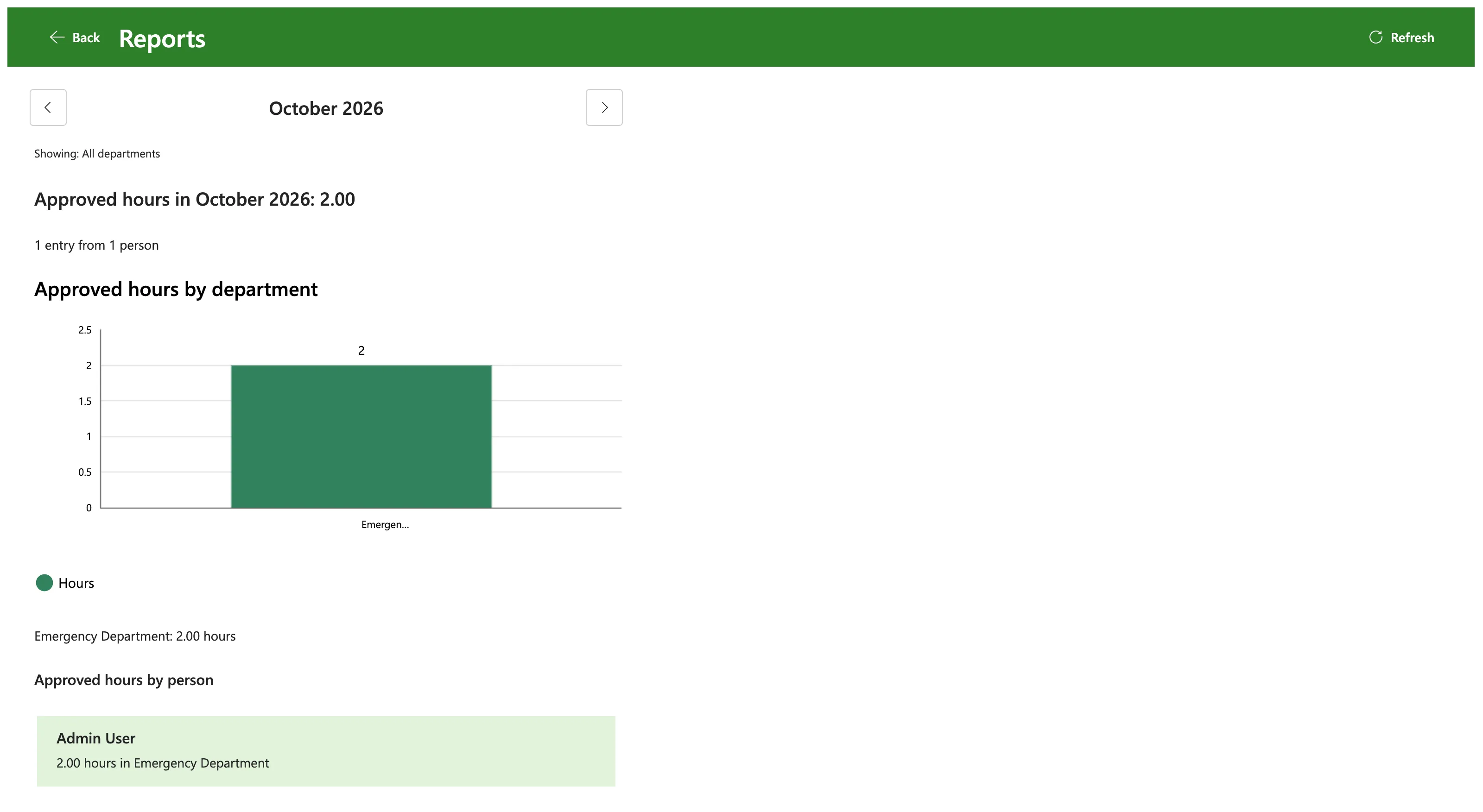
October also has an 8-hour entry whose Status was set to Approved by hand. It never went through approval, so its Approval Status isn't Approved, and the filter leaves it out.
Common Mistakes
| Mistake | What happens | Do this instead |
|---|---|---|
One underscore: OData_ModerationStatus | That isn't the column's name in a filter | Two underscores: OData__ModerationStatus |
OData__ModerationStatus eq 'Approved' | The column holds a number from 0 to 4, not the word | eq 0 |
| Trusting a choice column such as Status alone | Anyone who can edit the item can change it | Add OData__ModerationStatus eq 0 |
| Filtering on a list without content approval | No Approval Status to filter on | Turn on content approval first |
Troubleshooting
| Symptom | Likely cause | Fix |
|---|---|---|
| The action fails on the filter | A typo in the column name or a missing quote | Check the two underscores and the quotes around text values |
| No items, though approved items exist | Another condition is false for them | Run with the filter on its own, then add conditions back |
| Pending items are missing when you want them | The connection can't see drafts | Use a connection that can, or check the list's draft item security |
FAQ
Can I get the items waiting for approval instead?
Yes: OData__ModerationStatus eq 2 returns the pending ones, if the connection is allowed to see them.
Does the filter run in SharePoint or in the flow?
In SharePoint. Get items sends the filter with its request, so only matching items come back.
Why not filter with Filter array after Get items?
You can, but Get items would return every item first, and you'd need to page through more of them. Filtering in the request is faster and returns less.
Conclusion
To work only with approved items, add OData__ModerationStatus eq 0 to Get items' Filter Query: OData__ with two underscores, and the number 0 for Approved. Join it with your own conditions using and.
Additional Resources
- In-depth analysis into Get items and Get files: filter queries
- Formatting syntax reference: Approval Status fields: the status numbers
- SPModerationStatusType: what each status means
