How to Get More Than 256 Rows from an Excel Table in Power Automate

List rows present in a table returns at most 256 rows unless you tell it otherwise, and it doesn't warn you: the flow just works with the first 256. Turning on Pagination in the action's settings makes it fetch the rest.
The example is a table called Numbers in a workbook in my OneDrive, with one column, Number, holding 1 to 300. A flow reads it and counts the rows it got.
Step 1: Read the Table and Count the Rows
In a flow with the trigger Manually trigger a flow, add List rows present in a table and choose the workbook and the Numbers table (How to Read Rows from an Excel Table in Power Automate). Then add a Compose called Row count with this expression (How to Count the Items in an Array in Power Automate with length()):
length(body('List_rows_present_in_a_table')?['value'])
Step 2: See the Limit
Run the flow (How to Test a Cloud Flow Manually in Power Automate). The table has 300 rows, but Row count says 256, and the run is still a success:
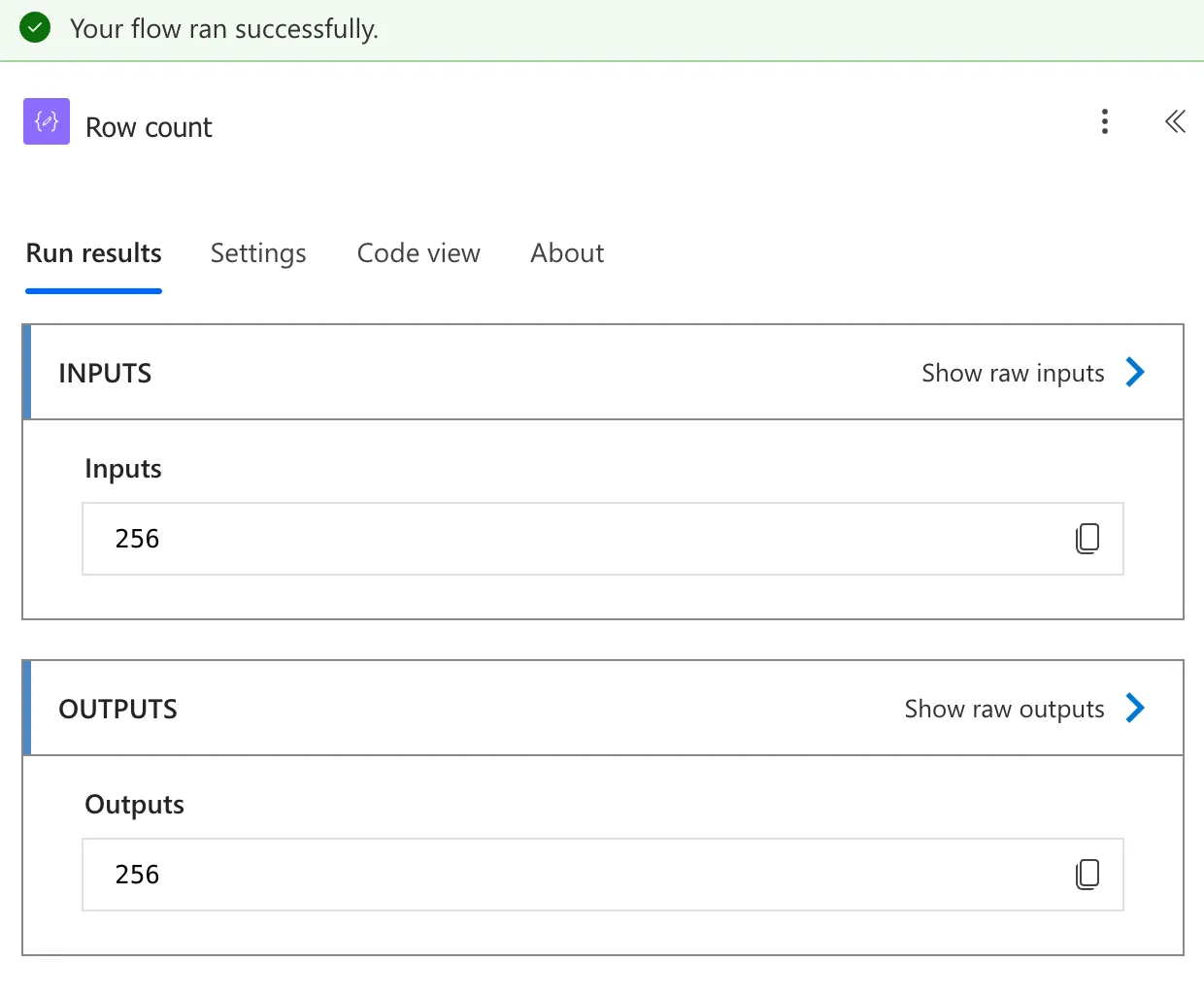
Microsoft's Excel Online (Business) connector reference explains it: The List rows present in a table action returns up to 256 rows by default. In order to get all rows, turn on pagination.
Step 3: Turn On Pagination
Select List rows present in a table, then its Settings tab. Under Networking, turn Pagination on and set Threshold, the most rows the action should fetch. I set 5000:
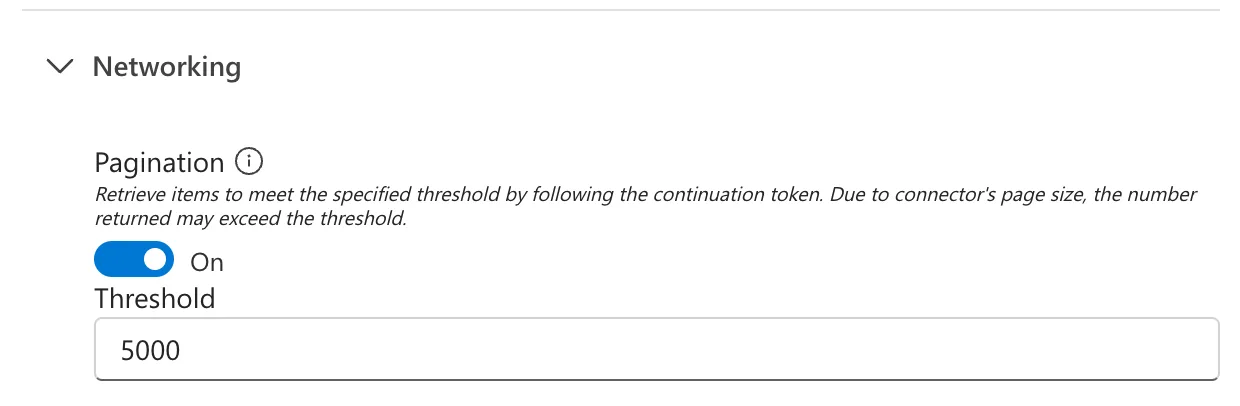
The setting's own description says how it works: it retrieves items to meet the specified threshold by following the continuation token, and due to connector's page size, the number returned may exceed the threshold. Set the threshold above the most rows the table will ever have.
The Result
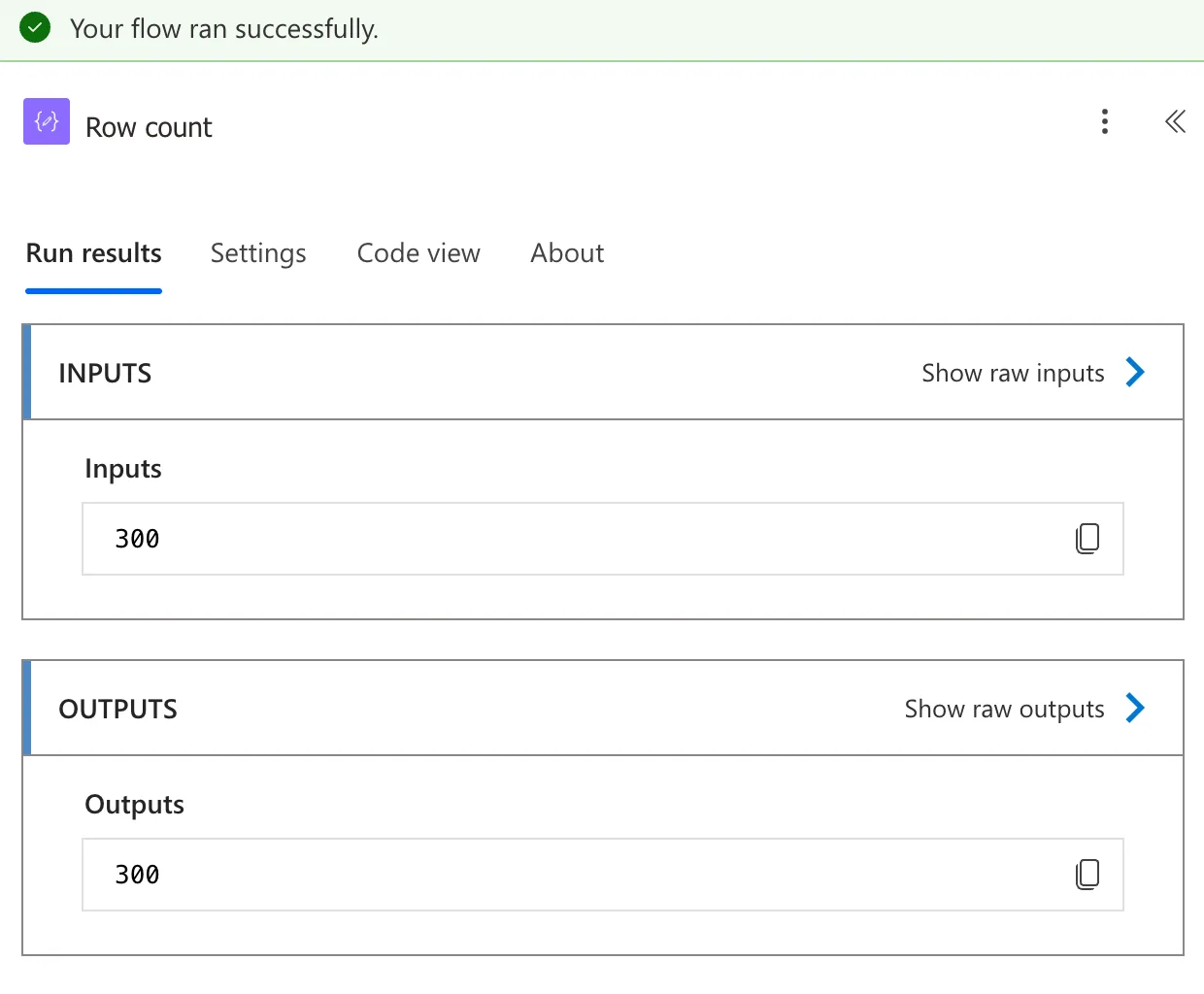
Save the flow and run it again. Row count says 300, every row, and the action took 2 seconds:
Common Mistakes
| Mistake | What happens | Do this instead |
|---|---|---|
| Testing with a small table | Everything works until the table passes 256 rows | Turn on pagination from the start |
| A threshold lower than the table's size | The flow gets the threshold's worth of rows, give or take a page | Set it above the largest table you expect |
| Trusting the run's success | The run succeeds with 256 rows | Count the rows, as above, when you test |
Troubleshooting
| Symptom | Likely cause | Fix |
|---|---|---|
| Exactly 256 rows | Pagination is off | Turn it on under Settings, Networking |
| More rows than the threshold | The connector fetches whole pages | Nothing to fix: the setting's description says this can happen |
| The run takes longer | More pages are fetched | Filter the rows in the action if you need only some |
FAQ
Do other actions have the same setting?
Yes. Actions that return lists in pages, such as SharePoint's Get items, have Pagination under Settings too (How to Sort SharePoint Items and Get More Than 100 in Power Automate).
Can I get only the rows I need instead?
List rows present in a table has a Filter Query. The reference says it supports eq, ne, contains, startswith and endswith, with one filter function per column.
Does pagination change the rows' format?
No. The rows come back the same way, in value; there are just more of them.
Conclusion
List rows present in a table stops at 256 rows. Turn on Pagination under Settings → Networking, set a Threshold above the table's size, and the action returns every row.
