How to Get Excel Dates as Dates, Not Numbers, in Power Automate

Excel stores a date as a whole number and a time as a fraction of a day, and that's what a flow gets from List rows present in a table unless you ask for something else: 46297 instead of 2 October 2026, 0.791666666666667 instead of 19:00. One setting on the action returns them as dates.
The example is the old overtime workbook of the Overtime Timesheet app. Its table, OvertimeLog, has a Date column and Start and Finish columns that hold only times. A flow reads it with List rows present in a table (How to Read Rows from an Excel Table in Power Automate).
Step 1: See What the Default Returns
With DateTime Format left empty, the first row of a test run came back like this:
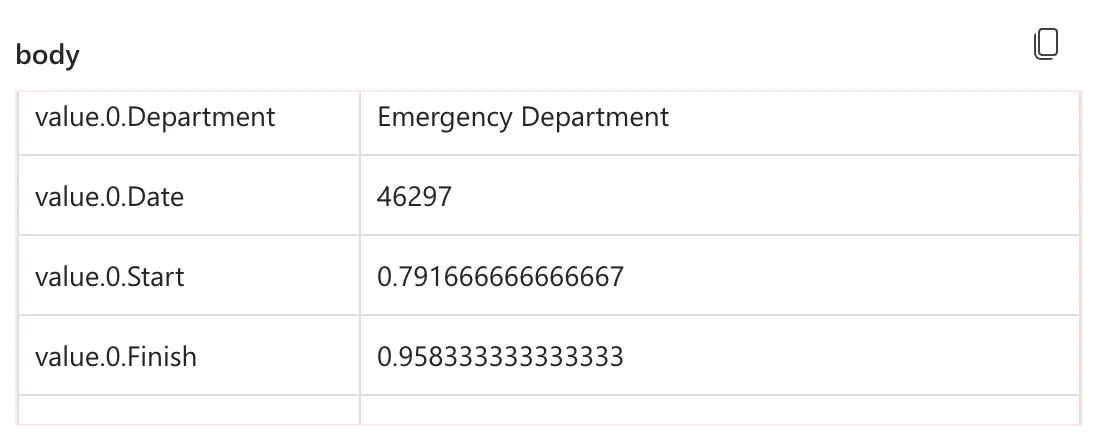
46297is the date's serial number: Excel counts days, and 2 October 2026 is day 46,297 (How to See the Serial Number Behind a Date in Excel).0.791666666666667is 19:00 as a fraction of a day: 19 ÷ 24.0.958333333333333is 23:00: 23 ÷ 24.
A flow can't format, compare or convert these as dates without doing the arithmetic itself.
Step 2: Choose ISO 8601
Open the action, expand Advanced parameters, and open DateTime Format. It offers two values:
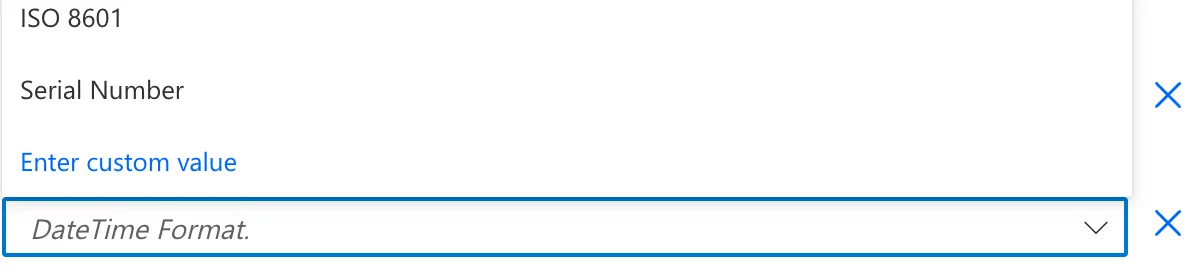
Select ISO 8601. Serial Number is what the action returned when the setting was empty.
Step 3: Check the New Output
Test the flow again. The same row now has dates and times:
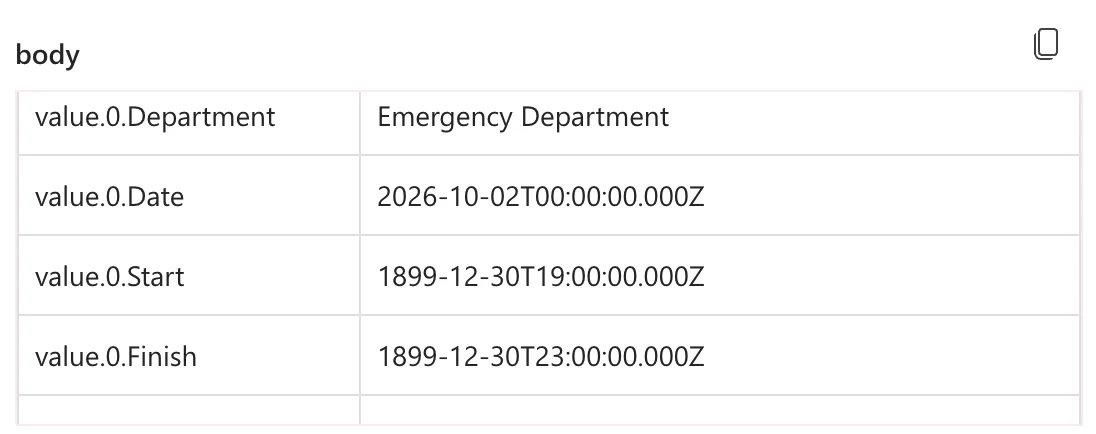
What came back, column by column:
| Column in Excel | Serial Number | ISO 8601 |
|---|---|---|
| Date 02/10/2026 | 46297 | 2026-10-02T00:00:00.000Z |
| Start 19:00 | 0.791666666666667 | 1899-12-30T19:00:00.000Z |
| Finish 23:00 | 0.958333333333333 | 1899-12-30T23:00:00.000Z |
| Time worked 03:30 | 0.145833333333333 | 1899-12-30T03:30:00.000Z |
| Hours 3.5, a plain number | 3.5 | 3.5 |
Two things to know before using them:
- A time-only cell gets the date 30 December 1899. The cell holds a fraction of a day with no date, so the date part is day zero of the count, 30 December 1899: the same start Microsoft's .NET documentation gives for this way of numbering days, midnight, 30 December 1899. Use only its time.
- The
Zdoesn't make it UTC. The workbook's times are local times, typed as they appeared on the clock, and they come back unchanged with aZon the end. If the times are local, convert them to UTC yourself (How to Convert Local Time to UTC in Power Automate with convertToUtc).
Step 4: Read the Parts You Need
formatDateTime takes the date or the time out of these values (How to Format a Date in Power Automate with formatDateTime). Inside the loop over the rows, For each old row:
formatDateTime(items('For_each_old_row')?['Date'], 'yyyy-MM-dd')
returns 2026-10-02, and
formatDateTime(items('For_each_old_row')?['Start'], 'HH:mm')
returns 19:00. HH is the hour from 00 to 23, and mm is minutes; MM would be the month.
Common Mistakes
| Mistake | What happens | Do this instead |
|---|---|---|
| Leaving DateTime Format empty | Dates come back as serial numbers | ISO 8601 |
| Using a time-only value as a date | The date is 30 December 1899 | Take only its time with 'HH:mm' |
Treating the Z as UTC | Local times are off by the clock change | Convert local times with convertToUtc |
'yyyy-mm-dd' for a date | mm is minutes | 'yyyy-MM-dd' |
Troubleshooting
| Symptom | Likely cause | Fix |
|---|---|---|
46297 instead of a date | DateTime Format isn't set | Set it to ISO 8601 |
| A time shows the year 1899 | The cell holds only a time | Use the time part |
| Hours an hour off in summer | The local times were treated as UTC | convertToUtc with your time zone |
| A number column changed | It didn't: plain numbers stay numbers | Check the column's format in Excel |
FAQ
Can I convert the serial numbers instead?
A serial number counts days, so you could add it to 30 December 1899 with addDays(), and turn the time fraction into minutes. ISO 8601 does it for you, for every date and time column at once.
Does the setting change the workbook?
No. It only changes how the action returns the values.
Are other columns affected?
Not the ones I compared: Department, a text column, and Hours, a plain number, came back the same with both settings.
Conclusion
Set DateTime Format to ISO 8601 on List rows present in a table, and Excel's dates and times come back as dates and times. Time-only cells carry the date 30 December 1899, and the Z doesn't mean the times are UTC.
Additional Resources
- Excel Online (Business) connector reference
- DateTime.FromOADate: days counted from midnight, 30 December 1899
- Reference guide to functions in expressions: formatDateTime
