How to Get a User's Manager in Power Automate

The Office 365 Users action Get manager (V2) returns a person's manager from Microsoft Entra ID. Give it the person's email in User (UPN), and the manager's Mail, name and job title become dynamic content for the rest of the flow.
Microsoft's Office 365 Users connector reference describes it: Retrieves the profile of the specified user's manager. Its User (UPN) takes a User principal name or id.
The example is the approval flow of the Overtime Timesheet app. When the person who logged overtime is their department's only approver, nobody else in the department can approve it, so the flow asks their manager.
Prerequisites
- The person's manager set in Microsoft Entra ID (How to Set a User's Manager and Job Title in the Microsoft Entra Admin Center).
- The person's email in the flow. Here, the trigger's Created By Email (How to Run a Flow When a SharePoint Item Is Created or Modified in Power Automate).
Step 1: Add Get Manager (V2)
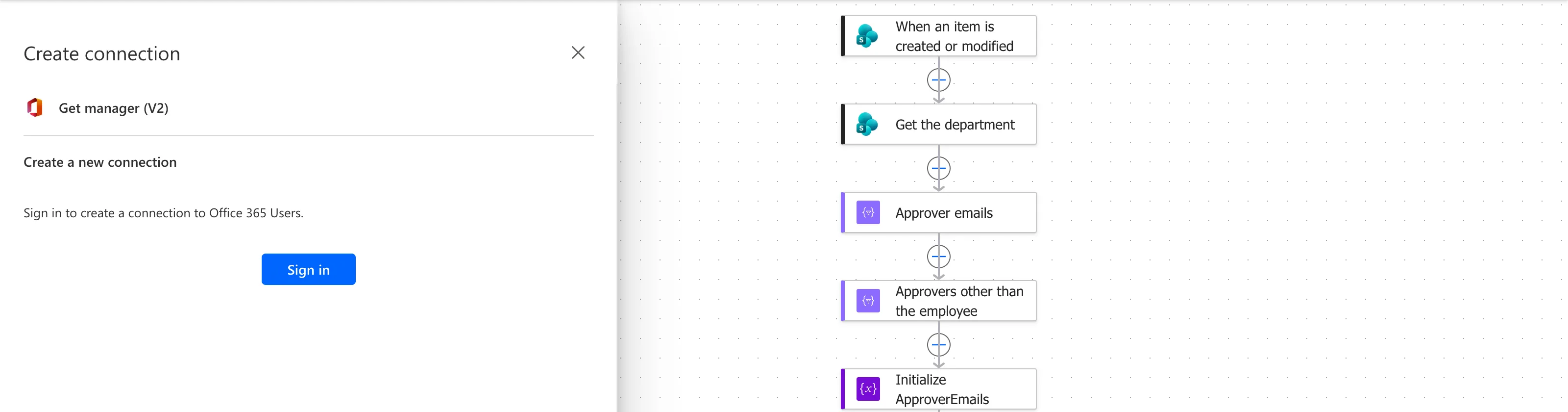
Add an action, search for Get manager, and choose Get manager (V2) under Office 365 Users. The first time, the designer asks for a connection; select Sign in with the account the flow runs as:
Step 2: Give It the Person
Select User (UPN), open the dynamic content list, and search for Created By Email. Two actions offer one: Get the department, whose creator is whoever added the department, and the trigger, whose creator is the person who logged the overtime. Pick the trigger's:
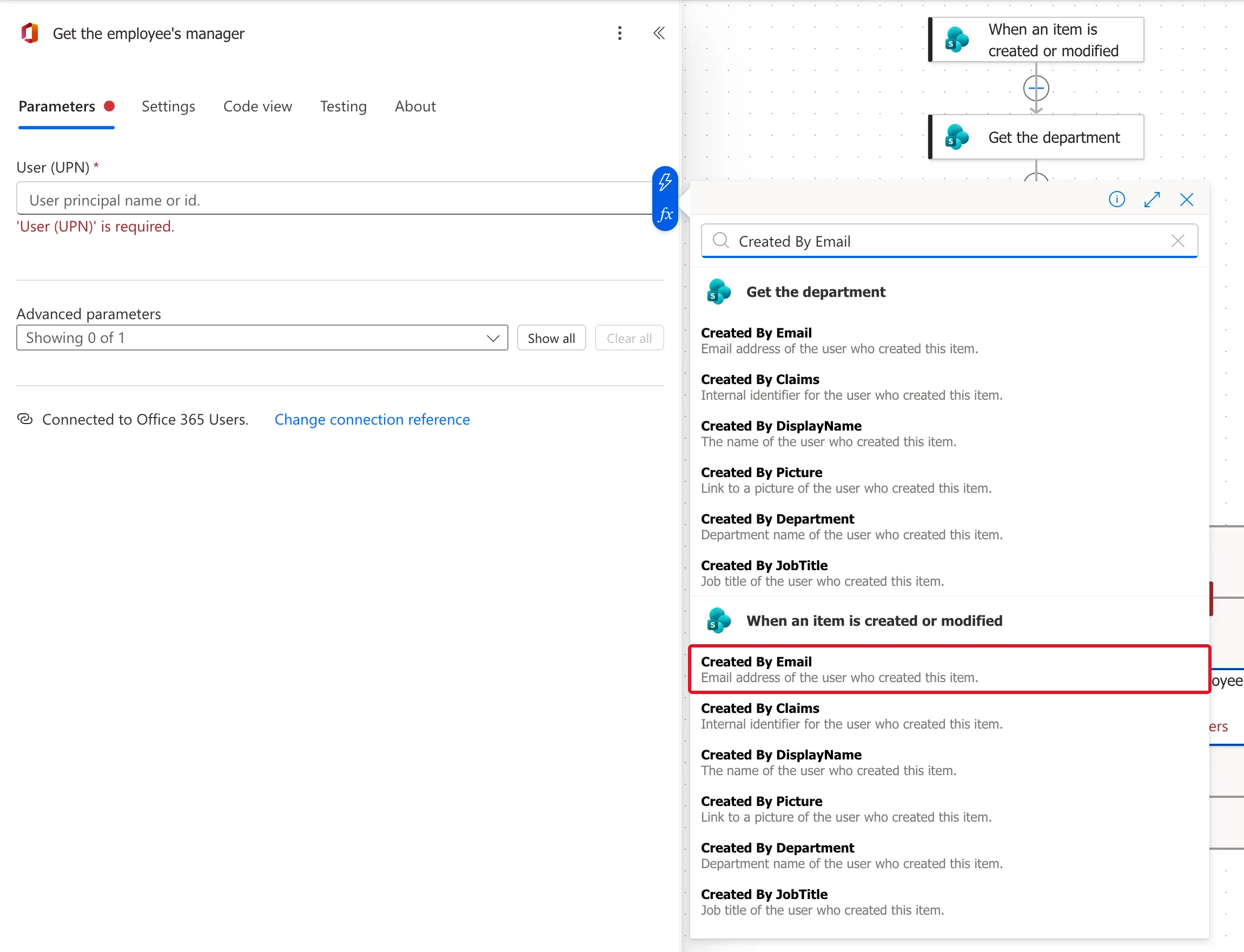
In Code view, the value is the trigger's email:
@triggerBody()?['Author/Email']
Name it without an apostrophe. I first named this action Get the employee's manager, as in these screenshots. The apostrophe broke the expressions that read its output, and publishing failed (Fixed: "The input parameter(s) of operation contains invalid expression(s)" in Power Automate). It's now Get the manager.
Step 3: Use the Manager's Details
The manager's details are in the dynamic content list under the action's name: Mail, Display name, Job title and more. Here, the next action puts Mail into the variable the approval goes to:
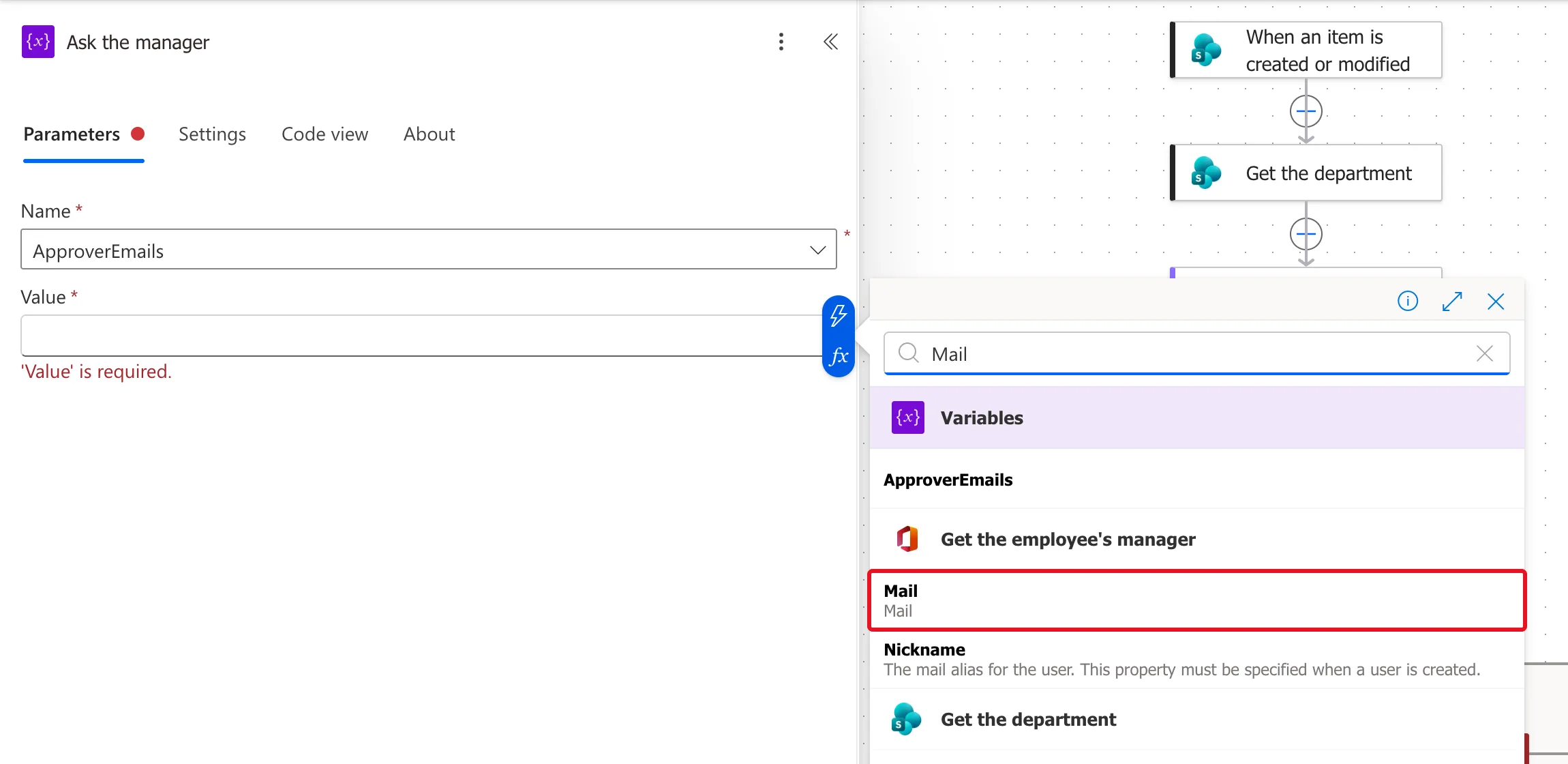
outputs('Get_the_manager')?['body/mail']
The Result
Daniel Brooks, the only approver for Radiology, logged his own overtime. The flow found no other approver, so the run took the branch with Get the manager:
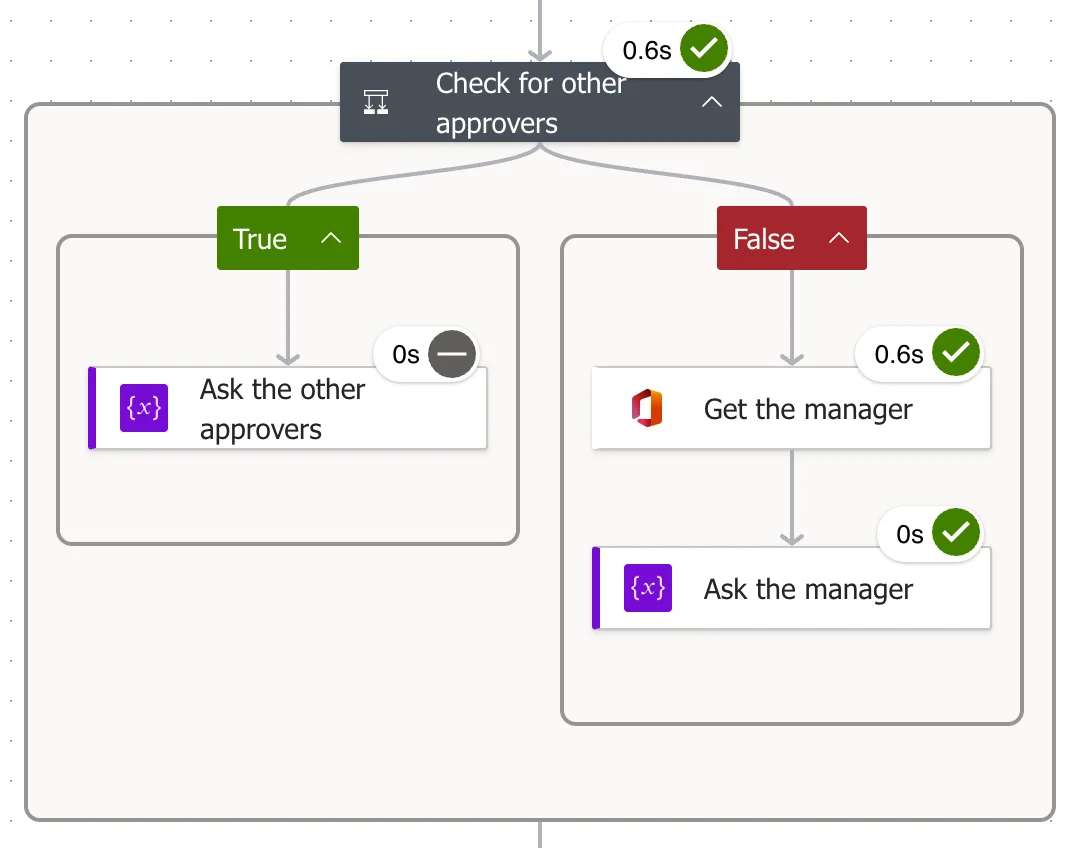
Its output was his manager's profile. Part of the body:
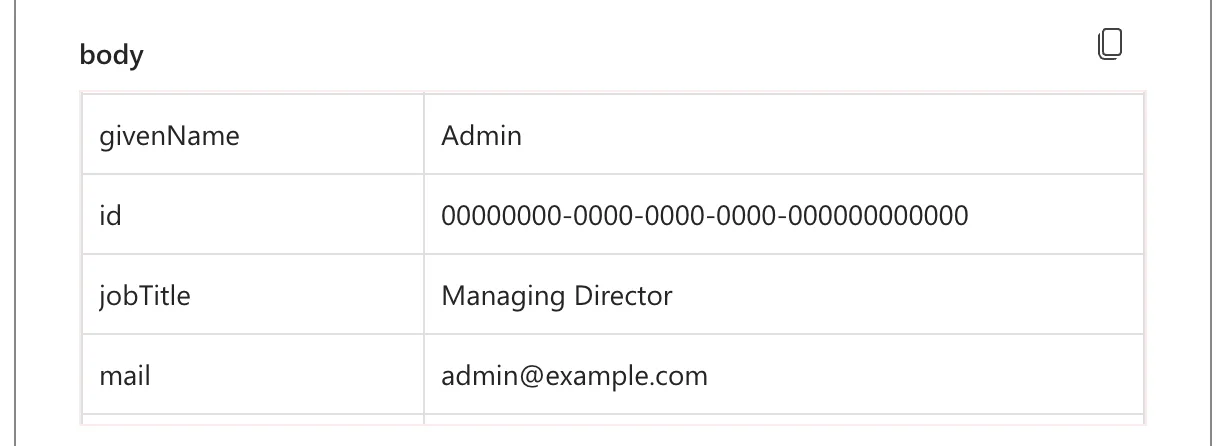
The approval went to that address, and the manager approved it (How to Respond to Approvals in Power Automate).
Common Mistakes
| Mistake | What happens | Do this instead |
|---|---|---|
| Created By Email of the wrong action | You get the manager of whoever created that item | The trigger's Created By Email |
| An apostrophe in the action's name | Expressions that read it break when you publish | Letters and spaces only |
| Expecting everyone to have a manager | Someone at the top has none | Decide what happens for them |
Troubleshooting
| Symptom | Likely cause | Fix |
|---|---|---|
| The action fails in a run | The person has no manager in Entra ID | Set one, or handle the failure |
| The wrong manager | The wrong person's email in User (UPN) | Check the token's action |
| A connection prompt every time | No connection yet for Office 365 Users | Sign in once |
FAQ
What if the person has no manager?
In Power Apps, the same lookup fails with Resource 'manager' does not exist for a person without one (Fixed: Office365Users.ManagerV2 Failed: Resource 'manager' Does Not Exist). Everyone in the example who approves overtime has a manager.
Does it need a premium license?
No. Office 365 Users is a standard connector.
Conclusion
Get manager (V2) takes a person's email in User (UPN) and returns their manager's profile, with Mail for anything that needs their address. Pick the right person's email, and name the action without an apostrophe.
Additional Resources
- Office 365 Users connector: Get manager (V2): the action and its parameter.
