How to Get a SharePoint List Item by ID in Power Automate

SharePoint's Get item reads one item from a list by its ID. Give it the site, the list and the ID, and every column of that item becomes dynamic content for the rest of the flow. The ID often comes from another item, such as a department's ID stored on an overtime entry.
Microsoft's SharePoint connector reference describes it as: Gets a single item by its id from a SharePoint list.
The example is the approval flow of the Overtime Timesheet app. Each overtime entry stores its department's ID in DepartmentId, and the flow reads that department to find its approvers.
Prerequisites
- A flow open in the new designer, with a trigger or action that provides the ID (How to Run a Flow When a SharePoint Item Is Created or Modified in Power Automate).
- The site and list, picked or in environment variables (How to Use Environment Variables in a Power Automate Flow).
Step 1: Add Get Item
Add an action, search for Get item, and choose the SharePoint one. Get items, with an s, is a different action that returns many items.
Step 2: Choose the Site and the List
| Field | Value here |
|---|---|
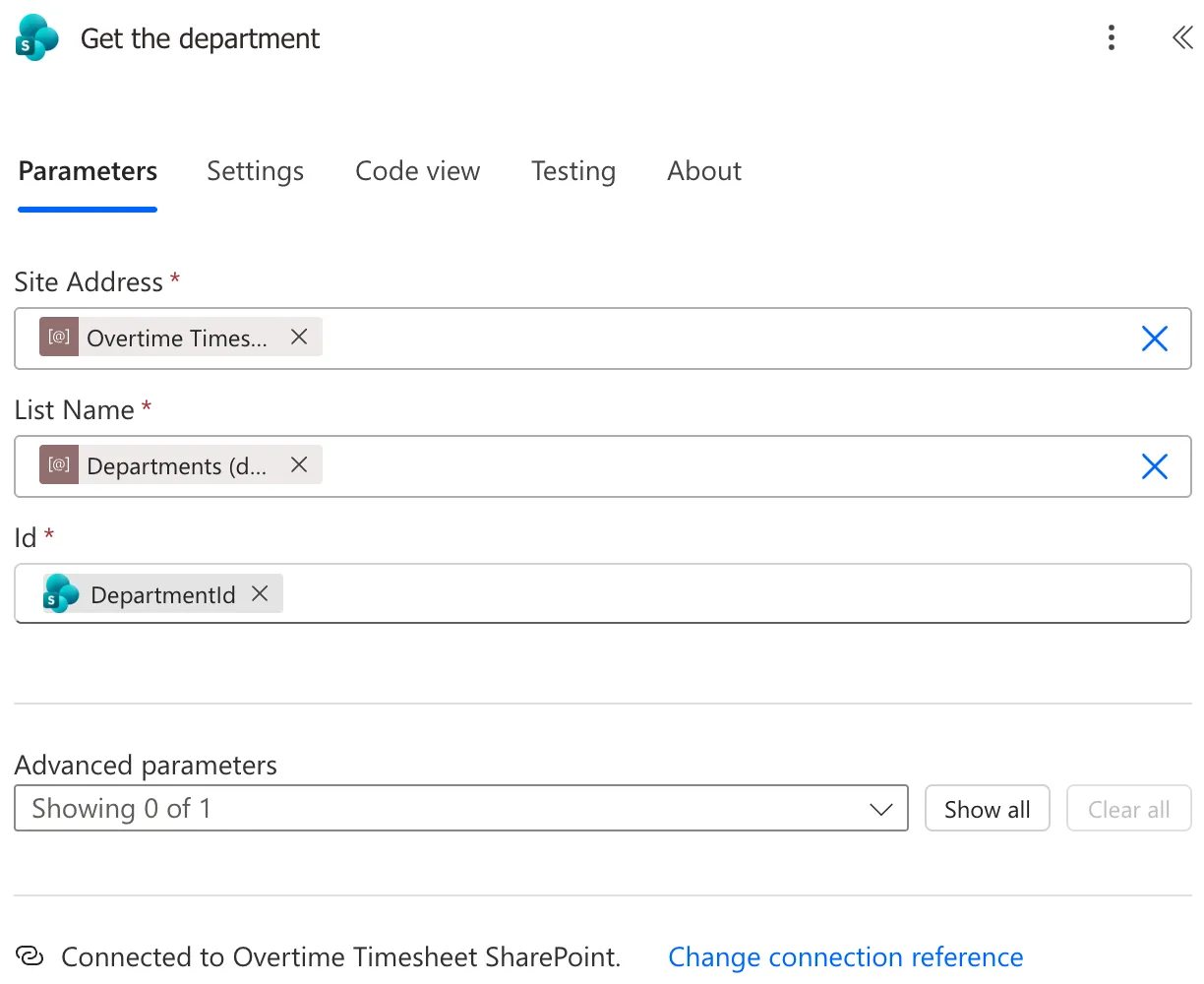
| Site Address | The Overtime Timesheet Site environment variable |
| List Name | The Departments environment variable |
Step 3: Give It the ID
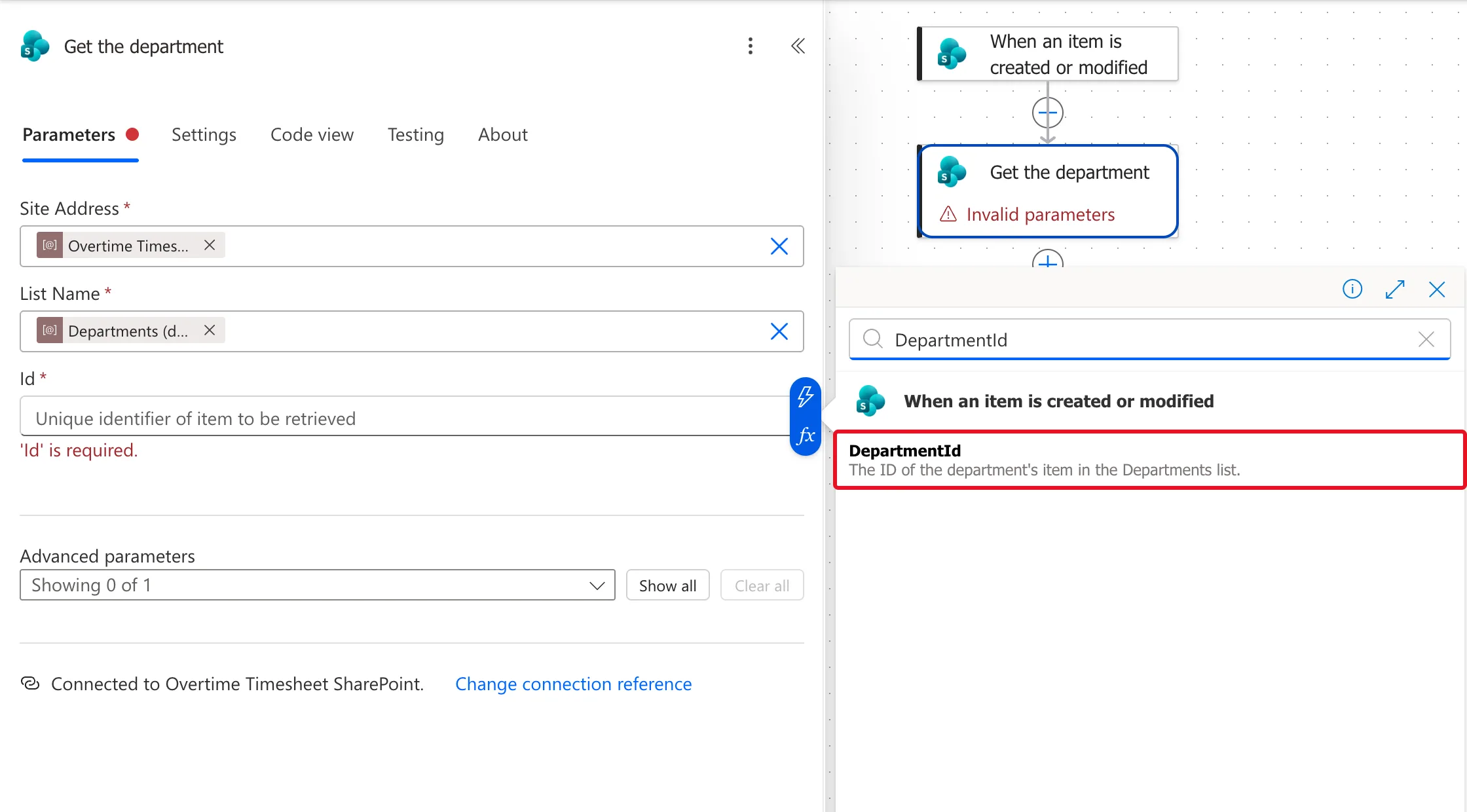
Select Id, open the dynamic content list, and search for the column that holds the ID. Here, the trigger's DepartmentId:
The finished action, renamed Get the department so its outputs read well later:
Step 4: Use Its Outputs
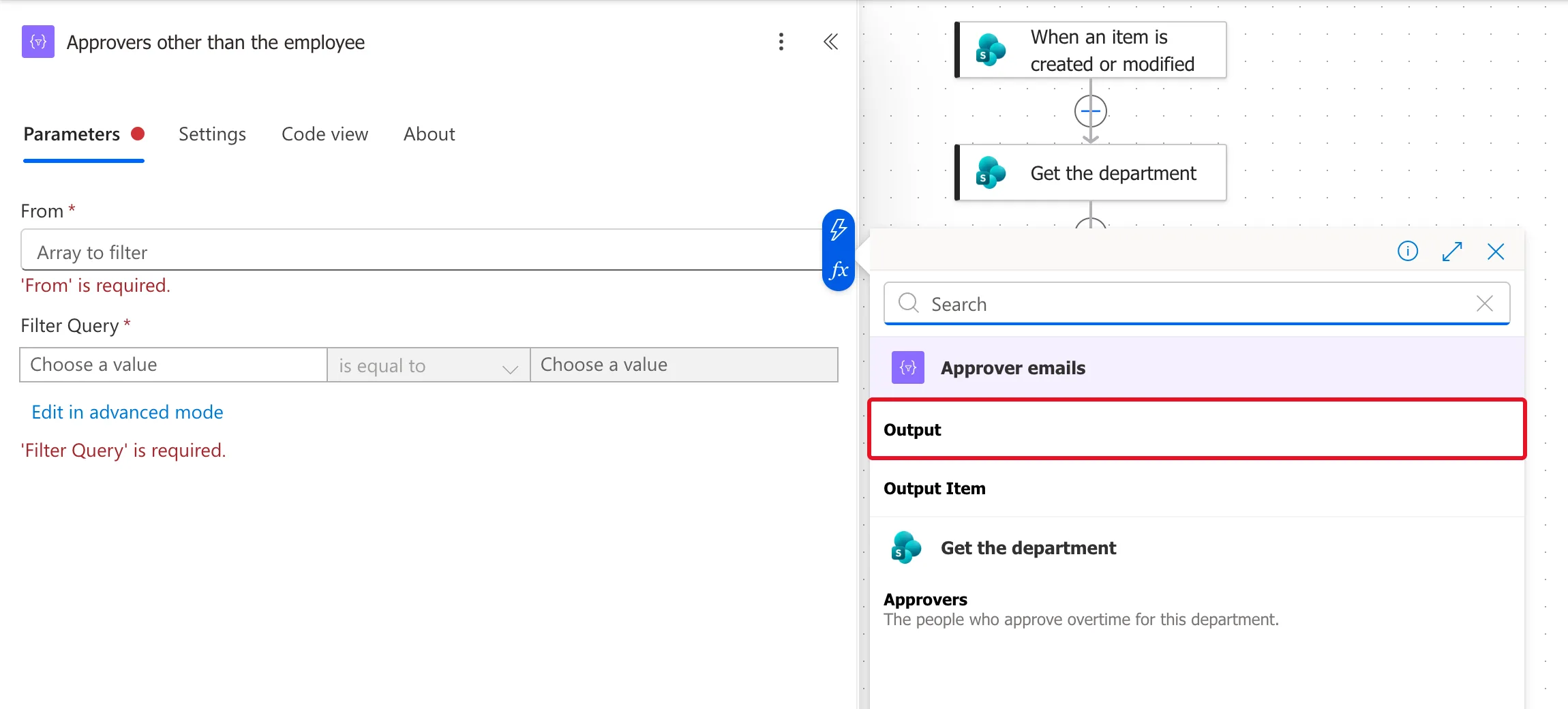
Every column of the item is now in the dynamic content list under the action's name. Get the department gives the department's Approvers, a Person column that allows several people, which the next action turns into a list of emails:
In expressions, read them with outputs('Get_the_department')?['body/...']. For example, the department's name:
outputs('Get_the_department')?['body/Department']
Another Use: Read an Item Again Later
The trigger's outputs are the item as it was when the flow started. When a flow waits, for an approval for example, the item may change. A second Get item on the same list with the trigger's ID, here Get the entry now, reads its latest values. In one run, the trigger had version 4.0 and Get the entry now read version 5.0, because the person had edited the entry while it waited (How to Check an Item Hasn't Changed During an Approval in Power Automate).
Common Mistakes
| Mistake | What happens | Do this instead |
|---|---|---|
| Choosing Get items | You get a list, and a loop to go with it | Get item, singular |
| An ID from the wrong list | The wrong item, or an error | Use the ID stored for this list |
| Leaving the name Get item | Two actions named alike are hard to tell apart | Rename it to say what it gets |
| An apostrophe in the new name | Expressions that read it break | Letters and spaces only |
Troubleshooting
| Symptom | Likely cause | Fix |
|---|---|---|
| 'Id' is required. | No ID chosen | Pick the column that holds it |
| The action fails in a run | No item has that ID in this list | Check the ID and the list |
| A column isn't in dynamic content | It's in another list | Read that list with its own Get item |
FAQ
What if I don't know the ID?
Use Get items with a filter on a column you know, such as a title or an email, and take the item from its results.
Does Get item return Person columns?
Yes. A Person column comes back with each person's details, such as Email and DisplayName; one that allows several people comes back as an array.
Conclusion
Get item reads one SharePoint item by its ID: choose the site and list, pick the ID from dynamic content, and rename the action after what it gets. Use it again after a wait to read the item's latest values.
Additional Resources
- SharePoint connector: Get item: the action and its parameters.
