How to Get a SharePoint List Item by Its ID in Power Apps

SharePoint gives every list item a number when it's created: its ID. To open one item on another screen, pass its ID with Navigate, and read the item there with LookUp(List, ID = ...). SharePoint can run that query itself, as long as you compare the ID with =.
The Pattern
LookUp(ListName, ID = TheId)
LookUp returns the first item whose ID equals TheId, or blank if there's none (How to Find a Record with LookUp). IDs are unique in a list, so there's at most one.
Prerequisites
- A SharePoint list added to the app as a data source. The example uses CompetencyResponses from the Career Development Plan app (Part 2).
The One Delegation Rule for ID
Microsoft's SharePoint delegation table has a note about the ID column: Power Apps shows it as a number, but SharePoint only supports = for delegation on it. <, <=, <>, > and >= aren't delegated (Power Apps delegable functions and operations for SharePoint).
So LookUp(List, ID = 42) runs in SharePoint, at any list size. A range such as ID > 100 would run in the app, on the first 500 items only (What Is Delegation in Power Apps?).
Step 1: Pass the ID to the Screen
Send only the number, not the whole record. In the example, each row of the manager's list of waiting responses opens the Review screen with its ID (How to Open Another Screen When a Gallery Row Is Selected):
Navigate('Review Screen', ScreenTransition.None, {locResponseId: ThisItem.ID})
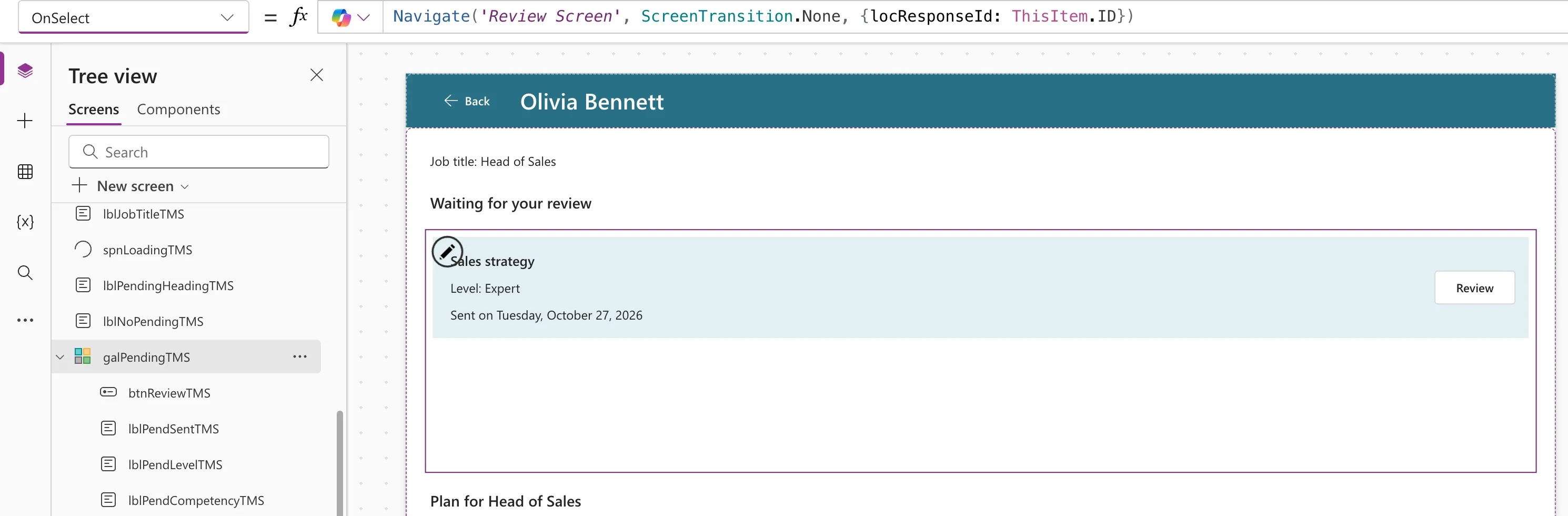
locResponseId becomes a context variable of the Review screen (How to Go to Another Screen with Navigate).
Step 2: Read the Item When the Screen Opens
In the screen's OnVisible, look the item up by that ID and keep it in a variable (How to Run a Formula When a Screen Opens):
UpdateContext(
    {
        locReview: LookUp(
            CompetencyResponses,
            ID = locResponseId
        )
    }
)

Studio showed no delegation warning for it. The screen's controls then read the item's columns, such as locReview.Competency and locReview.Response.
Why Read It Again Instead of Passing the Record?
The list on the first screen was loaded when that screen opened. By the time someone opens an item, another person may have changed it. Reading it by ID when the screen opens gets the version SharePoint has then.
It also protects the save. Patch with an item you read sends that item's version along, and SharePoint refuses the update if the item changed after you read it (Fixed: "Network Error When Using Patch Function: ETAG Mismatch"). In the example, a manager's approval was refused because the employee had edited the response after the Review screen loaded it. Going back and opening it again read the new version.
When other people change the list while your app is running, call Refresh on it before the lookup, so the app doesn't keep an old copy (How to Refresh Data with the Refresh Function).
Common Mistakes
| Mistake | What happens | Do this instead |
|---|---|---|
ID > 100 or another range on SharePoint | Not delegated; only the first 500 items are checked | Compare ID with = |
| Passing the whole record and editing it later | You may save over a newer version | Pass the ID and read the item when the screen opens |
Reading locReview in another screen | Context variables belong to one screen | Pass the ID to each screen that needs it |
Troubleshooting
| Symptom | Likely cause | Fix |
|---|---|---|
| The screen shows nothing | The ID variable is blank, for example when you preview the screen directly | Open the screen through the Navigate that passes the ID |
| Name isn't valid on the ID variable | No Navigate passes it yet | Write the Navigate first (Fixed: "Name Isn't Valid") |
| The item shows old values | The app kept an older copy | Refresh the list before the lookup |
FAQ
Can I look up by ID in a gallery or a collection?
Yes. Tables already in the app don't need delegation, so any comparison works there.
Conclusion
Pass an item's ID to the next screen with Navigate, and read it there with LookUp(List, ID = ...). On SharePoint, compare the ID with = only, and the lookup runs in SharePoint at any list size.
