How to Get a Link to a SharePoint File in Power Automate

To send someone a link to a file in SharePoint, say in an email after a flow has made the file, the flow needs the file's web address. Get file properties has it, as Link to item. It needs the file's item ID, which Get file metadata using path finds from the file's path.
The example gets the link of hello.txt in the Documents library of a site called Communication site (How to Create a File in SharePoint in Power Automate).
Step 1: Find the File's Item ID
In a flow with the trigger Manually trigger a flow, add Get file metadata using path from SharePoint:
- Site Address: Communication site.
- File Path: select the folder icon and pick the file, here /Shared Documents/hello.txt.
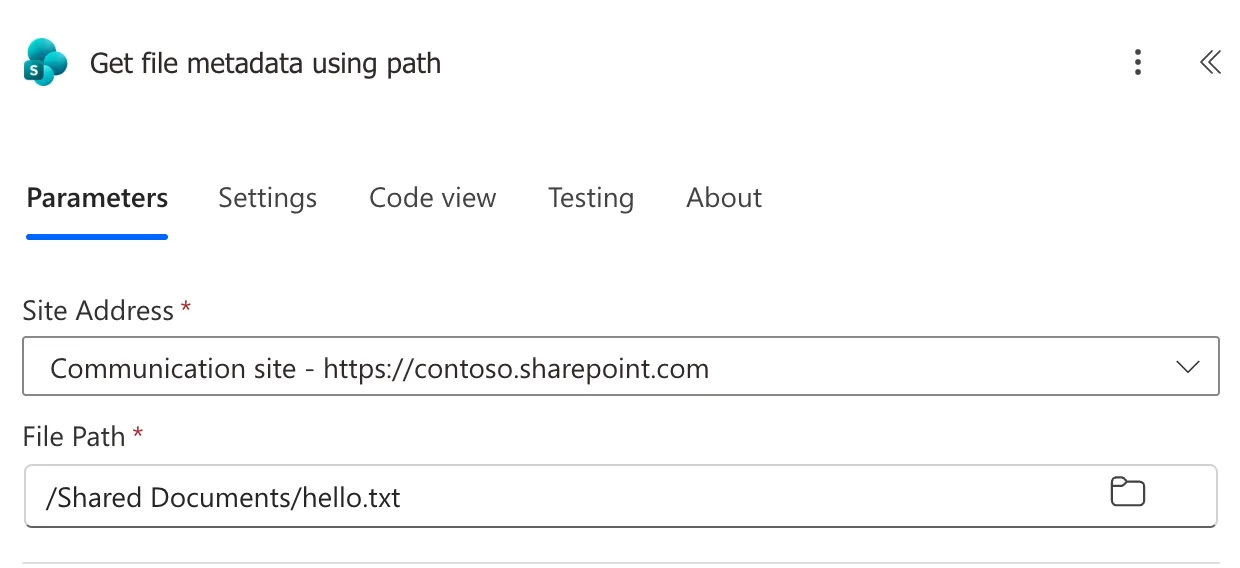
Microsoft's SharePoint connector reference says this action gets information about the file such as size, etag, created date, and to use "Get file properties" action to get to the values stored in the columns in the library. Among the information is ItemId, the file's number in the library.
Step 2: Get the File's Properties
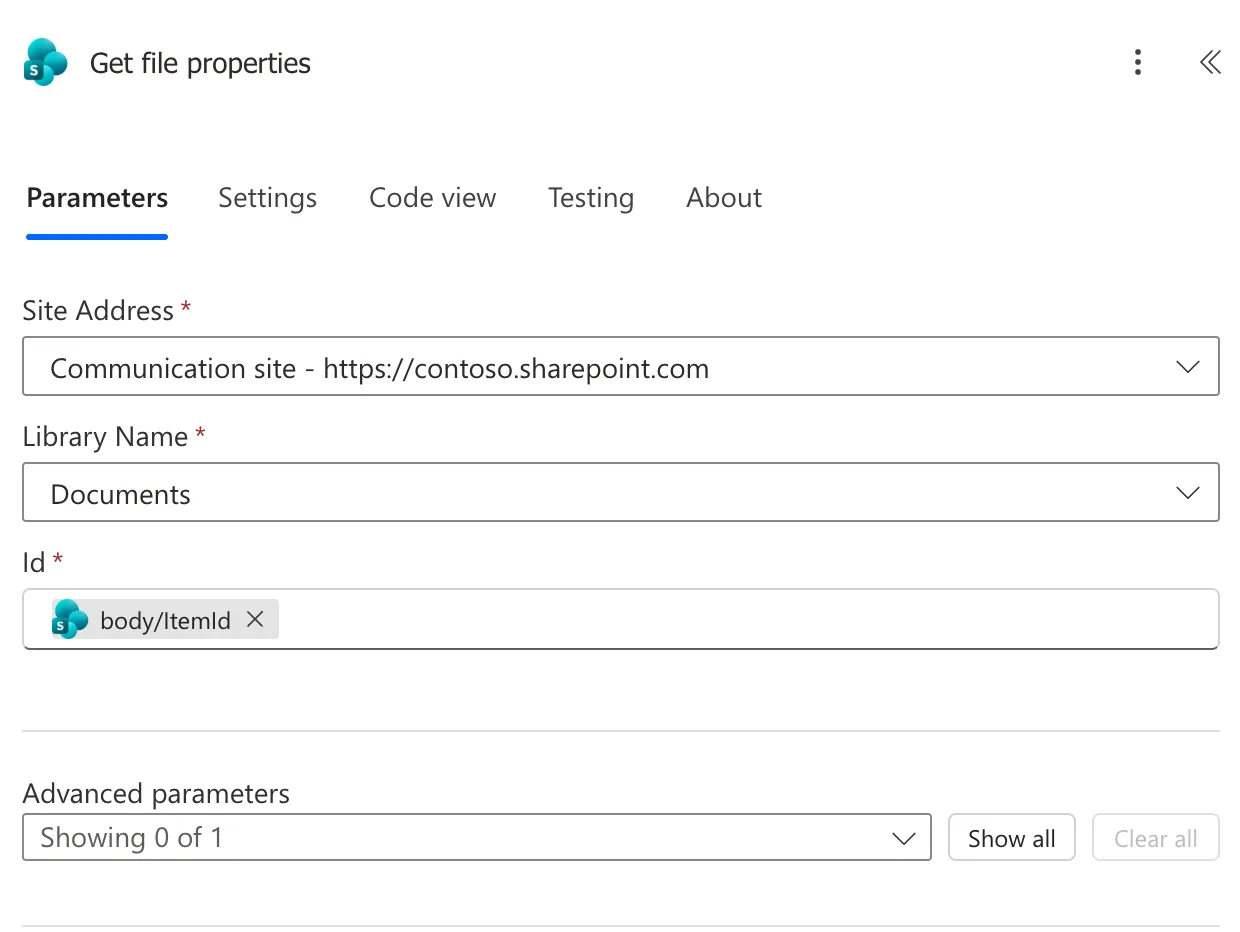
Add Get file properties from SharePoint:
- Site Address: the same site.
- Library Name: the library, here Documents.
- Id: put the cursor in the box and pick ItemId of Get file metadata using path from dynamic content. My designer shows the token as body/ItemId.
Step 3: Use Link to item
Link to item is in the dynamic content of Get file properties. Add a Compose called File link and pick it for Inputs (How to Use the Compose Action in Power Automate):
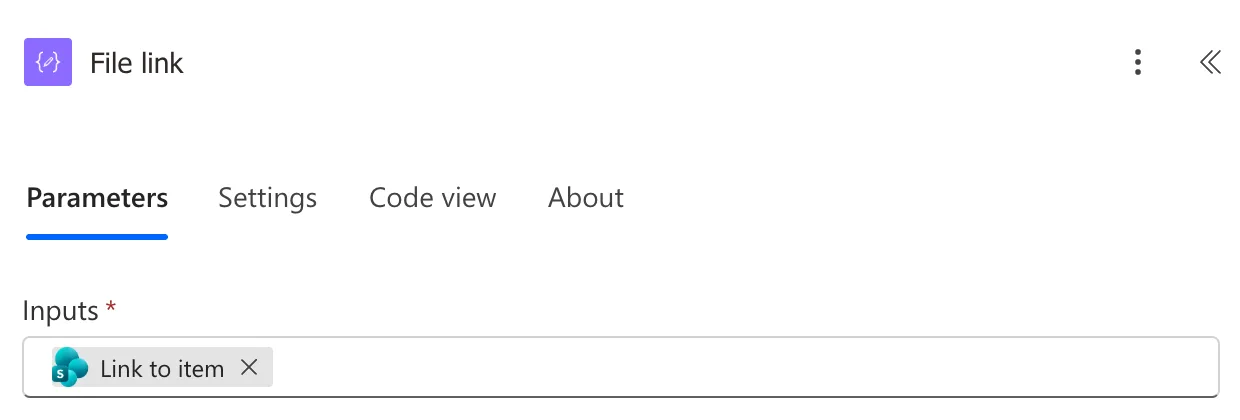
In an expression, the same value is:
outputs('Get_file_properties')?['body/{Link}']
The Result
Save the flow and test it (How to Test a Cloud Flow Manually in Power Automate). File link shows the file's address, with the space in Shared Documents written as %20:
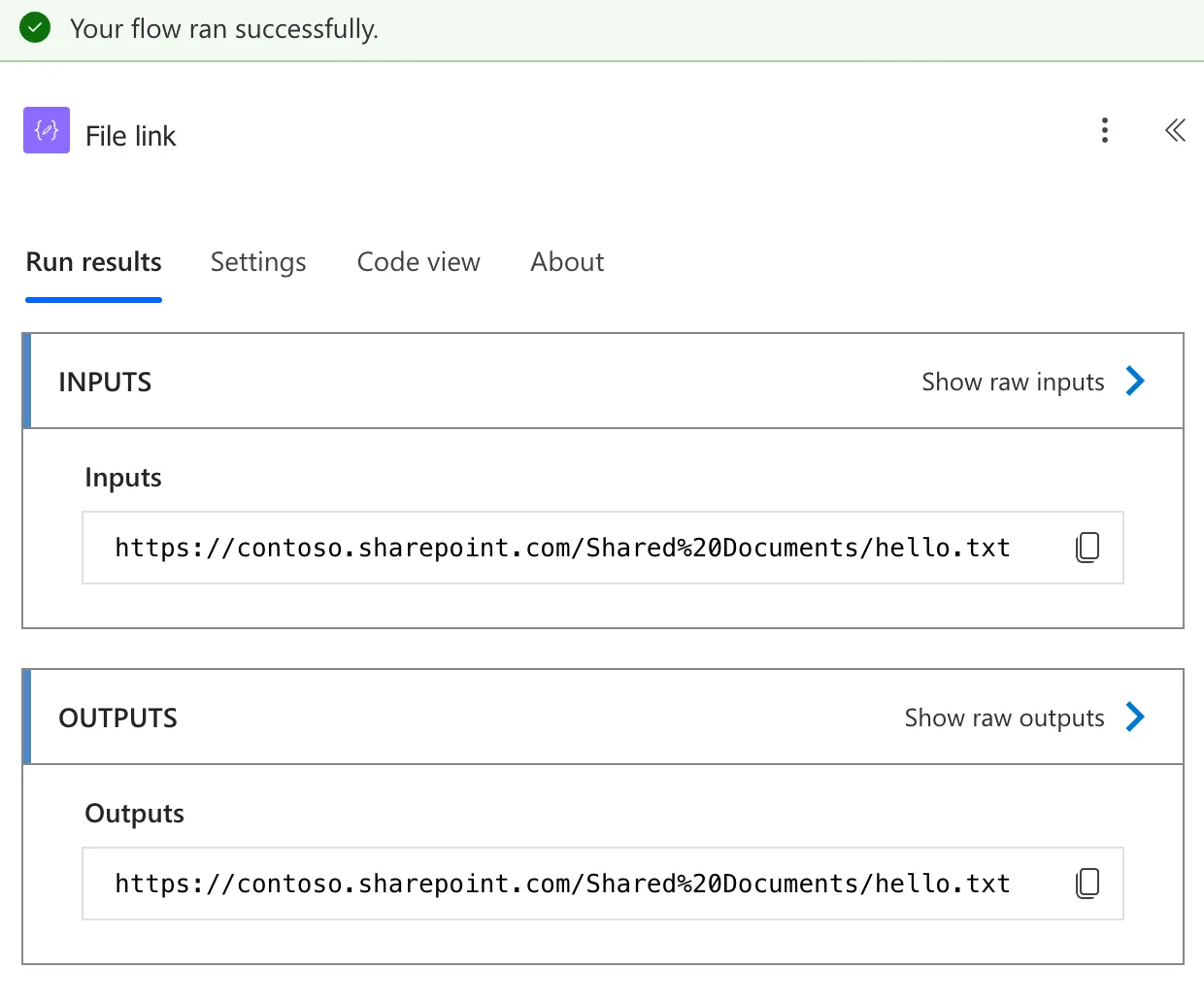
Opened in a browser, the link opens the file for anyone who has access to it. To put it in an email, see How to Add a Link to an Email in Power Automate.
Common Mistakes
| Mistake | What happens | Do this instead |
|---|---|---|
| Putting the file's path in Get file properties' Id | Id takes the item's number, not a path | Get ItemId first |
| A different library in Get file properties | The ID points at another library's item, or none | Use the library the file is in |
| Expecting the link to give access | People without access to the file can't open it | Share the file or library with them |
Troubleshooting
| Symptom | Likely cause | Fix |
|---|---|---|
| The run fails at Get file properties: item not found | Library Name doesn't match the file's library | Pick the library the file is in |
| No Link to item in dynamic content | You're looking at the metadata action's content | Pick from Get file properties |
| The link opens a you need access page | The person can't open the file | Give them access to the library |
FAQ
My flow has just created the file. Do I still need the metadata action?
No. Create file returns the new file's ItemId too, so pass that to Get file properties (How to Create a File in SharePoint in Power Automate).
What else does Get file properties return?
The file's columns in the library, such as its name and who modified it. The reference: it gets the properties saved in the columns in the library for the item specified by the item id.
Can a Power Apps app open the link?
Yes: return it from the flow to the app, and Launch() opens it in a new tab (How to Open a Web Page from Power Apps with Launch).
Conclusion
Get file metadata using path gives a file's ItemId; Get file properties with that ID gives Link to item, the file's web address, ready for an email or a reply to an app.
Additional Resources
- SharePoint connector reference: Get file metadata using path
- SharePoint connector reference: Get file properties
