How to Format Data as a Table in Excel

An Excel table is more than colours. It gives your rows a name, a filter button on every heading, and columns whose formulas fill down by themselves, and it grows when you add a row. Home → Format As Table turns a plain range into one.
The example is the old overtime timesheet from Part 1 of the Overtime Timesheet series. Its fourteen rows became a table, which later lets a Power Automate flow read them by name.
Prerequisites
- A range with one row of headings and no empty rows, such as the rows from How to Paste Tab-Separated Data into Excel.
Step 1: Select the Data
Select any cell in the range, or the whole range. Here the range is A1:H15.
Step 2: Pick a Style
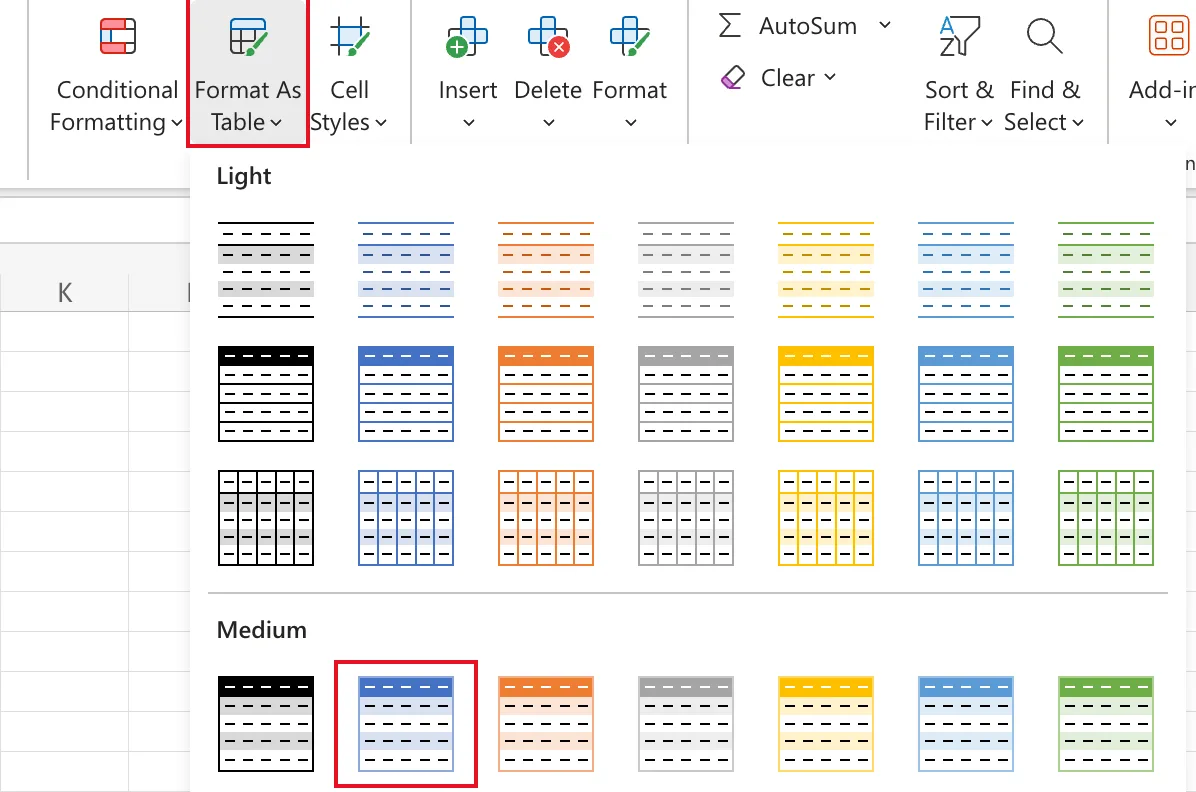
On the Home tab, select Format As Table and pick a style. I picked Blue, Table Style Medium 2:
Step 3: Confirm the Range and Headers
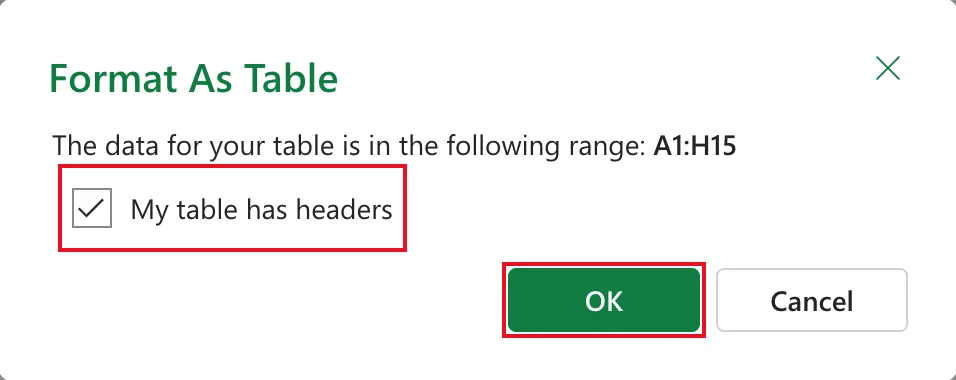
Format As Table shows the range it found: The data for your table is in the following range: A1:H15. Make sure My table has headers is ticked, so row 1 becomes the headings rather than data, then select OK:
Step 4: Check the Table
The range now has a coloured heading row with a filter button on each heading, banded rows, and a Table Design tab on the ribbon whenever a cell inside it is selected:
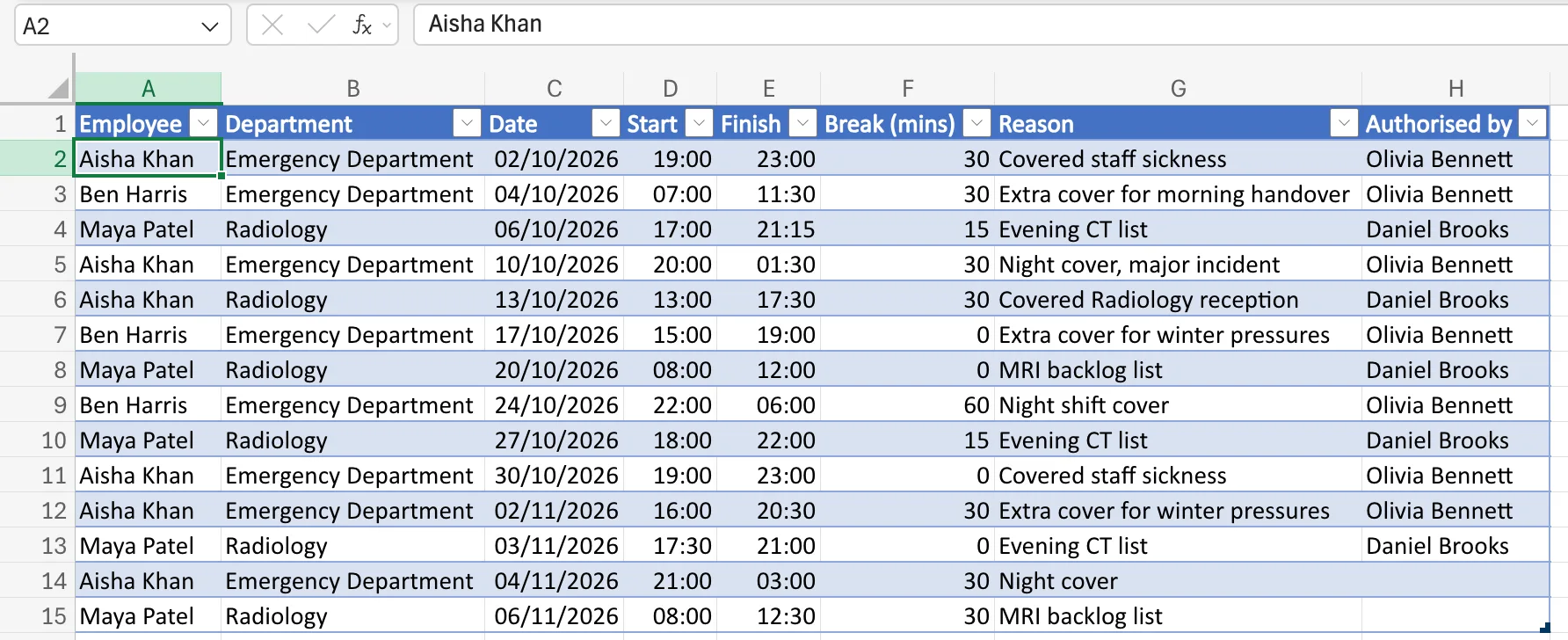
Excel names it Table1. Give it a meaningful name next: How to Rename a Table in Excel.
Why a Table Helps
- Formulas fill down. A formula typed in one row of a table column is copied to every row: How to Add a Calculated Column to an Excel Table.
- Readable formulas.
[@Finish]means this row's Finish: How to Use Structured References in an Excel Table. - It grows. Typing a heading next to the table added a new column to it.
- Other tools can find it. Power Automate's Excel connector reads rows from a named table.
Common Mistakes
| Mistake | What happens | Do this instead |
|---|---|---|
| Clearing My table has headers | Excel adds headings called Column1, Column2 and treats your headings as data | Keep it ticked when row 1 has headings |
| Leaving empty rows in the data | The range Excel finds stops at the gap | Remove empty rows first |
| Leaving the name Table1 | Formulas and flows refer to a meaningless name | Rename it |
Troubleshooting
| Symptom | Likely cause | Fix |
|---|---|---|
| The range in the dialog is too short | An empty row or column breaks the data | Fix the gap or type the right range |
| Table Design is missing | The selected cell is outside the table | Select a cell inside the table |
FAQ
Can I change the style later?
Yes. With a cell in the table selected, pick another style under Table Design.
Does a table change my data?
No. Values and formulas stay the same; the table adds formatting, filters and a name.
Conclusion
Home → Format As Table → pick a style → keep My table has headers → OK. You get filters, banded rows, a name, and formulas that fill down.
