How to Format a Number with Two Decimal Places in Power Automate

formatNumber(number, '0.00') shows a number with exactly two decimal places: 3.75 as 3.75, and 3 as 3.00. The result is text, which is right for emails and approvals; to save it to a number column, turn it back into a number with float().
Microsoft's functions reference says formatNumber() will Return a number as a string that's based on the specified format. Its example, formatNumber(1234567890, '#,##0.00', 'en-US'), formats the number as the string "1,234,567,890.00".
The example is the approval flow of the Overtime Timesheet app, which shows each shift's hours to the approver with two decimal places, the way payroll counts them.
Prerequisites
- A number in the flow. Here, the hours worked out from the shift's times (How to Work Out the Hours Between Two Times in Power Automate).
Step 1: Format the Number
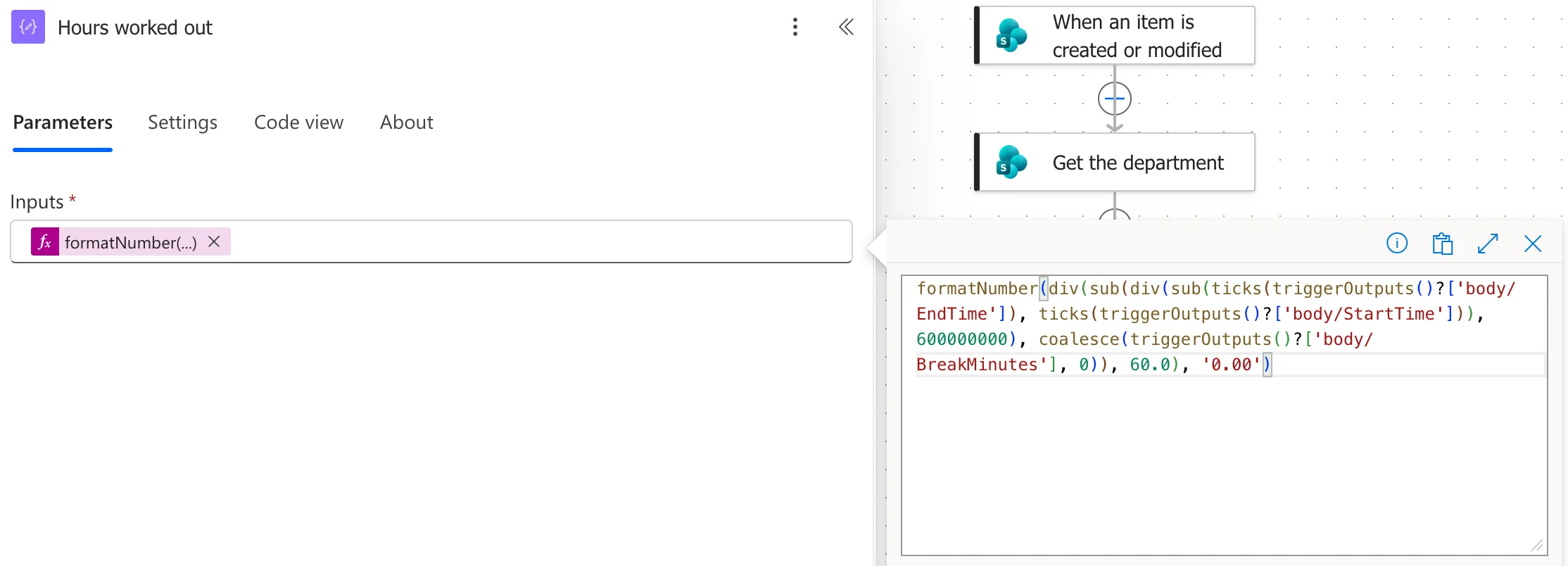
Wrap the number in formatNumber() with the format '0.00'. In the example, it's the outside of the Hours worked out expression:
formatNumber(div(sub(div(sub(ticks(triggerOutputs()?['body/EndTime']), ticks(triggerOutputs()?['body/StartTime'])), 600000000), coalesce(triggerOutputs()?['body/BreakMinutes'], 0)), 60.0), '0.00')
In the format, each 0 is a digit that's always shown, so '0.00' always has one digit before the point and two after it.
The Result
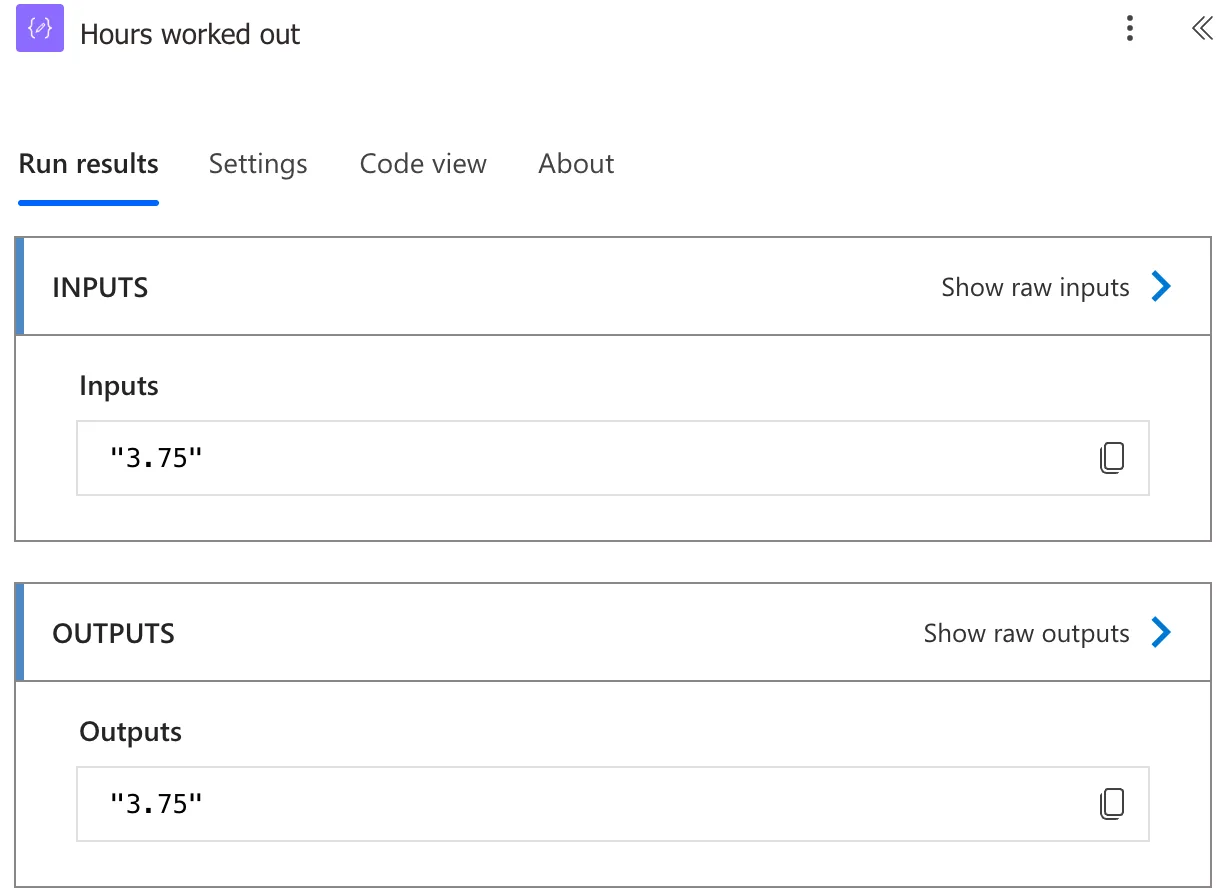
For a shift of 3 hours and 45 minutes, the run's output was "3.75", in quotes because it's text:
A whole number keeps its two places: a three-hour shift read Hours: 3.00 in the approval request (How to Approve a Request in the Microsoft Teams Approvals App).
Step 2: Convert It Back to Save It
A SharePoint Number column needs a number. In Record the decision, the Update item action that saves the decision, Hours turns the text back with float():
float(outputs('Hours_worked_out'))
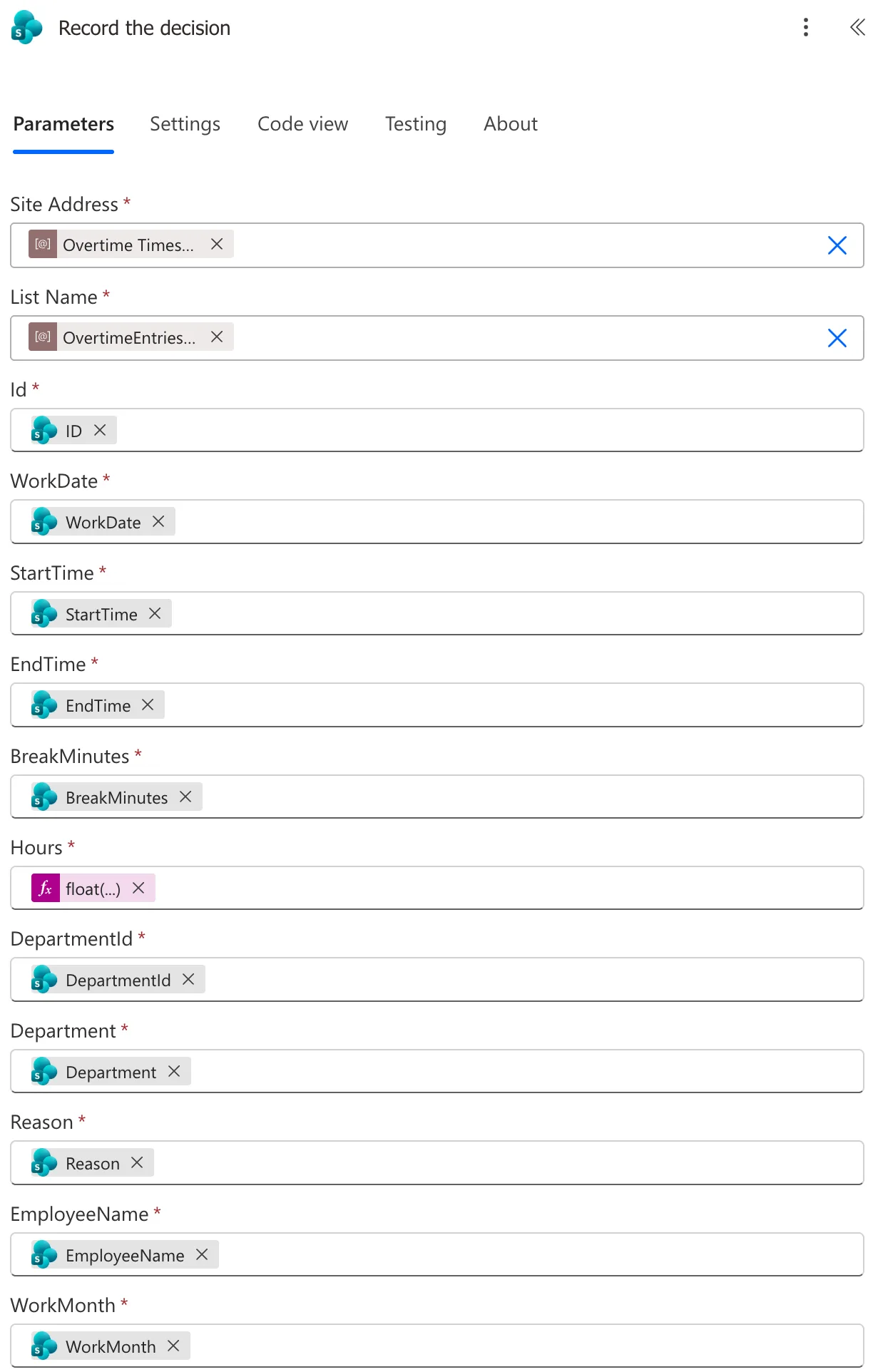
The reference describes float(): Convert a string version for a floating-point number to an actual floating point number. The entry's Hours was saved as 3.75.
Other Formats
The format follows the same pattern for other layouts: Microsoft's example '#,##0.00' adds a thousands separator, and its third argument, 'en-US', sets the locale the separators come from.
Common Mistakes
| Mistake | What happens | Do this instead |
|---|---|---|
| Doing arithmetic with the formatted value | It's text | Calculate first, format last |
| Saving the text to a Number column | It needs a number | float() it first |
Troubleshooting
| Symptom | Likely cause | Fix |
|---|---|---|
| 3.5 instead of 3.50 | The number wasn't formatted | formatNumber(x, '0.00') |
| Quotes around the value in a run | It's text, as expected | Nothing to fix |
| An error saving to a Number column | Text where a number is needed | float() |
FAQ
Why is the value in quotes in the run?
Because formatNumber() returns text. The run shows text values in quotes and numbers without them.
Where does the number come from?
Format the final number only. Here, the hours are worked out from the shift's times first, and formatNumber() is the last step.
Conclusion
formatNumber(x, '0.00') shows a number with exactly two decimal places, as text. Use it in emails and approvals, and float() it back when a Number column needs it.
