How to Format a Formula in Power Apps Studio

A long formula on one line is hard to read and harder to change. The formula bar's Format text puts each function's arguments on their own lines, indented under the function, without changing what the formula does.
The example is the list of people on the Reports screen of the Overtime Timesheet app. Its gallery's Items groups a month's entries by person and works out each person's name, departments and hours, all in one formula.
Prerequisites
- An app open for editing in Power Apps Studio, with a long formula. Microsoft's formulas overview introduces the formula bar: the property list on the left, the formula on the right.
Step 1: Select the Formula
Select the control, then the property in the list on the left of the formula bar. Here, the gallery galPeopleRS and its Items, written on one line, which the formula bar wrapped onto two:

Step 2: Open the Formula Bar's Tray
Select the arrow at the right end of the formula bar. The formula bar grows, and a tray at its bottom shows three buttons: Format text, Remove formatting and Find and replace. Microsoft lists the same three among the pop-out formula bar's editing tools.
Step 3: Select Format Text
Select Format text. Each function's arguments went onto their own lines, indented under the function, with each closing bracket on its own line:
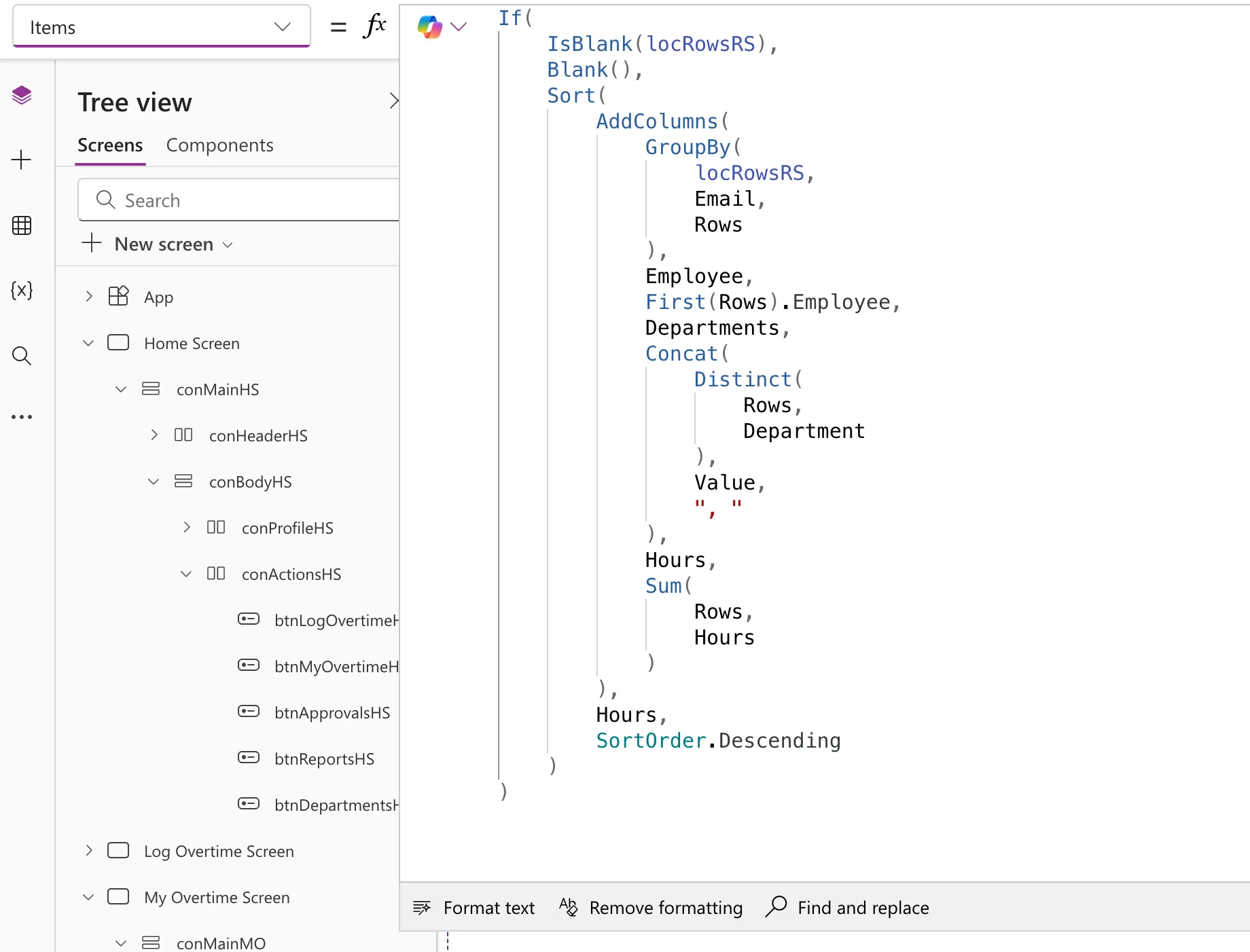
Only the spaces and line breaks changed. With every space and line break taken out, the text was the same before and after.
Step 4: Make the Formula Bar Taller
The open formula bar showed about seven lines, not enough for a 31-line formula. Drag its bottom edge down to show more, as Microsoft's Find and Replace article suggests for complex expressions. For more room still, the formula bar can open in a window of its own (Use the pop-out formula bar).
Remove Formatting
Remove formatting goes the other way. It put the whole formula back on one line, and also took out the spaces after the commas:

I selected Format text again afterwards, and the formula went back to its indented form.
The Result
The formula is easier to read, and each part is on its own line to change. It does exactly what it did before: only its layout changed.
Common Mistakes
| Mistake | What happens | Do this instead |
|---|---|---|
| Reading a long formula in the closed formula bar | You see a line or two of it | Open the tray and drag the formula bar taller |
| Formatting by typing line breaks by hand | Indents end up uneven | Format text |
| Expecting Remove formatting to keep the spaces | It takes out the spaces after commas too | Format text to lay it out again |
Troubleshooting
| Symptom | Likely cause | Fix |
|---|---|---|
| No Format text button | The tray is closed | Select the arrow at the right end of the formula bar |
| Part of the formula is out of sight | The formula bar is too short | Drag its bottom edge down, or open it in its own window |
FAQ
Does Format text change what the formula does?
No. Only spaces and line breaks change, and Power Apps doesn't need them to read a formula.
Does it work in the pop-out formula bar?
Yes. Microsoft lists Format text and Remove formatting among the pop-out formula bar's editing tools.
Conclusion
Select the property, open the formula bar's tray, and select Format text: each argument goes on its own line, indented under its function. Drag the formula bar taller to read it all, and use Remove formatting to put it back on one line.
Additional Resources
- Get started with formulas in canvas apps
- Use the pop-out formula bar in canvas apps
- Use Find and Replace in the formula bar
