How to Find the Monday of a Week in Power Apps

To find the Monday of the week a date falls in, count how many days the date is after Monday and go back that many. With Weekday numbering Monday as 1, that's Weekday(date, StartOfWeek.Monday) - 1 days, and DateAdd goes back. For Sunday 8 November 2026 the result is Monday 2 November.
The example is the Overtime Timesheet app, which groups each person's overtime into weeks that start on Monday.
Prerequisites
- The day number: How to Get the Day of the Week in Power Apps with Weekday.
- Going back days: How to Add Days or Minutes to a Date in Power Apps with DateAdd.
Step 1: Work It Out in One Formula
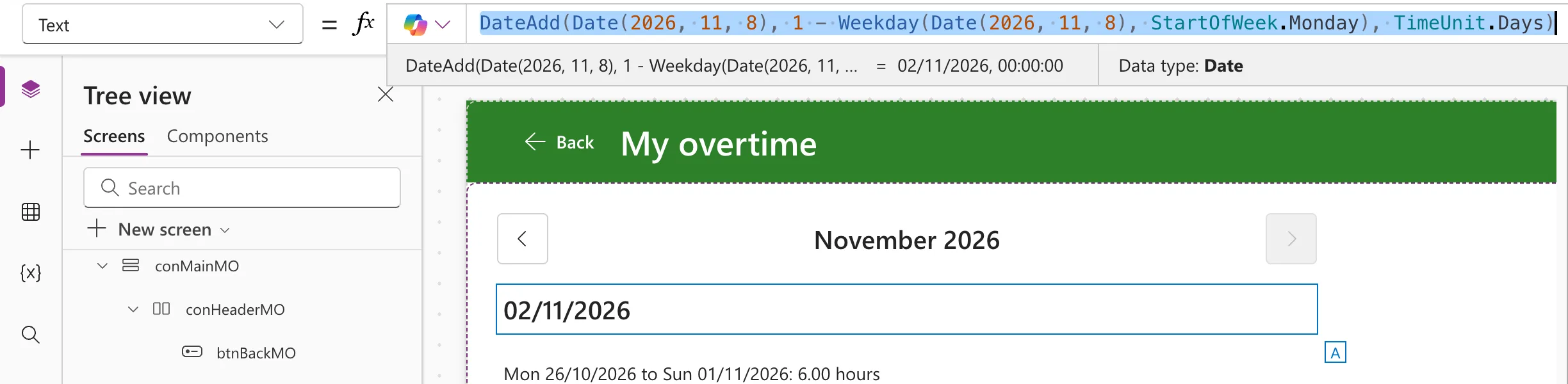
Weekday(d, StartOfWeek.Monday) is 1 on a Monday and 7 on a Sunday. Adding 1 - Weekday(...) days, a number from 0 to -6, lands on the Monday. I put the formula into a text control's Text for a moment, so Studio's preview strip shows the result:
DateAdd(Date(2026, 11, 8), 1 - Weekday(Date(2026, 11, 8), StartOfWeek.Monday), TimeUnit.Days)
8 November is a Sunday, day 7, so the formula goes back 6 days, to 02/11/2026:
Step 2: Make It a Function
The date appears twice in that formula, so any change means editing both. A user-defined function in App.Formulas names the rule once (How to Create a User-Defined Function in Power Apps):
MondayOf(AnyDate: Date): Date = DateAdd(AnyDate, 1 - Weekday(AnyDate, StartOfWeek.Monday), TimeUnit.Days);
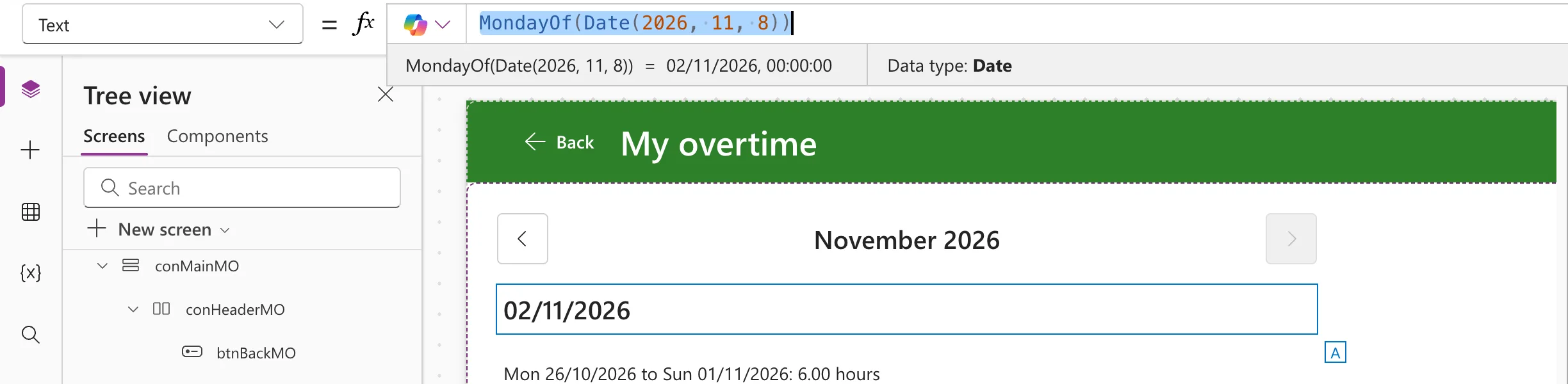
It takes a Date and returns a Date. Called with the same Sunday:
MondayOf(Date(2026, 11, 8))
Step 3: Check a Monday
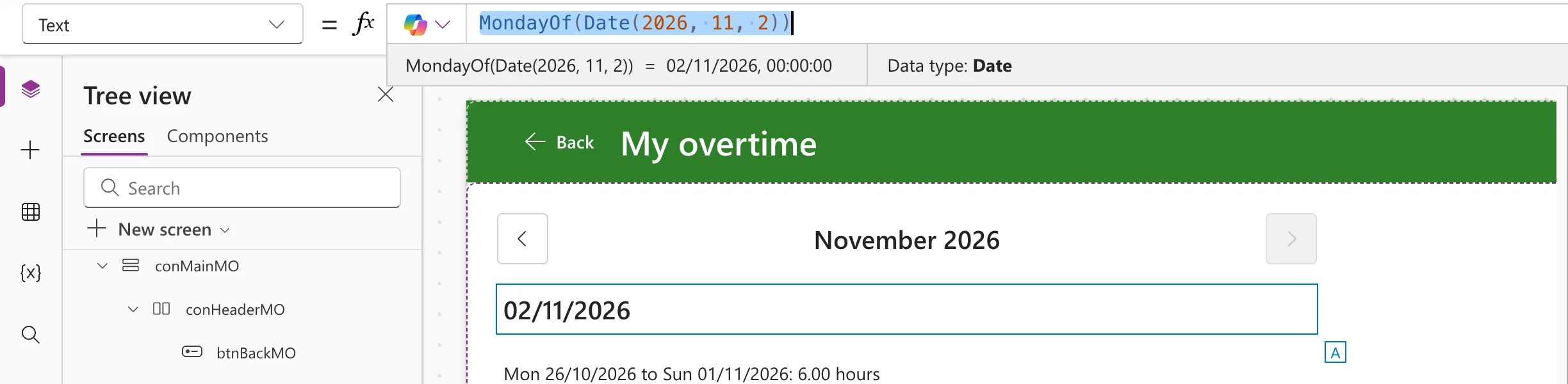
A Monday should give itself back: day 1, so it goes back 0 days.
MondayOf(Date(2026, 11, 2))
How the Example Uses It
The app's My Overtime screen totals each week's hours. It works out each entry's Monday with MondayOf(WorkDate) and groups the entries by it (How to Total Each Group in Power Apps with GroupBy and Sum). It also uses the function for the range of dates to load, from the Monday of the month's first week to the Sunday of its last (How to Filter a SharePoint List Between Two Dates in Power Apps):
FromDate: MondayOf(locMonthMO),
ToDate: DateAdd(
    MondayOf(DateAdd(DateAdd(locMonthMO, 1, TimeUnit.Months), -1, TimeUnit.Days)),
    6,
    TimeUnit.Days
)
The Sunday of a week is its Monday plus 6 days.
Common Mistakes
| Mistake | What happens | Do this instead |
|---|---|---|
Weekday(d) without StartOfWeek.Monday | The weeks start on Sunday, so the result is a Sunday | Weekday(d, StartOfWeek.Monday) |
-Weekday(...) instead of 1 - Weekday(...) | The Sunday before the Monday | 1 - Weekday(d, StartOfWeek.Monday) |
| Copying the formula into every control | Several copies of one rule to keep in step | One MondayOf function |
Troubleshooting
| Symptom | Likely cause | Fix |
|---|---|---|
| The "Monday" is a Sunday | Weekday counts from Sunday unless told otherwise | Add StartOfWeek.Monday |
| The preview strip shows 00:00:00 after the date | The strip shows the whole value | Format it where people see it: How to Format a Date in Power Apps with Text |
FAQ
How do I get the week's Sunday?
DateAdd(MondayOf(d), 6, TimeUnit.Days): the Monday plus six days.
Does it work across a month or a year?
DateAdd moves across month and year ends, so a date early in a month can have its Monday in the month before. The app's weeks do exactly that: Sunday 1 November 2026 belongs to the week of Monday 26 October.
Conclusion
DateAdd(d, 1 - Weekday(d, StartOfWeek.Monday), TimeUnit.Days) is the Monday of d's week. Keep it in App.Formulas as MondayOf, and every week in the app starts on the same day.
Additional Resources
- Weekday function: the StartOfWeek values.
- DateAdd, DateDiff, and TimeZoneOffset functions: adding and subtracting days.
