How to Find Apps Shared with You in Power Apps

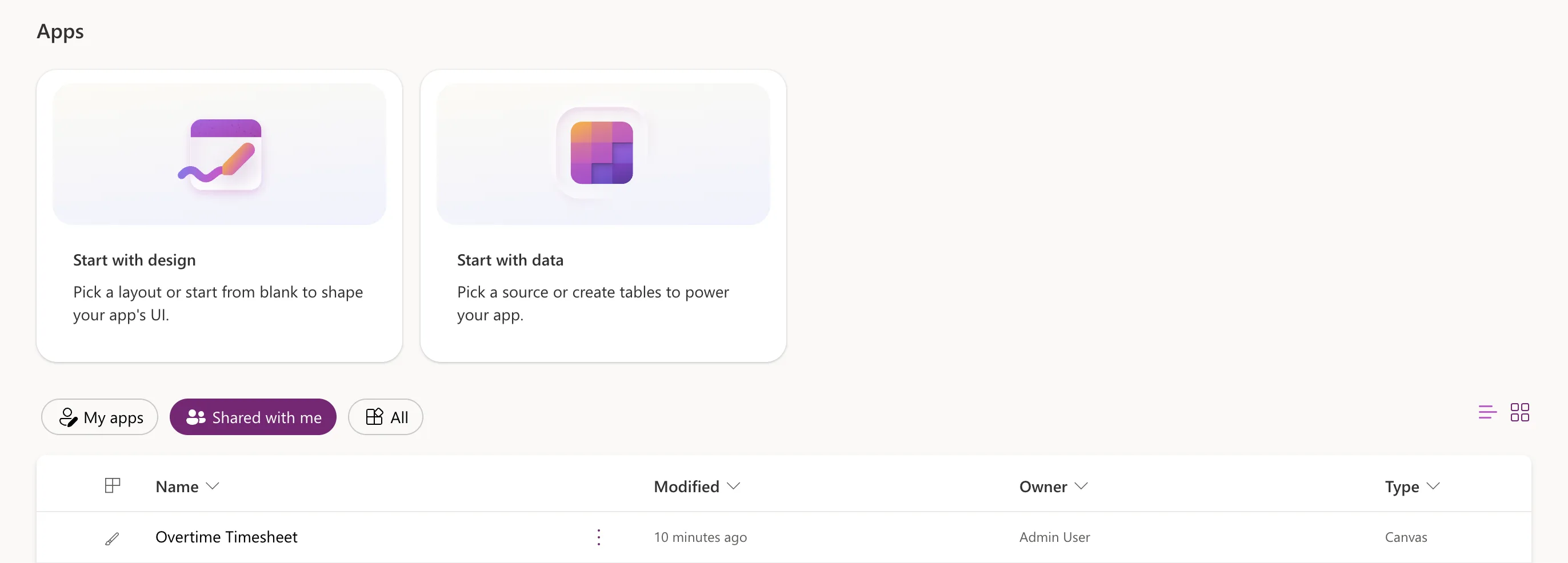
Apps that other people share with you are on the Shared with me tab of the Apps page in Power Apps. Open one with More commands > Play: selecting its name opens it for editing, which fails for anyone who isn't a co-owner.
The example is the Overtime Timesheet app, shared with an approver, Daniel, as a User (How to Share a Canvas App with Specific People in Power Apps). He'd never signed in to Power Apps before.
Prerequisites
- An app shared with you, or with a group you're in.
Step 1: Sign In to Power Apps
Go to Power Apps and sign in with your work account. The first time, Daniel saw Welcome to Power Apps, asking him to choose his country or region, and selected Get started.
Step 2: Open Shared with Me
Select Apps on the left, then the Shared with me tab. It lists the apps shared with you, with their owner and type:
Step 3: Open the App with Play
Select the app's More commands (⋮), then Play. For a User, Edit and the other maker commands are greyed out:
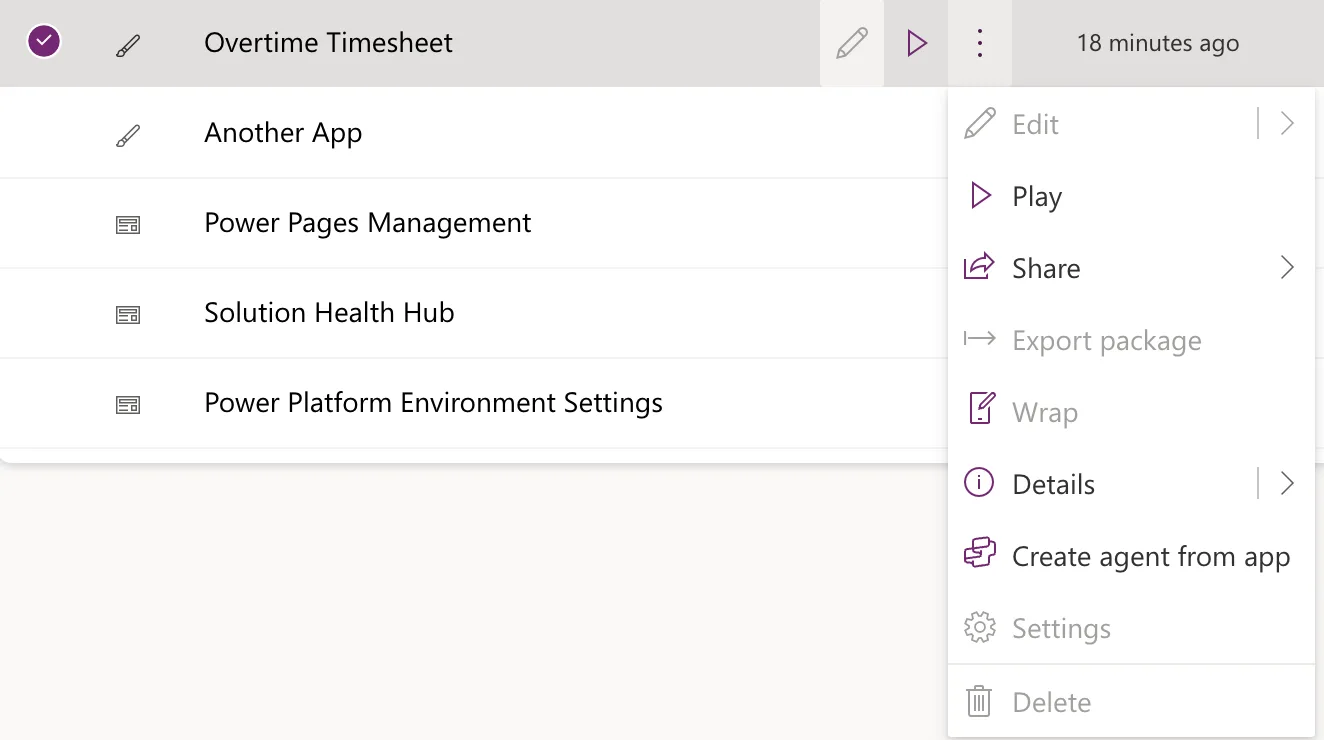
Selecting the app's name instead opened it in Power Apps Studio, for editing, and showed There was a problem opening this app (Fixed: "There Was a Problem Opening This App" in Power Apps).
Step 4: Allow the App's Connections
The app opens in a new tab. The first time, it asks you to allow the connections it uses (How to Open a Shared Canvas App for the First Time in Power Apps). This app's list included a connection used by a flow:
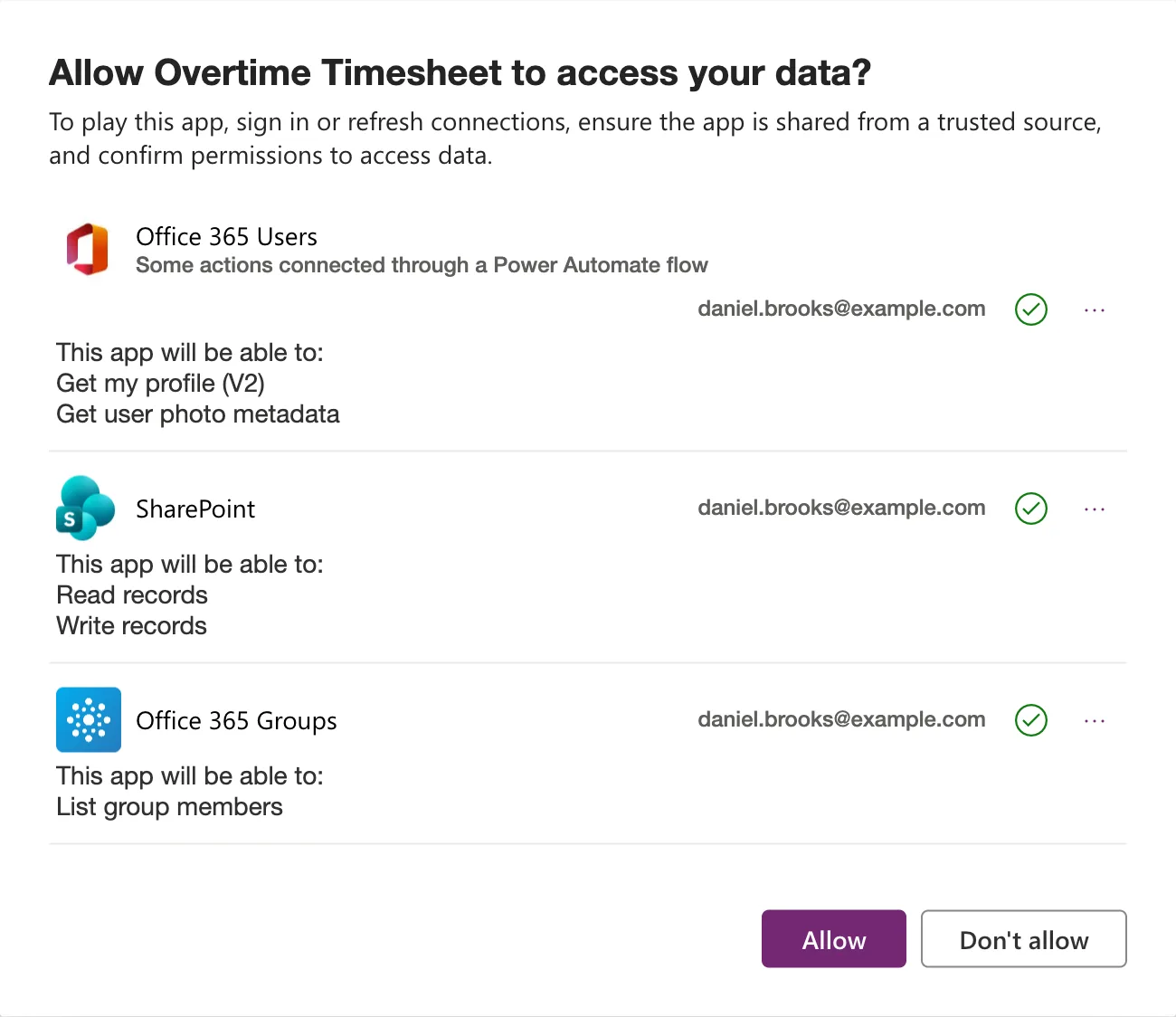
Select Allow.
The Result
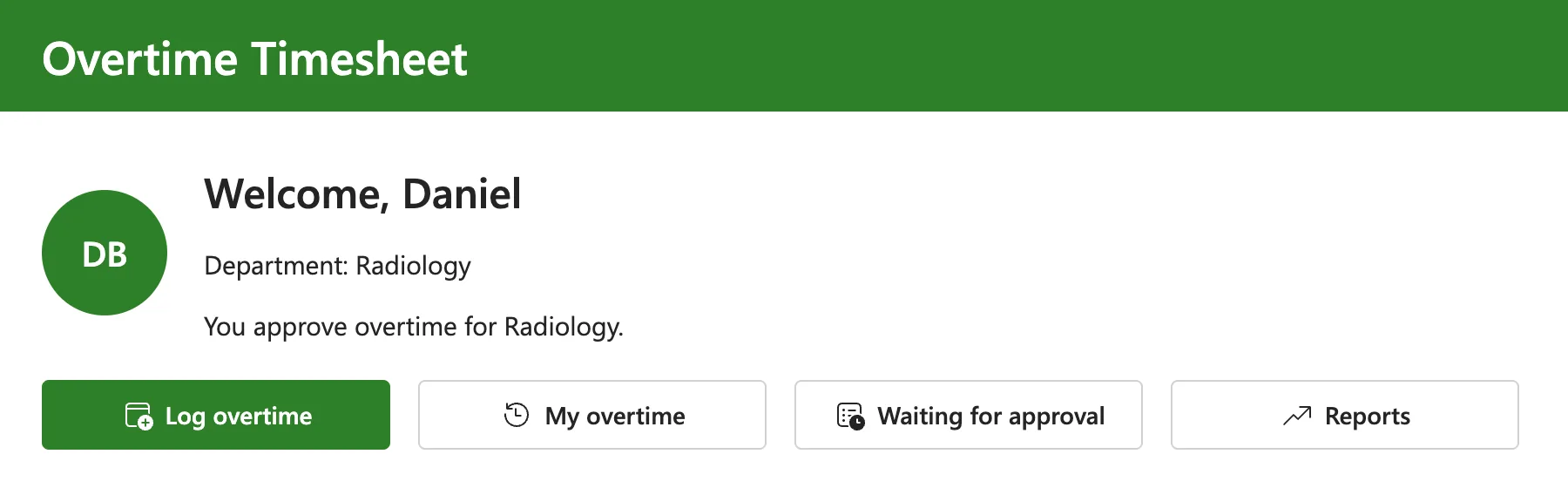
The app opened on its Home screen, with Daniel's own details:
Common Mistakes
| Mistake | What happens | Do this instead |
|---|---|---|
| Selecting the app's name | It opens for editing and fails for a User | ⋮ > Play |
| Looking under My apps | Shared apps aren't there | Shared with me |
| Selecting Don't allow | The app can't use its connections | Open it again and allow |
Troubleshooting
| Symptom | Likely cause | Fix |
|---|---|---|
| The app isn't on Shared with me | Another environment is selected, or it isn't shared | Check the environment, ask the owner |
| There was a problem opening this app | Opened for editing | Play |
| A flow in the app fails | The flow isn't shared with you | Ask the owner to add you as a run-only user |
FAQ
Do I have to go through Power Apps each time?
No. The app's web link opens it directly, and the owner can send it (How to Find the Web Link of a Canvas App in Power Apps).
Why are some apps on the list model-driven?
Shared with me can also list model-driven apps that come with the environment. Daniel's list had three, such as Solution Health Hub, besides the canvas apps shared with him.
Conclusion
Shared apps are under Apps > Shared with me. Open them with More commands > Play, allow their connections the first time, and keep the app's link for next time.
