How to Find an App Built for Your Organization in Microsoft Teams

Apps your organization makes for Teams are in the Teams Store, marked Built for your org. Open the Store from the app bar, search for the app, select it, then Add and Open.
The example is Hello App, a one-screen app from Power Apps that the Teams admin had added to the organization's catalog. Maya Patel, a member of staff, adds it to her own Teams.
Microsoft's custom apps article says it: After you roll out a custom app, the permitted users can find it in the Built for your org section of the Teams store in their Teams client. In Teams set to UK English, the label reads Built for your organisation.
Step 1: Open the Store and Search
In Teams, select Store in the app bar on the left. In the Store's search box at the top right, type the app's name. Hello App was the first result, with Built for your organisation under its description:
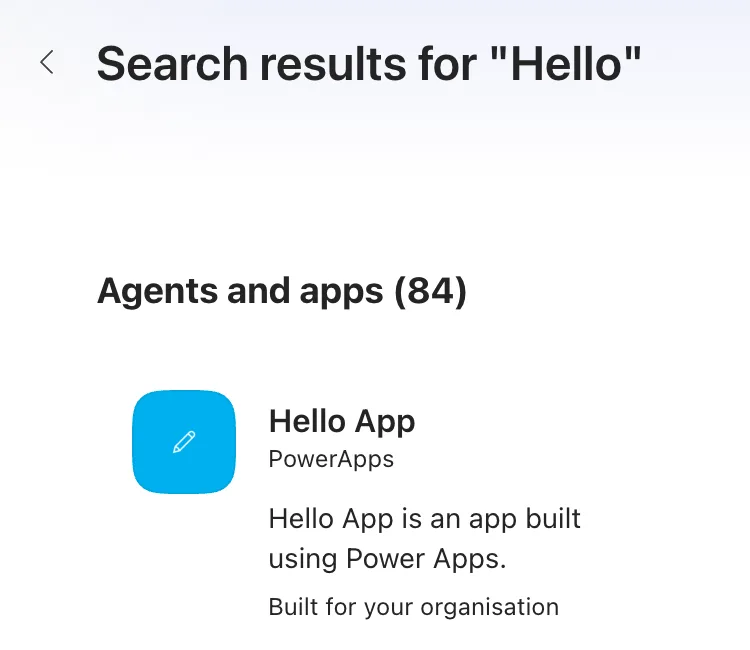
Not sure of the name? The Store's Home page has a Built for your organisation section with all of them.
Step 2: Add the App
Select the app. Its details open: the publisher, what it does, and where it works in Teams. Select Add:
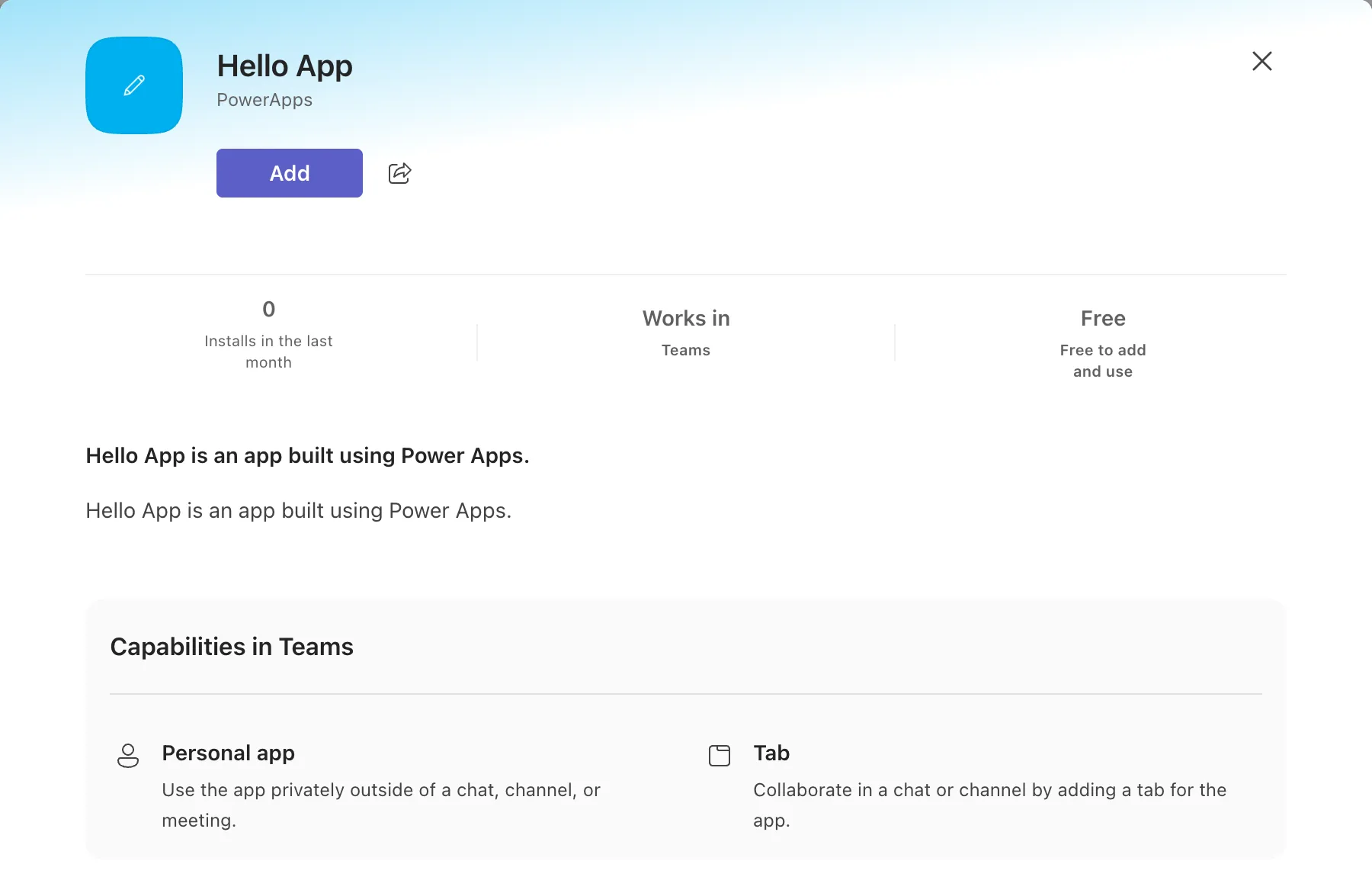
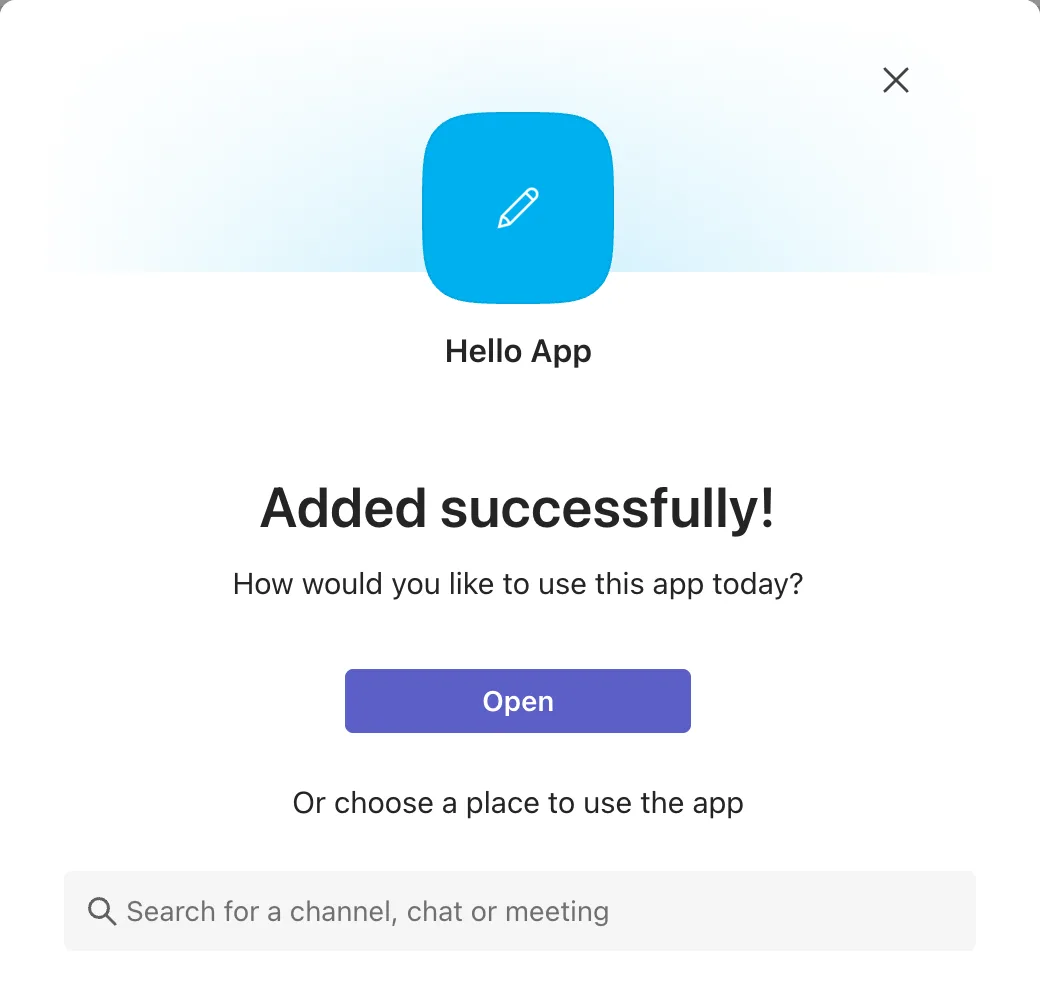
Teams says Added successfully! Select Open to use the app on its own:
The Result
The app opens in Teams, with its icon in the app bar. Hello App greeted Maya:
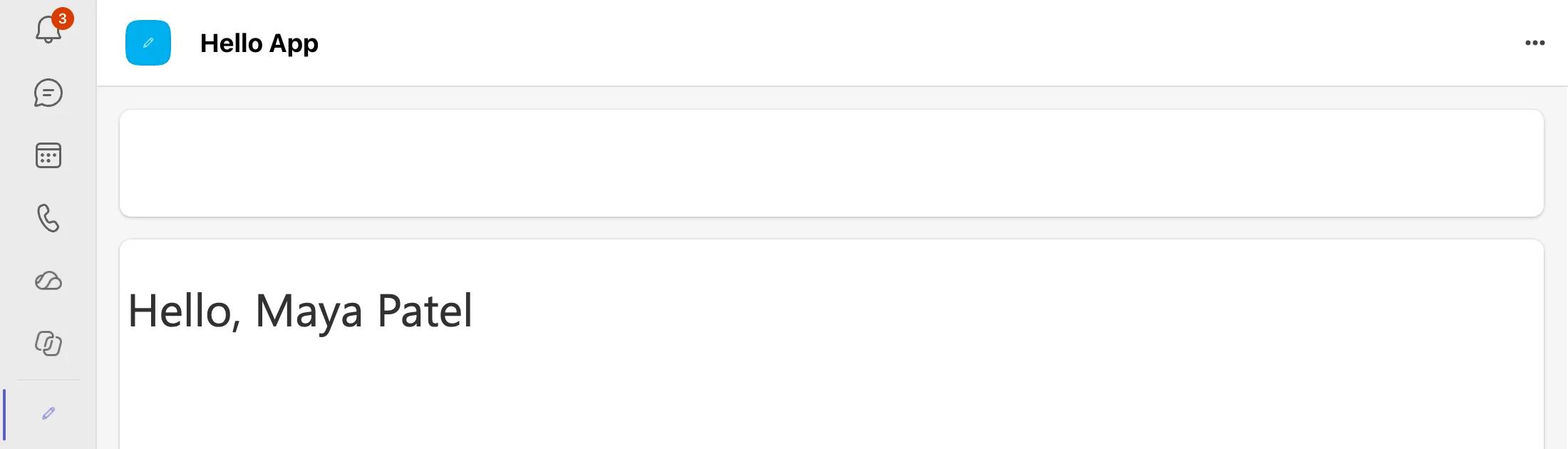
Hello App reads no data, so it opened straight away. An app from Power Apps that reads data, such as a SharePoint list, asks the person to allow it the first time (How to Open a Shared Canvas App for the First Time in Power Apps).
To keep the app in the app bar, pin it (How to Pin an App to the App Bar in Microsoft Teams).
Common Mistakes
| Mistake | What happens | Do this instead |
|---|---|---|
| Looking under Apps you've already added | The app isn't there until you add it | Search the Store |
| Choosing a channel instead of Open | It's added as a tab in that channel | Open, to use it on your own |
Troubleshooting
| Symptom | Likely cause | Fix |
|---|---|---|
| The app isn't in the Store | It isn't available to you, or hasn't reached you yet | Ask the Teams admin; Microsoft says new apps take a few hours |
| Teams shows Oops, app failed to load! | Teams on the web's first load in this browser | Fixed: "Oops, App Failed to Load!" in Teams on the Web |
FAQ
The admin installed the app for me. Why don't I see it?
Changes made in the Teams admin center take time to reach Teams: Microsoft says up to 24 hours. Adding it yourself from the Store works meanwhile.
Can I remove it later?
Yes (How to Uninstall an App in Microsoft Teams).
Conclusion
Open the Store from the app bar, search for the app or look under Built for your org, select it, then Add and Open.
