How to Find a Record in Power Apps with LookUp

Filter gives you every matching row; LookUp gives you the first one. Use it when you need one record, or one value from it: the job title of a competency, a person's response to a question, the item with a given ID.
Syntax
LookUp( Table, Formula [, ReductionFormula ] )
LookUp checks each record against Formula and returns the first one where it's true. With ReductionFormula, it returns that value from the record instead of the whole record. If nothing matches, it returns blank (Filter, Search, and LookUp functions).
Prerequisites
- A table or list to search. The examples use the
RoleCompetenciesSharePoint list of the Career Development Plan app (Part 2).
Example 1: A Value From the First Match
Which job title has the competency Coaching? Shown in a label, with .JobTitle to read one column of the record:
LookUp(RoleCompetencies, Competency = "Coaching").JobTitle
The preview strip under the formula bar shows Sales Manager:
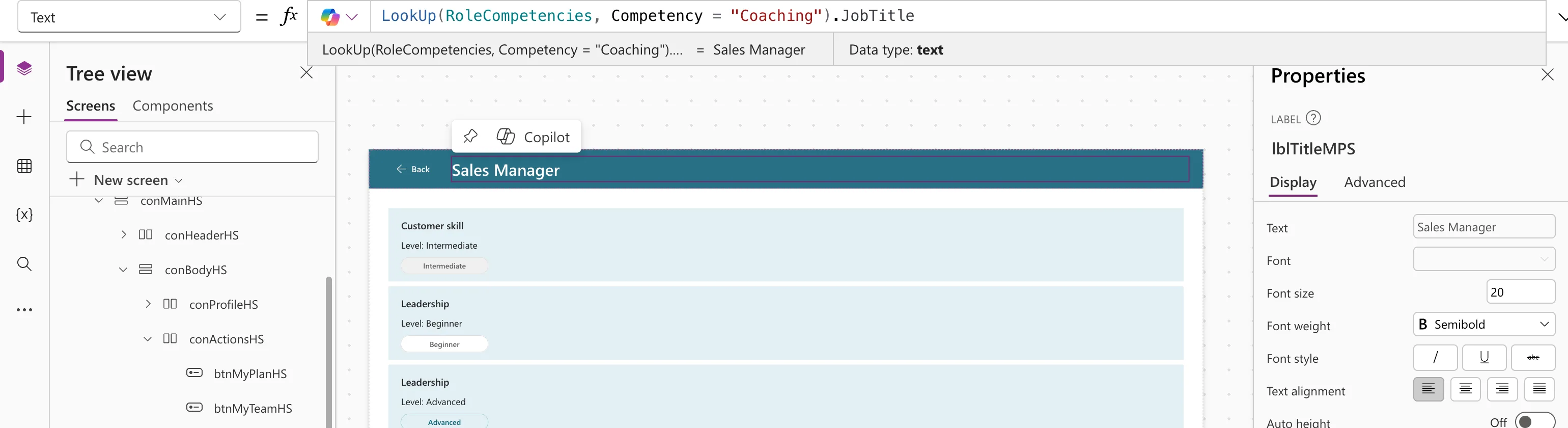
The same with the third argument: LookUp(RoleCompetencies, Competency = "Coaching", JobTitle).
Example 2: No Match
The list has no Negotiation competency:
LookUp(RoleCompetencies, Competency = "Negotiation").JobTitle
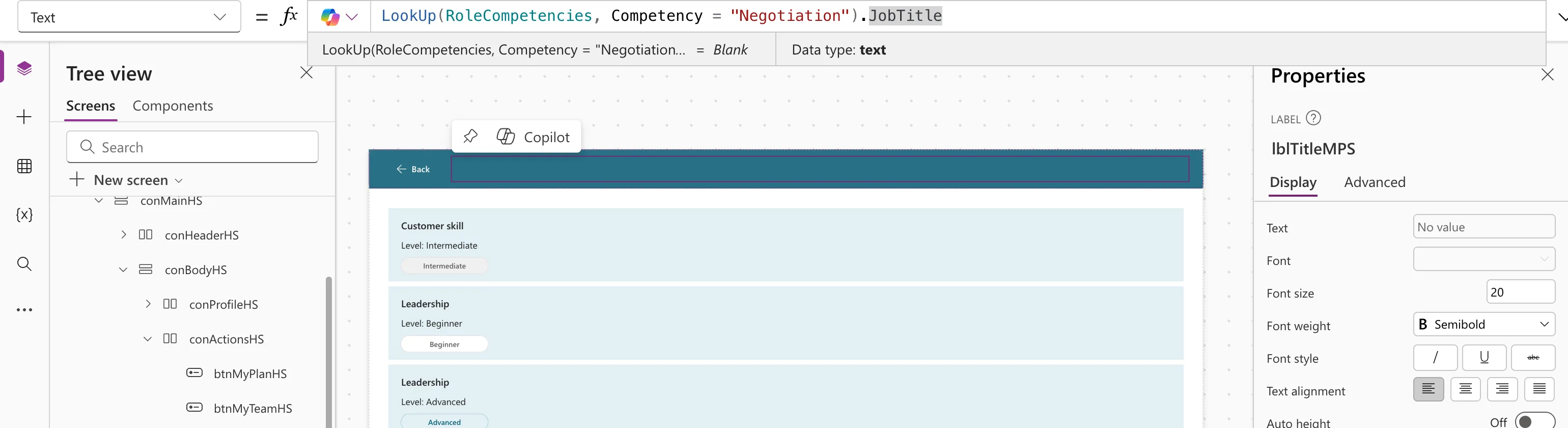
The result is Blank, not an error. Plan for it: Coalesce gives a fallback, and Switch can treat blank as its default case.
Example 3: Several Conditions
In the app's My Plan screen, each competency needs the person's response to it, if there is one. The response must match both the competency's ID and its level:
LookUp(
    locMyResponses,
    RoleCompetencyId = planItem.ID && Level = planItem.Level.Value
).Status.Value
&& requires both conditions (How to Combine Conditions in Power Apps with And and Or). planItem is the competency being processed, named with As. This LookUp searches a table already loaded into a variable, so it doesn't go back to SharePoint for each row.
Delegation
On a SharePoint list, Microsoft lists LookUp as delegable for number, text, Yes/No and date columns, so SharePoint does the search (SharePoint delegation). The same limits apply to the condition as for Filter; see What Is Delegation in Power Apps?
Common Mistakes
| Mistake | What happens | Do this instead |
|---|---|---|
| Expecting all matches | Only the first comes back | Use Filter |
| Not planning for no match | A blank shows up as nothing, or breaks text that uses it | Handle blank with Coalesce, If or a default |
| A LookUp on a data source in every gallery row | One query per row | Load the rows once, then LookUp the loaded table |
Troubleshooting
| Symptom | Likely cause | Fix |
|---|---|---|
| The result is Blank | Nothing matched | Check the condition's values in the preview strip |
| A delegation warning | The condition can't be sent to the data source | Rewrite it with delegable comparisons |
FAQ
LookUp or Filter?
LookUp for one record, Filter for all matching records. First(Filter(...)) gives the same as LookUp, but less clearly.
Can I return more than one column?
Return the whole record (no third argument), store it if needed, and read its columns.
Conclusion
LookUp(table, condition) returns the first matching record, and .Column or a third argument gives one value from it. Expect blank when nothing matches.
Additional Resources
- Filter, Search, and LookUp functions: syntax and examples.
