How to Find a Group's Object ID in Microsoft Entra

Every group in Microsoft Entra has an Object ID, a long code that never changes, even when someone renames the group. Apps, connectors and scripts ask for the group by this ID. Finding and copying it in the Microsoft Entra admin center takes a minute.
The example copies the ID of the Overtime Payroll security group for the Overtime Timesheet app, which uses it to tell whether the signed-in person works in payroll.
Prerequisites
- The group. See How to Create a Security Group in the Microsoft Entra Admin Center.
- Access to the group in the Microsoft Entra admin center. The example uses the admin account that created the groups.
Step 1: Open All Groups and Search
In the Microsoft Entra admin center, go to Entra ID → Groups → All groups. Type part of the group's name in the search box, here Overtime. The list has an Object Id column (masked in these screenshots):
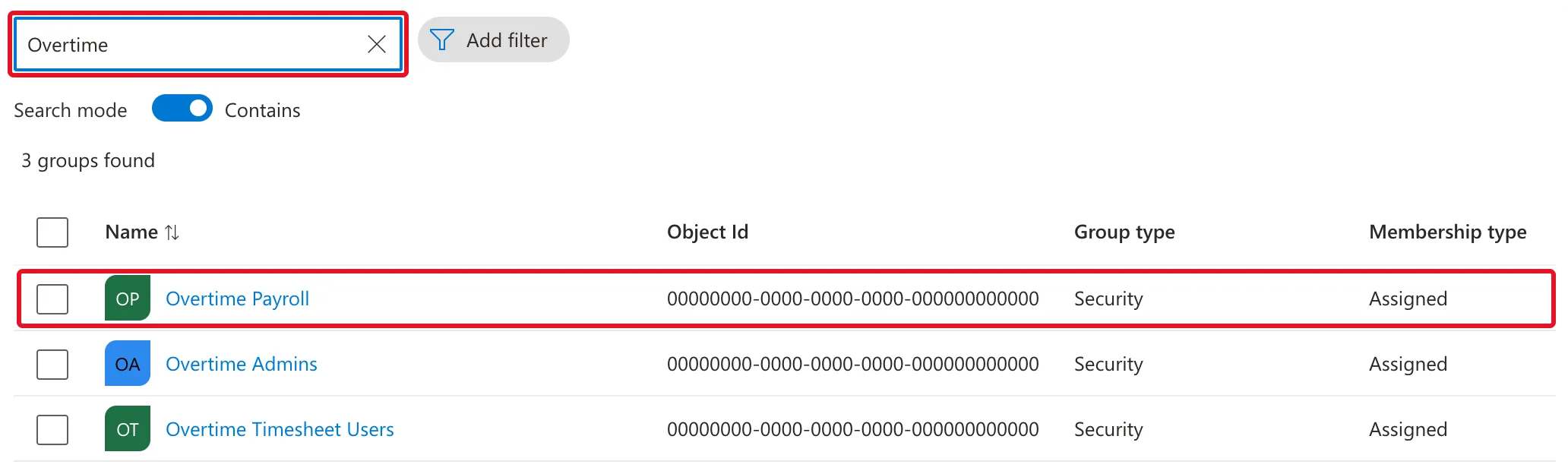
Searching also keeps unrelated groups off your screen. Select the group's name, Overtime Payroll.
Step 2: Copy the Object ID from the Overview
The group opens on its Overview. Under Basic information, Object ID has a copy button next to it. Select it to copy the ID:
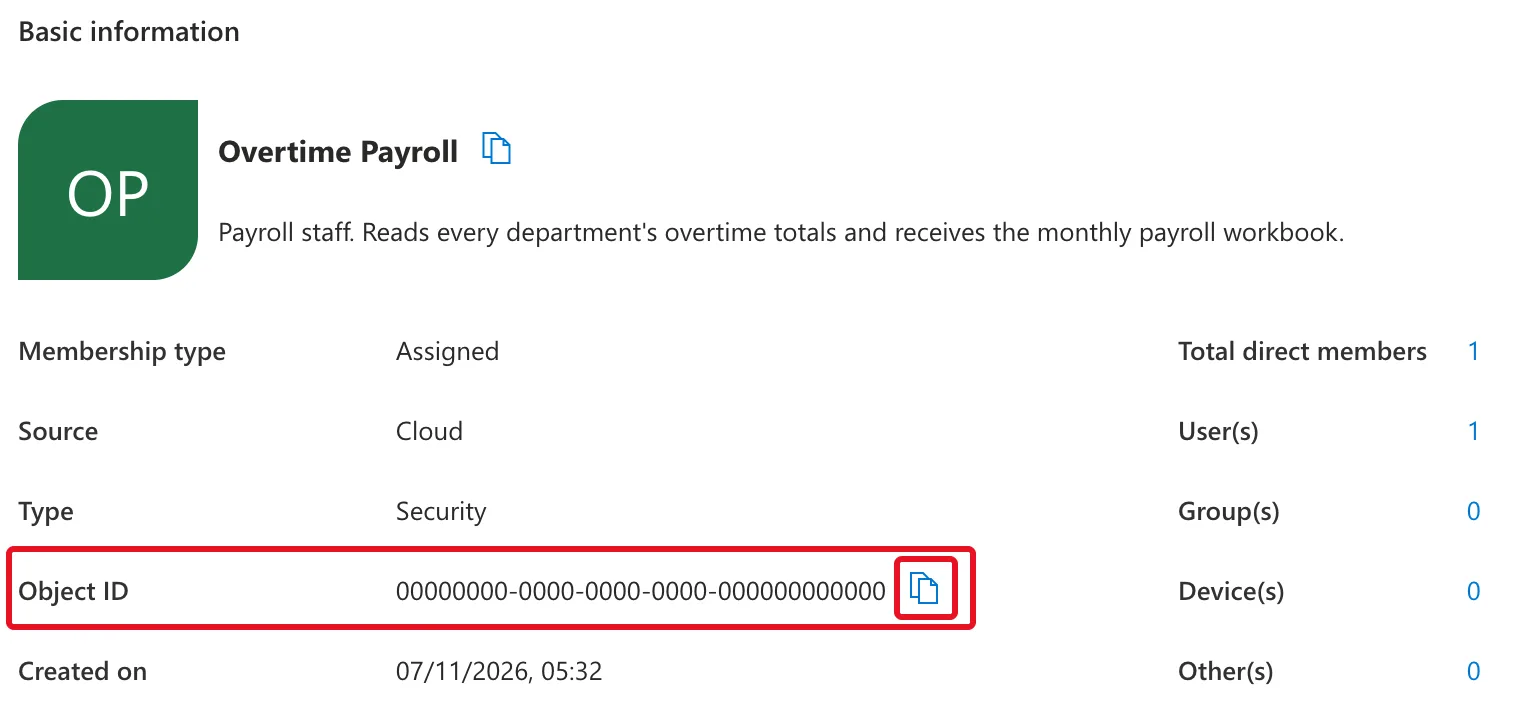
The button copies the whole ID, which is safer than selecting the text by hand. An Object ID has 36 characters: 32 letters and digits in groups of 8, 4, 4, 4 and 12, joined by hyphens.
Step 3: Paste It Where You Need It
Paste the ID wherever the app or script asks for the group. In the example, it goes into a SharePoint list of settings that the Overtime Timesheet app reads: How to Store App Settings in a SharePoint List for Power Apps. The app's Overtime Admins group gets the same treatment, from its own Overview.
Why the ID and Not the Name
Microsoft's group settings documentation says you can change a group's name and description, but not its Object ID. An app that looks a group up by name breaks the day someone renames it; one that uses the ID keeps working.
Do It with PowerShell
The security group guide finds a group by its name with Microsoft Graph PowerShell and keeps the result in $group: see its Find the group section. $group.Id is the same Object ID.
Common Mistakes
| Mistake | What happens | Do this instead |
|---|---|---|
| Copying the ID by selecting the text | A character at either end gets left out | Use the copy button |
| Copying the ID of a similarly named group | The app checks the wrong group | Check the name at the top of the Overview before copying |
| Using the group's name in an app instead of the ID | Renaming the group breaks the app | Store the Object ID |
Troubleshooting
| Symptom | Likely cause | Fix |
|---|---|---|
| The search finds no groups | The name doesn't contain the text you typed | Search with a shorter part of the name |
| An app says the group doesn't exist | The ID was copied incompletely or from another group | Copy it again with the copy button and compare the group's name |
FAQ
Is the Object ID a secret?
No. It identifies the group but grants no access by itself. It's still an internal detail of your organization, so keep it out of screenshots you publish, as in these.
Does a Microsoft 365 group have an Object ID too?
Yes. Every group in All groups has one, and the steps are the same.
Does the ID change if I add or remove members?
No. Members, owners, name and description can all change, and the Object ID stays the same.
Conclusion
Entra ID → Groups → All groups → search → the group → Overview → the copy button next to Object ID. Use the ID wherever an app or script needs the group, because it outlives renames.
Additional Resources
- Manage Microsoft Entra groups and group membership: what you can and can't change on a group, including the Object ID.
- Learn about group types, membership types, and access management: security groups and Microsoft 365 groups.
