How to Filter Structured Logs by Category in the Aspire Dashboard

The Aspire Dashboard's Structured logs page can show the entries of one logger category and hide the rest. Add a filter on Category, pick the category from the list, and the page keeps only its entries.
A category is the name a logger writes under, and every entry carries it. Microsoft's logging guide: That category is included with each log message created by that instance of ILogger. The Structured logs page has no Category column, but it can filter on the category. aspire.dev's tour of the dashboard: You can also filter by any log property by selecting the filter icon button, which opens the advanced filter dialog.
The Example
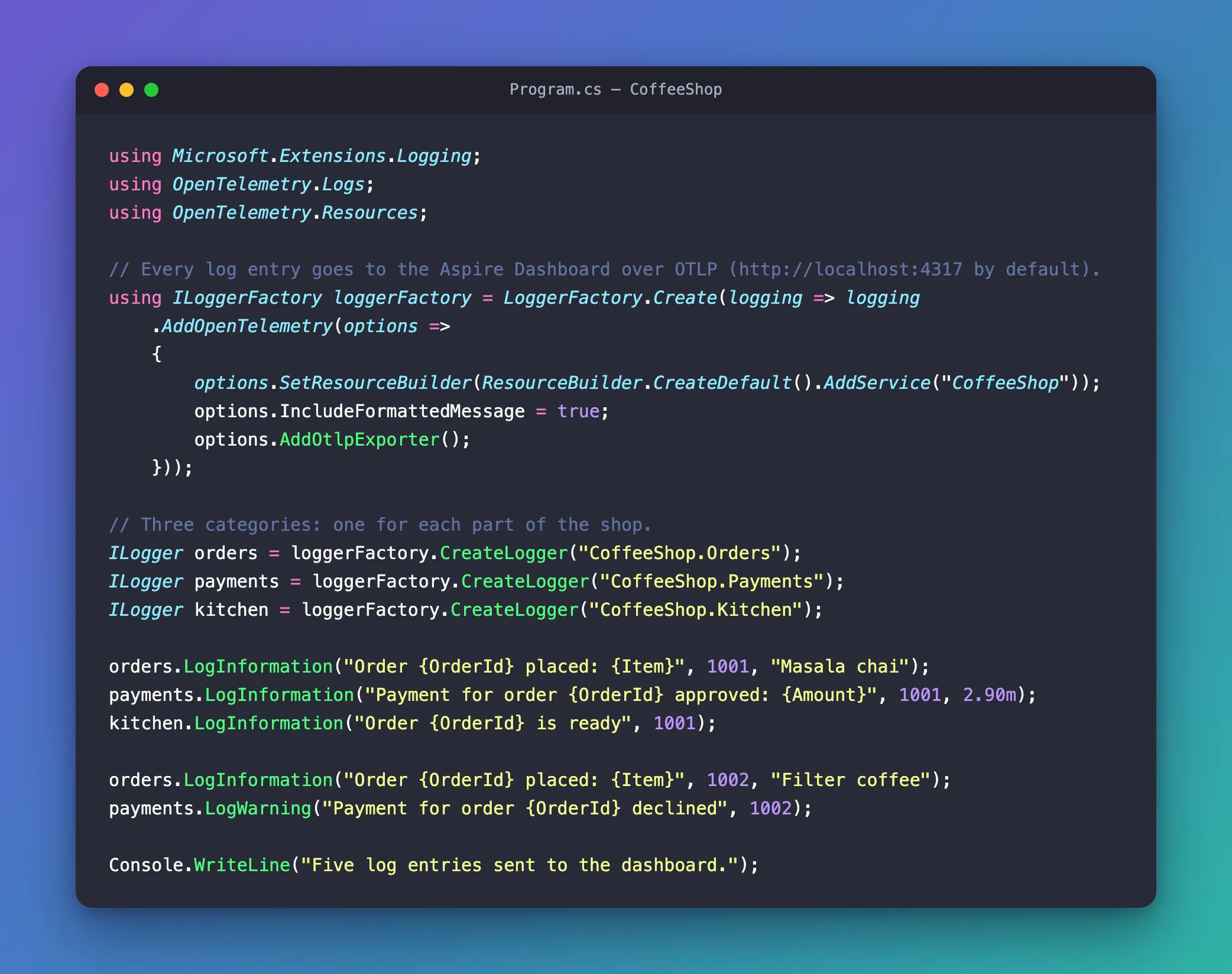
CoffeeShop is a console app with three loggers, one for each part of a coffee shop: CoffeeShop.Orders, CoffeeShop.Payments and CoffeeShop.Kitchen. It writes five entries and sends them to the Aspire Dashboard over OTLP. Its only job is to give the dashboard something to filter.
Prerequisites
- The .NET 10 SDK, to run the example app.
Step 1: Send Logs in Three Categories
Start the Aspire Dashboard, without Docker or in Docker. Then create the app and add the OpenTelemetry OTLP exporter:
dotnet new console -n CoffeeShop
cd CoffeeShop
dotnet add package OpenTelemetry.Exporter.OpenTelemetryProtocol --version 1.21.0
info : PackageReference for package 'OpenTelemetry.Exporter.OpenTelemetryProtocol' version '1.21.0' added to file '/Users/you/source/CoffeeShop/CoffeeShop.csproj'.
info : Generating MSBuild file /Users/you/source/CoffeeShop/obj/CoffeeShop.csproj.nuget.g.targets.
info : Writing assets file to disk. Path: /Users/you/source/CoffeeShop/obj/project.assets.json
log  : Restored /Users/you/source/CoffeeShop/CoffeeShop.csproj (in 2.32 sec).
dotnet new console creates a console app in a new CoffeeShop folder, and dotnet add package adds the exporter that sends log records over OTLP. Replace everything in Program.cs:
using Microsoft.Extensions.Logging;
using OpenTelemetry.Logs;
using OpenTelemetry.Resources;

// Every log entry goes to the Aspire Dashboard over OTLP (http://localhost:4317 by default).
using ILoggerFactory loggerFactory = LoggerFactory.Create(logging => logging
    .AddOpenTelemetry(options =>
    {
        options.SetResourceBuilder(ResourceBuilder.CreateDefault().AddService("CoffeeShop"));
        options.IncludeFormattedMessage = true;
        options.AddOtlpExporter();
    }));

// Three categories: one for each part of the shop.
ILogger orders = loggerFactory.CreateLogger("CoffeeShop.Orders");
ILogger payments = loggerFactory.CreateLogger("CoffeeShop.Payments");
ILogger kitchen = loggerFactory.CreateLogger("CoffeeShop.Kitchen");

orders.LogInformation("Order {OrderId} placed: {Item}", 1001, "Masala chai");
payments.LogInformation("Payment for order {OrderId} approved: {Amount}", 1001, 2.90m);
kitchen.LogInformation("Order {OrderId} is ready", 1001);

orders.LogInformation("Order {OrderId} placed: {Item}", 1002, "Filter coffee");
payments.LogWarning("Payment for order {OrderId} declined", 1002);

Console.WriteLine("Five log entries sent to the dashboard.");
AddOpenTelemetryturns each log entry into an OpenTelemetry record.AddService("CoffeeShop")names the app, andAddOtlpExporter()sends the records tohttp://localhost:4317, the exporter's default address for gRPC, its default protocol.CreateLogger("CoffeeShop.Orders")and the two lines after it create one logger per category. The name you pass is the category.
Run it:
dotnet run
Five log entries sent to the dashboard.
Step 2: Open the Structured Logs Page
In the dashboard, open Structured logs:
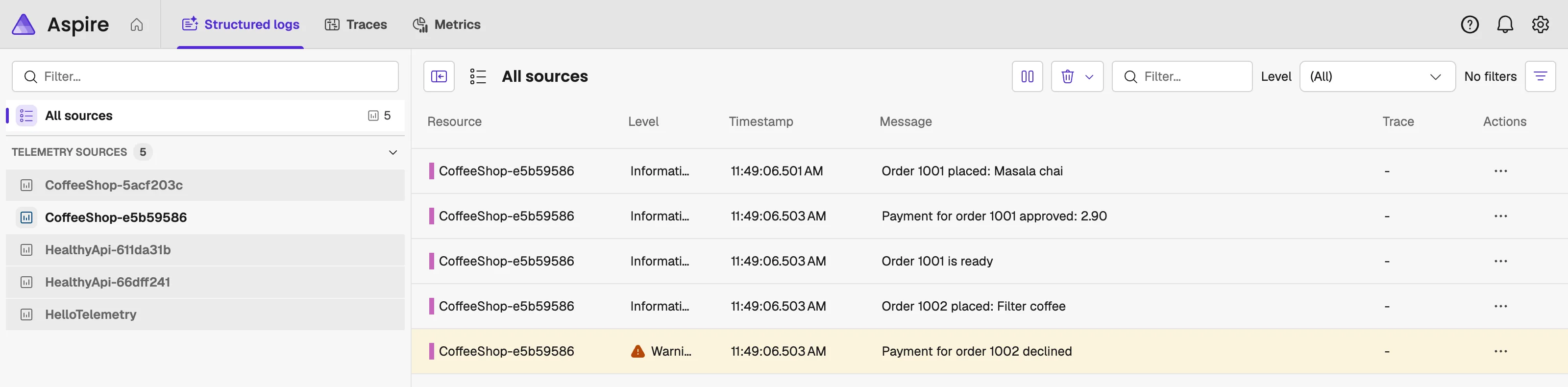
All five entries are there. Resource says CoffeeShop-e5b59586 on every one of them, and Trace is empty, since the app writes no traces. Nothing on the page says which part of the shop wrote which entry.
The resource's name ends in a short ID because CoffeeShop ran twice against this dashboard, and the dashboard tells the two runs apart: the list on the left has CoffeeShop-5acf203c and CoffeeShop-e5b59586. It also lists two other apps that had sent telemetry to the same dashboard earlier.
Step 3: Add a Filter on Category
Select the filter icon button at the top right, next to No filters. The Add filter dialog opens. Set Parameter to Category and Condition to ==:
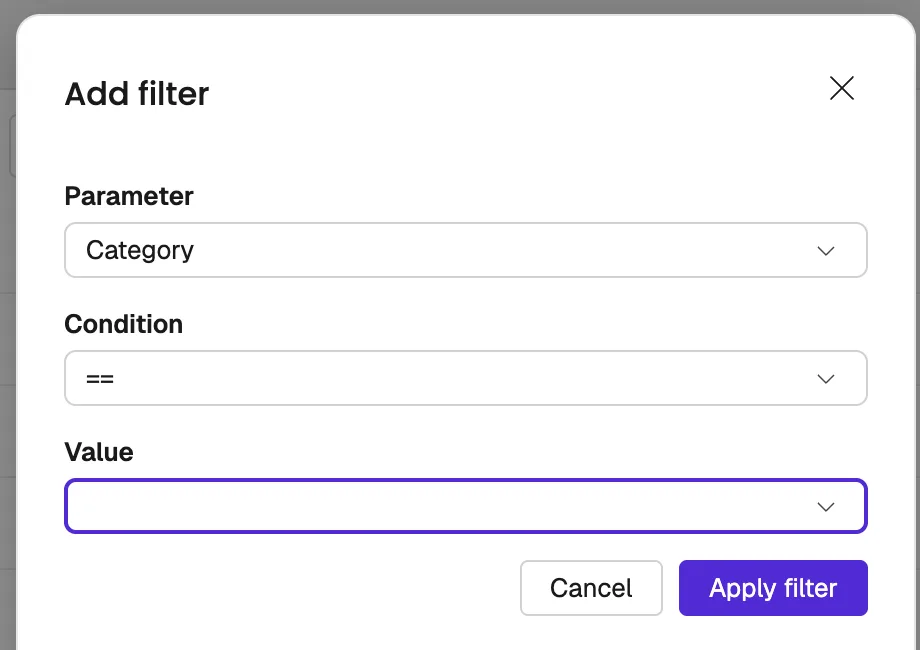
The Condition list offers ==, contains, != and not contains. == keeps the entries whose category is exactly the value you pick.
Step 4: Pick the Category
Open the Value list. It offers each category on the page, with how many entries it has:
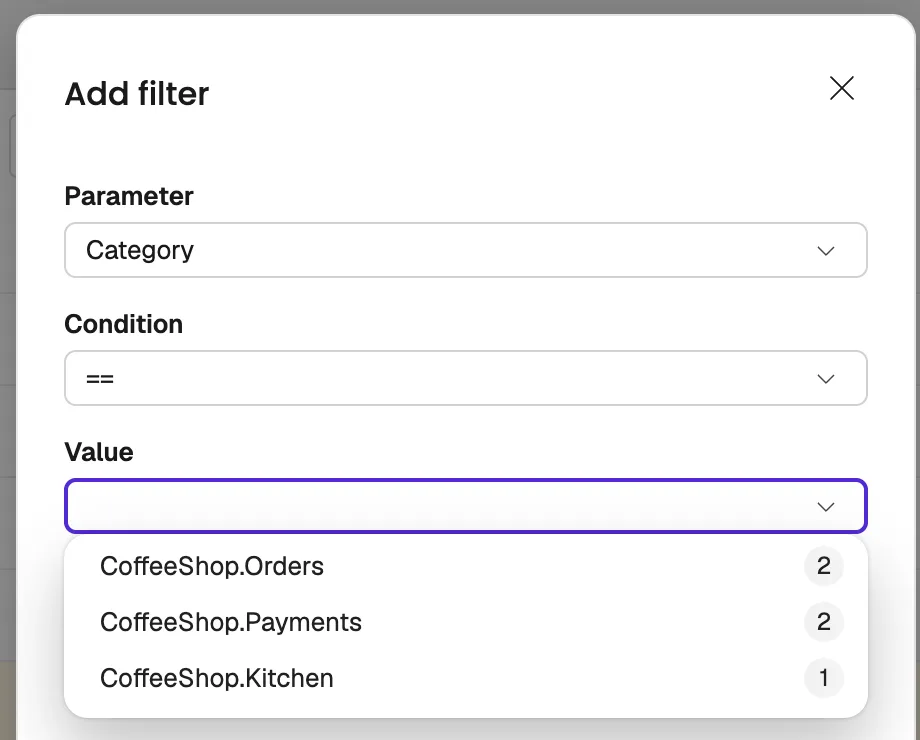
aspire.dev describes the same dialog on the Traces page: after selecting a Parameter and corresponding Condition, the Value selection is pre-populated with the available values for the selected parameter. Choose CoffeeShop.Payments, then select Apply filter.
Step 5: Read the Filtered Page

Two of the five entries are left, both from the payments logger: Payment for order 1001 approved: 2.90 and the warning Payment for order 1002 declined. Where the page said No filters, it now says Filters, with a 1 on it.
The filter is in the page's address too:
?filters=log.category%3Aequals%3ACoffeeShop.Payments
%3A is a colon, written the way addresses encode it, so the filter reads log.category:equals:CoffeeShop.Payments.
Common Mistakes
| Mistake | What happens | Do this instead |
|---|---|---|
| Looking for the part of the app in the Resource column | The resource is the whole app: CoffeeShop-e5b59586 on all five entries | Filter on Category |
| Typing the category into the page's search box | aspire.dev: the search bar filters the logs by service, level, or message, and these messages don't contain the category | Use the Add filter dialog |
| Using the Level list to find one part of the app | aspire.dev: You use the Level drop down to filter by log level, whichever logger wrote the entry | Filter on Category |
FAQ
Where does the category come from?
From the logger. CreateLogger("CoffeeShop.Payments") gave the payments logger its category. An ILogger<T> takes the name of its class, and Microsoft's guide says the convention is to use the fully qualified class name.
Can someone else open my filtered view?
Only if they can open the same dashboard. The filter travels in the address, but aspire.dev says The dashboard is secured with a browser token by default.
Conclusion
On the Structured logs page, the filter icon button opens Add filter. Choose Category, == and a value from the list, and the page keeps only that category: two of CoffeeShop's five entries here. The filter stays in the page address, ready to bookmark.
Additional Resources
- Explore the Aspire dashboard with the Starter app — the Structured logs page and its filters.
- Logging in C# and .NET — log categories, and how to name them.
