How to Filter SharePoint Items with a Filter Query in Power Automate

Get items can ask SharePoint for only the items that match a condition, so the flow never downloads the rest. Show its Filter Query advanced parameter and enter an OData filter, such as Status eq 'Pending': the column's internal name, an operator, and the value, with text in single quotes.
Microsoft's in-depth Get items article explains that filter queries filter the items on the server.
The example is Get Waiting Approvals, a flow of the Overtime Timesheet app. It needs only the overtime entries still waiting for a decision, out of every entry ever logged.
Prerequisites
- A SharePoint list and a flow. Here, the site and list come from environment variables (How to Use Environment Variables in a Power Automate Flow).
Step 1: Add Get Items
Add an action, search for Get items, and choose Get items under SharePoint. I named it Get the pending entries. Set Site Address and List Name.
Step 2: Show the Filter Query Parameter
Open Advanced parameters and tick Filter Query, or select Show all to show every option.
Step 3: Write the Filter
Enter the condition:
Status eq 'Pending'
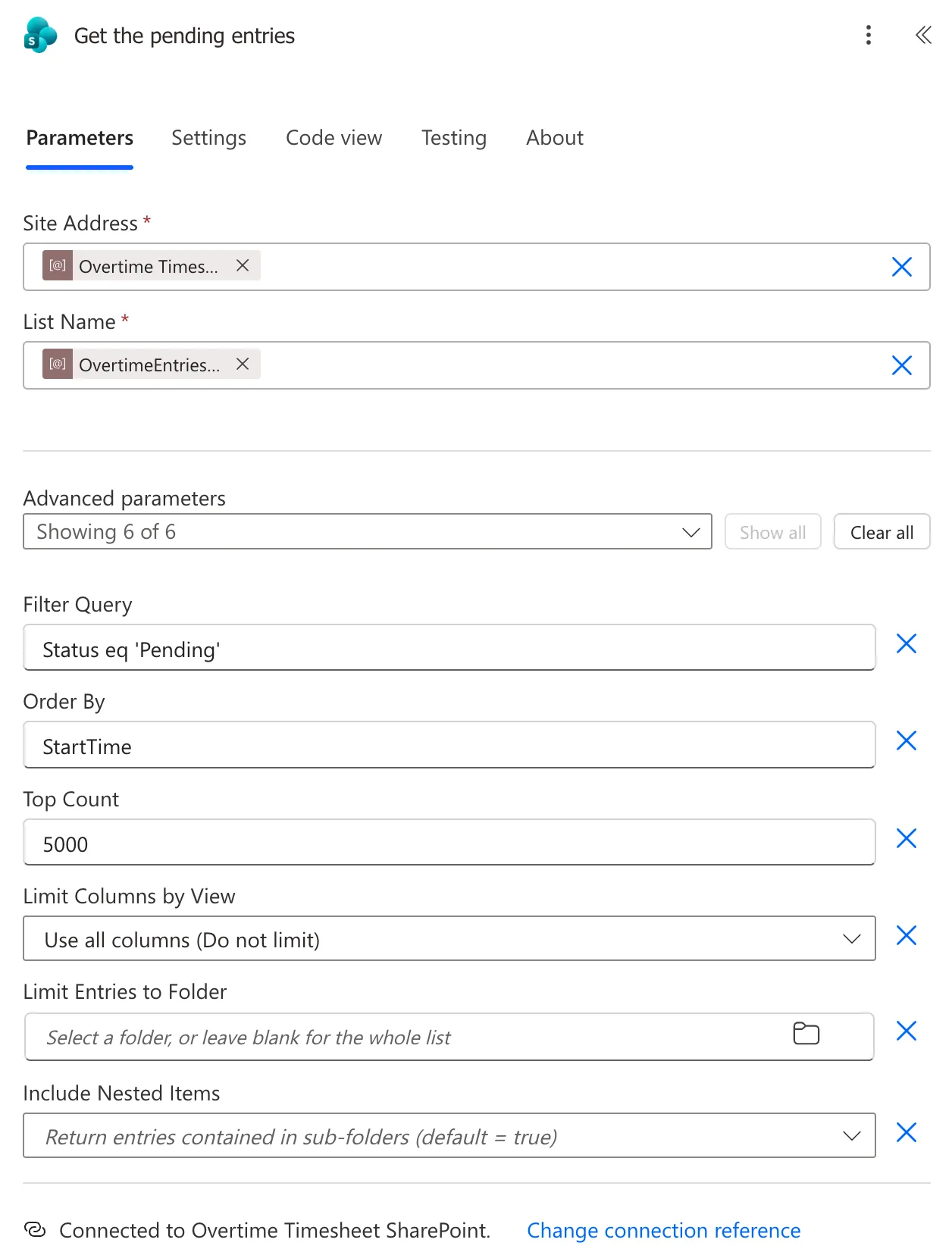
Each part:
Statusis the column's internal name, the name SharePoint gave it when it was created. Microsoft's article shows that spaces in it become_x0020_, such asStart_x0020_Date.eqmeans equals. The article listslt,le,gt,ge,eqandnefor numbers, andstartsWith,substringOf,eqandnefor text.'Pending'is text, so it goes in single quotes.
Combine conditions with and or or, as in the article's Location eq 'Midwest' and Status eq 'Approved'.
The Result
In a run, Get the pending entries returned four entries, all with Status Pending. Approved and rejected entries never left SharePoint.
What It Can't Filter
Not every column type can be filtered. A Person column that allows several people can't, as Microsoft's SharePoint REST article says: there's no way to query for them. Filter those in the flow (How to Check If a Person Is in a Multi-Person Column in Power Automate).
On a large list, filter on a column that's indexed (How to Index a Column in a SharePoint List), and read How to Sort SharePoint Items and Get More Than 100 in Power Automate for the limits on how many items come back.
Common Mistakes
| Mistake | What happens | Do this instead |
|---|---|---|
| Using the display name of a renamed column | SharePoint doesn't find the column | The internal name |
| Leaving out the single quotes around text | The value isn't written as text | Status eq 'Pending' |
| Getting every item and filtering with Filter array | Every item is downloaded first | Filter Query on Get items |
| Filtering a multi-person column | Not supported | Filter in the flow |
Troubleshooting
| Symptom | Likely cause | Fix |
|---|---|---|
| The action fails on the column name | Wrong internal name | Check the name in the column's settings address |
| Nothing comes back | The value doesn't match exactly | Compare with an item's value in the run |
| Too few items on a big list | No match among the first 5,000 | Turn on pagination (see the sorting how-to) |
FAQ
How do I find a column's internal name?
In the list's settings, select the column: the end of the page's web address shows Field= and the internal name.
Can I use dynamic content in the filter?
Yes. A token or expression inside the quotes, such as Title eq '<token>', filters on a value from earlier in the flow.
Conclusion
Filter Query on Get items makes SharePoint return only the matching items. Write it as an OData filter with the column's internal name, such as Status eq 'Pending', and filter multi-person columns in the flow instead.
Additional Resources
- In-depth analysis into Get items and Get files: filter queries
- Use OData query operations in SharePoint REST requests
