How to Filter an Array by Two Conditions in Power Automate

Filter array takes one condition in its basic mode. For two, switch it to advanced mode and write one expression that joins them with and(): an item is kept only when both are true. Here: the entry's department is in a list, and the person running the flow didn't write it.
The basics of Filter array, with one condition, are in How to Filter an Array in Power Automate. This guide adds the second condition.
The example is Get Waiting Approvals, a flow of the Overtime Timesheet app. Of the pending overtime entries, it keeps those in the departments the caller approves, except the caller's own: their own overtime goes to someone else.
Prerequisites
- The array to filter. Here, the pending entries from Get items (How to Filter SharePoint Items with a Filter Query in Power Automate).
- The values to compare with. Here, the approver's department IDs in an array variable (How to Add Items to an Array Variable in Power Automate) and the caller's email (How to Get the Profile of the Person Running a Flow in Power Automate).
Step 1: Add Filter Array and Choose the Array
Add Filter array under Data Operation. I named it Entries waiting for the caller. In From, pick the array: body/value of Get the pending entries.
Step 2: Switch to Advanced Mode
Under the condition row, select Edit in advanced mode. The row becomes one box for an expression that starts with @.
Step 3: Write Both Conditions in and()
Type or paste the expression into the box, as one line. Typing / in that box opens the token menu, so the expression starts with @, not /:
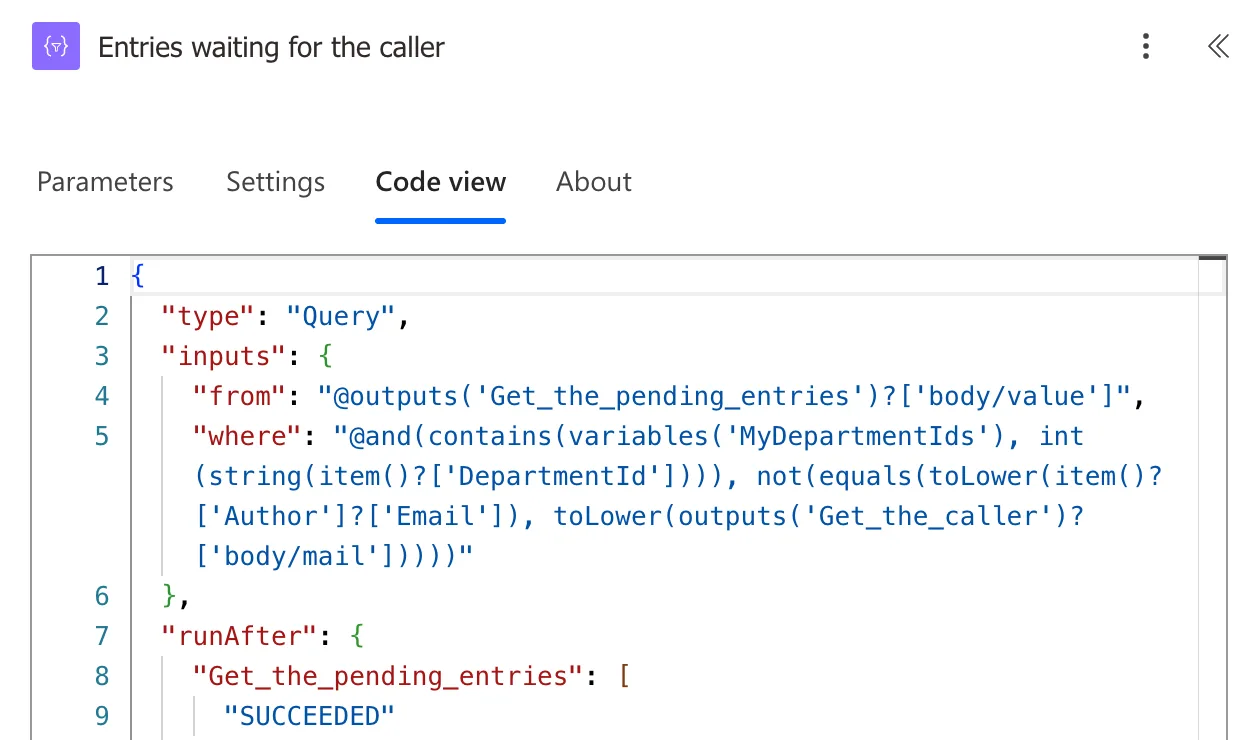
@and(contains(variables('MyDepartmentIds'), int(string(item()?['DepartmentId']))), not(equals(toLower(item()?['Author']?['Email']), toLower(outputs('Get_the_caller')?['body/mail']))))
Each part:
item()is the entry being checked.- First condition:
contains()is true when the list of department IDs includes the entry's DepartmentId.int(string(...))turns the SharePoint number into a whole number first. Without it,contains()never matched (Fixed: contains() Returns False for a SharePoint Number in Power Automate). - Second condition:
equals()compares the email of the entry's author, Created By (Author), with the caller's.not()turns it around, so the caller's own entries are left out. Both emails go throughtoLower(). and()is true only when both are.
Code view shows the action:
The Result
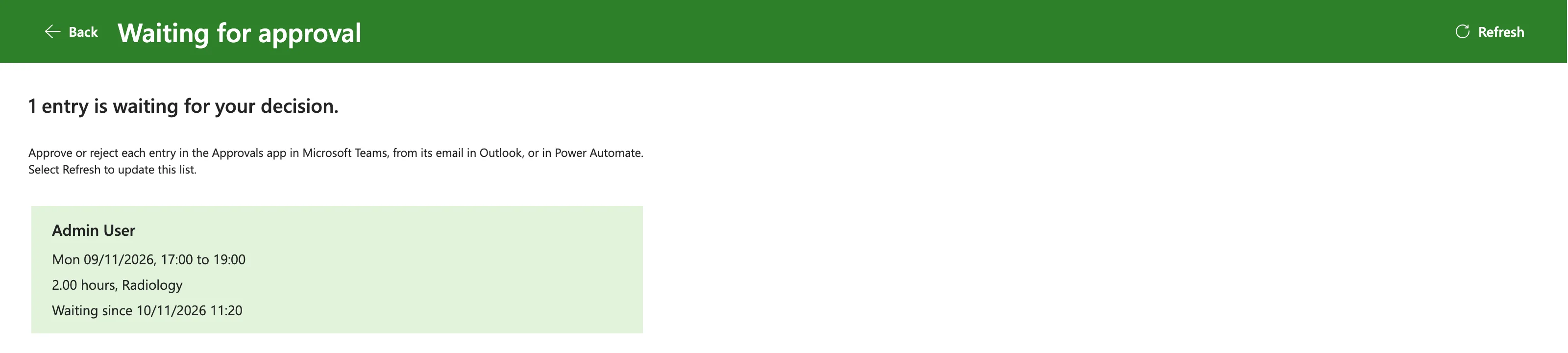
Two Radiology entries were pending: one of mine, one of Daniel's. For Daniel, the approver of Radiology, the action kept only mine, and the app showed it:
Common Mistakes
| Mistake | What happens | Do this instead |
|---|---|---|
| Two Filter array actions, one per condition | It works, with an extra action | One and() in advanced mode |
or() instead of and() | Items matching only one condition are kept | and() when both must be true |
Comparing emails without toLower() | A capital letter stops a match | toLower() on both |
contains() on a SharePoint number | It doesn't match | int(string(...)) |
Troubleshooting
| Symptom | Likely cause | Fix |
|---|---|---|
The output is always [] | One condition is always false | Show each part with a temporary Select (the contains() fix shows how) |
| The expression won't save | A missing bracket | Count the brackets; Code view shows the saved text |
| A token menu opens while typing | / typed into the box | Type or paste the expression without starting with / |
FAQ
Can I go back to basic mode?
Not with this expression: with and() in it, Edit in basic mode was greyed out, so the condition stays in advanced mode.
What about three conditions?
and() takes more than two: and(a, b, c) is true when all three are. Microsoft's functions reference says it checks whether all expressions are true.
Conclusion
For two conditions in Filter array, use Edit in advanced mode and join them with and(). Here, contains() kept the approver's departments and not(equals()) left out their own entries, in one action.
Additional Resources
- Use data operations: Filter array
- Reference guide to functions in expressions: and, not, equals, contains
