How to Filter a Table in Power Apps with Filter

Filter takes a table and keeps only the rows that match a condition: the competencies for one job title, the active people in a team, the requests still waiting. It works on SharePoint lists, connector results and any other table, and it's the formula behind almost every gallery. Here's how it works, with two real examples.
Syntax
Filter( Table, Condition1 [, Condition2, ... ] )
The condition is checked for each row, and only rows where it's true are kept. Inside it, you refer to the row's columns by name. The result is a new table; the original isn't changed (Filter reference).
Prerequisites
- A table to filter. The examples use the
RoleCompetenciesSharePoint list and the Office 365 Users connector in the Career Development Plan app; see Part 2 and Part 3 of the series.
Example 1: Rows Where a Column Equals a Value
The RoleCompetencies list has competencies for several job titles. To keep only the Sales Engineer ones, and show them as a comma-separated list (with Concat, see How to Join Table Values into Text in Power Apps with Concat):
Concat(Filter(RoleCompetencies, JobTitle = "Sales Engineer"), Competency, ", ")
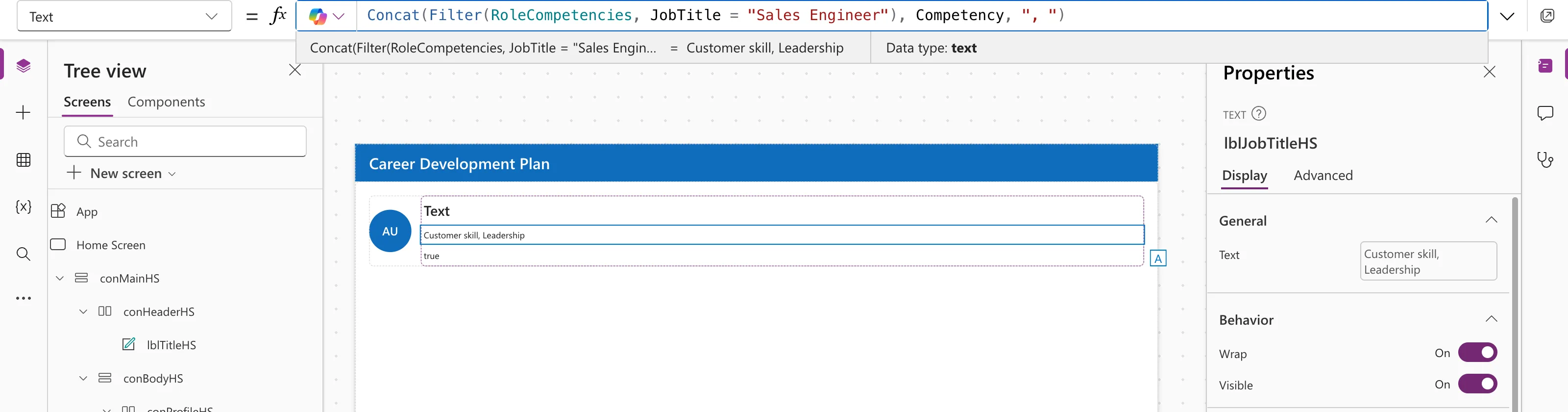
The list has eight rows; the filter kept the two for Sales Engineer.
Example 2: Rows Where a True-or-False Column Is True
For a yes/no column, the column name on its own is the condition. The example keeps only enabled accounts among a manager's direct reports:
Filter(
    Office365Users.DirectReportsV2(
        MyProfile.id,
        {'$select': "id,displayName,mail,userPrincipalName,jobTitle,accountEnabled"}
    ).value,
    accountEnabled
)
See How to Get a User's Direct Reports in Power Apps.
Combining Conditions
Several conditions separated by commas must all be true:
Filter(RoleCompetencies, JobTitle = "Sales Engineer", IsActive)
The same as JobTitle = "Sales Engineer" && IsActive. For either-or, use || or Or.
Delegation: Filter on Big Lists
With a data source such as SharePoint, Power Apps tries to send the filter to the source, so only matching rows come back. That's delegation. If the source can't run part of the condition, Power Apps only filters the first rows it downloads (500 by default) and shows a delegation warning. For SharePoint, simple comparisons such as JobTitle = "Sales Engineer" can be delegated; check Microsoft's list before using functions inside a filter on a large list.
Common Mistakes
| Mistake | What happens | Do this instead |
|---|---|---|
| Comparing to a value with different spacing or case | Rows don't match | Clean values first, for example with Trim |
| Ignoring a delegation warning | Results are silently incomplete on big lists | Use delegable conditions |
Filtering a connector result without .value | An argument type error | Use the table, such as DirectReportsV2(...).value |
Troubleshooting
| Symptom | Likely cause | Fix |
|---|---|---|
| No rows come back | The condition is never true | Check a single row's value in the preview strip |
| Blue underline and a delegation warning | Part of the condition can't be delegated | Rewrite it with delegable operators |
| Rows missing on a big list | Not delegated, so only the first rows were filtered | Fix the delegation warning |
FAQ
Does Filter change my data?
No. It returns a new table and leaves the source as it is.
How do I get just one row?
Use LookUp, which returns the first matching record.
Can I filter and sort?
Yes: Sort(Filter(...), Column); see How to Sort a Table in Power Apps with Sort.
Conclusion
Filter(table, condition) keeps the rows where the condition is true. Use the column name alone for yes/no columns, separate conditions with commas when all must match, and watch for delegation warnings on large lists.
Additional Resources
- Filter, Search, and LookUp functions: syntax and examples.
- Understand delegation: what delegation is and why it matters.
- SharePoint delegation: what SharePoint can delegate.
