How to Export a Solution in Power Apps (Managed or Unmanaged)

Exporting turns a solution into a zip file that another environment can import: managed to install it, unmanaged to keep developing it. This guide exports the same solution both ways, with the same version number, and then does it with the Power Platform CLI.
Managed or Unmanaged?
Microsoft's Solution concepts puts it in four words: unmanaged solutions are developed, managed solutions are deployed.
| Managed | Unmanaged | |
|---|---|---|
| For | Test and production environments, and anyone who should use it as it is | Another development environment, and source control |
| Can it be changed where it's installed? | Not directly: its components can't be edited | Yes |
| When it's deleted | Its components go too, with the data in its own tables and columns | Only the container goes; the components stay |
Two rules from the same article and from Export solutions:
- You export an unmanaged solution, as either type. A managed solution, or the Default Solution, can't be exported.
- You can't import a managed solution into the environment that holds its unmanaged original. Test it in another environment.
So export both: the managed zip is what gets installed, and the unmanaged zip is your copy of the source.
Before You Export
- Check what's in the solution. Open it, select Objects, and make sure nothing's there that shouldn't travel. A flow can end up in two solutions without you noticing (Fixed: A New Cloud Flow Shows Up in Two Solutions).
- Run the solution checker (How to Run the Solution Checker in Power Apps).
- Environment variables. Their current values go into the zip. If the solution is going to another organization, take them out after exporting (How to Keep Environment Variable Values Out of an Exported Solution).
Prerequisites
- An unmanaged solution (How to Create a Solution and Publisher in Power Apps). The example is the Career Development Plan series' app solution, at version 0.1.0.0 while it was being built.
Step 1: Start the Export
In Power Apps, select Solutions. Next to your solution, select ... (More actions) → Export solution. The same command is in the command bar when the row is selected.
Step 2: Publish All Changes
The Before you export pane opens:
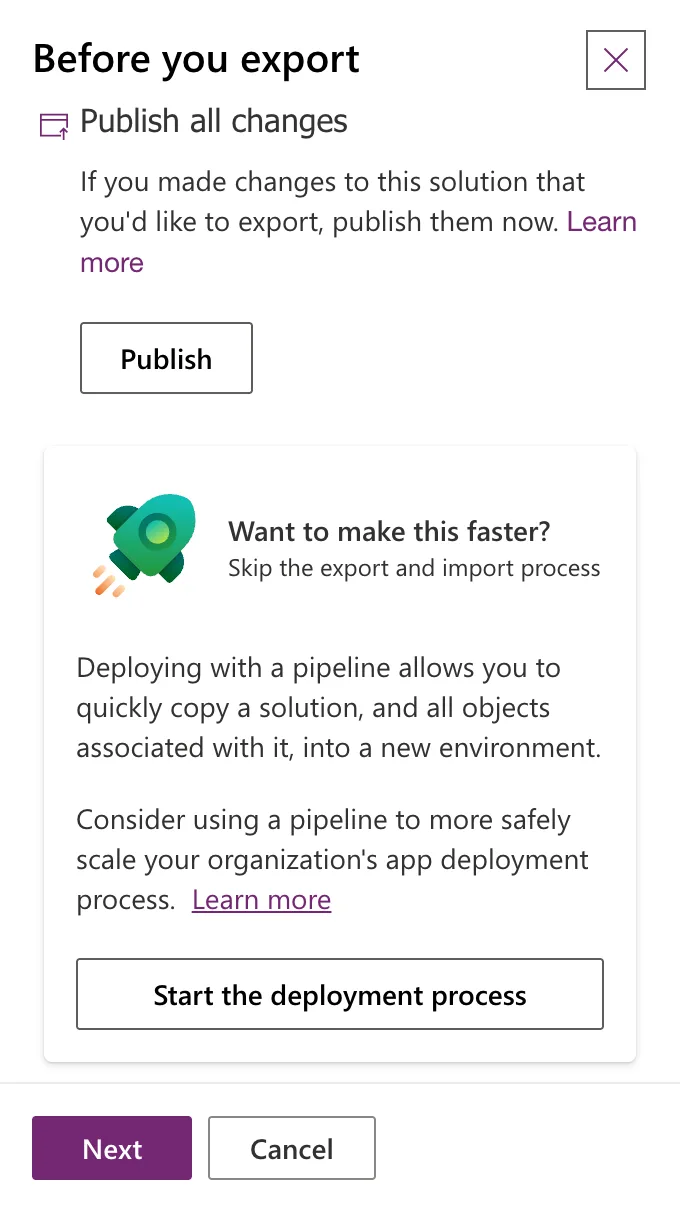
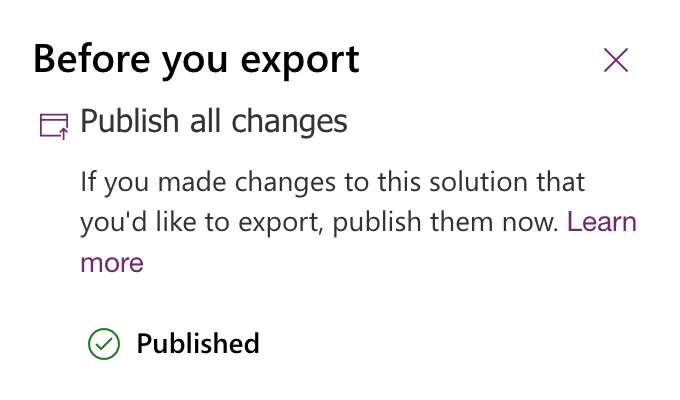
Only published components are exported, so Microsoft recommends publishing first. Select Publish. A status message said Publishing all customizations...: it publishes everything in the environment, not only this solution. After about 20 seconds the button became Published:
The box below it suggests pipelines, Microsoft's automated way to move solutions between environments. This guide exports a file, so skip it and select Next.
Step 3: Set the Version and Choose Managed
The Export this solution pane shows the Current version and proposes the next one; here it showed 0.1.0.0 and proposed 0.1.0.1. Versions have four numbers, major.minor.build.revision. Type the version you want, here 1.0.0.0 for the first release, and keep Managed (recommended):
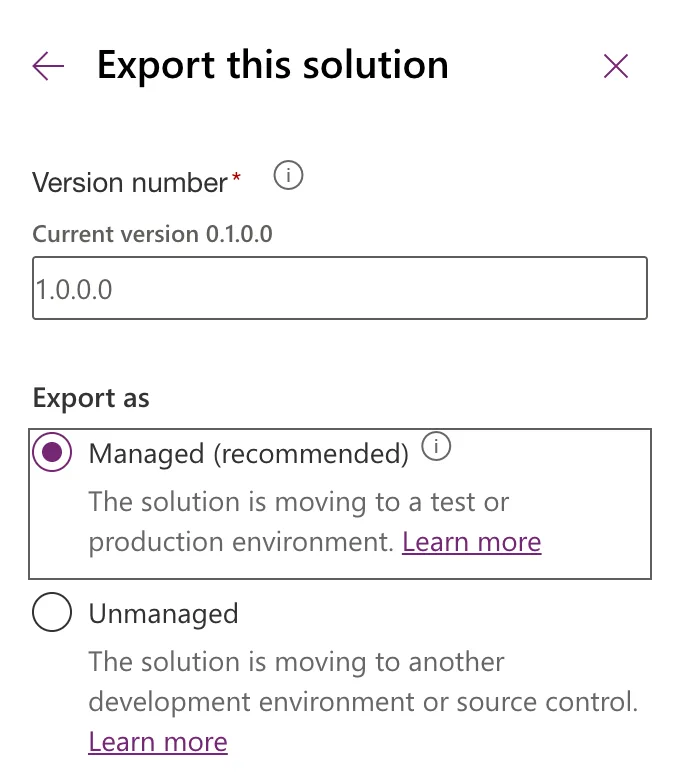
The version you type becomes the solution's version in your environment too: the next export showed Current version 1.0.0.0.
At the bottom, Run solution checker on export checks the solution as part of the export. Leave it off if you've just run the checker.
Step 4: Export and Download
Select Export:
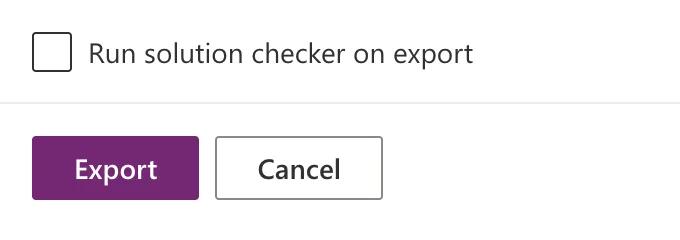
A message said Currently exporting solution "Career Development Plan 1.0.0.0". About 18 seconds later, a green bar replaced it:

Select Download. The file goes to your browser's downloads folder, named after the solution's unique name and version:
CareerDevelopmentPlan_1_0_0_0_managed.zip
After the download, the button reads Downloaded.
Step 5: Export the Unmanaged Zip with the Same Version
Repeat steps 1 to 4. Publish isn't needed again if nothing changed. The pane now shows Current version 1.0.0.0 and proposes 1.0.0.1: type 1.0.0.0 again so both files have the same version, and select Unmanaged:
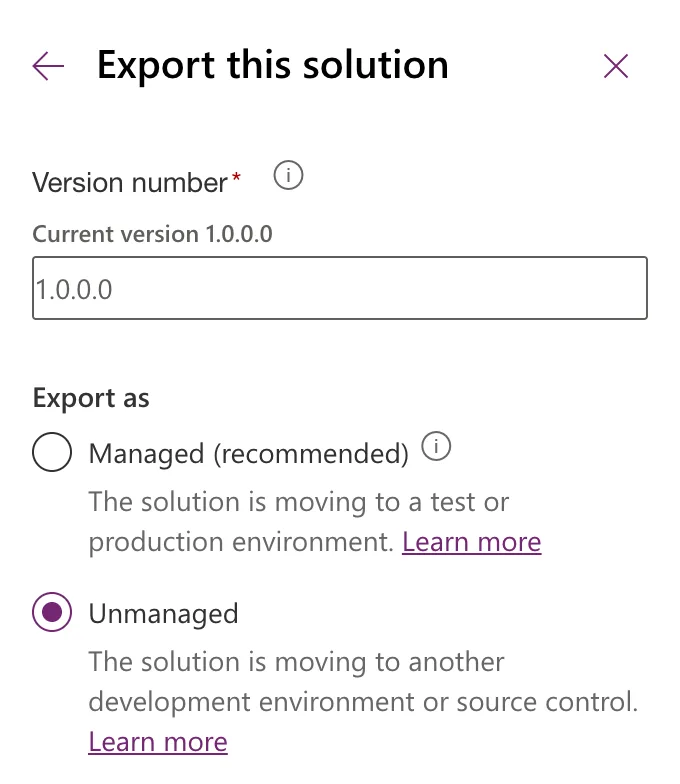
The unmanaged file has no _managed at the end:
CareerDevelopmentPlan_1_0_0_0.zip
In the example, each export took between 18 and 49 seconds. If an earlier green bar is still showing, use the Download button on the new one.
Check the Files
Look inside before you share them: How to See What's Inside a Power Platform Solution Zip File reads the version and Managed from each zip's solution.xml. The two files in the example:
| File | Size | Managed |
|---|---|---|
CareerDevelopmentPlan_1_0_0_0_managed.zip | 149,378 bytes | 1 |
CareerDevelopmentPlan_1_0_0_0.zip | 149,378 bytes | 0 |
Do It with the CLI
The Power Platform CLI exports without a browser. Sign it in first (How to Sign In to the Power Platform CLI with pac auth create).
Check or set the version
pac solution online-version --solution-name CareerDevelopmentPlan
Connected as admin@example.com
Connected to... Default Environment

Listing all Solutions from the current Dataverse organization...
Unique Name: CareerDevelopmentPlan
Solution Display Name: Career Development Plan
Solution Version: 1.0.0.0
--solution-name is the solution's unique name, the Name column in Power Apps. Microsoft's reference sets the version when you add --solution-version.
Export
pac solution export --name CareerDevelopmentPlanSetup --path cli/CareerDevelopmentPlanSetup_1_0_0_0_managed.zip --managed
Connected as admin@example.com
Connected to... Default Environment

Starting Solution Export...
Solution export succeeded.
--nameis the solution's unique name, here the series' Setup solution.--pathis where the zip is written.--managedexports it as managed; leave it out for unmanaged.
The CLI exports the solution at its current version and doesn't change it. Its managed zip was 6,095 bytes, the same size as the one the portal exported. The portal's Publish step has its own command, pac solution publish; I published in the portal, so I didn't run it.
Common Mistakes
| Mistake | What happens | Do this instead |
|---|---|---|
| Accepting the proposed version on the second export | The two zips have different versions | Type the same version both times |
| Exporting only the managed zip | You have nothing to keep developing from | Keep the unmanaged zip as your source |
| Skipping Publish after changes | Unpublished changes aren't in the zip | Publish first |
| Sharing the zip without checking it | Your environment variable values go with it | Check the zip first |
Troubleshooting
| Symptom | Likely cause | Fix |
|---|---|---|
| Export isn't available | The solution is managed, or it's the Default Solution | Export the unmanaged solution |
| The list still shows the old version | The page hasn't refreshed | Reload Solutions |
| Two green bars are showing | Each export adds its own bar; the older one reads Downloaded | Select Download on the newest bar |
FAQ
Which file do I give to someone installing the app?
The managed zip. Keep the unmanaged one for yourself, or for someone who will develop the solution further in their own development environment.
Why does Power Apps propose a higher version?
Microsoft's article says Power Apps increments the version automatically, and that you can accept it or enter your own. For a matching pair of files, use the same version for both, and raise it for the next release.
Can I export from Power Automate instead?
Yes. Microsoft's Export a solution article describes the same panes in Power Automate's Solutions.
Conclusion
... → Export solution, Publish, Next, type the version, choose Managed or Unmanaged, Export, then Download. Export twice with the same version to get both files, check them, and keep the unmanaged one as your source.
Additional Resources
- Export solutions: every option in the export panes.
- Solution concepts: managed and unmanaged solutions.
- pac solution:
export,online-versionandpublish.
