How to Enforce Unique Values in a SharePoint List Column

Some values must appear only once in a list: a department name, an employee number, an order reference. Enforce unique values makes SharePoint refuse a second item with the same value, whoever enters it.
The Departments list of the Overtime Timesheet series has one row per department. Two rows called Radiology would leave the app unsure where to send Radiology's overtime, so the Department column is unique.
Prerequisites
- A SharePoint list, and permission to change it. How to Create a List and Add Columns in SharePoint Online creates one.
- A column of a type that can be unique: see Which Columns Can Be Unique.
Step 1: Add the Column
Select + Add column, choose the type (here Text), and select Next:
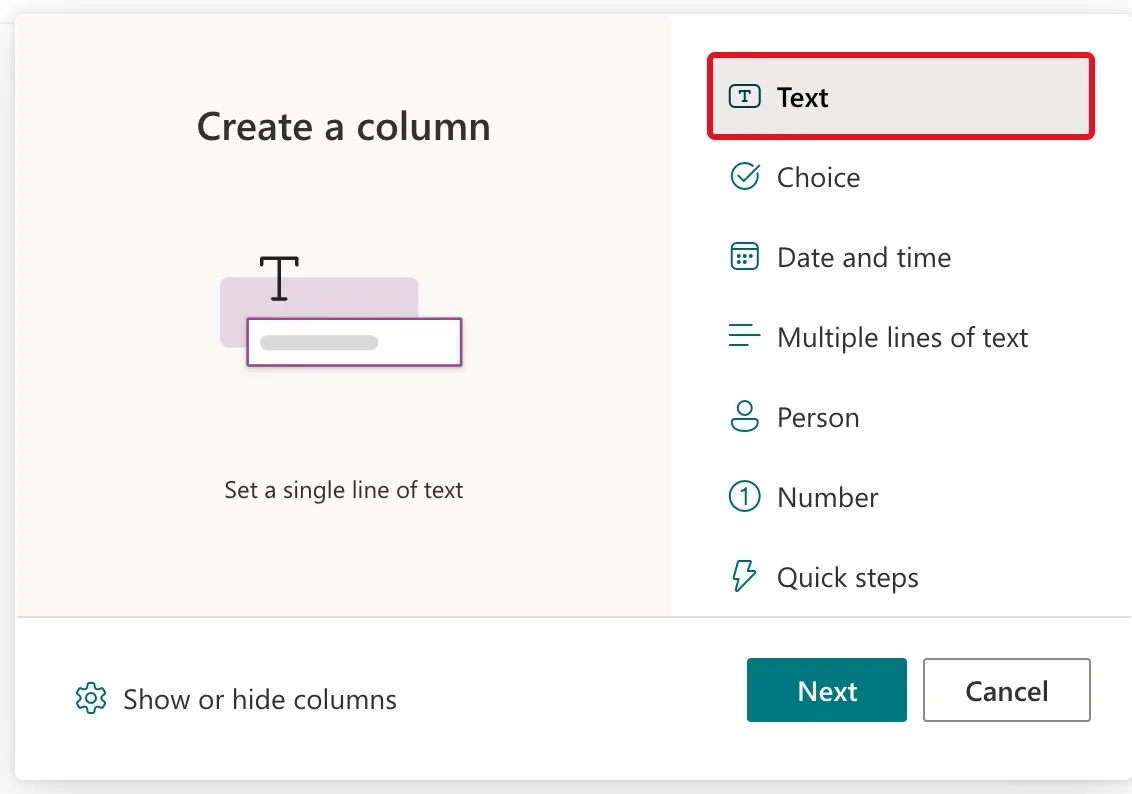
Give it a name and a description: Department, The department's name, such as Radiology. Each department can appear only once.
Step 2: Switch On Enforce Unique Values
Select More options and switch Enforce unique values to Yes. Department is required too:
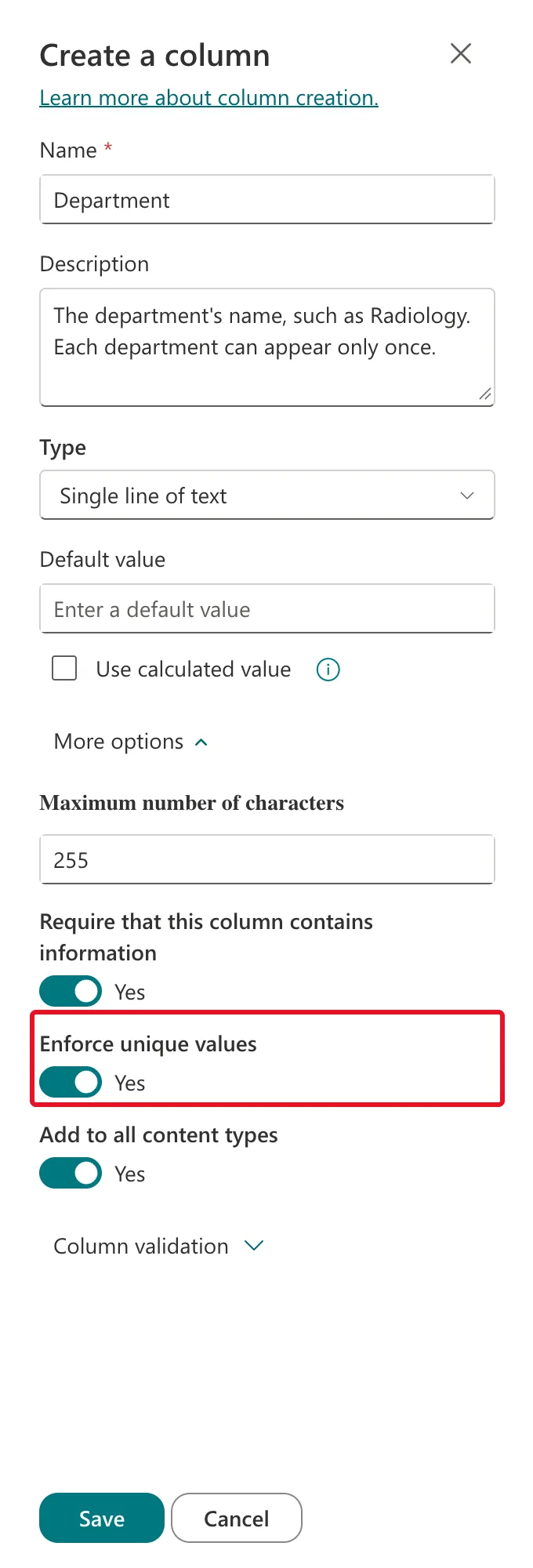
Select Save. For a column that already exists, open Settings (the gear) → List settings, select the column under Columns, and choose Yes under Enforce unique values.
Step 3: Check the Index SharePoint Added
A unique column needs an index. Microsoft's Create list relationships by using lookup columns says: "A unique column must also have an index. When you create a unique column, you might be prompted to create the index."
The modern panel didn't ask: it created the index on its own. The classic column settings page (List settings → the column) does ask: after Enforce unique values → Yes and OK, the browser shows This column must be indexed to enforce unique values. Do you want to index this column? Select OK to index the column and save. List settings → Indexed columns showed it:
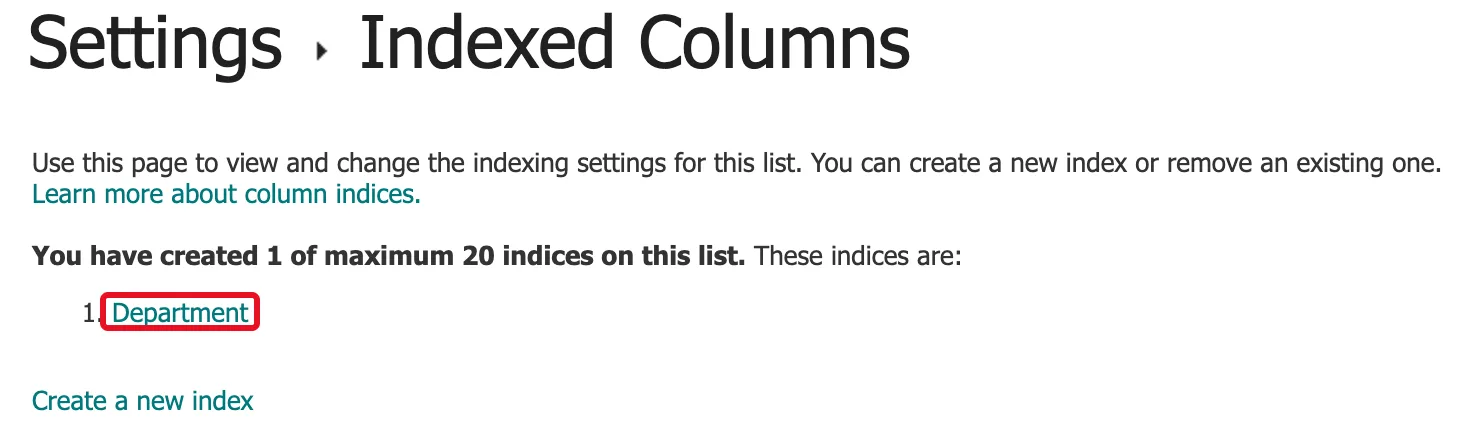
The same page adds: "Once a unique column has an index, you can't remove the index from that column unless you first redefine the column to allow duplicate values." How to Index a Column in a SharePoint List explains what indexes do.
What Happens with a Duplicate
With Radiology already in the list, a new item named Radiology isn't saved. The form shows the reason at the top:
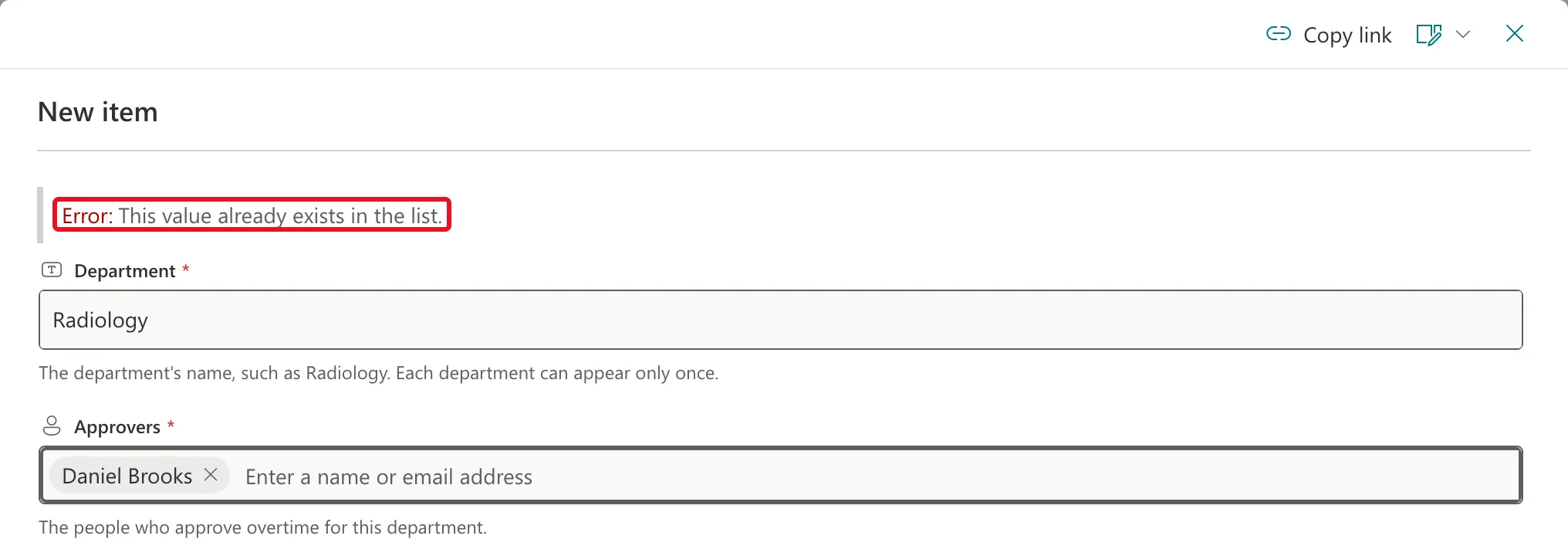
On one attempt, the same message, This value already exists in the list., also appeared under the Department field. Either way, nothing was saved.
Microsoft lists everything it blocks: "You can't add a list item that contains a duplicate value, modify an existing list item that would result in creating a duplicate value, or restore an item from the recycle bin if it would result in a duplicate value." And "Uniqueness is not case-sensitive", so radiology counts as a duplicate of Radiology.
Which Columns Can Be Unique
From Microsoft's page:
| Can be unique | Can't be unique |
|---|---|
| Single line of text | Multiple lines of text |
| Choice (single value) | Choice (multi-valued) |
| Number | Calculated |
| Currency | Hyperlink or Picture |
| Date and Time | Custom columns |
| Lookup (single value) | Lookup (multi-valued) |
| Person (single value) | Person (multi-valued) |
| Yes/No |
The panel follows that: on a Person column, Enforce unique values greyed out as soon as Allow multiple selections was switched on (How to Add a Person Column to a SharePoint List).
Common Mistakes
| Mistake | What happens | Do this instead |
|---|---|---|
| Expecting two columns together to be unique | Enforce unique values works on one column | Check pairs in your app before saving |
| Turning it on for a list that already has duplicates | SharePoint can't make it unique | Remove the duplicates first |
| Trying to remove the index | It can't be removed while the column is unique | Switch Enforce unique values off first |
Troubleshooting
| Symptom | Likely cause | Fix |
|---|---|---|
| This value already exists in the list. | Another item has that value | Use a different value, or edit the existing item |
| Enforce unique values is greyed out | The column allows multiple values, or is a type that can't be unique | Use a single-value column of a supported type |
| A value with different capitals is refused | Uniqueness isn't case-sensitive | That's by design |
FAQ
Does a unique column use up an index?
Yes. It counts towards the list's limit: Microsoft's Add an index to a list or library column says "You can add indexes on up to 20 columns on a list or library." The Departments list uses 1 of its 20.
Can an app rely on SharePoint to stop duplicates?
It can rely on SharePoint to refuse them, but people get a better message if the app checks first. How to Prevent Duplicate Items in a SharePoint List from Power Apps shows how.
Conclusion
More options → Enforce unique values → Yes → Save. SharePoint indexes the column, refuses duplicates with This value already exists in the list., and ignores capitals when it compares.
