How to Enforce Unique Values in a SharePoint Column with the REST API in Power Automate

A unique column refuses a value that another item already has: SharePoint answers This value already exists in the list. A flow can make a new column unique as it creates it, or make an existing column, such as Title, unique afterwards.
Syntax
Both requests go through Send an HTTP request to SharePoint (How to Use Send an HTTP Request to SharePoint). A unique column must also be indexed: Microsoft's Create list relationships by using lookup columns says a unique column must also have an index. So both requests set the two together.
A new column
Add two attributes to the column's Field element and create it with createfieldasxml (How to Add a Column to a SharePoint List with CreateFieldAsXml):
<Field Type='<type>' Name='<internal name>' StaticName='<internal name>' DisplayName='<display name>' Indexed='TRUE' EnforceUniqueValues='TRUE' />
Indexed='TRUE': in Microsoft's Field element reference, TRUE if the column is indexed.EnforceUniqueValues='TRUE': the column refuses duplicates.<type>: a type that can be unique. Microsoft's article lists single line of text (Text), choice with one value, number, currency, date and time, lookup with one value and person with one value. Multiple lines of text, Yes/No and the multi-value types can't be unique. The other attributes are the column's usual ones.
An existing column
Change the column with a MERGE request:
| Field | Value |
|---|---|
| Method | POST |
| Uri | _api/web/lists/getbytitle('<list name>')/fields/getbyinternalnameortitle('<column>') |
| Headers | Accept: application/json;odata=nometadata |
Content-Type: application/json;odata=verbose | |
IF-MATCH: * | |
X-HTTP-Method: MERGE |
{
  "__metadata": { "type": "SP.Field" },
  "Indexed": true,
  "EnforceUniqueValues": true
}
<list name>and<column>: the list's title, and the column's internal name or display name.X-HTTP-Method: MERGE: the request changes only the properties in the body. Microsoft's REST overview says that with MERGE, any properties that you don't explicitly set keep their current property.IF-MATCH: *: change the column whatever its current version.IndexedandEnforceUniqueValues: the same two settings, as JSONtrue, without quotes. Both are properties you can set on a column, in Microsoft's Field.Indexed and Field.EnforceUniqueValues reference.
The Example
A blank list called Rooms holds meeting rooms. The flow, Make Values Unique, does both:
- Add RoomCode adds a required, unique RoomCode column for the code on each room's door;
- Make Title unique makes the list's Title column, the room's name, unique too.
Prerequisites
- Permission to change the list, such as Edit or Full Control on the site, for the account the flow's SharePoint connection uses.
- No duplicates in an existing column you make unique. Remove them first.
Step 1: Add a Unique Column
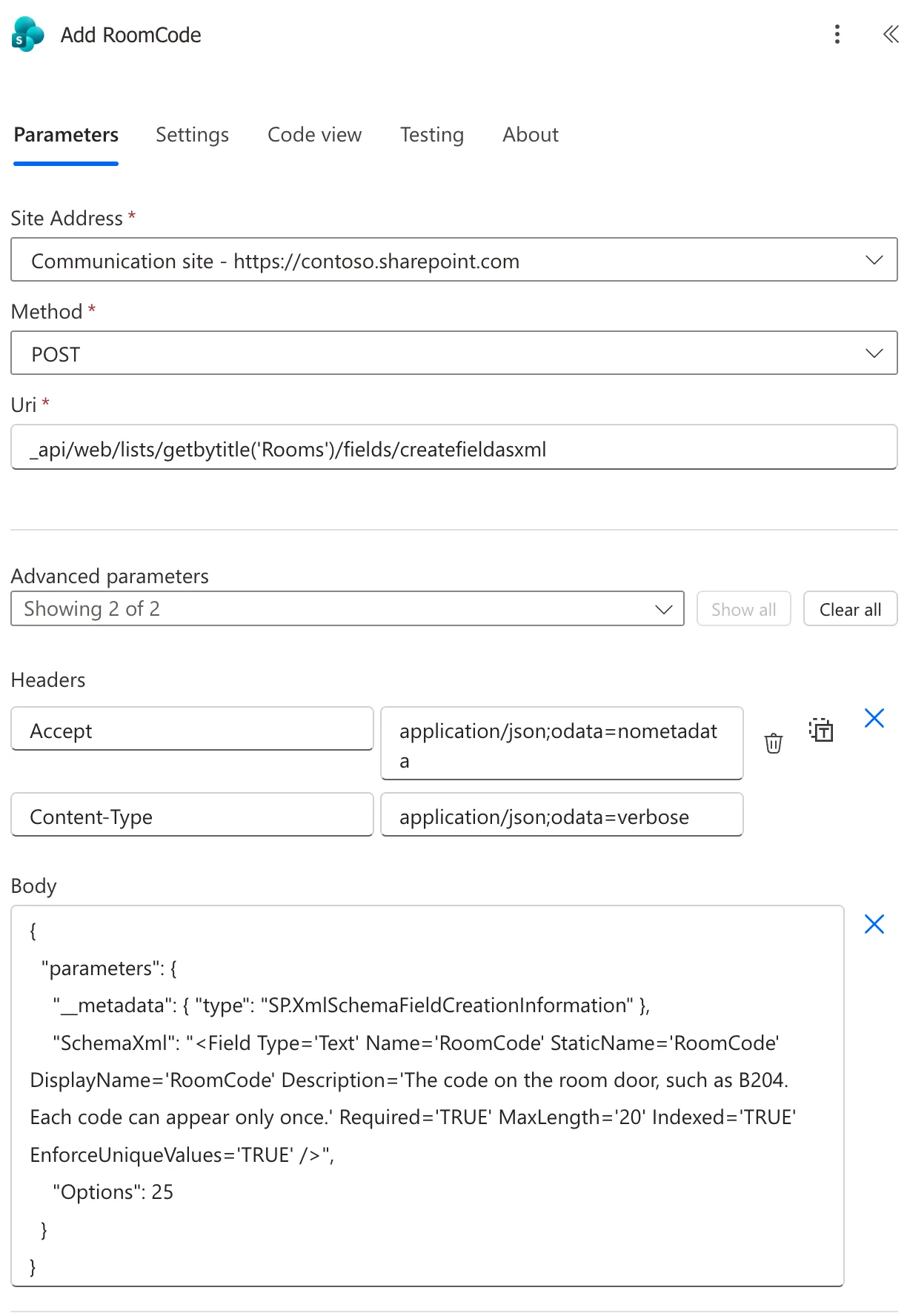
In a flow with Manually trigger a flow, add Send an HTTP request to SharePoint, rename it Add RoomCode, and fill it in:
| Field | Value |
|---|---|
| Site Address | Your site |
| Method | POST |
| Uri | _api/web/lists/getbytitle('Rooms')/fields/createfieldasxml |
| Headers | Accept: application/json;odata=nometadata |
Content-Type: application/json;odata=verbose |
{
  "parameters": {
    "__metadata": { "type": "SP.XmlSchemaFieldCreationInformation" },
    "SchemaXml": "<Field Type='Text' Name='RoomCode' StaticName='RoomCode' DisplayName='RoomCode' Description='The code on the room door, such as B204. Each code can appear only once.' Required='TRUE' MaxLength='20' Indexed='TRUE' EnforceUniqueValues='TRUE' />",
    "Options": 25
  }
}
Step 2: Make an Existing Column Unique
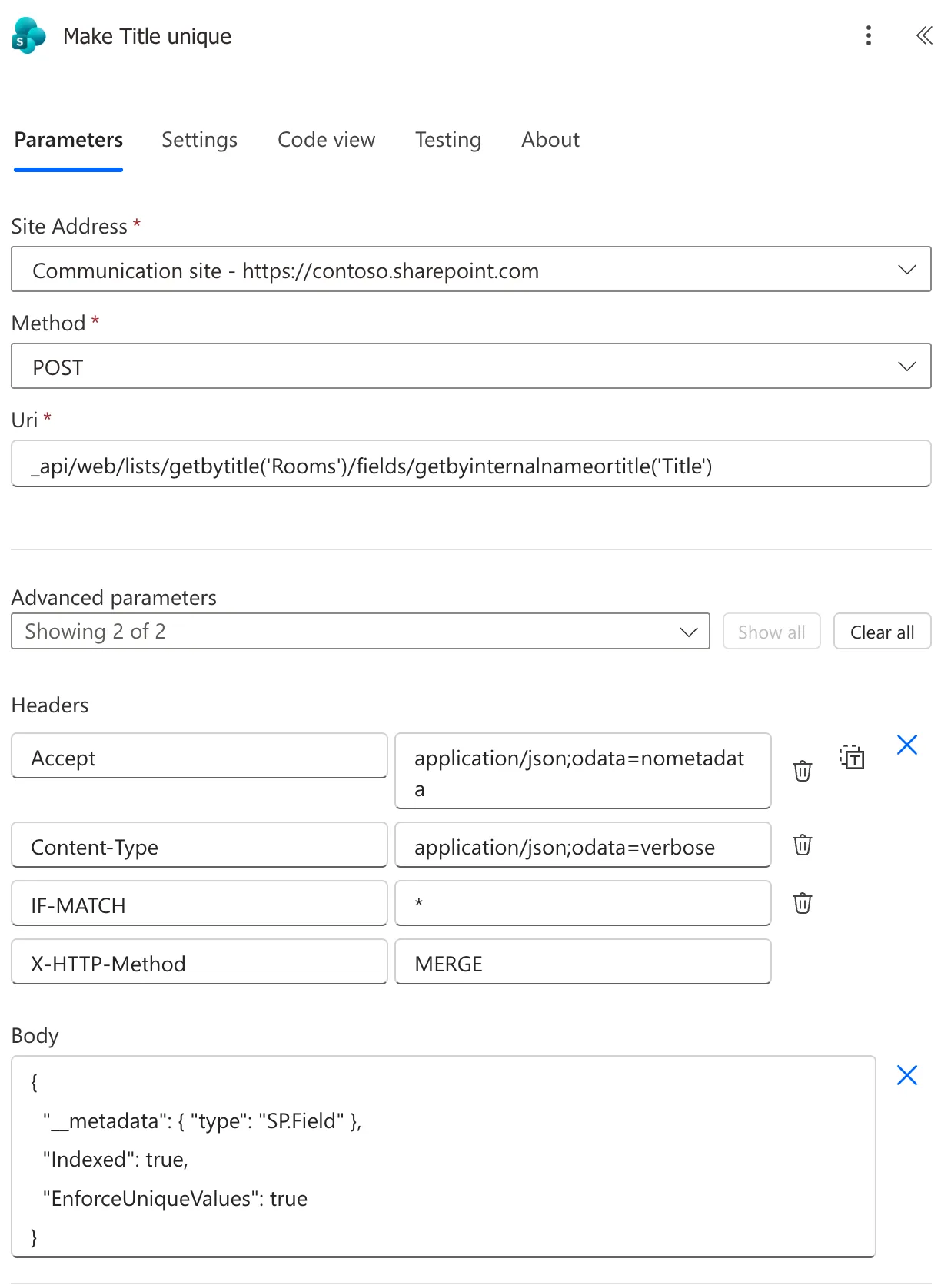
Add a second Send an HTTP request to SharePoint, Make Title unique:
| Field | Value |
|---|---|
| Site Address | Your site |
| Method | POST |
| Uri | _api/web/lists/getbytitle('Rooms')/fields/getbyinternalnameortitle('Title') |
| Headers | Accept: application/json;odata=nometadata |
Content-Type: application/json;odata=verbose | |
IF-MATCH: * | |
X-HTTP-Method: MERGE |
{
  "__metadata": { "type": "SP.Field" },
  "Indexed": true,
  "EnforceUniqueValues": true
}
Save the flow and test it manually (How to Test a Cloud Flow Manually in Power Automate). Both actions succeeded.
The Result
I added a room in the list, Board room with the code B204. Then I added another, Quiet room, and typed the same code. SharePoint refused to save it:
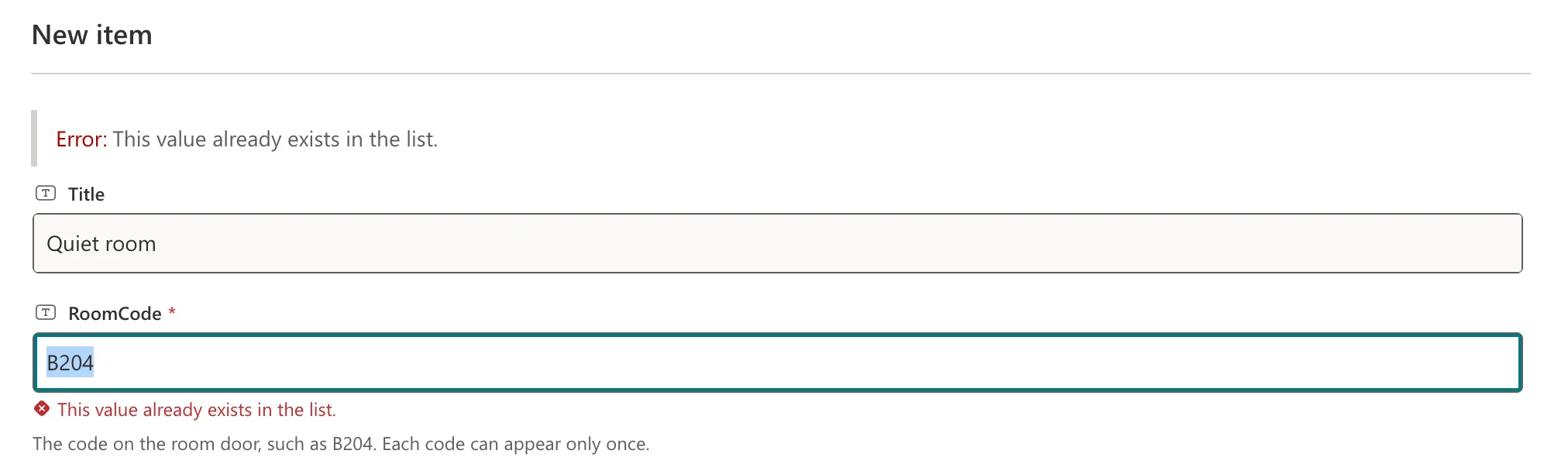
A different code saves as usual. Title stays optional on this list, as it was: the request changed only the two properties in its body.
Common Mistakes
| Mistake | What happens | Do this instead |
|---|---|---|
Setting EnforceUniqueValues alone | Microsoft says a unique column must also have an index | Set Indexed in the same request |
"true" in quotes in the MERGE body | It's text, not a JSON true | Write true without quotes |
Leaving out X-HTTP-Method: MERGE | The POST isn't sent as an update of the column | Add the header, with IF-MATCH: * |
| Choosing a Yes/No or multi-person column | Microsoft lists these types as unsupported for unique values | Use a supported type, such as single line of text |
Troubleshooting
| Symptom | Likely cause | Fix |
|---|---|---|
| Status 404 on the MERGE | No column with that name in that list | Check the column's internal name |
| Status 403 | The connection's account can't change the list | Give it Edit or Full Control |
| This value already exists in the list. | Another item has that value | Use another value, or change the other item |
| The change is blocked on a big list | Microsoft says making a column unique may be blocked when the list has more items than the List View Threshold | Make the column unique while the list is small |
FAQ
Does uniqueness ignore capital letters?
Yes. Microsoft's article says uniqueness is not case-sensitive: ORD-231 and ord-231 count as the same value. The REST request turns on the same setting as the column's Enforce unique values switch in the browser.
How do I let duplicates in again?
EnforceUniqueValues is a property you can set either way, so the same MERGE with false is the way back; the example didn't need it. Microsoft's article adds that the index can't be removed unless you first redefine the column to allow duplicate values.
Does this need a premium licence?
No. Send an HTTP request to SharePoint is part of the standard SharePoint connector.
Conclusion
For a new column, add Indexed='TRUE' and EnforceUniqueValues='TRUE' to its Field element. For an existing one, send a MERGE to fields/getbyinternalnameortitle('<column>') with "Indexed": true and "EnforceUniqueValues": true. Either way, a second item with the same value gets This value already exists in the list.
Additional Resources
- Field element (List):
IndexedandEnforceUniqueValuesin a column's XML. - Field.EnforceUniqueValues property
- Get to know the SharePoint REST service: POST, MERGE and the other HTTP methods.
