How to Edit the Manifest in a Teams App Package

A Teams app package is a .zip file with manifest.json and two icons. To change the manifest, unzip the package into a folder, edit manifest.json with a command, and zip the three files again so they sit at the top of the new .zip.
The example is Hello App.zip, the package Power Apps made for a small canvas app (How to Download a Canvas App as a Teams App Package in Power Apps). Its short name, the name Teams shows, becomes Hello.
Prerequisites
- On a Mac: jq and zip. macOS includes both; check with
jq --version. On Linux, install them with your package manager. - On Windows: PowerShell 7. Its
Set-Contentwrites UTF-8 without a byte order mark by default, as its reference says.
Syntax
The same three moves in each shell: unzip into a folder, edit, zip the files.
- bash / zsh
- PowerShell
mkdir "<folder>"
cd "<folder>"
unzip "../<package>.zip"
jq '<filter>' manifest.json > manifest.edited.json
mv manifest.edited.json manifest.json
zip "../<new package>.zip" manifest.json color.png outline.png
Expand-Archive -Path ".\<package>.zip" -DestinationPath ".\<folder>"
$manifestPath = ".\<folder>\manifest.json"
$manifest = Get-Content -Path $manifestPath -Raw | ConvertFrom-Json
$manifest.<property> = "<value>"
$manifest | ConvertTo-Json -Depth 10 | Set-Content -Path $manifestPath
Compress-Archive -Path ".\<folder>\*" -DestinationPath ".\<new package>.zip"
| Part | What to put there |
|---|---|
<package> | The package's file name, without .zip |
<folder> | A new folder to unzip it into, such as the package's name |
<filter> | A jq filter that makes the change. .name.short = "Hello" sets a value; del(.packageName) removes one; join several with |. The jq manual lists the rest |
<property> and <value> | The setting to change, such as name.short, and its new value |
<new package> | The new .zip's name, different from the old one so you keep both |
Three details matter:
- jq writes to a second file. Sending its output straight to manifest.json would empty the file before jq read it, so it writes manifest.edited.json, and
mvputs that in place of the old one. ConvertTo-Json -Depth 10.ConvertTo-Jsongoes two levels deep by default, per its reference, and a manifest's tabs are deeper than that.- The files go at the top of the .zip. Zip the three files themselves, or in PowerShell the folder's contents with
\*, not the folder.
Step 1: Unzip the Package
In the folder where the package is, unzip it into a folder of its own:
- bash / zsh
- PowerShell
mkdir "Hello App"
cd "Hello App"
unzip "../Hello App.zip"
Archive:  ../Hello App.zip
  inflating: manifest.json
  inflating: color.png
  inflating: outline.png
Expand-Archive -Path ".\Hello App.zip" -DestinationPath ".\Hello App"
Expand-Archive creates the folder and prints nothing.
Step 2: Look at the Value
Print the part of the manifest you'll change. .name holds the app's short and full names:
- bash / zsh
- PowerShell
jq '.name' manifest.json
{
  "short": "Hello App",
  "full": "Hello App"
}
$manifestPath = ".\Hello App\manifest.json"
$manifest = Get-Content -Path $manifestPath -Raw | ConvertFrom-Json
$manifest.name
short     full
-----     ----
Hello App Hello App
Step 3: Change It
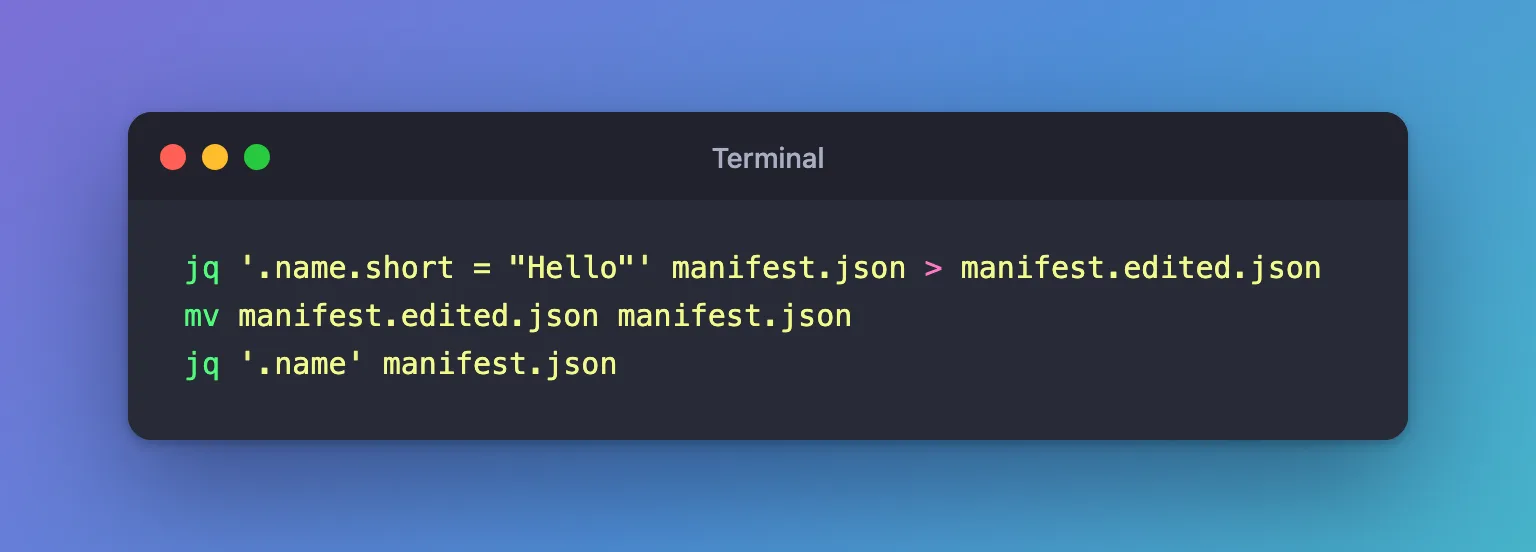
Set the short name to Hello, and check:
- bash / zsh
- PowerShell
jq '.name.short = "Hello"' manifest.json > manifest.edited.json
mv manifest.edited.json manifest.json
jq '.name' manifest.json
{
  "short": "Hello",
  "full": "Hello App"
}
$manifest.name.short = "Hello"
$manifest | ConvertTo-Json -Depth 10 | Set-Content -Path $manifestPath
(Get-Content -Path $manifestPath -Raw | ConvertFrom-Json).name
short full
----- ----
Hello Hello App
The manifest is now laid out over many lines instead of one. JSON doesn't care, and Teams reads it the same.
Step 4: Zip the Files Again
- bash / zsh
- PowerShell
zip "../Hello App edited.zip" manifest.json color.png outline.png
unzip -l "../Hello App edited.zip"
  adding: manifest.json (deflated 62%)
  adding: color.png (deflated 14%)
  adding: outline.png (deflated 12%)
Archive:  ../Hello App edited.zip
  Length      Date    Time    Name
---------  ---------- -----   ----
     2560  11-21-2026 20:15   manifest.json
     4714  11-21-2026 13:51   color.png
      531  11-21-2026 13:51   outline.png
---------                     -------
     7805                     3 files
unzip -l lists what's in the .zip: the three files, with no folder in front of their names.
Compress-Archive -Path ".\Hello App\*" -DestinationPath ".\Hello App edited.zip"
Compress-Archive prints nothing. With \*, the three files sit at the top of the .zip.
The Result
Hello App edited.zip holds the same three files, with the short name Hello in manifest.json. It's ready to upload in place of the original (How to Upload a Custom App in the Teams Admin Center).
Common Mistakes
| Mistake | What happens | Do this instead |
|---|---|---|
| Zipping the folder | The files sit inside a folder in the .zip | Zip the files, or the folder's contents with \* |
jq … manifest.json > manifest.json | The manifest ends up empty | Write to a second file, then mv |
ConvertTo-Json without -Depth | Deeper parts of the manifest are cut short, with a warning | -Depth 10 |
$manifest."$schema" in PowerShell | PowerShell reads $schema as a variable | Single quotes: $manifest.'$schema' |
Troubleshooting
| Symptom | Likely cause | Fix |
|---|---|---|
jq: command not found | jq isn't installed | Install it, or use PowerShell |
ConvertTo-Json warns about depth | -Depth is missing or too small | -Depth 10 |
| The upload says the manifest is invalid | The change doesn't fit the manifest's schema | Check the property in the manifest schema reference |
FAQ
Can I edit manifest.json in a text editor instead?
Yes, if you keep it valid JSON. A manifest from Power Apps is one long line, which is why I used commands that understand JSON.
Do the icons have to keep their names?
Yes. The manifest names them, as color.png and outline.png in a Power Apps package.
Conclusion
Unzip the package into a folder, change manifest.json with jq or with PowerShell's ConvertFrom-Json and ConvertTo-Json -Depth 10, and zip the three files again with nothing in front of their names.
