How to Edit an Item in a SharePoint List

To change an item in a SharePoint list by hand, select it, choose Edit, change the values in the Item properties form and Save. It's also the quickest way to set up test data for an app that reads the list.
Prerequisites
- A list with at least one item (How to Create a List and Add Columns in SharePoint Online).
- Permission to edit items, for example through a group with Contribute (How to Give a Security Group Access to a SharePoint Site).
The example is the CompetencyResponses list from the Career Development Plan series: its one item is a Pending response, and the edit plays the manager declining it.
Step 1: Select the Item
Open the list and hover over the item's row. Select the circle at the start of the row. The command bar changes to show what you can do with the selected item, and says 1 selected:
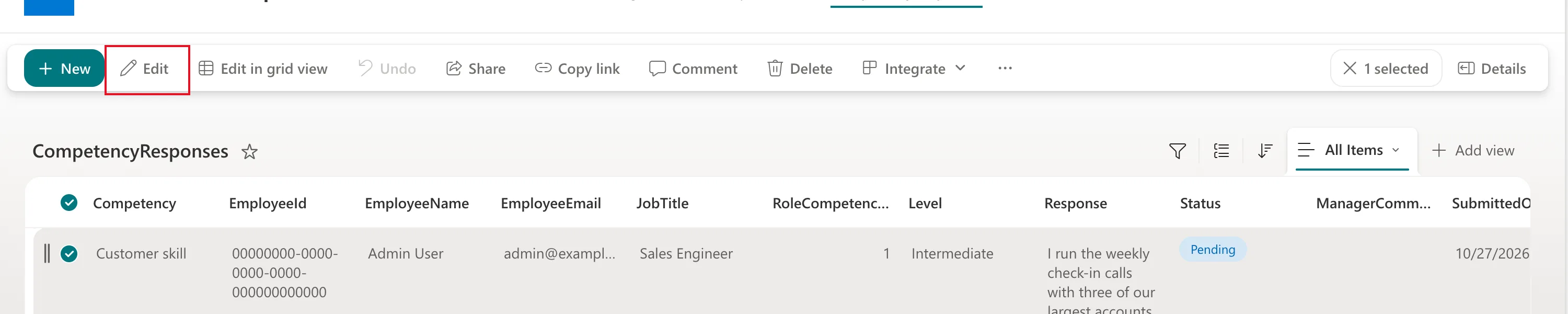
Delete sits on the same bar. Make sure you select Edit.
Step 2: Select Edit
Edit opens Item properties, a form with one field per column. Each column's description appears under its field, and Comments sit on the right:
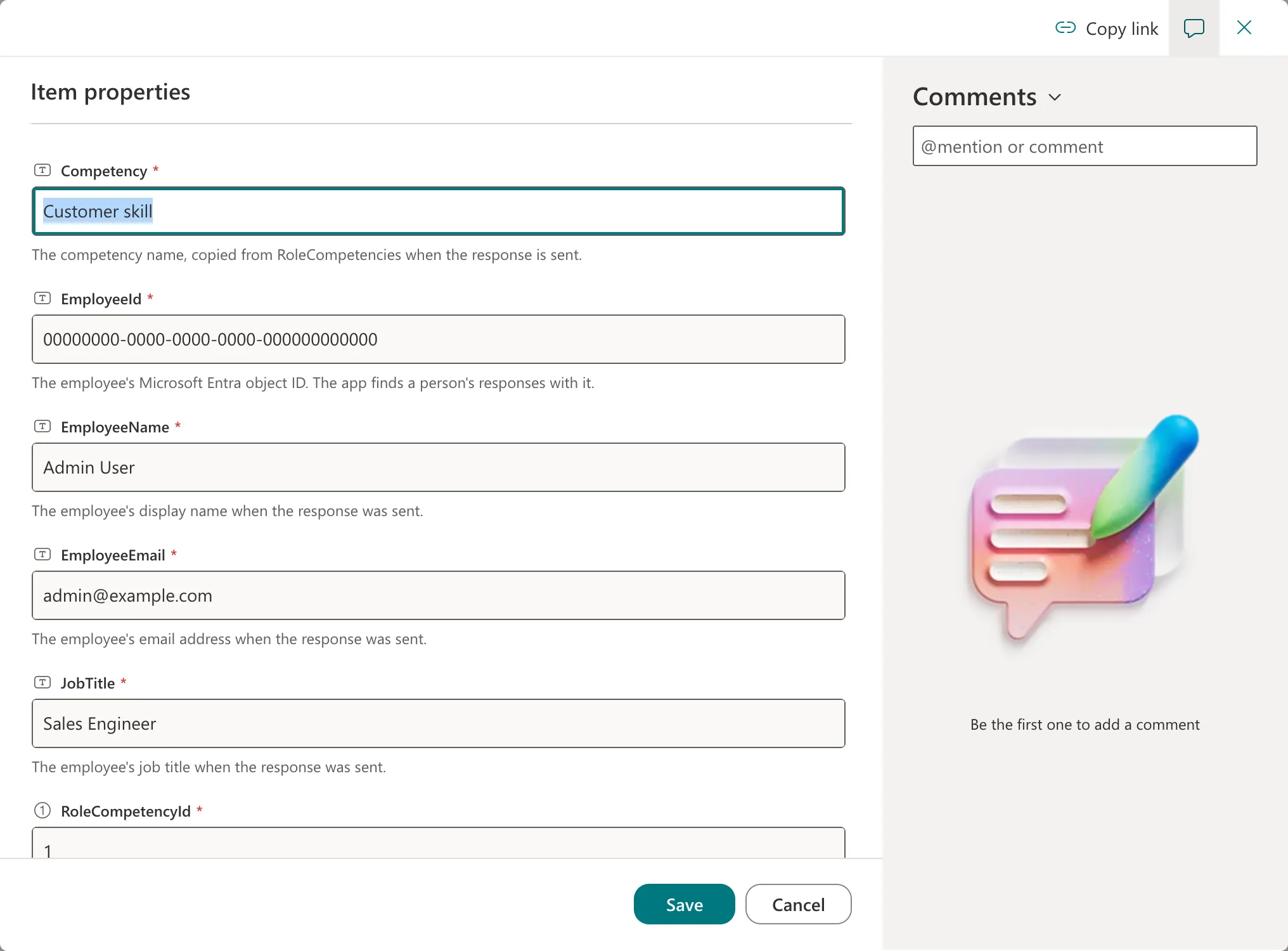
Scroll down to the fields you want to change.
Step 3: Change a Choice Column
Select the choice field. It shows the current choice, here Pending, with the other choices below and a Type to filter box:
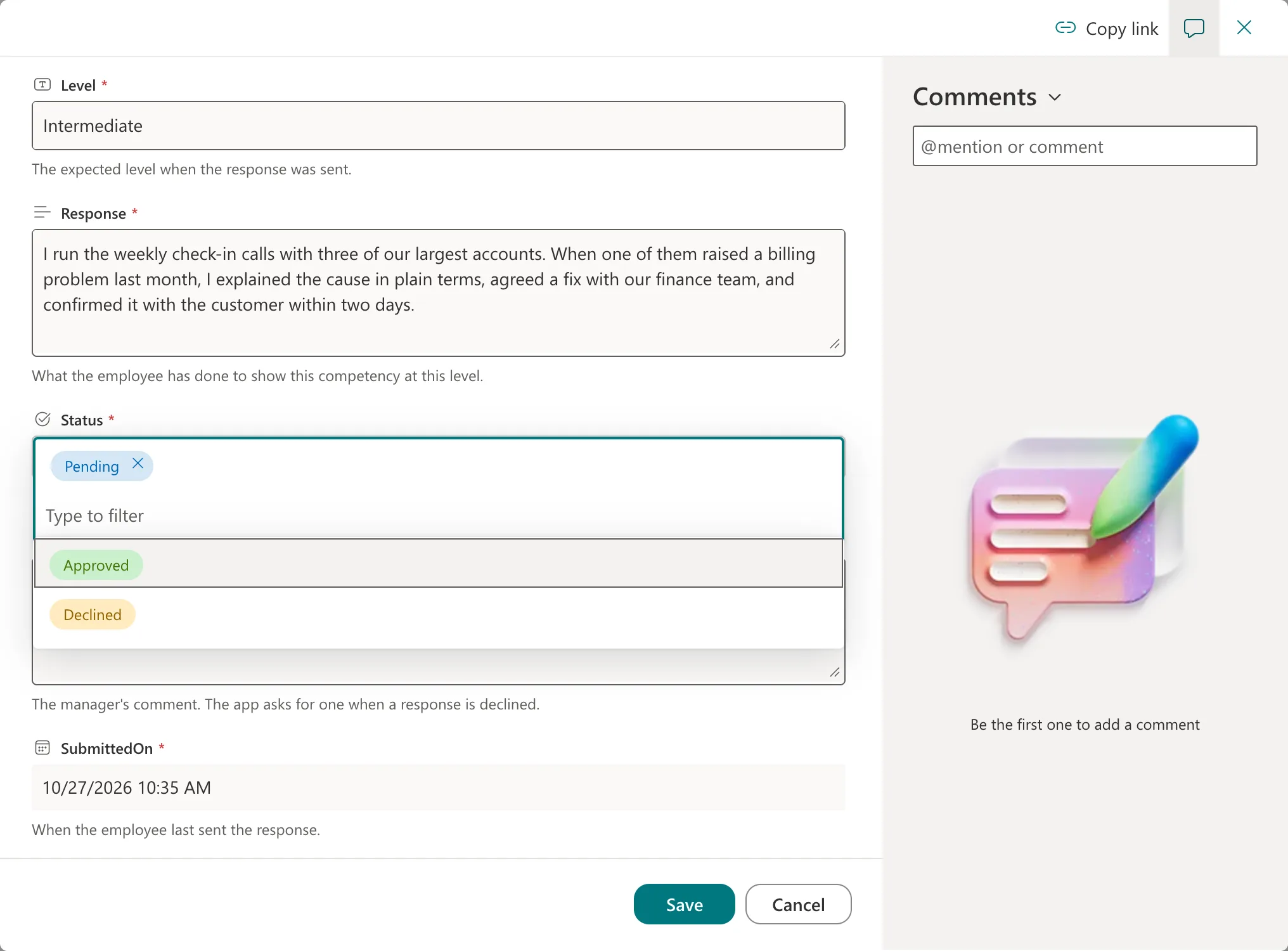
Select the new choice, Declined in the example.
Step 4: Change a Text Column
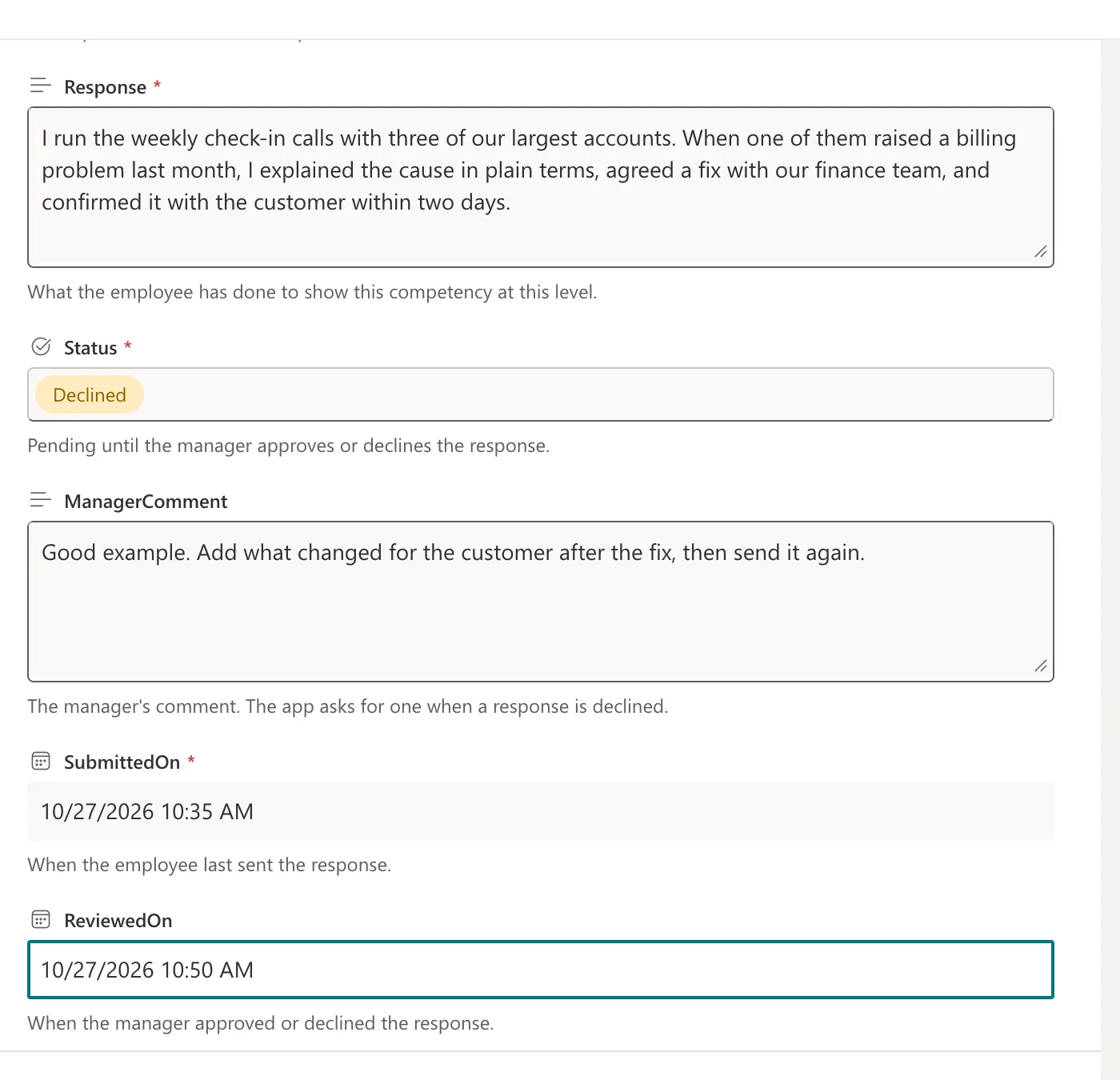
Select the text field and type. In the example, ManagerComment got Good example. Add what changed for the customer after the fix, then send it again.
Step 5: Set a Date and Time
Select the date and time field. A calendar opens with a time box underneath, and two icons: ✓ to save the date and ✗ to cancel:
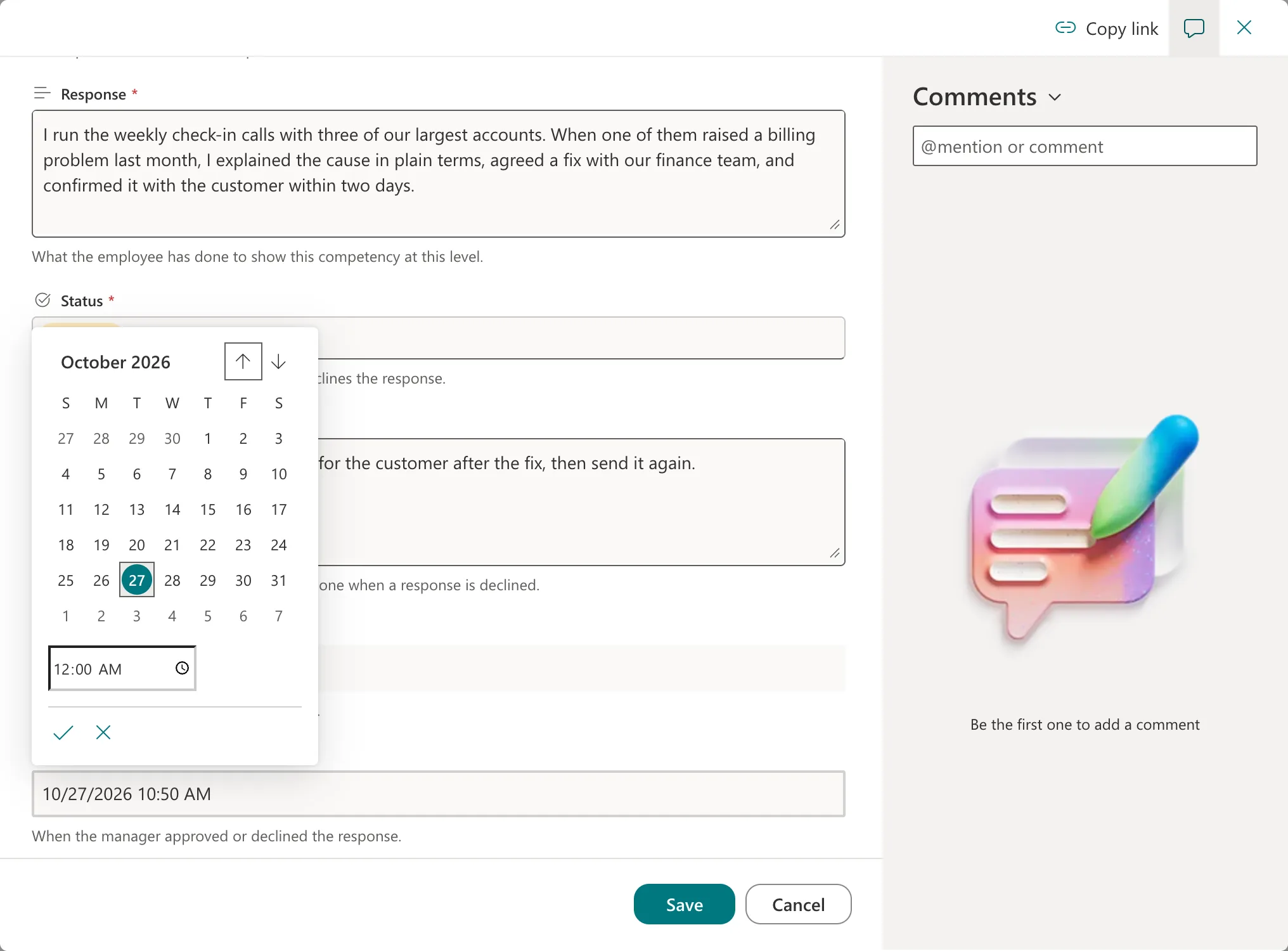
In the example, the date and time were typed straight into the field, 10/27/2026 10:50 AM, and the picker's ✓ kept them.
The edited fields, ready to save:
Step 6: Save
Select Save at the bottom of the form. The form closes, and the item has its new values.
See What Changed
With versioning on, the item keeps a history of every save (View the version history of an item or file in a list or library). In the example, version 2.0 records this edit: the new status, the comment and the review date:

Common Mistakes
| Mistake | What happens | Do this instead |
|---|---|---|
| Selecting Delete on the command bar | The item goes to the recycle bin | Check you're on Edit |
| Closing the form without Save | The changes are lost | Select Save |
| Changing values an app relies on, such as IDs | The app can't find the item | Change only what you mean to |
Troubleshooting
| Symptom | Likely cause | Fix |
|---|---|---|
| Edit isn't on the command bar | No item selected, or no edit permission | Select one item; check your access |
| The form won't save | A required field is empty | Fill the fields marked with an asterisk (*) |
FAQ
Can I edit several items at once?
Edit in grid view edits the list like a spreadsheet. This guide covers the form for one item.
Does editing an item notify anyone?
Not by itself. Alerts and flows can react to changes, but none is set up here.
Conclusion
Select the item, choose Edit, change the fields in Item properties, and Save. Version history shows every change afterwards.
