How to Duplicate a Screen in Power Apps

When a new screen looks like one you already have, duplicate it instead of building it again. Duplicate screen copies the screen with all its controls and formulas, and adds _1 to every name. Then you rename the copy and change what's different, starting with anything other screens send to the original.
Prerequisites
- A screen whose layout is close to the one you need. The example is the Career Development Plan app's Review screen (Part 8), duplicated to become its Competency screen in Part 9. Both have a header with Back, a title and Refresh, a scrolling body, a text box with a character count and a row of two buttons.
Step 1: Duplicate the Screen
In Tree view, point at the screen, select ... and choose Duplicate screen:
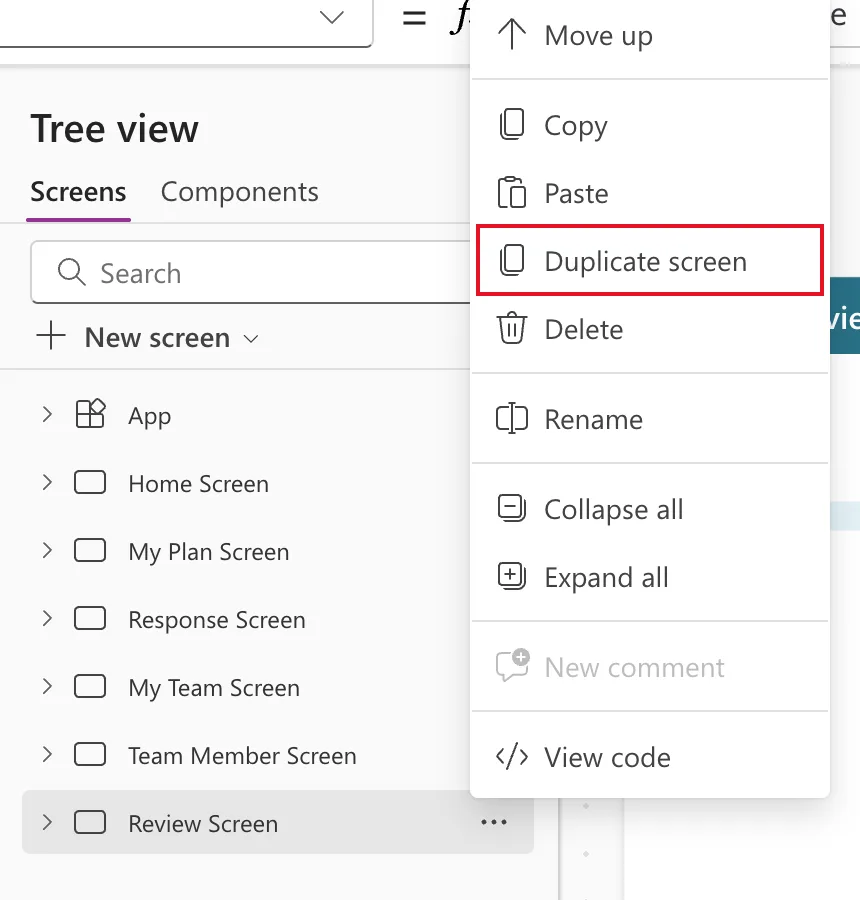
The copy appears right after the original.
Step 2: Check What the Copy Contains
In the example, Review Screen became Review Screen_1, and every control got _1 too: conMainRVS_1, btnRefreshRVS_1, txtCommentRVS_1 and so on.
Formulas inside the copy point to the copy's own controls. The screen's OnVisible, Select(btnRefreshRVS) on the original, became:
Select(btnRefreshRVS_1)
Step 3: Rename the Screen and Its Controls
Give the screen its own name and its controls their own suffix, using ... → Rename in Tree view (How to Rename a Screen or Control). In the example, Review Screen_1 became Competency Screen, and RVS_1 became CS: btnRefreshRVS_1 became btnRefreshCS, and so on (Naming Conventions).
Formulas follow the renames. After the renames, OnVisible read Select(btnRefreshCS).
In my session, the body's controls also changed order during the renames. I didn't find out why. ... → Reorder → Move to end on each control, in the order I wanted, put them right (How to Reorder Controls in a Container).
Step 4: Give the Copy What Other Screens Send the Original
A copy gets the original's formulas, but not the values that other screens send it. Those are context variables, set by the Navigate that opens the original, and context variables belong to one screen (Understand variables in canvas apps).
Right after duplicating, the copy's Refresh button had two errors, because it read locResponseId, which only the Review screen receives:
- Name isn't valid. 'locResponseId' isn't recognized.
- Incompatible types for comparison. These types can't be compared: Number, Error.
Fixed: "Incompatible Types for Comparison" shows the fix: write the Navigate that opens the new screen with its own values, then replace the formulas that read the old ones. Copied controls that read the old screen's variables show errors until you change them, so work through the App checker's Formulas list until it's empty.
Common Mistakes
| Mistake | What happens | Do this instead |
|---|---|---|
Keeping the _1 names | Formulas and the tree are hard to read | Rename the screen and its controls |
| Expecting the copy to get the original's variables | Name isn't valid on the copy | Pass the copy its own values with Navigate |
| Building a similar screen from scratch | More work and more chances for differences | Duplicate the closest screen and change what differs |
Troubleshooting
| Symptom | Likely cause | Fix |
|---|---|---|
| Errors right after duplicating | Formulas read variables only the original receives | Fixed: "Incompatible Types for Comparison" |
| The '.' operator cannot be used on Error values on copied labels | They read a record variable from the original | Fixed: "The '.' Operator Cannot Be Used on Error Values" |
| Controls in a different order after renaming | Happened in my session, cause not found | Reorder → Move to end, in the order you want |
FAQ
Can I duplicate a screen into another app?
Not directly. Microsoft's common issues article says copying and pasting screens across apps isn't supported, and suggests adding a new screen in the other app and copying the controls into it (Common issues and resolutions).
Is duplicating a screen better than copying its controls?
When most of the screen is the same, yes: one action copies the layout, the controls and the formulas that connect them. To reuse a single control, copy just that control (How to Copy and Paste Controls Between Screens).
Conclusion
Duplicate screen gives you a full copy with _1 names. Rename it, then replace what depends on the original's variables, and the copy becomes a screen of its own in a fraction of the time.
