How to Duplicate a Query in Power Query

Sometimes you need the same data shaped two ways: one row per category, and one row per category manager, for example. Duplicate copies a query with all its steps, so you can change the copy without touching the original. Here's how, and when to use Reference instead.
The example duplicates Expense Categories, a query of a SharePoint list with one row per category and a Managers column that can hold several people (How to Get Data from a SharePoint List in Power BI in the Browser). The copy becomes a query with one row per manager, and the original stays as it is.
Step 1: Select Duplicate
Under Queries, right-click the query and select Duplicate:
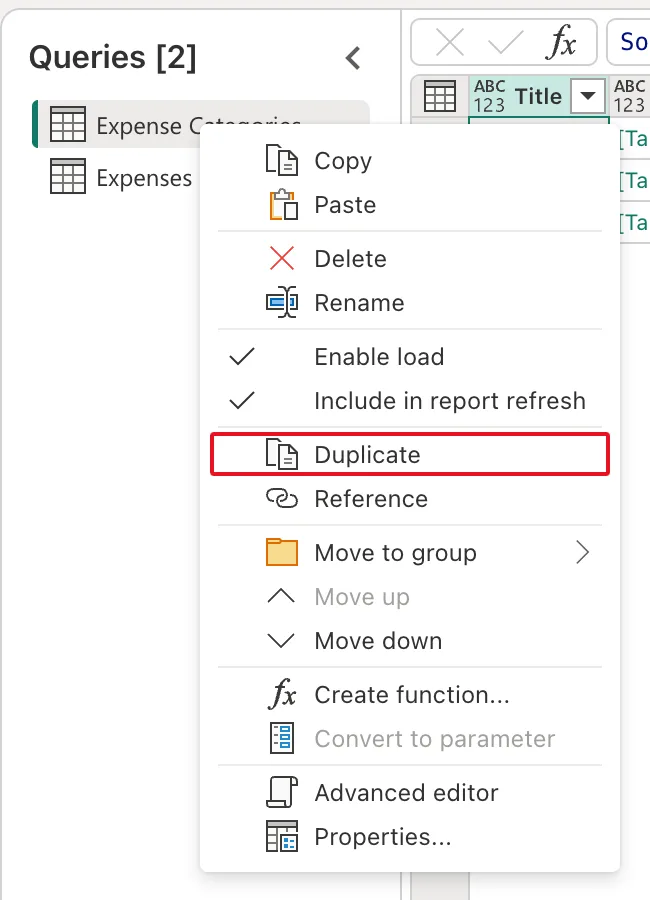
Step 2: Check the Copy
A new query appears under Queries, now Queries [3], named after the original with (2): Expense Categories (2). It has the original's steps, here Source and Navigation 1, and the same rows:

The copy is independent: steps you add to it don't change the original, and the other way round. Give it a name that says what it's for (How to Rename a Query in Power Query). The example's copy became Category managers, with one row per manager (How to Get the Email from a SharePoint Person Column in Power Query).
Duplicate or Reference?
The same menu has Reference, which makes a new query whose source is the result of the original:
| Duplicate | Reference | |
|---|---|---|
| The new query starts from | The same source, with a copy of every step | The original query's result |
| A later change to the original | Doesn't reach the copy | Flows into the new query |
| Good for | Shaping the same source two different ways | Building on a query you want to keep in step |
In the example, the original later dropped its Managers column, which the copy needs. A Reference would have lost it too, so Duplicate was the right choice.
Common Mistakes
| Mistake | What happens | Do this instead |
|---|---|---|
| Reference when the original will drop columns the new query needs | The new query loses them | Duplicate |
| Duplicate when both should always match | A fix to one isn't made in the other | Reference |
| Keeping the name (2) | Nobody can tell what the copy is for | Rename it |
Troubleshooting
| Symptom | Likely cause | Fix |
|---|---|---|
| A change to one query appears in the other | It was a Reference | Duplicate the original instead |
| The copy loads into the model but isn't needed there | Every query loads by default | Untick Enable load in its shortcut menu |
FAQ
Does a duplicate read the source twice?
Each query has its own Source step, so each one reads the list on its own.
Where do I find the queries of a semantic model I already made?
Open the model and select Transform data, which opens Power Query with every query under Queries (Edit semantic models in the Power BI service).
Conclusion
Right-click the query under Queries and select Duplicate. The copy has every step and changes independently; use Reference when the new query should follow the original. The example duplicated Expense Categories into what became Category managers.
Additional Resources
- The Power Query user interface: the Queries pane and its shortcut menu.
