How to Draw a Microsoft Agent Framework Workflow as a Mermaid Diagram in C#

A workflow built in code is hard to picture from the code alone: which step starts it, where it branches, which path takes which value. Microsoft Agent Framework can draw any workflow for you. ToMermaidString() turns it into a Mermaid diagram, and ToDotString() into Graphviz DOT. This guide draws a small C# workflow with two paths, and labels them so the drawing explains itself.
Syntax
string <mermaid> = <workflow>.ToMermaidString();
string <dot> = <workflow>.ToDotString();
| Part | What it is |
|---|---|
<workflow> | A built workflow: the Workflow that WorkflowBuilder.Build() returns |
ToMermaidString() | Returns the workflow as Mermaid flowchart text |
ToDotString() | Returns the workflow as Graphviz DOT text |
Microsoft's guide to workflow visualization describes both: extension methods on the Workflow class: ToMermaidString(), and ToDotString(), which generate Mermaid diagram format and Graphviz DOT format respectively. Mermaid text is drawn by any Mermaid renderer, such as the diagrams on this site. DOT is drawn by the Graphviz tools.
The Example
A console app builds a workflow with three steps. CountLetters counts the letters of a word. Then the workflow takes one of two paths: words of 8 letters or more go to LongWord, shorter ones to ShortWord. The app prints the workflow as Mermaid and as DOT. There's no AI model in it, so nothing needs an Azure account.
Prerequisites
- The .NET 10 SDK.
dotnet --versionprints a version that starts with10.0.
Step 1: Create a Console App
In a terminal, in the folder where you keep your projects, create a console app, move into it and add the workflows package:
dotnet new console -n WordWorkflow
cd WordWorkflow
dotnet add package Microsoft.Agents.AI.Workflows --version 1.28.0
The template "Console App" was created successfully.

Processing post-creation actions...
Restoring /Users/you/source/WordWorkflow/WordWorkflow.csproj:
Restore succeeded.
Microsoft.Agents.AI.Workflows is Agent Framework's workflows package: executors, edges, and the two methods that draw a workflow. --version keeps you on the version this guide used. Open the WordWorkflow folder in VS Code, or WordWorkflow.csproj in Visual Studio.
Step 2: Build the Workflow and Print It as Mermaid
Replace everything in Program.cs with:
using Microsoft.Agents.AI.Workflows;

// Count a word's letters, then answer on one of two paths.
Func<string, int> countLetters = word => word.Length;
Func<int, string> longWord = letters => $"{letters} letters: that's a long word.";
Func<int, string> shortWord = letters => $"{letters} letters: that's a short word.";

var count = countLetters.BindAsExecutor("CountLetters");
var isLong = longWord.BindAsExecutor("LongWord");
var isShort = shortWord.BindAsExecutor("ShortWord");

Workflow workflow = new WorkflowBuilder(count)
    .AddEdge<int>(count, isLong, condition: letters => letters >= 8)
    .AddEdge<int>(count, isShort, condition: letters => letters < 8)
    .WithOutputFrom(isLong, isShort)
    .Build();

Console.WriteLine(workflow.ToMermaidString());
BindAsExecutorturns each function into an executor, a step of the workflow, with the name in quotes.AddEdge<int>(..., condition: ...)connects two executors, but only when the condition is true for the value that flows along the edge, here the number of letters. Two edges with opposite conditions make the two paths.WithOutputFrom(isLong, isShort)makes either path's result the workflow's output.ToMermaidString()returns the drawing as text, andConsole.WriteLineprints it. The workflow never runs: drawing it only needs its shape.
Run the app:
- VS Code
- Visual Studio
In the terminal, in the WordWorkflow folder, run:
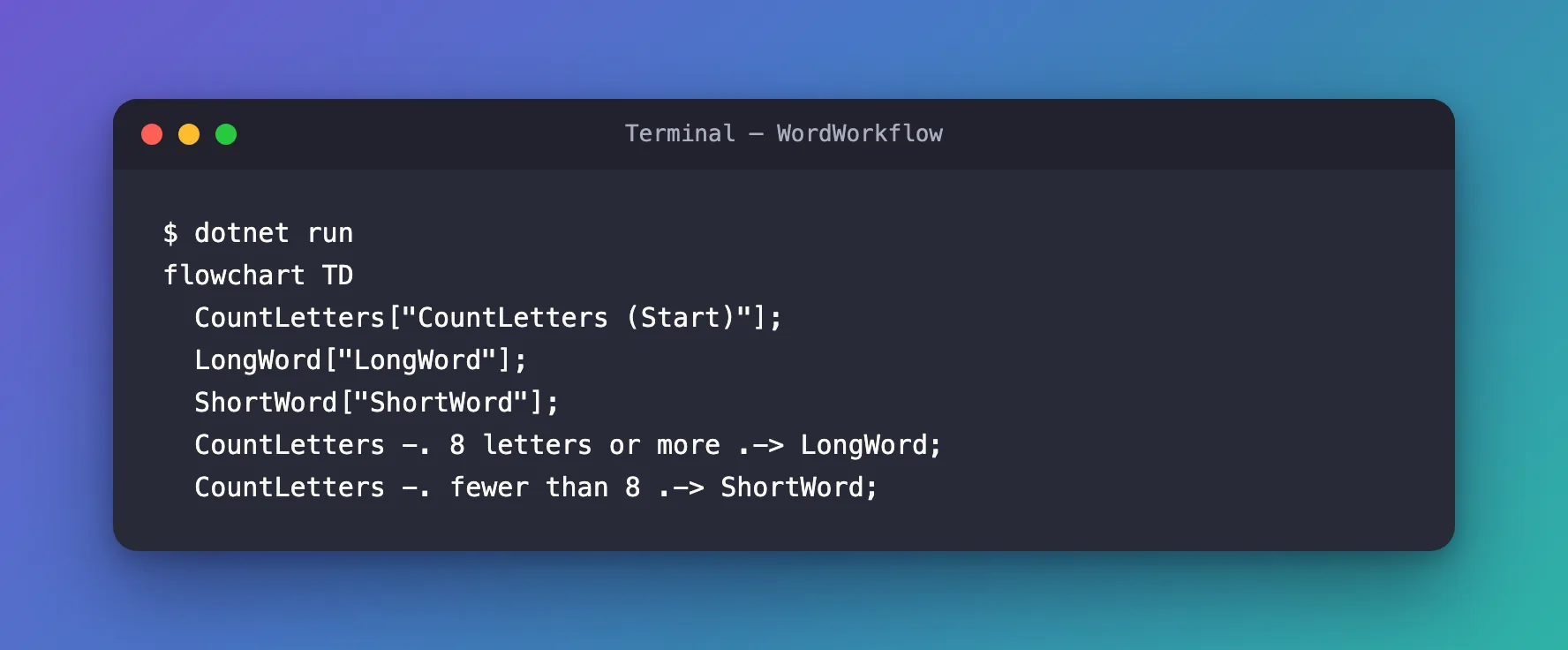
dotnet run
Press Ctrl+F5 (Debug > Start Without Debugging). The output appears in a console window.
flowchart TD
  CountLetters["CountLetters (Start)"];
  LongWord["LongWord"];
  ShortWord["ShortWord"];
  CountLetters -. conditional .-> LongWord;
  CountLetters -. conditional .-> ShortWord;
That's Mermaid's flowchart language: one line per executor, then one line per edge. Drawn by Mermaid, it looks like this:
The first executor is marked (Start), and both edges are dotted with the word conditional, because each one has a condition. That's correct, but it doesn't say which path is which.
Step 3: Name the Paths with Labels
AddEdge takes a label too, which replaces conditional in the drawing. Replace the two AddEdge lines with:
    .AddEdge<int>(count, isLong, condition: letters => letters >= 8, label: "8 letters or more")
    .AddEdge<int>(count, isShort, condition: letters => letters < 8, label: "fewer than 8")
Run the app again:
flowchart TD
  CountLetters["CountLetters (Start)"];
  LongWord["LongWord"];
  ShortWord["ShortWord"];
  CountLetters -. 8 letters or more .-> LongWord;
  CountLetters -. fewer than 8 .-> ShortWord;
Drawn:
Now the picture says what the code says: 8 letters or more go one way, fewer go the other.
Step 4: Print the Graphviz DOT Format Too
Add this line to the end of Program.cs:
Console.WriteLine(workflow.ToDotString());
Run the app again. After the Mermaid text, it prints:
digraph Workflow {
  rankdir=TD;
  node [shape=box, style=filled, fillcolor=lightblue];
  edge [color=black, arrowhead=vee];

  "CountLetters" [fillcolor=lightgreen, label="CountLetters\n(Start)"];
  "LongWord" [label="LongWord"];
  "ShortWord" [label="ShortWord"];
  "CountLetters" -> "LongWord" [style=dashed, label="8 letters or more"];
  "CountLetters" -> "ShortWord" [style=dashed, label="fewer than 8"];
}
The same graph in DOT, with colors: the start executor light green, the others light blue, and the conditional edges dashed. Graphviz turns DOT into an image: Microsoft's guide pipes the app's output into dot -Tpng -o workflow.png, which needs Graphviz installed. I didn't install it for this guide, because the Mermaid text was all I needed.
The Complete File
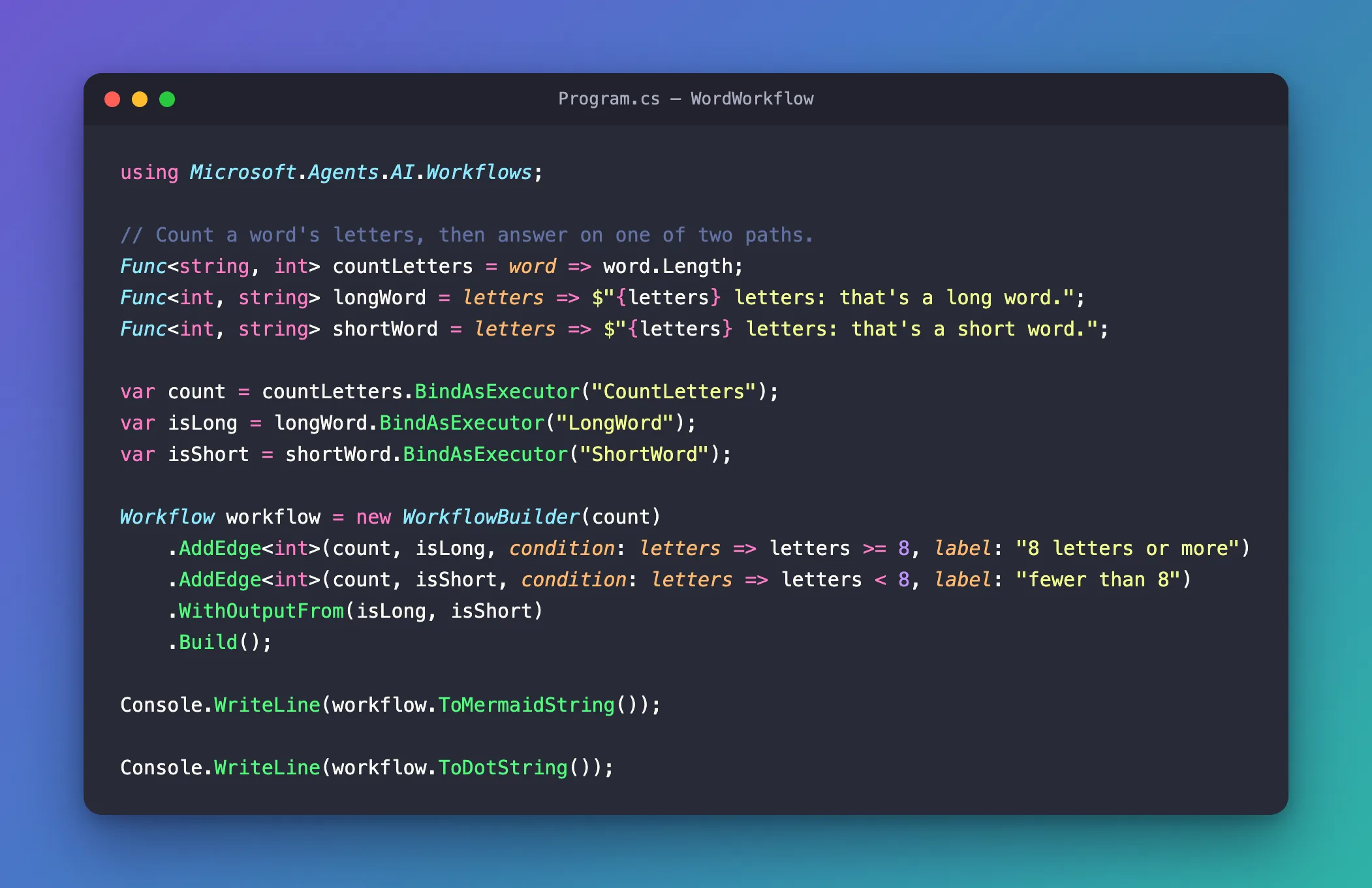
using Microsoft.Agents.AI.Workflows;

// Count a word's letters, then answer on one of two paths.
Func<string, int> countLetters = word => word.Length;
Func<int, string> longWord = letters => $"{letters} letters: that's a long word.";
Func<int, string> shortWord = letters => $"{letters} letters: that's a short word.";

var count = countLetters.BindAsExecutor("CountLetters");
var isLong = longWord.BindAsExecutor("LongWord");
var isShort = shortWord.BindAsExecutor("ShortWord");

Workflow workflow = new WorkflowBuilder(count)
    .AddEdge<int>(count, isLong, condition: letters => letters >= 8, label: "8 letters or more")
    .AddEdge<int>(count, isShort, condition: letters => letters < 8, label: "fewer than 8")
    .WithOutputFrom(isLong, isShort)
    .Build();

Console.WriteLine(workflow.ToMermaidString());

Console.WriteLine(workflow.ToDotString());
Common Mistakes
| Mistake | What happens | Do this instead |
|---|---|---|
| Leaving conditional edges without labels | Every branch is called conditional, and the drawing can't tell them apart | Give each conditional edge a label that says when it's taken |
Calling the methods on the WorkflowBuilder | They don't exist there | Call Build() first, then draw the Workflow it returns |
Troubleshooting
| Symptom | Likely cause | Fix |
|---|---|---|
| The DOT output mixes with other lines you print | Everything goes to the same console | Print the DOT text alone, or write it to a file, before handing it to Graphviz |
| An executor's name shows instead of a description | The drawing uses the names you gave BindAsExecutor | Choose executor names that read well in a diagram |
FAQ
Does the workflow run when I draw it?
No. Both methods read only the workflow's shape, its executors and edges. In this guide the workflow never ran at all.
What do other kinds of edges look like?
Microsoft's guide lists them: normal edges are solid arrows, conditional edges are dashed/dotted arrows with "conditional" labels, and fan-out and fan-in edges go through automatic routing through intermediate nodes.
Conclusion
ToMermaidString() and ToDotString() draw a Microsoft Agent Framework workflow from its executors and edges, without running it. Mermaid's text can be drawn wherever Mermaid diagrams are supported, and DOT by Graphviz. Give every conditional edge a label, and the picture tells the reader which path is which.
Additional Resources
- Workflow visualization — both methods, and how each kind of node and edge is drawn.
- Edges — normal, conditional, switch-case and fan-out edges.
- Mermaid flowchart syntax — the language
ToMermaidString()writes.
