How to Download Artifacts from an MLflow Run

The files a run logged live on the tracking server, but sooner or later you need them on your own disk: to open a CSV in a spreadsheet, to compare reports, or to feed a file to another program. MLflow gives you three ways, a Python function, a terminal command and a button in the UI. This guide lists a run's files and downloads a folder of them, with real output from MLflow 3.18.0.
Syntax
local_path = mlflow.artifacts.download_artifacts(
    run_id="<run ID>", artifact_path="<file or folder in the run>", dst_path="<folder on your disk>"
)
mlflow artifacts list --run-id <run ID>
mlflow artifacts download --run-id <run ID> --artifact-path <file or folder> --dst-path <folder on your disk>
| Part | What it means |
|---|---|
run_id / --run-id | The run that logged the files |
artifact_path / --artifact-path | A file or folder inside the run, such as data or data/houses.csv. Leave it out to download everything |
dst_path / --dst-path | Where to put the download. "If the directory does not exist, it is created." Without it, MLflow picks "a new uniquely-named directory" for you |
| The result | The path of the downloaded file or folder on your disk, returned by Python and printed by the command |
Both find the tracking server through mlflow.set_tracking_uri() in Python, or the MLFLOW_TRACKING_URI environment variable in a terminal.
Prerequisites
- An MLflow tracking server at
http://127.0.0.1:8080. MLflow's tracking server guide shows how to start one.
The Run Used Here
The run log-a-file logged one file twice: houses.csv at the top level and data/houses.csv in a folder. How to Log a File to MLflow with log_artifact creates it. Its run ID is 7e36f68eb7524c3fb841a803a42b3598; yours will differ.
Step 1: List the Run's Files
Point the terminal at the server, then list the top level of the run's artifacts:
- macOS / Linux
- Windows (PowerShell)
export MLFLOW_TRACKING_URI=http://127.0.0.1:8080
uv run mlflow artifacts list --run-id 7e36f68eb7524c3fb841a803a42b3598
$env:MLFLOW_TRACKING_URI = "http://127.0.0.1:8080"
uv run mlflow artifacts list --run-id 7e36f68eb7524c3fb841a803a42b3598
[{
  "path": "data",
  "is_dir": true
}, {
  "path": "houses.csv",
  "is_dir": false,
  "file_size": 81
}]
The list shows one level at a time: a folder, data, and an 81-byte file. Add --artifact-path data to list inside the folder.
Step 2: Download a Folder with Python
Create download.py, which takes the run ID on the command line and downloads its data folder into a folder called downloads:
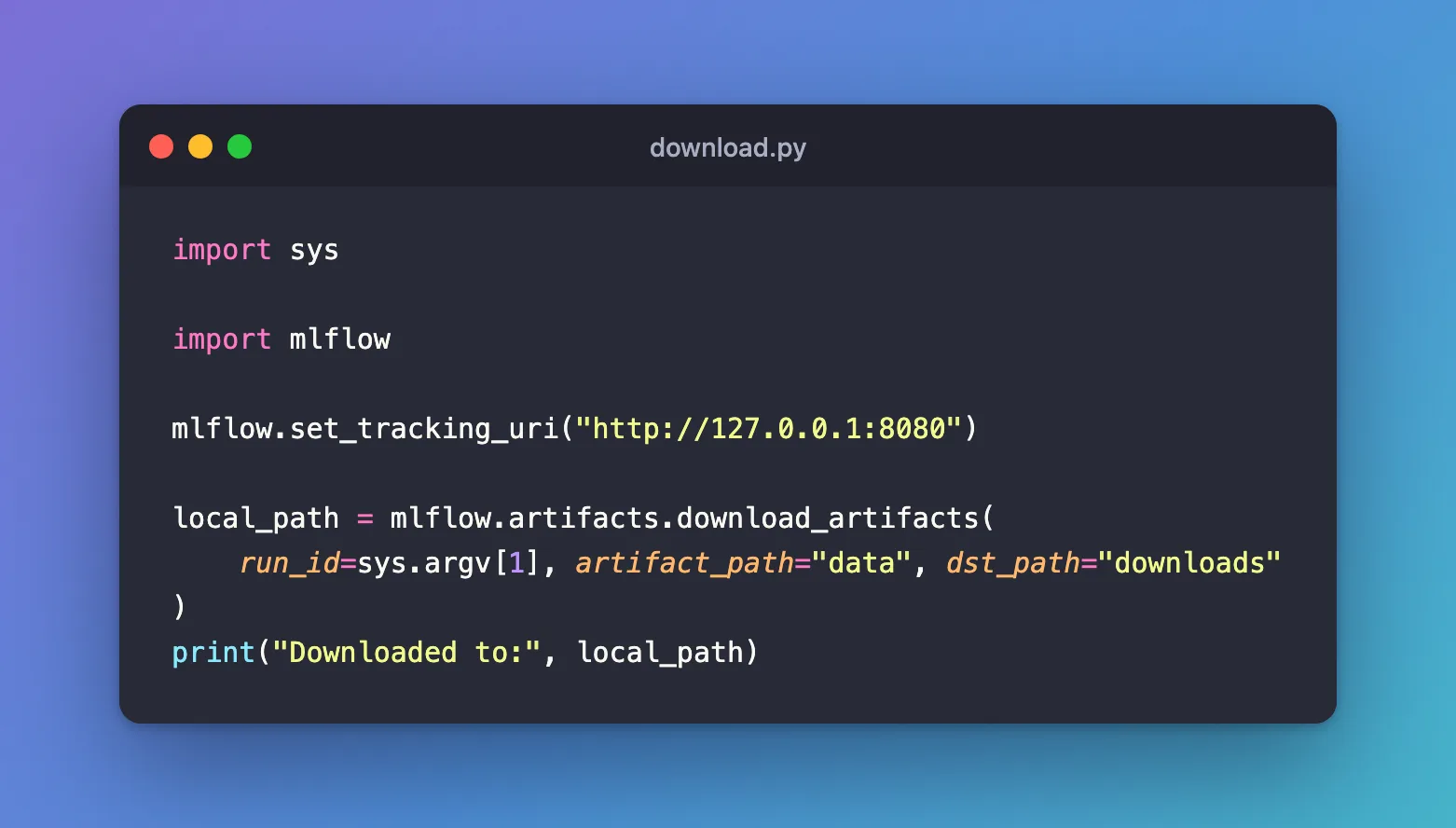
import sys

import mlflow

mlflow.set_tracking_uri("http://127.0.0.1:8080")

local_path = mlflow.artifacts.download_artifacts(
    run_id=sys.argv[1], artifact_path="data", dst_path="downloads"
)
print("Downloaded to:", local_path)
uv run python download.py 7e36f68eb7524c3fb841a803a42b3598
Downloaded to: /Users/you/source/mlflow-demo/downloads/data
MLflow created downloads, put the data folder inside it with houses.csv in it, and returned the folder's full path. The run's folder structure is kept.
Step 3: Download a Folder from the Terminal
The command does the same, in the terminal where MLFLOW_TRACKING_URI is set:
uv run mlflow artifacts download --run-id 7e36f68eb7524c3fb841a803a42b3598 --artifact-path data --dst-path downloads
/Users/you/source/mlflow-demo/downloads/data
It prints the path of what it downloaded. Files that are already there are replaced.
Step 4: Download One File from the UI
On the run's Artifacts tab, select a file and click the download button at the top right, "Download artifact". Your browser saves the file like any other download. How to View a Run's Artifacts in the MLflow UI shows the tab. The button downloads files one at a time; for a folder, use Python or the command.
Common Mistakes
| Mistake | What happens | Do this instead |
|---|---|---|
| A path that isn't in the run | MlflowException: Failed to download artifacts from path 'nothere', please ensure that the path is correct. | Copy the path from mlflow artifacts list or the Artifacts tab |
Running the command without MLFLOW_TRACKING_URI | MlflowException: Run with id=7e36f68eb7524c3fb841a803a42b3598 not found, and a new, empty mlflow.db appears in the folder | Set the variable in the same terminal first |
Leaving out dst_path and losing the files | They go to a new folder with a generated name | Pass dst_path, or keep the returned path |
| Downloading into your project folder | The files show up as new, untracked files in Git | Download outside the project, such as --dst-path ../downloads, or delete them after use |
Troubleshooting
| Symptom | Likely cause | Fix |
|---|---|---|
The command stalls, then fails with Max retries exceeded | The tracking server isn't running | Start the server, then retry |
| You get a folder where you expected a file | artifact_path names a folder | Add the file's name: data/houses.csv |
FAQ
Can I download everything a run logged?
Yes: leave out artifact_path in Python or --artifact-path in the command, and you get the run's whole artifact tree.
Can I read a file without saving it?
Yes. mlflow.artifacts.load_text() and load_dict() return a file's contents directly: How to Read a JSON or Text Artifact from MLflow in Python.
Does downloading change anything on the server?
No. The run's files stay where they are; you get copies.
Conclusion
mlflow artifacts list showed a run's files one level at a time, mlflow.artifacts.download_artifacts(run_id=..., artifact_path="data", dst_path="downloads") and mlflow artifacts download copied a folder to the disk with its structure, and the UI's button downloads single files. Point both at the server, and copy paths from the list.
Additional Resources
- mlflow.artifacts.download_artifacts — the function's reference.
- mlflow artifacts — the commands' reference.
