How to Download a Canvas App as a Teams App Package in Power Apps

Power Apps can save a canvas app as a Teams app package: a .zip file with the app's Teams manifest and two icons. Select the app's More commands (⋮) > Share > Add to Teams, then Download app. The package is what a Teams admin uploads to put the app in the organization's app catalog.
The example is Hello App, a one-screen canvas app that greets whoever opens it.
Step 1: Open the Add to Teams Panel
At make.powerapps.com, select Apps, then the app's More commands (⋮) > Share > Add to Teams, the same menu as How to Add a Canvas App to Microsoft Teams from Power Apps. The Add to Teams panel opens on the right.
Step 2: Check the Details That Go into the Package
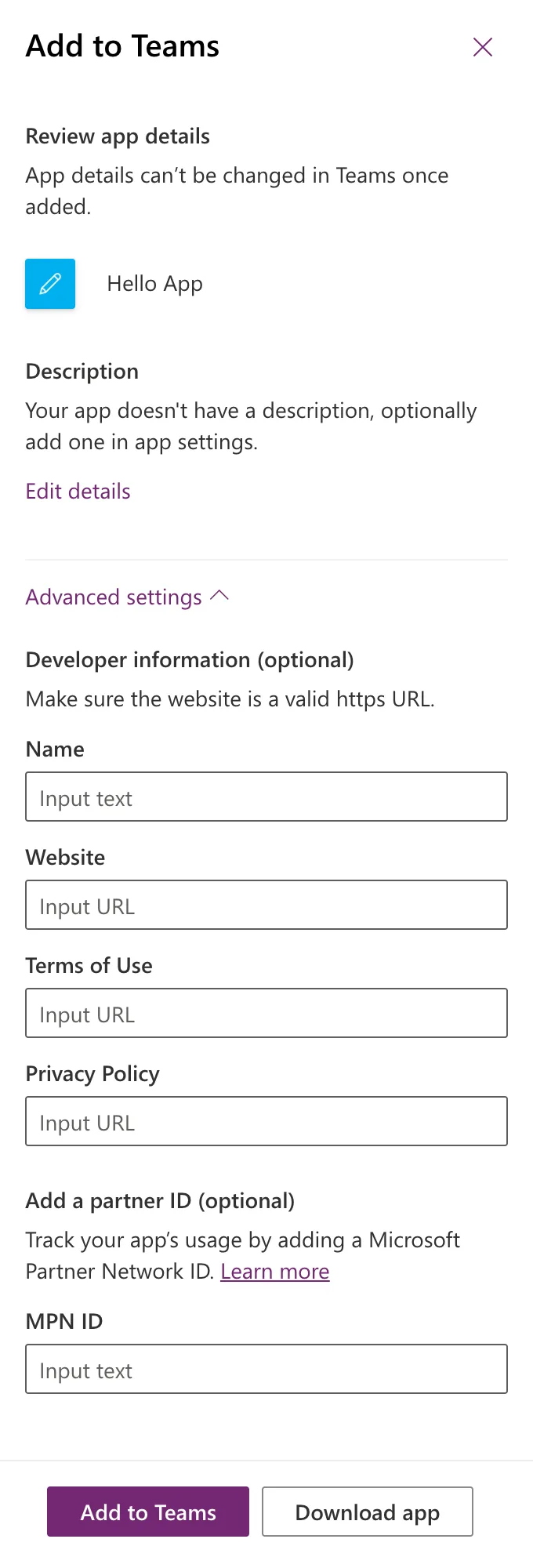
The panel shows the app's name and description, which become the app's name and description in Teams. Check them now: App details can't be changed in Teams once added. To change them, select Edit details, which opens the app in Power Apps Studio.
Select Advanced settings for the optional details:
| Setting | What it's for |
|---|---|
| Name | The developer's name, shown as the app's publisher in Teams |
| Website, Terms of Use, Privacy Policy | Links Teams shows with the app; each must be a valid https URL |
| MPN ID | A Microsoft Partner Network ID, to track the app's usage |
I left them all empty. The package then names PowerApps as the developer, with Power Apps' own website, privacy and terms links.
Step 3: Download the App
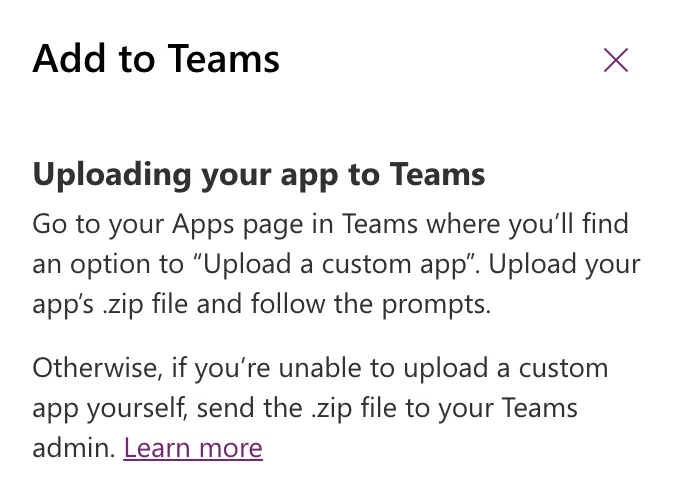
Select Download app. The browser saves a .zip file named after the app, here Hello App.zip, and the panel explains what to do with it:
Select Close.
What's in the Package
Hello App.zip held three files:
| File | Size | What it is |
|---|---|---|
| manifest.json | 2,197 bytes | The app's Teams manifest: its name, description, icons, and the tabs that open the app |
| color.png | 4,714 bytes | The full-color icon, 192 × 192 pixels |
| outline.png | 531 bytes | The outline icon, 32 × 32 pixels |
The manifest uses manifest version 1.8. It has a personal tab, which opens the app from Power Apps' web player, and a tab for teams and group chats. The two icon sizes are the ones Microsoft's app icon article asks for.
Where the Package Goes
- Your Teams admin uploads it in the Teams admin center, to the organization's app catalog (How to Upload a Custom App in the Teams Admin Center). The admin center asks for a newer manifest version first (Fixed: "Update Your Manifest to Include supportsChannelFeatures=tier1" When Uploading a Teams App).
- You can upload it in Teams, under Apps, if your admin lets you upload custom apps, as the panel says.
Common Mistakes
| Mistake | What happens | Do this instead |
|---|---|---|
| Downloading before adding a description | The package carries no useful description | Add one with Edit details first |
| Renaming the files inside the .zip | Teams can't find what the manifest names | Keep manifest.json, color.png and outline.png as they are |
| Downloading a package for an app nobody can open | Teams shows it, but people can't use it | Share the app too |
Troubleshooting
| Symptom | Likely cause | Fix |
|---|---|---|
| You can't find the .zip | It went to the browser's download folder | Open the browser's list of downloads |
| The admin center refuses the package | It asks for a newer manifest version | See the Fixed post above |
| The description is cut short in Teams | Teams' short description holds at most 80 characters | Shorten the app's description |
FAQ
Is the package the app itself?
No. It tells Teams how to show the app; the app still runs from Power Apps, for the people it's shared with.
Why is my description cut off?
The manifest has a short and a full description, and the manifest schema allows at most 80 characters in the short one. Power Apps cuts a longer description at 80 characters for it.
Do I download again after changing the app?
Not for changes inside the app, which Teams opens from Power Apps. Download again only to change what the package holds, such as the name, description or icon.
Conclusion
Select the app's More commands (⋮) > Share > Add to Teams, check the details and Advanced settings, and select Download app. You get a .zip with manifest.json and two icons, ready for your Teams admin.
