How to Delete an App Registration in Microsoft Entra ID

Deleting an app registration in Microsoft Entra ID takes two steps if you want it really gone. Delete moves it to Deleted applications, where it can be restored for 30 days. Delete permanently removes it for good.
An app registration is an application's identity in Microsoft Entra ID: its client ID, its secrets and the permissions it asks for. Tools create them for you all the time. The Teams Developer Portal makes one for every bot, test projects leave them behind, and deleting the bot or the project doesn't delete them. This guide removes one from the Microsoft Entra admin center.
The Example
The app registration here is called Echo Bot: it was made for a test bot that's no longer needed. The same steps work for any app registration you own or administer.
Prerequisites
- Permission to delete the app. Microsoft's documentation signs in with at least the Cloud Application Administrator role for these steps. For the permanent delete, it also accepts Application Administrator, Hybrid Identity Administrator, or being one of the app's owners.
Step 1: Find the App Registration
Sign in to the Microsoft Entra admin center and go to Entra ID > App registrations. Select the All applications tab and type the app's name in the search box:

Check the Application (client) ID if several apps share a name: names don't have to be unique. Select the app's name to open it.
Step 2: Delete It
On the app's Overview page, select Delete in the toolbar:

The Delete app registration pane explains what happens:
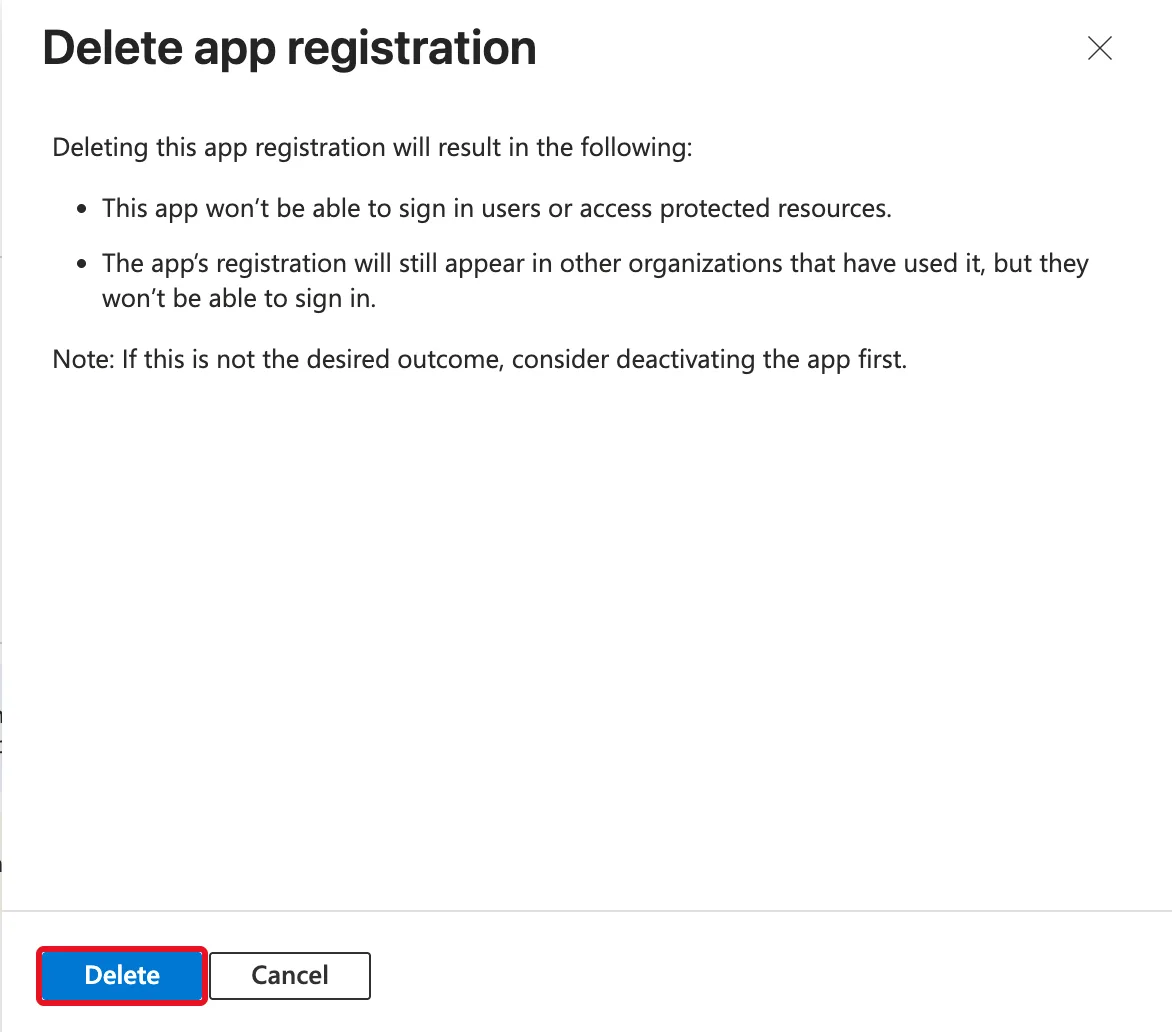
- This app won't be able to sign in users or access protected resources. Any code that signs in with this app's client ID and secret stops working.
- The app's registration will still appear in other organizations that have used it, but they won't be able to sign in. That matters for multitenant apps, such as bots used in other tenants.
The pane's note points to Deactivate, which blocks sign-ins but keeps the app, if you might need it again. To delete, select Delete.
Step 3: Check Deleted Applications
The app leaves the All applications list and moves to the Deleted applications tab. Microsoft's documentation calls this a suspended state: After you delete an app registration, the app remains in a suspended state for 30 days. During that 30-day window, the app registration can be restored, along with all its properties.
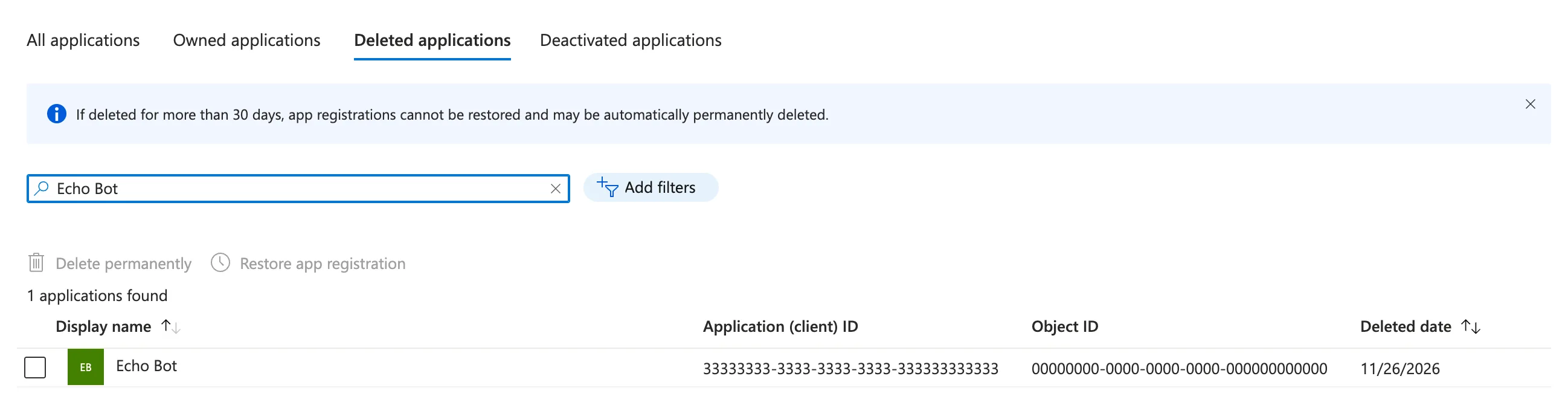
Selecting the app here enables two commands: Restore app registration brings it back with its settings, and Delete permanently removes it now. If you do nothing, it's removed for good after 30 days.
Step 4: Delete It Permanently
Select the app's row, then Delete permanently. Read the warning and select Yes:

Microsoft's documentation is clear that there's no way back: Neither you nor Microsoft customer support can restore a permanently deleted application or an application deleted more than 30 days ago. After a refresh, a search for the app on Deleted applications finds nothing.
Common Mistakes
| Mistake | What happens | Do this instead |
|---|---|---|
| Deleting a bot in the Teams Developer Portal and stopping there | Its app registration stays in Entra ID | Delete the app registration too |
| Deleting by name when several apps share it | The wrong app goes | Compare the Application (client) ID first |
| Deleting permanently straight away "to be safe" | No way back if something still used it | Keep it in Deleted applications until you're sure, or deactivate it first |
Troubleshooting
| Symptom | Likely cause | Fix |
|---|---|---|
| You can't delete the app | Your account has no admin role for apps and isn't an owner | Ask an admin, or one of the app's owners |
| The app isn't on Owned applications | You aren't one of its owners | Look on All applications |
| Delete permanently stays greyed out | No app is selected | Select the app's row first |
FAQ
Does deleting the app registration delete its enterprise application?
In your own tenant, yes. Microsoft's documentation: Deleting an application will also delete its service principal object in the application's home directory. For multitenant applications, service principal objects in other directories will not be deleted.
Why delete permanently instead of waiting 30 days?
Deleted apps that can still be restored count toward the limit of directory objects a user can create. Microsoft's FAQ says a non-admin user can create no more than 250 applications and service principals, both active resources and deleted resources that are available to restore count toward this quota, and only a permanent delete frees the space at once.
Can I restore a deleted app registration?
Yes, for 30 days: select it on Deleted applications and choose Restore app registration. Microsoft's documentation says only the app's owners can restore it.
Conclusion
To remove an app registration, open it in Entra ID > App registrations and select Delete. It waits on Deleted applications for 30 days, where you can restore it, and Delete permanently removes it for good when you're sure nothing needs it.
Additional Resources
- Remove an application registered with the Microsoft identity platform — the delete step and who can do it.
- Restore or remove a recently deleted application — the 30-day window, restore and permanent delete.
- Deletion and recovery of applications FAQ — the object quota.
