How to Delete an App in the Teams Developer Portal

An app you create in the Teams Developer Portal, or with a tool that registers it there, stays in the portal's Apps list until you delete it. Deleting takes two selections and the app's name, typed to confirm, because there's no undo.
The Example
Card Demo is a test app with one bot, created with the Teams developer CLI, which registered it in the Developer Portal. Its owner deletes it there once the testing is done.
Prerequisites
- The Administrator role on the app. Microsoft's guide to managing apps in the Developer Portal lists deleting among that role's permissions: The Administrator role has permissions, such as updating an app's configuration, adding or removing owners, and deleting an app.
Step 1: Open the App's Options
Sign in to the Teams Developer Portal and select Apps. In the app's row, select ... under Action:

Step 2: Select Delete
The menu has three commands. Select Delete:
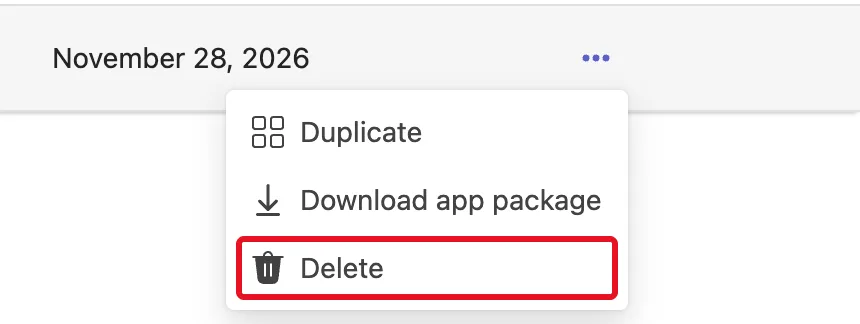
If you might need the app again, select Download app package first, to keep a copy of its package.
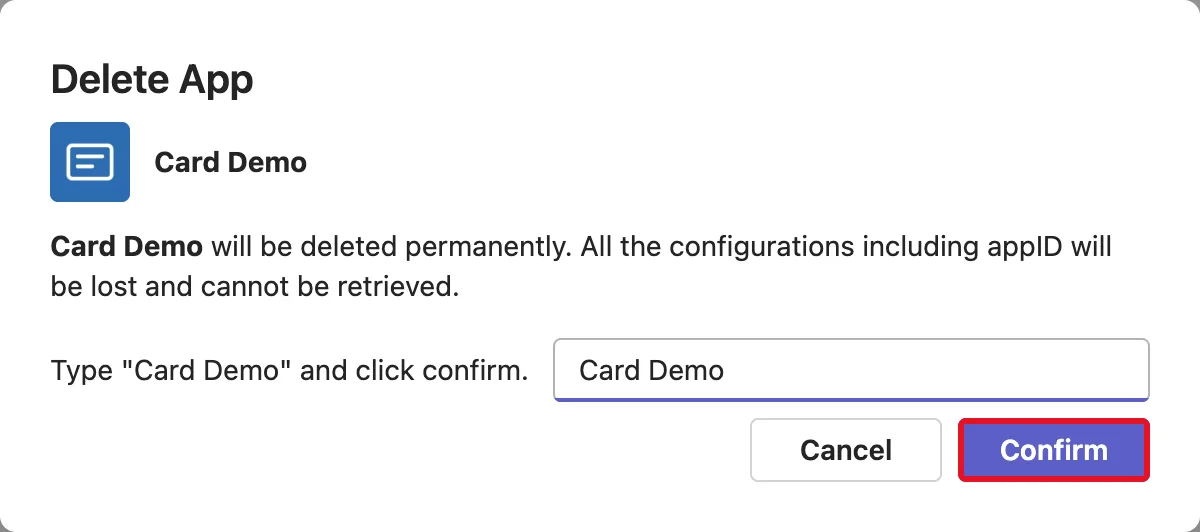
Step 3: Type the Name and Confirm
The Delete App dialog warns that this can't be undone: Card Demo will be deleted permanently. All the configurations including appID will be lost and cannot be retrieved. Type the app's name where it asks, then select Confirm:
The Result
The portal shows App deleted successfully, and the app is gone from the list:

What Deleting the App Leaves Behind
The app and its bot are separate registrations. After the app was deleted, the Card Demo bot was still listed under Tools > Bot management, and its app registration was still in Microsoft Entra ID. Delete both to finish the cleanup:
- The bot: How to Delete a Bot in the Teams Developer Portal.
- The app registration: How to Delete an App Registration in Microsoft Entra ID.
Common Mistakes
| Mistake | What happens | Do this instead |
|---|---|---|
| Stopping after the app is deleted | The bot and its app registration, with its client secret, stay | Delete the bot and the app registration too |
| Deleting an app you may still need | There's no way back | Select Download app package first |
Troubleshooting
| Symptom | Likely cause | Fix |
|---|---|---|
| The app isn't in your Apps list | Another account created it, and you aren't one of its owners | Sign in as its owner, or ask an owner to add you |
| You can't delete the app | Your role on it is Operative, which can update the app but not delete it | Ask an owner with the Administrator role to delete it |
FAQ
Can I delete the app with the Teams developer CLI?
Not with version 3.1.0: its teams app commands list no delete. The Developer Portal is the place to do it.
Can I get a deleted app back?
Not from the portal: the dialog says the app will be deleted permanently and that its configurations cannot be retrieved.
Conclusion
To delete a Teams app, open the Apps list in the Teams Developer Portal, select ... > Delete in its row, type its name and select Confirm. Then delete its bot and its app registration, which the app's delete leaves in place.
Additional Resources
- Manage your apps in Developer Portal, on Microsoft Learn: owners and their roles.
- Manage Microsoft Teams app ownership in Developer Portal, on Microsoft Learn.
