How to Delete a File in the Terminal with rm

A file you don't need any more takes one command to delete from the terminal: rm on macOS and Linux, and Remove-Item in PowerShell. Both take several files at once, and neither asks first.
Syntax
On macOS and Linux:
rm <file> [<file> ...]
| Part | What it does |
|---|---|
rm | Short for "remove". Deletes the files you name. |
<file> | The file's name, or a path such as notes/old.txt. A name on its own means a file in the folder you're in. |
[<file> ...] | Optional. More files, separated by spaces. rm deletes them all. |
In PowerShell:
Remove-Item <path>[, <path> ...]
| Part | What it does |
|---|---|
Remove-Item | Deletes the items you name, such as files. |
<path> | The file's name or path. |
[, <path> ...] | Optional. More paths, separated by commas, not spaces. |
rm prints nothing when it works. Microsoft's reference says the same of Remove-Item: "This cmdlet returns no output."
The Example
The example works in a folder called notes that holds three empty text files: draft.txt, notes.txt and old.txt. It deletes old.txt, then the other two with one command, and then tries to delete old.txt again.
Step 1: Create Three Files to Delete
In an empty folder, create the three files:
- macOS / Linux
- Windows (PowerShell)
touch draft.txt notes.txt old.txt
ls
draft.txt
notes.txt
old.txt
touch creates an empty file for each name, and ls lists what's in the folder.
New-Item -ItemType File -Path draft.txt, notes.txt, old.txt
Get-ChildItem -Name
draft.txt
notes.txt
old.txt
New-Item creates the three empty files and prints a short table about each one. Get-ChildItem -Name then lists the folder's contents by name.
Step 2: Delete One File
- macOS / Linux
- Windows (PowerShell)
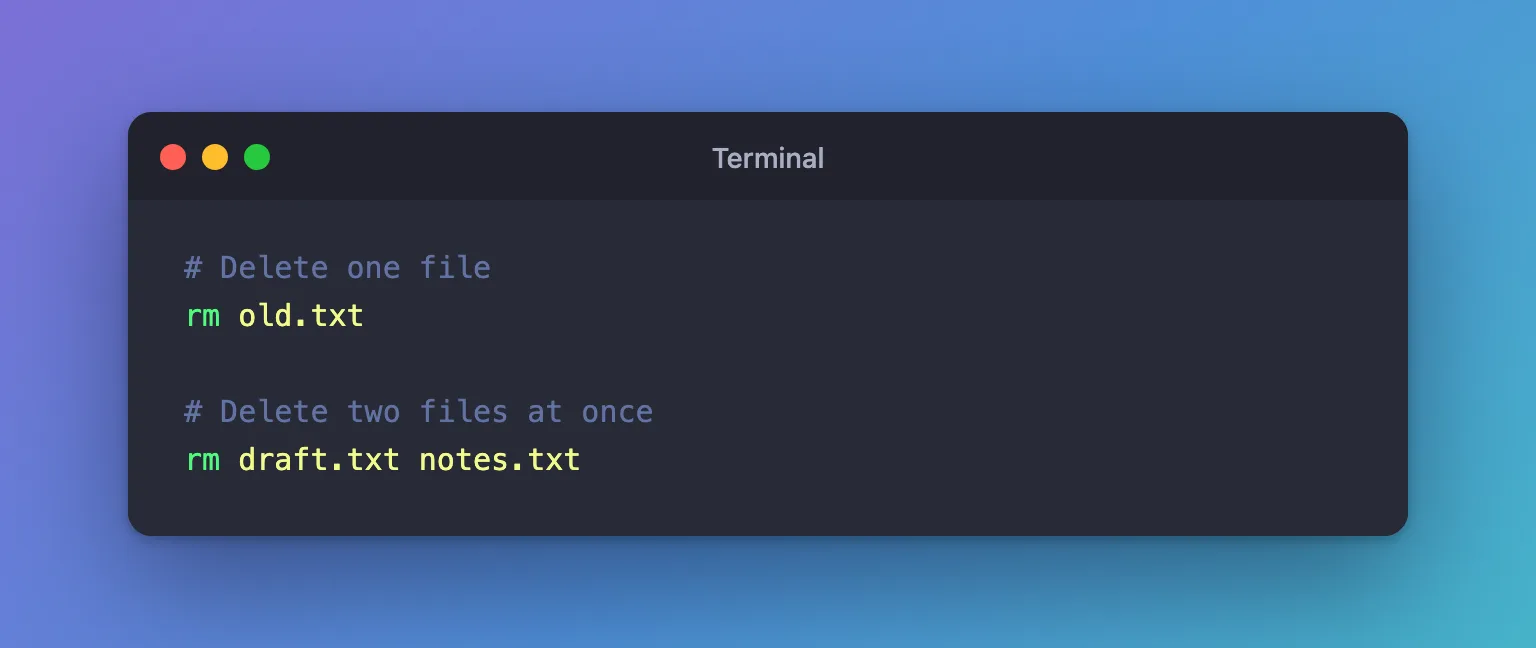
rm old.txt
ls
draft.txt
notes.txt
rm itself printed nothing. The list shows that old.txt is gone and the other two are still there.
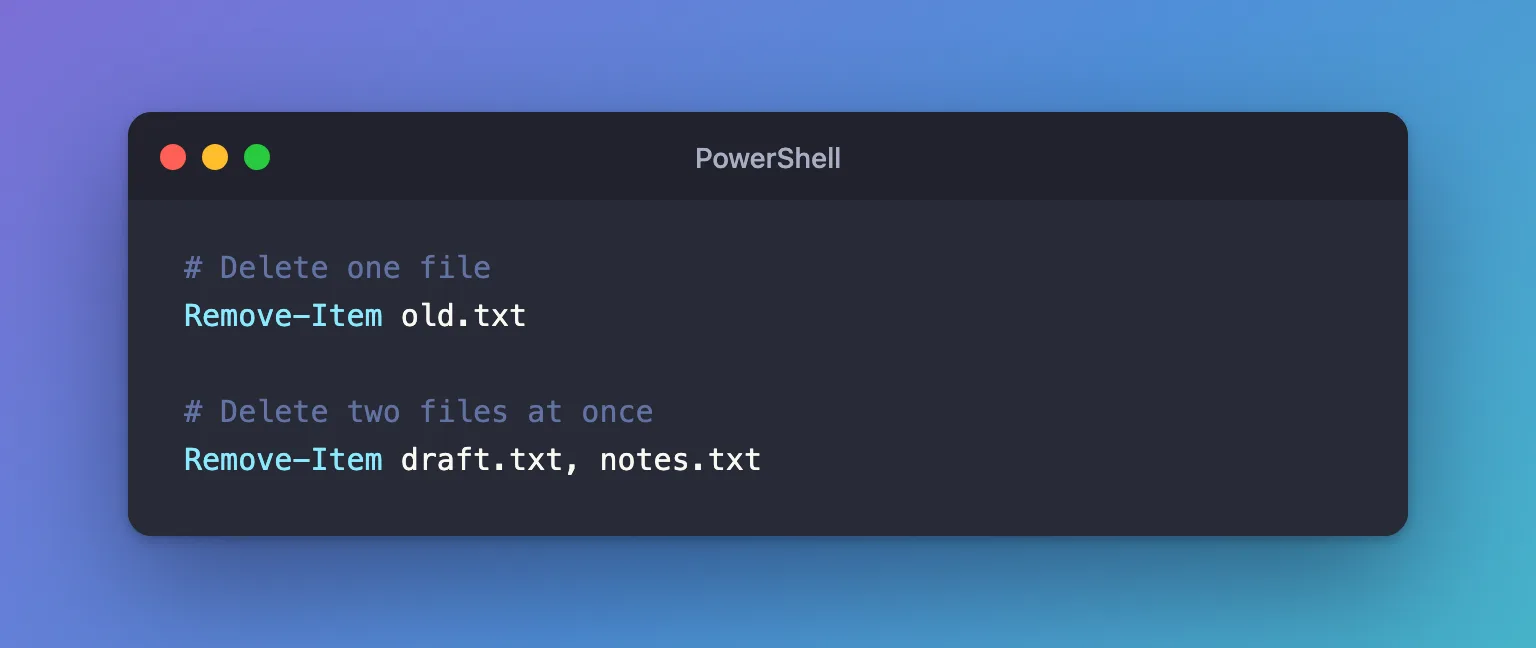
Remove-Item old.txt
Get-ChildItem -Name
draft.txt
notes.txt
Remove-Item printed nothing, and old.txt is no longer in the list.
Step 3: Delete Several Files at Once
- macOS / Linux
- Windows (PowerShell)
rm draft.txt notes.txt
ls
This time ls prints nothing at all: the folder is empty.
Remove-Item draft.txt, notes.txt
Get-ChildItem -Name
Get-ChildItem -Name prints nothing: the folder is empty. The comma matters: Remove-Item takes a list of paths, and a comma separates them.
Step 4: Delete a File That Isn't There
Run the first delete again, now that old.txt is gone:
- macOS / Linux
- Windows (PowerShell)
rm old.txt
rm: old.txt: No such file or directory
Remove-Item old.txt
Remove-Item: Cannot find path '/Users/Shared/terminal-demo/notes/old.txt' because it does not exist.
Both refuse with a message that names the missing file, and nothing else changes.
Common Mistakes
| Mistake | What happens | Do this instead |
|---|---|---|
Spaces between paths in PowerShell: Remove-Item draft.txt notes.txt | Remove-Item: A positional parameter cannot be found that accepts argument 'notes.txt'., and nothing is deleted | Separate the paths with a comma |
A name with a space and no quotes: rm old notes.txt | rm reads two names, old and notes.txt. With a file called old notes.txt and another called notes.txt in the folder, it printed rm: old: No such file or directory and deleted notes.txt, the wrong file | Quote the name: rm "old notes.txt" |
| Running the command in the wrong folder | The file deleted is the one in the folder you're in, if one has that name | Check where you are with pwd first |
| Expecting to be asked first | Neither command asks for a normal file | Check the name before you press Enter |
Troubleshooting
| Symptom | Likely cause | Fix |
|---|---|---|
rm: old.txt: No such file or directory | The file isn't in the folder you're in, or its name is spelled differently | Run ls to see the names, or give the full path |
rm: notes: is a directory | The name belongs to a folder, and rm deletes files | Delete the files inside it, or check you named the right thing |
Remove-Item: Cannot find path '…' because it does not exist. | Same as the first row | Run Get-ChildItem -Name to see the names |
Remove-Item: A positional parameter cannot be found that accepts argument '…'. | Two paths separated by a space | Put a comma between them |
FAQ
Does rm delete folders?
Not as used here. Its manual page describes rm as removing "the non-directory type files specified on the command line". Given the example's folder, it answered rm: ../notes: is a directory and left the folder alone.
Is rm the same as Remove-Item?
On Windows, PowerShell's rm is a shorter name for Remove-Item. Microsoft lists it among the command's aliases, together with del. On macOS and Linux, typing rm in PowerShell runs the system's own rm from the first tab.
Can I delete many files that share a name pattern?
Yes. Both commands accept a wildcard such as *.txt in place of the names, and the pattern decides which files go.
Conclusion
rm <file> deletes a file on macOS and Linux, and rm <file> <file> deletes several. In PowerShell, Remove-Item <path> does the same, with commas between paths. Neither prints anything when it works, and both name the file when it isn't there.
Additional Resources
- rm, in the POSIX standard: the command and its options.
- Remove-Item: PowerShell's command, its parameters and its aliases.
