How to Delete a Bot in the Teams Developer Portal

When a test bot has served its purpose, delete it from the Teams Developer Portal. The portal removes the bot in two clicks, then tells you about the part it doesn't remove: the bot's Microsoft Entra app registration.
A bot you create under Bot management has two parts: the bot registration that Teams sends messages through, and an app registration in Microsoft Entra ID that holds the bot's ID and client secrets. Deleting the bot removes the first. The second stays until you delete it yourself.
The Example
The bot to remove is Echo Bot, a Teams-managed bot I registered for a test. Two other bots in the same list stay.
Prerequisites
- The account that created the bot. Microsoft's documentation says A Teams-managed registration can be configured and managed only by the Microsoft 365 account used to create it.
Step 1: Find the Bot
Sign in to the Teams Developer Portal and go to Tools > Bot management. In the bot's row, select ... under Actions, then Delete:

Check the Bot Id before you continue: names don't have to be unique.
Step 2: Confirm
The portal asks Do you want to delete this bot? Select Delete:
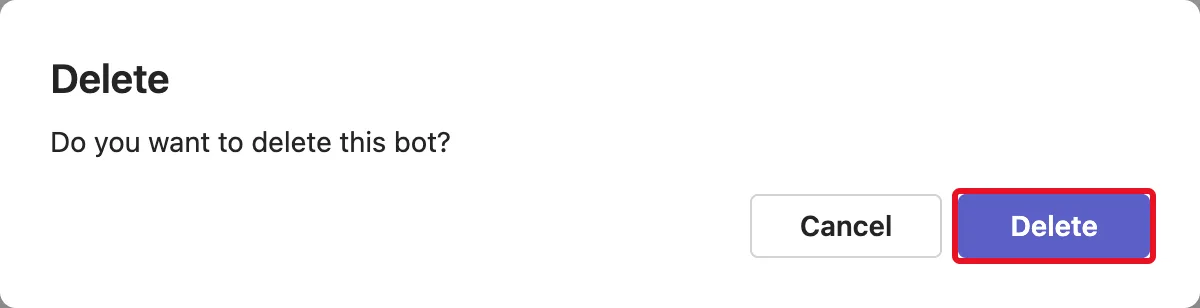
Step 3: Read the Notice
The portal deletes the bot and shows a second message:
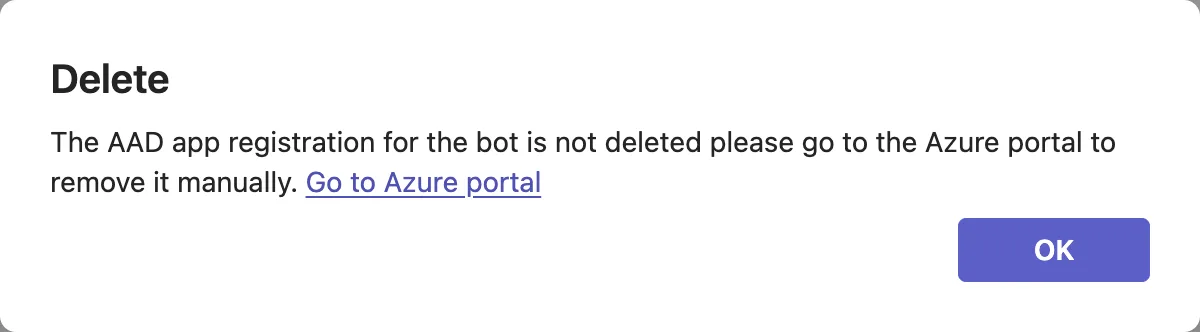
The AAD app registration for the bot is not deleted please go to the Azure portal to remove it manually. AAD is Azure Active Directory, the old name of Microsoft Entra ID. Select OK. The bot is gone from the list:

Step 4: Delete the App Registration
The app registration has the bot's name and its ID as its Application (client) ID. Delete it in the Microsoft Entra admin center, or in the Azure portal as the notice suggests: How to Delete an App Registration in Microsoft Entra ID shows both the delete and the permanent delete.
Common Mistakes
| Mistake | What happens | Do this instead |
|---|---|---|
| Stopping after the bot is deleted | The app registration, with its client secret, stays in your organization | Delete the app registration too |
| Deleting a bot by name when two share it | The wrong bot goes | Compare the Bot Id first |
Troubleshooting
| Symptom | Likely cause | Fix |
|---|---|---|
| The bot isn't in your Bot management list | Another account created it | Sign in with the account that created it |
| The bot is on the Azure-managed bots tab | It's an Azure Bot resource in an Azure subscription | Delete it in the Azure portal with the rest of its resources |
FAQ
Does deleting the bot remove the Teams app?
No. A Teams app is separate: its package only names the bot ID. Uninstall the app in Teams, and delete the app in the Developer Portal's Apps if you created one there. Do that before you delete the bot, so nobody keeps an app whose bot is gone.
Can I keep the bot's ID for later?
The ID belongs to the app registration, not to the bot. Once you delete the app registration, it stays restorable in Microsoft Entra ID for 30 days; after that, the ID is gone for good.
Conclusion
Deleting a Teams-managed bot takes ... > Delete in Bot management, then a confirmation. The portal says plainly what it leaves: the bot's app registration in Microsoft Entra ID, which you delete next to finish the cleanup.
Additional Resources
- Choose an Agent Communication Service registration type — Teams-managed and Azure-managed bots.
