How to Create or Update a SharePoint List Item with Patch in Power Apps

Patch saves to a data source without a form. Give it a new record from Defaults and it creates an item; give it a record loaded from the list and it updates that item. One formula can do both, so the same button handles the first save and every one after.
Syntax
Patch( DataSource, BaseRecord, ChangeRecord )
- DataSource: the list, such as
CompetencyResponses. - BaseRecord:
Defaults(DataSource)to create, or a record that came from the list to update. - ChangeRecord: the columns to set, as
{Column: value, …}.
Microsoft's reference: "Use Patch with the Defaults function to create records. Use this behavior to build a single screen for both creating and editing records" (Patch function).
Prerequisites
- The SharePoint list added to the app as a data source.
- The existing item, if any, loaded into a variable, for example with LookUp in the screen's OnVisible (How to Find a Record in Power Apps with LookUp).
The example is the Career Development Plan app. Its Response screen loads the person's response for a competency into locResponse, which is blank if they haven't answered yet.
Step 1: Pick the Base Record
If(IsBlank(locResponse), Defaults(CompetencyResponses), locResponse)
- No response yet:
Defaults(CompetencyResponses), so Patch creates a new item (How to Use the Defaults Function in Power Apps). - A response exists:
locResponse, the record from the list, so Patch updates it. Microsoft notes the base record must trace back to the data source, which a record from LookUp does.
Step 2: List the Columns to Set
Patch(
    CompetencyResponses,
    If(IsBlank(locResponse), Defaults(CompetencyResponses), locResponse),
    {
        Competency: locPlanItem.Competency,
        EmployeeId: MyProfile.id,
        EmployeeName: MyProfile.displayName,
        EmployeeEmail: Coalesce(MyProfile.mail, MyProfile.userPrincipalName),
        JobTitle: MyJobTitle,
        RoleCompetencyId: locPlanItem.ID,
        Level: locPlanItem.Level.Value,
        Response: Trim(txtResponseRS.Text),
        Status: {Value: StatusPending},
        ManagerComment: Blank(),
        SubmittedOn: Now(),
        ReviewedOn: Blank()
    }
)
Each column type has its own form of value:
| Column type | Example | Guide |
|---|---|---|
| Single line of text | JobTitle: MyJobTitle | |
| Number | RoleCompetencyId: locPlanItem.ID | |
| Multiple lines of text | Response: Trim(txtResponseRS.Text) | Trim |
| Choice | Status: {Value: StatusPending} | Write to a Choice Column |
| Date and Time | SubmittedOn: Now() | Now |
| Any column, cleared | ReviewedOn: Blank() | Clear a Column |
Columns you leave out keep their value. The list's hidden Title column isn't required, so the formula doesn't set it.
Step 3: Report the Result
Patch can fail: no connection, no permission, or someone changed the item in the meantime. Wrap it in IfError, with the success actions as the last argument (How to Handle Errors in Power Apps with IfError):
IfError(
    Patch(...),
    Notify("Your response wasn't sent. " & FirstError.Message, NotificationType.Error),
    Notify("Your response was sent to your manager.", NotificationType.Success);
    Back()
)
The example's full formula also handles the case where someone else changed the item first: Fixed: "Network Error When Using Patch Function: ETAG Mismatch".
Step 4: Check the List
The first time, Patch created the item, with every column the formula set:
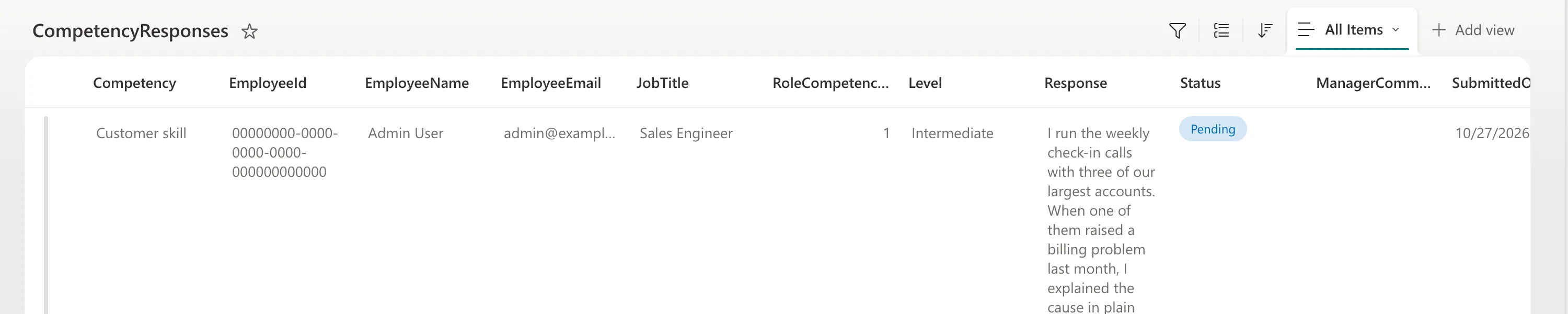
The next time, the same formula updated that item instead of adding another. The item's version history shows each save as a new version of one item:

Common Mistakes
| Mistake | What happens | Do this instead |
|---|---|---|
Always Defaults(…) | A new item on every save | Use the loaded record when there is one |
| A record you built yourself as the base | Patch can't trace it back to an item in the list | Load the item from the list with LookUp |
| No IfError | The person isn't told what went wrong or what to do | Report failures with Notify |
Troubleshooting
| Symptom | Likely cause | Fix |
|---|---|---|
| ETAG mismatch | The item changed since it was loaded | Fixed: ETAG Mismatch |
| A duplicate item | The base record was Defaults although an item existed | Check the LookUp that loads it |
| A required column error | A required column wasn't set on create | Set every required column |
FAQ
Patch or a form with SubmitForm?
Microsoft's guidance: use Patch to save without a form control, to update only some columns, or for a custom save experience. A form handles field mapping and validation for you.
What does Patch return?
The record it created or updated, including values the list fills in, such as ID.
Conclusion
Patch(List, If(IsBlank(existing), Defaults(List), existing), {…}) creates the item the first time and updates it after that. Load the existing item with LookUp, set each column in its own form, and wrap the call in IfError.
Additional Resources
- Patch function: create, update and common errors.
- Understand data sources for canvas apps: when to use Patch instead of a form.
