How to Create a Microsoft Foundry Resource and Deploy a Model (Step-by-Step)

If you are about to create an Azure OpenAI resource, stop. Microsoft's own guidance is that most use cases should use a Foundry resource instead — it speaks every Azure OpenAI API you already use, and adds the rest of the model catalog, agents and tools on top. This guide creates one from scratch and deploys a model.
What Microsoft Foundry Is
Microsoft Foundry unifies agents, models and tools under one Azure resource, with shared role-based access control, networking, policies, tracing and evaluations.
The naming has changed several times, which is the main source of confusion:
| Era | Platform name | AI services name |
|---|---|---|
| Earliest | Azure AI Studio | Azure Cognitive Services |
| Middle | Azure AI Foundry | Azure AI Services |
| Current | Microsoft Foundry | Foundry Tools |
Only the names changed. The underlying Azure resource type is still Microsoft.CognitiveServices/accounts — which is why the portal deployment in Step 5 below is called CognitiveServicesAIFoundry-.... A Foundry resource is that same resource type with kind set to AIServices and project management enabled.
Resource, project, deployment
| Piece | What it is |
|---|---|
| Resource | The Azure resource. Owns billing, networking, identity and quota. |
| Project | A folder inside the resource for organising work. Also the boundary for access and data isolation. |
| Deployment | A named endpoint serving one model. Your code calls the deployment name, not the model name. |
The first project is created together with the resource and is labelled "default". Per the portal's own wording, this default project has more capabilities than projects you create later, so use it for your main work rather than treating it as a throwaway.
Why Not a Plain Azure OpenAI Resource?
This is Microsoft's documented position, not an opinion:
Azure OpenAI – A specialized resource type that provides access to OpenAI models and APIs only. For most use cases, use the Foundry resource, which offers backward compatibility with all Azure OpenAI APIs.
What you give up by picking the narrower resource:
| Capability | Azure OpenAI | Foundry |
|---|---|---|
| Azure OpenAI APIs — batch, stored completions, fine-tuning, evals | Yes | Yes |
| Models sold by Azure | Azure OpenAI only | Azure OpenAI, Meta, xAI, Mistral, DeepSeek, Black Forest Labs, Microsoft |
| Partner and community models via Marketplace (Cohere, Stability…) | No | Yes |
| Agent service | No | Yes |
| Foundry API | No | Yes |
| Foundry Tools — Speech, Vision, Language, Content Understanding | No | Yes |
There is one legitimate reason to still pick the standalone Azure OpenAI resource: if your IT security team has not enabled the superset of Foundry capabilities in your environment. Check with them before you build on it.
Already running on Azure OpenAI? Don't rebuild — there is an in-place upgrade that keeps your endpoint and keys. It's covered near the end.
Prerequisites
| Item | Detail |
|---|---|
| Azure subscription | Any active subscription. |
| Role | A role that can create a Foundry resource — Foundry Account Owner or Foundry Owner on the subscription or resource group. |
| For teams | A role that can assign roles, such as Owner, plus the email addresses or Entra security group IDs of your team members. |
| Azure CLI (optional) | Version 2.67.0 or later (az version) if you prefer the terminal. |
The Foundry RBAC roles were renamed recently. Foundry User, Foundry Owner, Foundry Account Owner and Foundry Project Manager were previously Azure AI User, Azure AI Owner, Azure AI Account Owner and Azure AI Project Manager. You may still see the old names in places. The role IDs and permissions are unchanged, so scripts should reference the GUID rather than the display name while the rename rolls out.
Step 1: Create a Resource Group
Keep the resource and everything it creates in one group so you can delete it all in a single action later.
- In the Azure portal, search for Resource groups and click Create.
- Subscription: pick yours.
- Resource group name:
rg-devblogs-exp. - Region:
(US) East US 2. - Click Review + create, then Create.
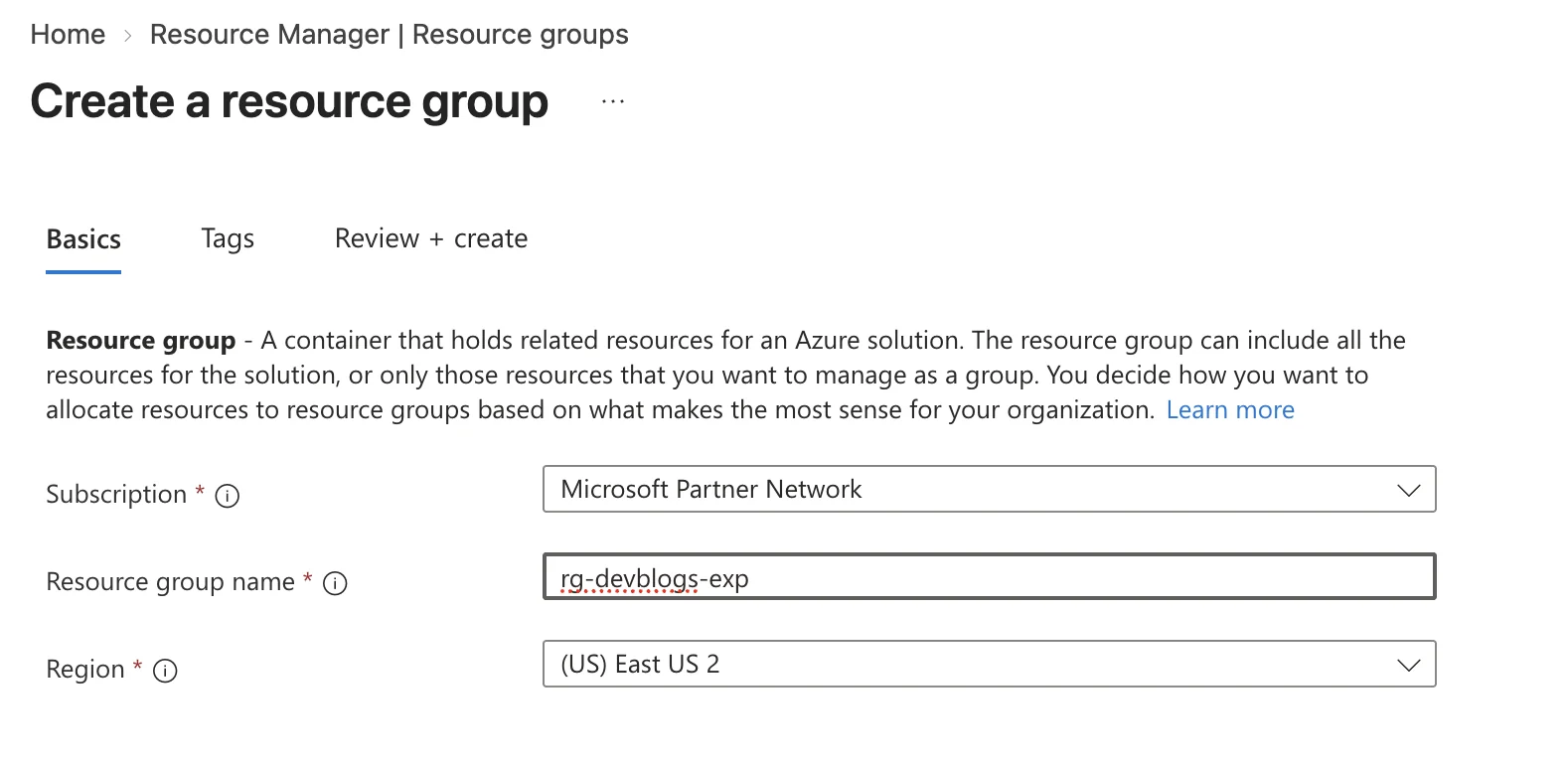
Model availability varies by region and changes often. East US 2 and Sweden Central consistently carry the broadest selection. Check the current region support list before committing a production workload.
Open the new resource group when it is ready.
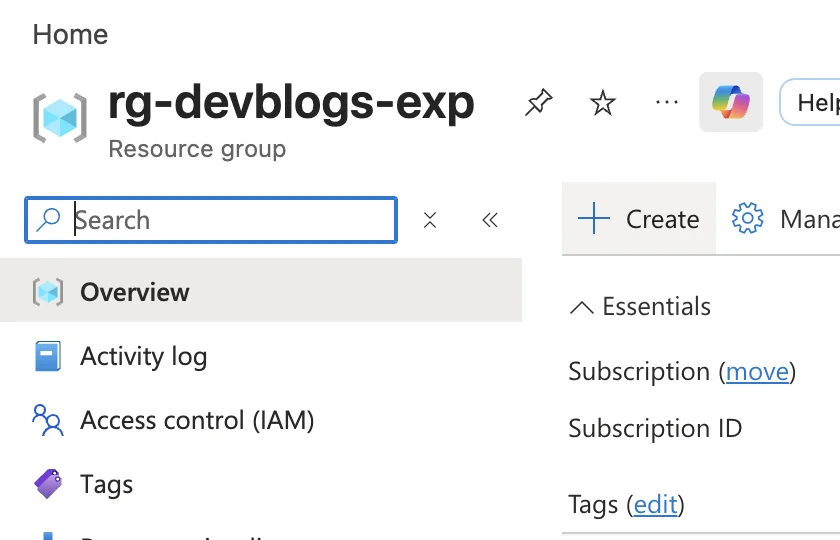
Step 2: Find Microsoft Foundry in the Marketplace
- Inside the resource group, click Create.
- Search the Marketplace for microsoft foundry.
- Select the Microsoft Foundry tile — publisher Microsoft, type Azure Service, described as "Design, customize, and manage AI apps and agents at scale."
- Click Create.
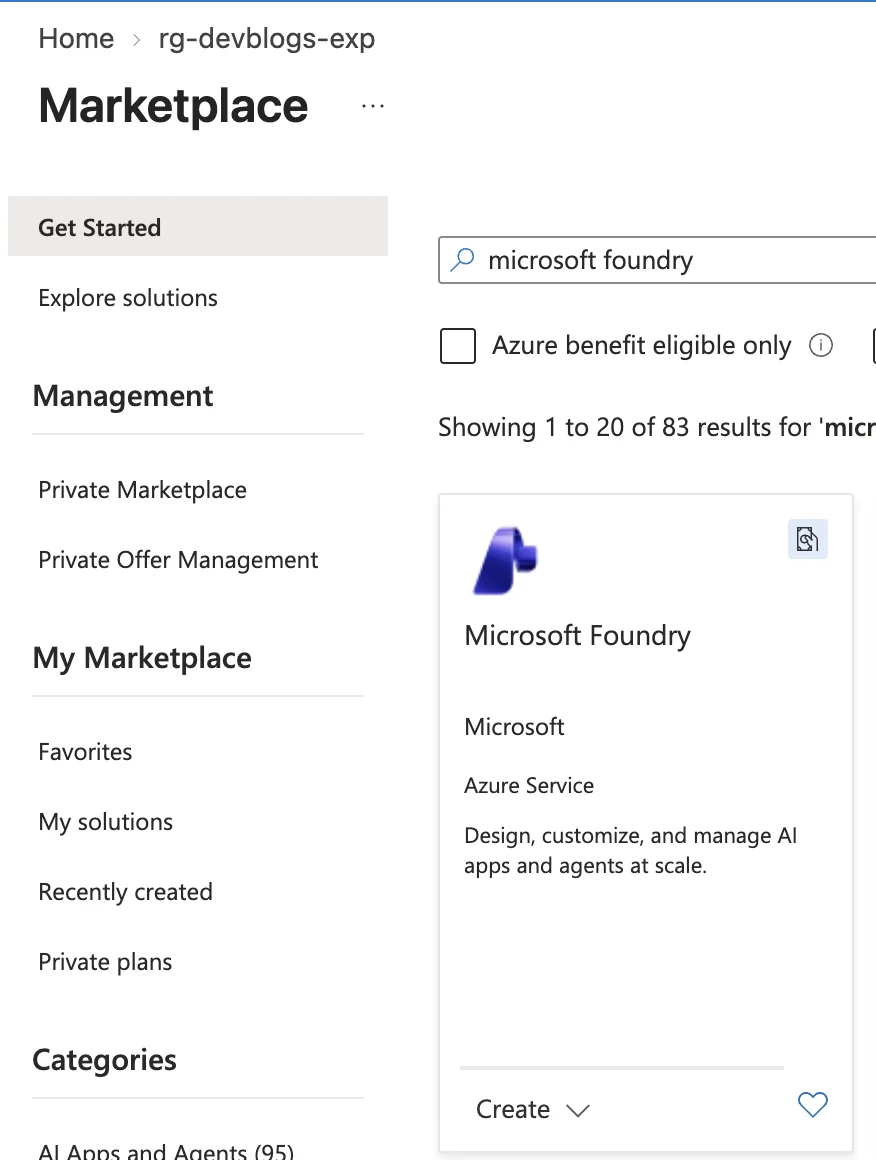
Search results include many similarly named partner offers. Confirm the publisher reads Microsoft and the type reads Azure Service before clicking Create.
Step 3: Fill In the Basics
The create blade has eight tabs — Basics, Storage, Inbound Networking, Outbound Networking, Identity, Encryption, Tags, Review + create. For a first resource, only Basics needs your attention.
- Subscription: your subscription.
- Resource group:
rg-devblogs-exp. - Name:
foundry-devblogs-exp. This must be globally unique — it becomes the subdomain in your API endpoints. - Region:
(US) East US 2. - Default project name:
proj-devblogs-exp.
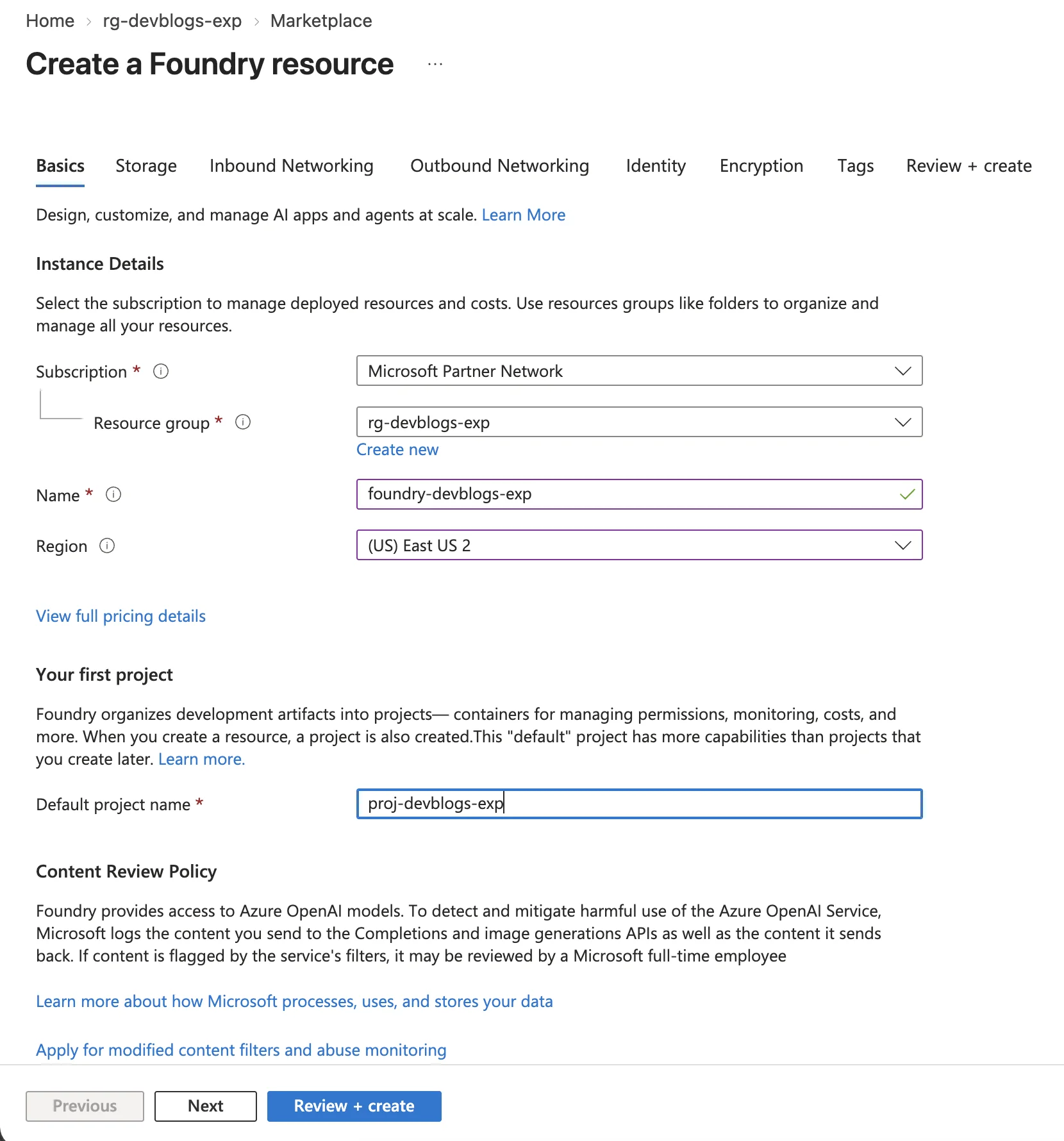
Note the Content Review Policy section at the bottom. Microsoft logs content sent to the Completions and image generation APIs to detect misuse, and flagged content may be reviewed by a Microsoft employee. If your workload cannot tolerate that, apply for modified content filters and abuse monitoring using the link on that same page — it is an approval process, not a toggle.
Step 4: Review and Create
Click Review + create. Check the defaults you are accepting:
| Setting | Default |
|---|---|
| Inbound Access | All networks, including the internet, can access this resource |
| Network isolation for Agent | No Outbound Networking |
| Identity type | System assigned |
| Storage for Agents service | 0 item(s) |
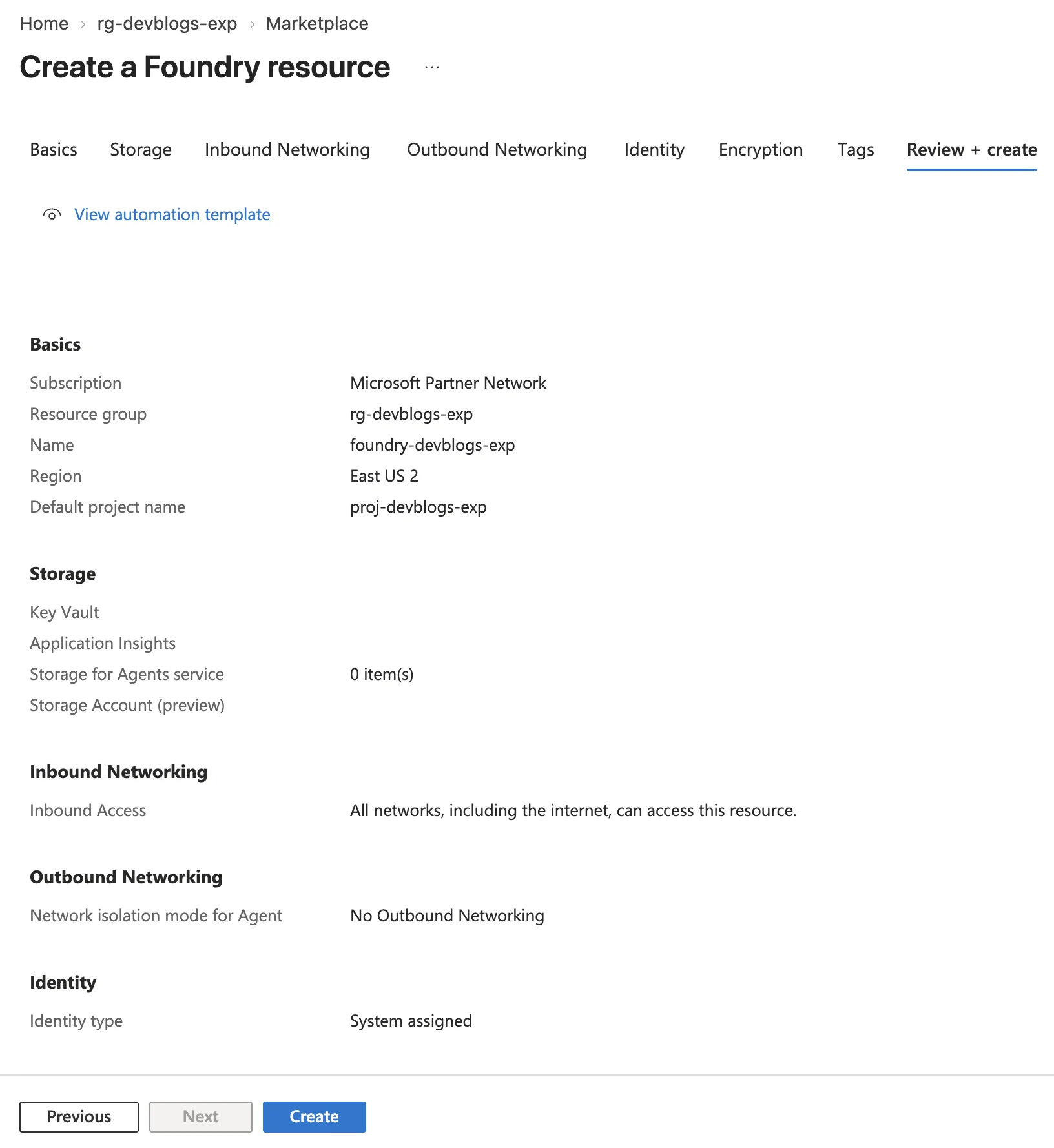
Inbound Access defaults to the public internet. That is fine for a sandbox and wrong for production. For a real workload, set network restrictions or private endpoints on the Inbound Networking tab before creating — retrofitting private endpoints later means deleting and recreating them.
Click Create.
Step 5: Watch the Deployment
The portal names the deployment CognitiveServicesAIFoundry-<timestamp> and provisions a resource of type Microsoft.CognitiveServices/accounts — confirmation that Foundry is the same resource provider under a new name.
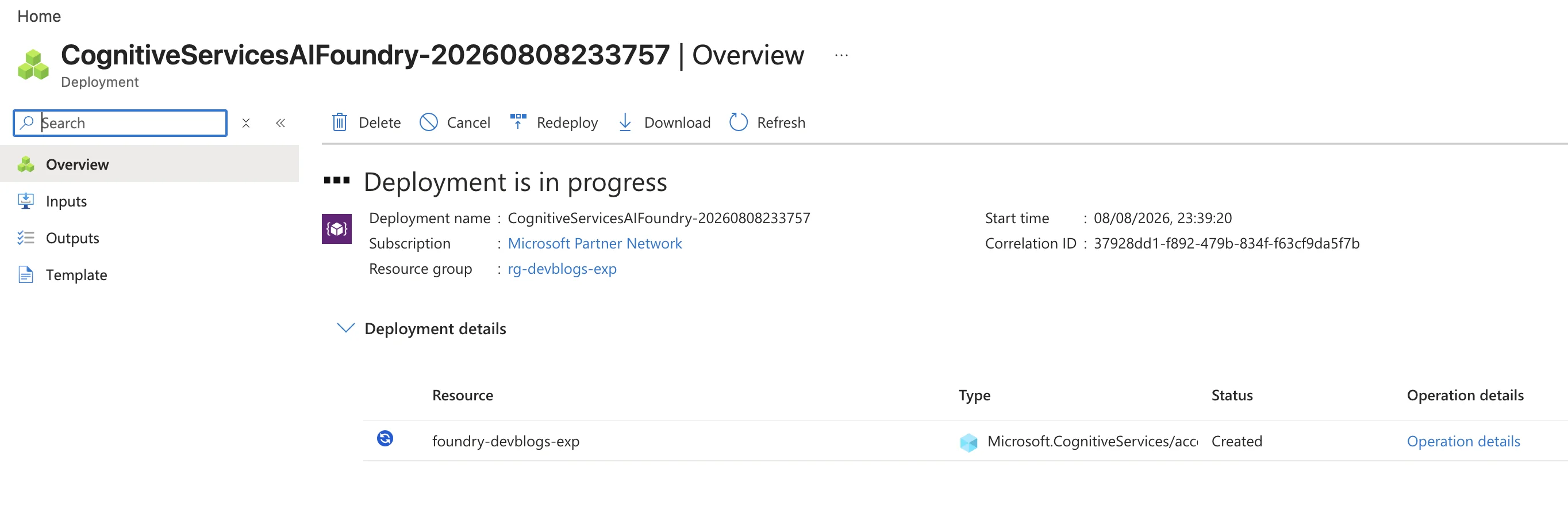
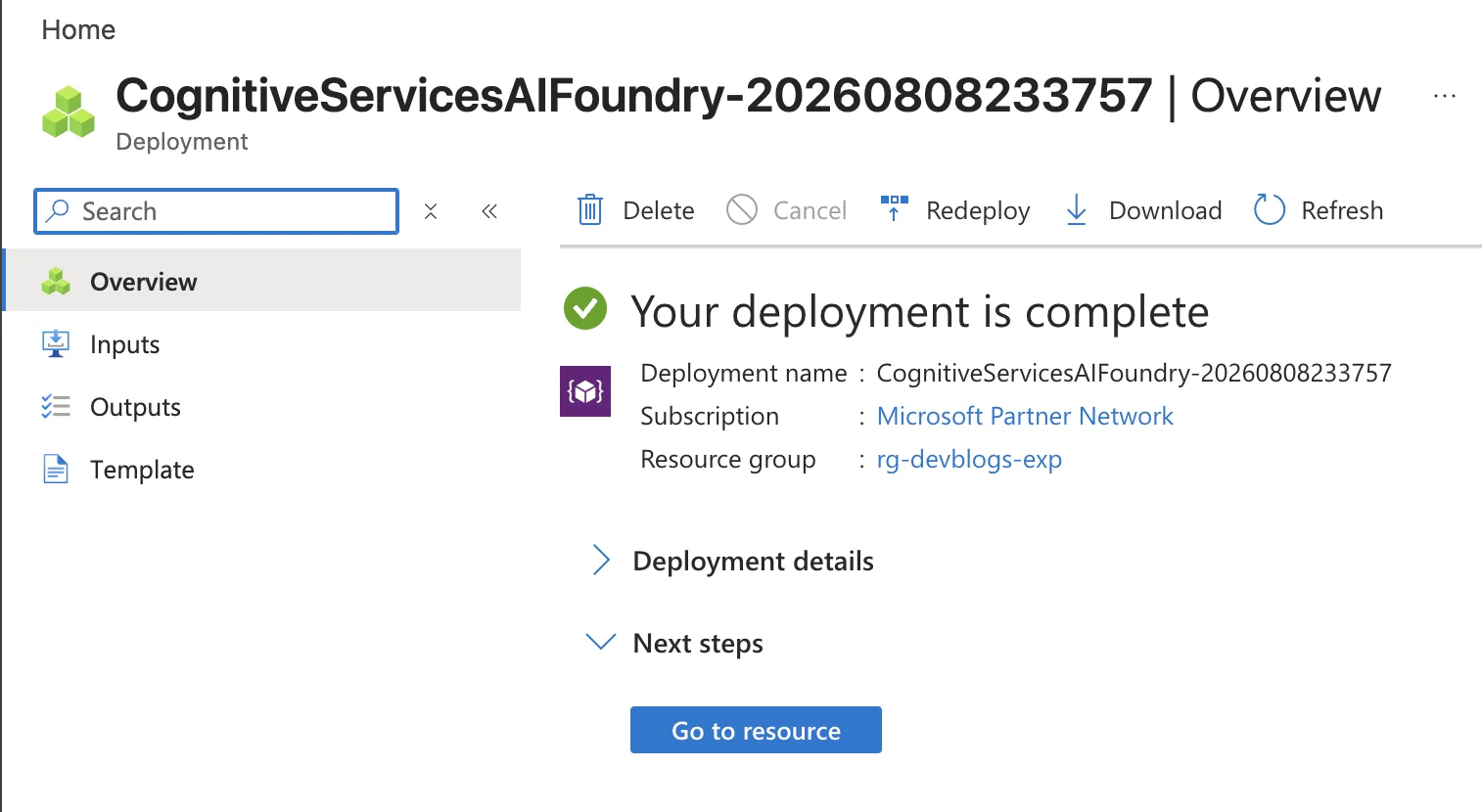
It finishes in well under a minute. Click Go to resource.
Step 6: Open the Foundry Portal
The resource overview in the Azure portal is deliberately thin — resource-level concerns only. All the building happens in the Foundry portal.
Click Go to Foundry portal.
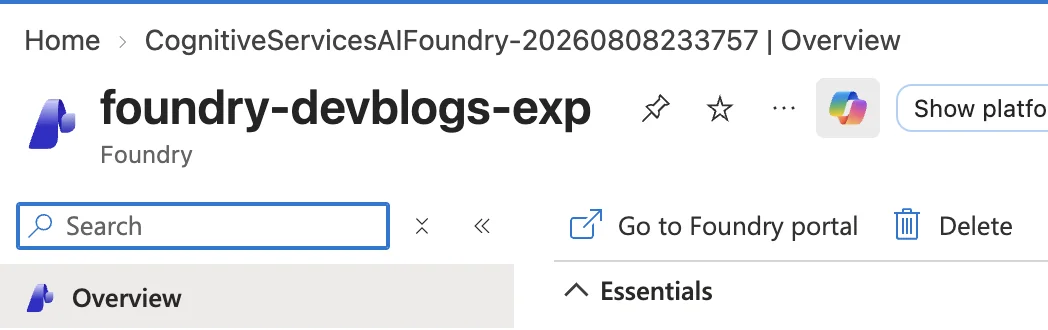
There are two portal experiences behind a New Foundry toggle in the top bar. This guide uses Foundry (new), with the toggle on. Hub-based projects and some older flows only exist in Foundry (classic) — but Microsoft has stated that new investment is going into Foundry projects in the new portal.
Step 7: Go to Deployments
On the Foundry home page, the Use a model card is the fastest route.
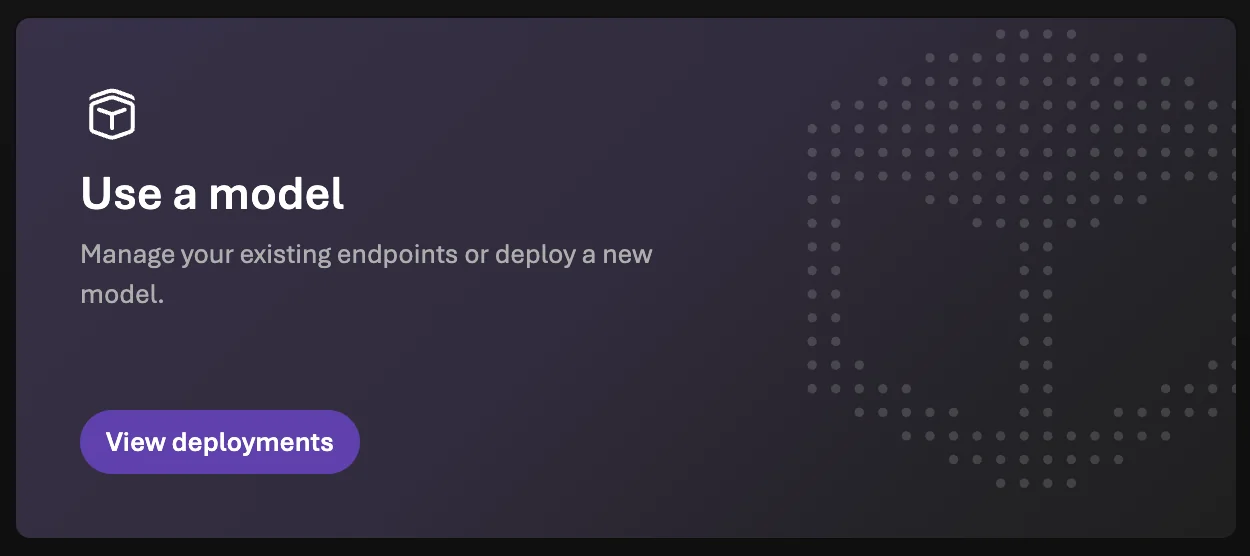
Click View deployments — or in the left nav go to Models → Deployments. A fresh project has none.
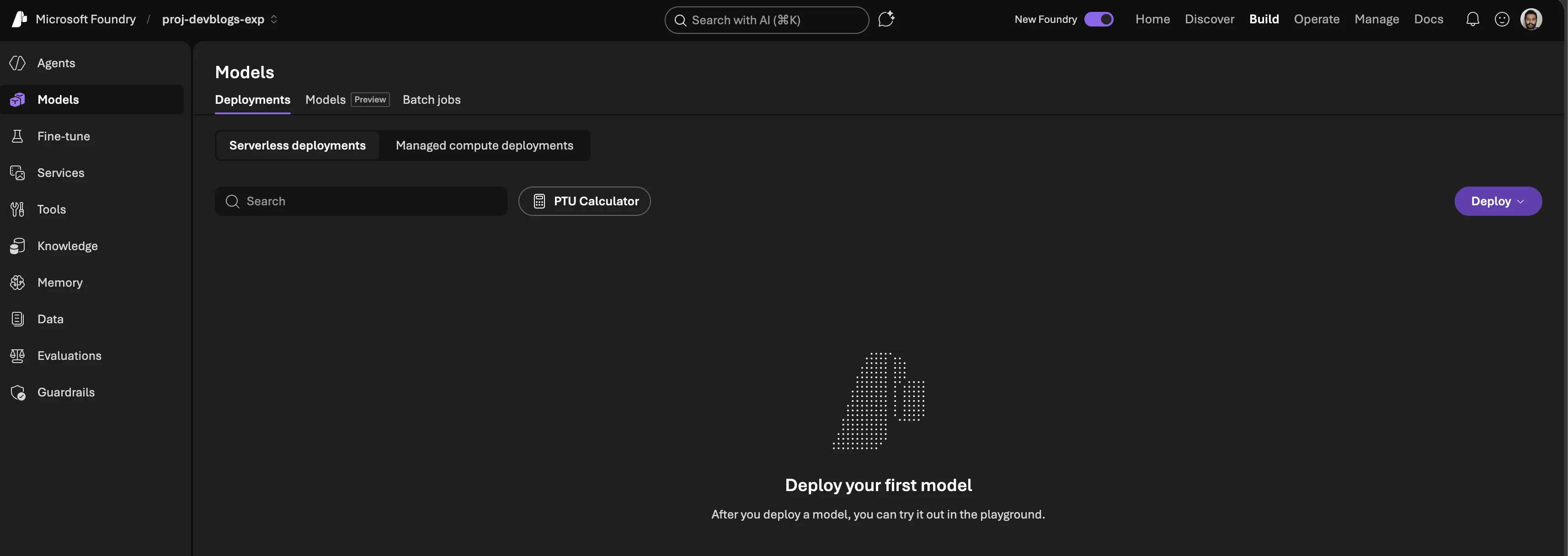
Worth noting on this page:
- Serverless deployments vs Managed compute deployments — pay-per-call versus dedicated compute you manage.
- A PTU Calculator for sizing Provisioned Throughput Units.
- The left nav is the whole platform: Agents, Models, Fine-tune, Services, Tools, Knowledge, Memory, Data, Evaluations, Guardrails.
Step 8: Deploy a Base Model
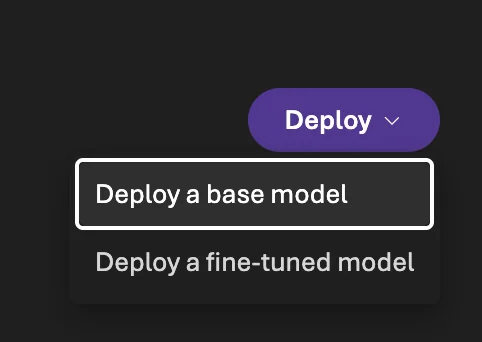
- Click Deploy → Deploy a base model.
- The catalog opens. This is the payoff for choosing Foundry over a plain Azure OpenAI resource — OpenAI's GPT models sit next to Anthropic's Claude, xAI's Grok, DeepSeek, Cohere, Microsoft's own MAI models and Hugging Face community models, all deployable from one resource.
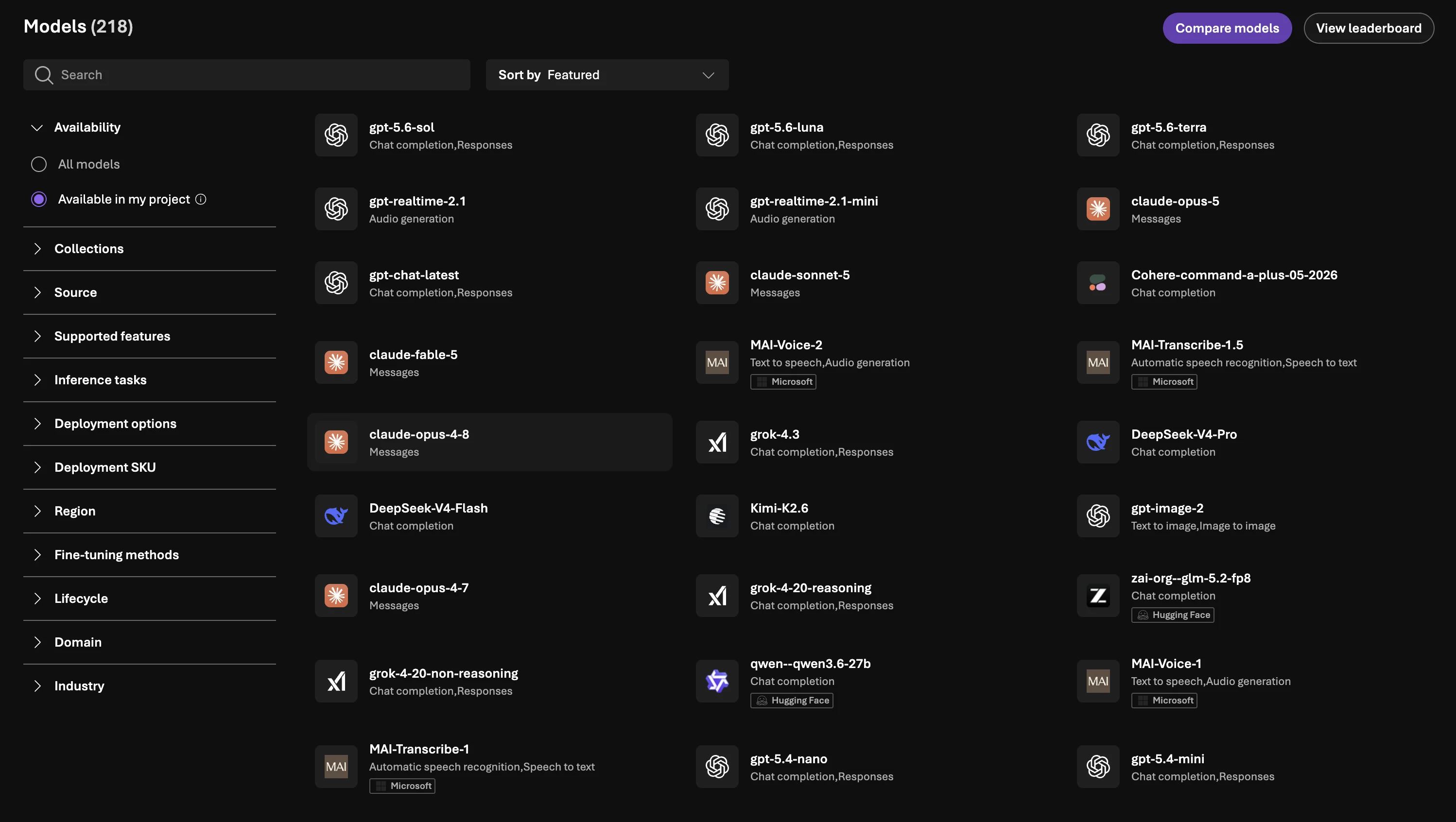
The Availability filter defaults to Available in my project, which is why the count here is a few hundred rather than the full catalog of 1,900+ models. Switch it to All models to see everything, then check the Region filter — a model you cannot deploy in your region is not a real option.
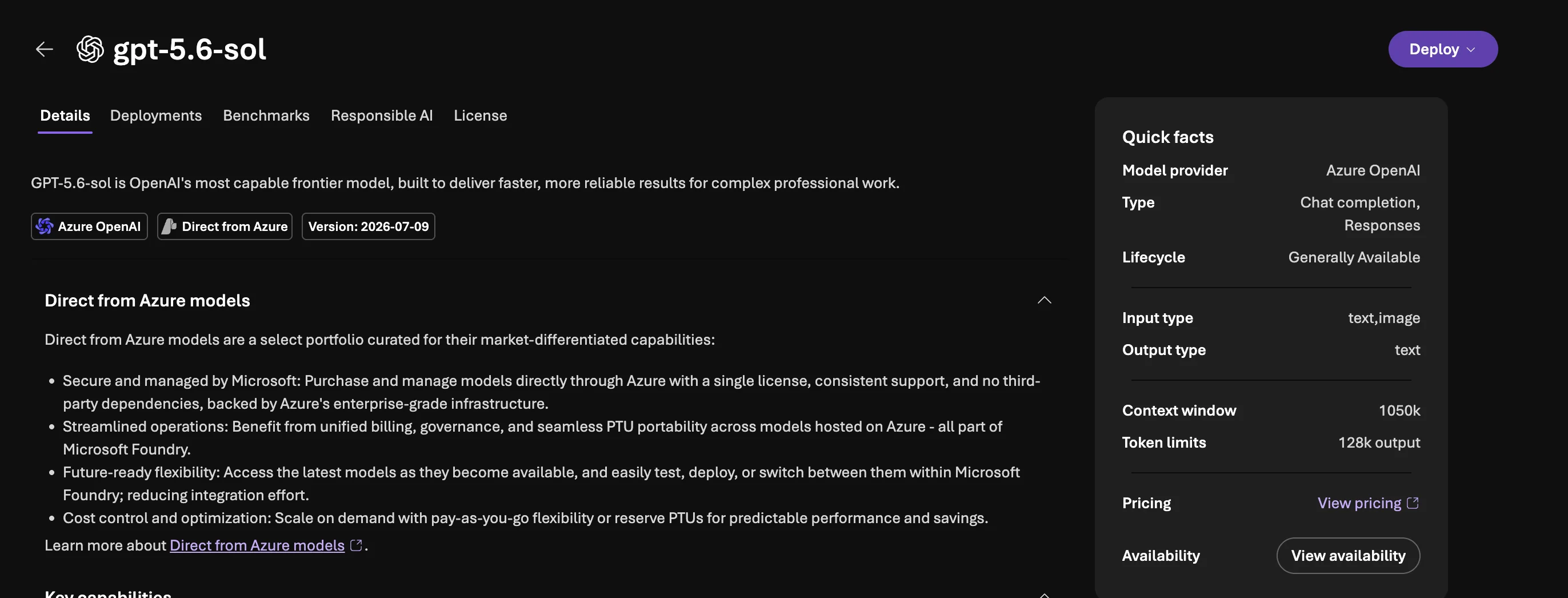
- Click a model to open its details. Use the Quick facts panel — model provider, lifecycle stage, input/output types, context window and token limits — plus the Benchmarks, Responsible AI and License tabs before committing.
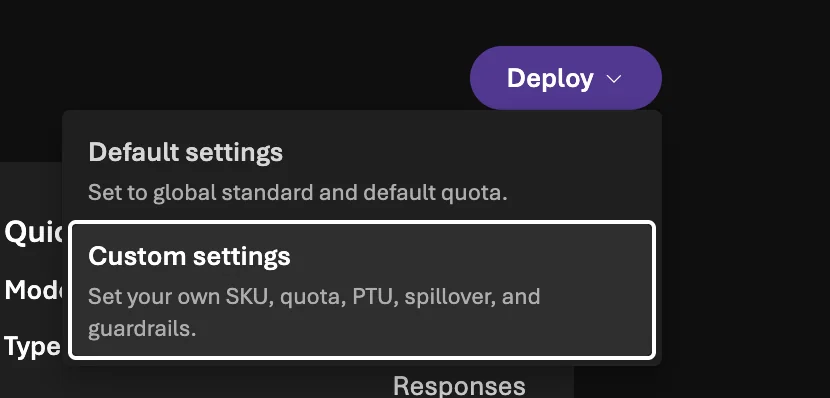
- Click Deploy and choose:
| Option | What it does |
|---|---|
| Default settings | Global Standard deployment type with the default quota |
| Custom settings | Your own SKU, quota, PTU, spillover and guardrails |
Step 9: Configure the Deployment
Choosing Custom settings exposes what actually matters in production.
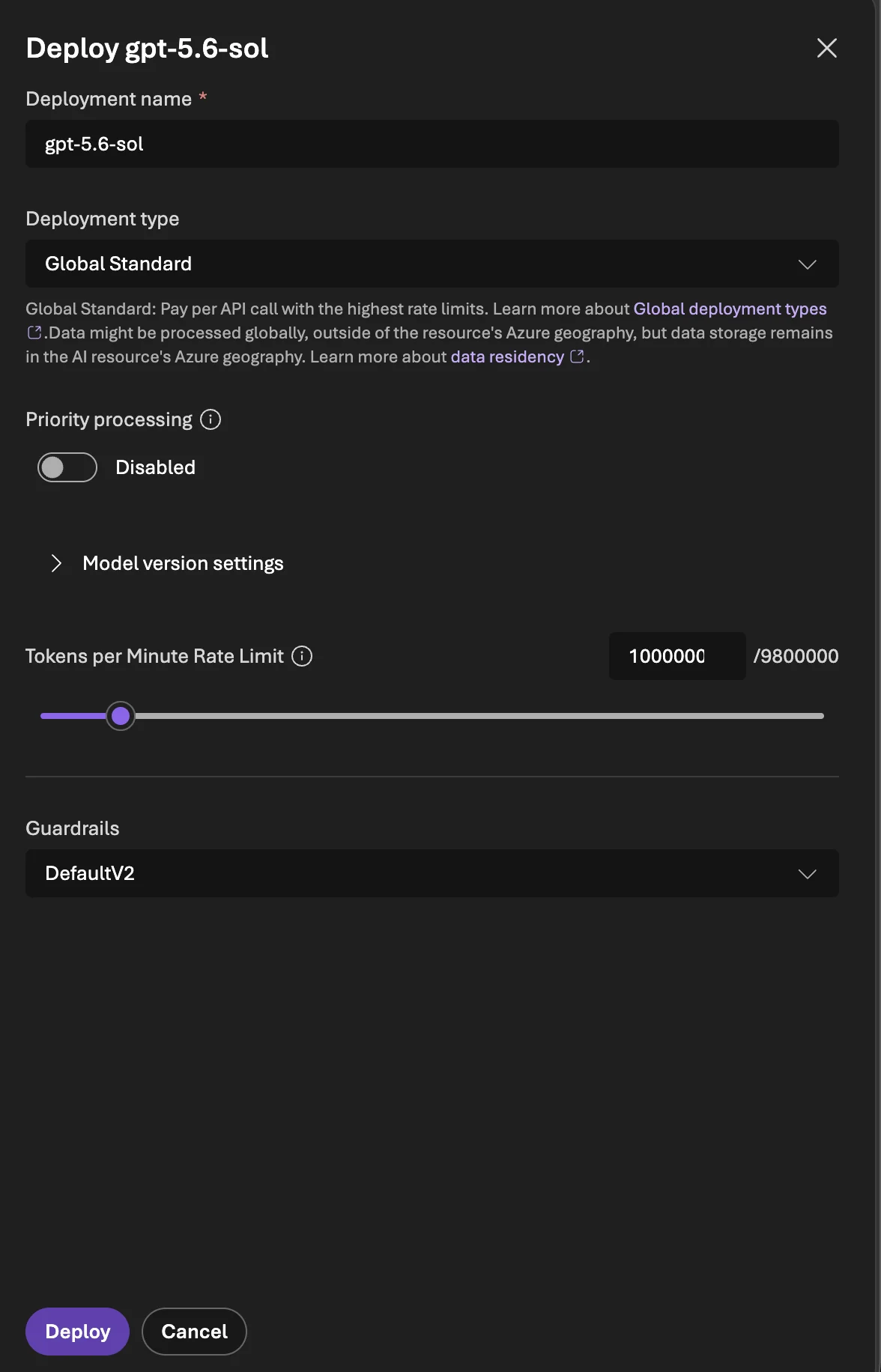
| Field | What to set |
|---|---|
| Deployment name | Defaults to the model name. Your code references this string, so keep it stable and version-free if you plan to swap models later. |
| Deployment type | Global Standard — pay per API call, highest rate limits. Data may be processed globally; data storage stays in the resource's Azure geography. |
| Priority processing | Off by default. |
| Tokens per Minute Rate Limit | Drawn from your subscription quota for that model and region. Spending it all on one deployment leaves none for others. |
| Guardrails | DefaultV2 content filter. You cannot fully disable filtering without approved modified content filtering. |
Click Deploy.
Pick the deployment type deliberately. Global Standard routes requests globally for throughput. If you have data-residency obligations, use a regional or data-zone deployment type instead — this choice is far harder to change once applications depend on the endpoint.
Step 10: Test It in the Playground
The deployment opens straight into the playground. Send a message and confirm you get a response.
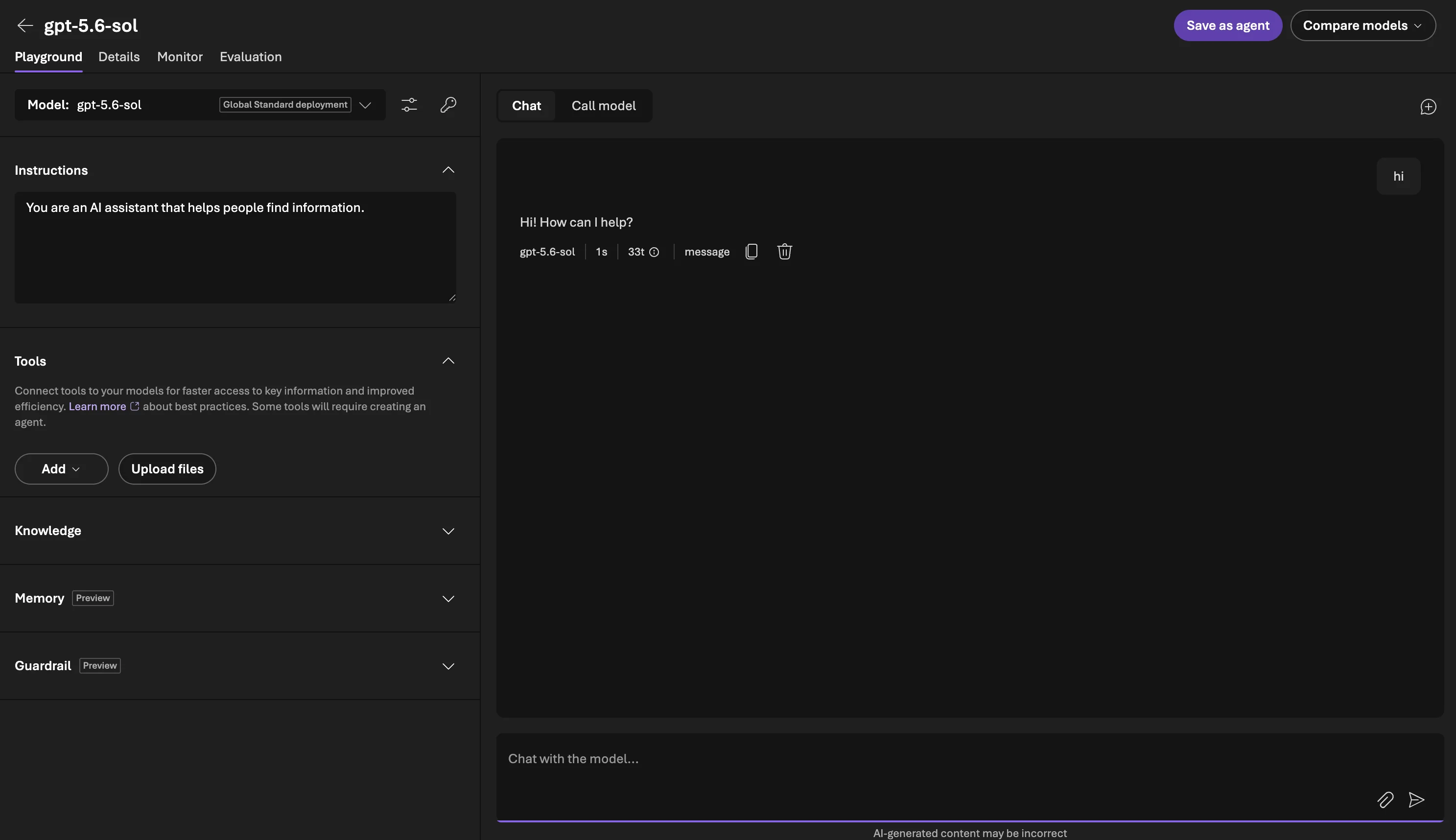
The left rail is where Foundry stops being a chat window: Instructions (system prompt), Tools, Knowledge, Memory and Guardrail. Configure those, then Save as agent to turn the setup into a reusable agent. Compare models runs the same prompt against several deployments side by side — the honest way to pick a model.
Foundry's default mode is agentic: it can add thread state, orchestration and implicit system instructions. If you are migrating existing Azure OpenAI code and responses look different, that is why. Calling the Azure OpenAI endpoint directly with your original request body restores the classic stateless behaviour.
Step 11: Collect Endpoints and Keys
Back on the project home page, everything your application needs sits in one strip.
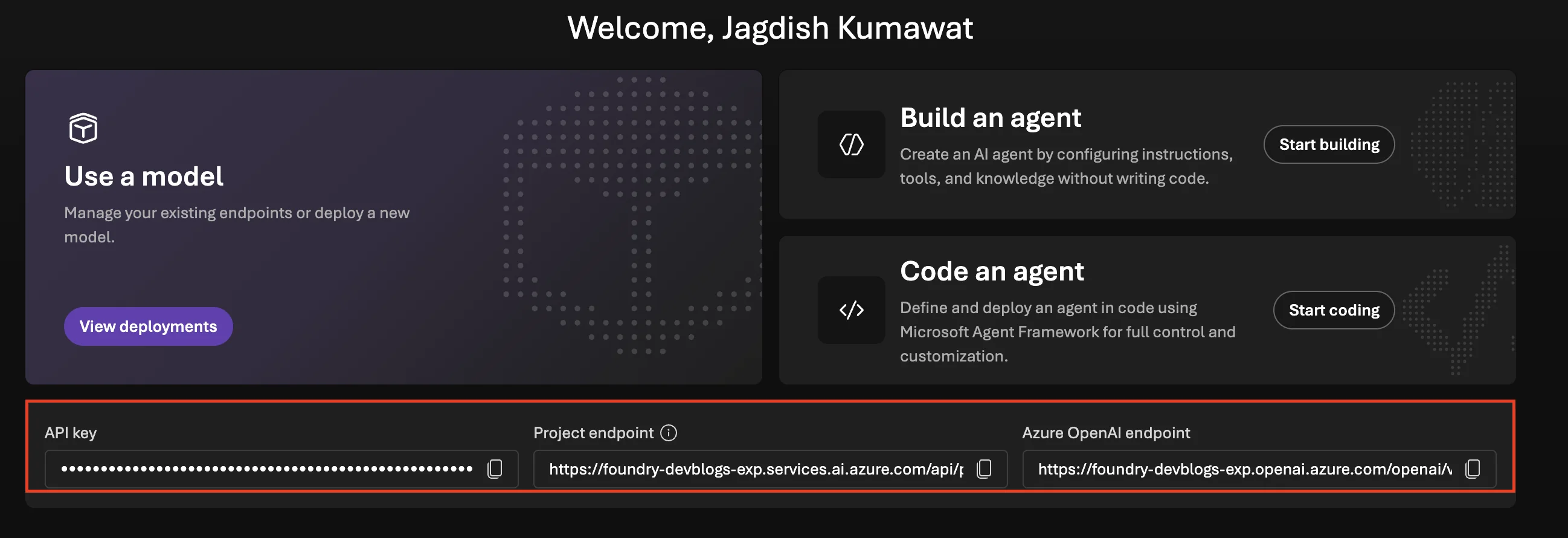
| Value | Shape | Use it for |
|---|---|---|
| Project endpoint | https://<name>.services.ai.azure.com/api/... | Foundry API and SDK — agents, tools, the full catalog |
| Azure OpenAI endpoint | https://<name>.openai.azure.com/openai/... | Existing Azure OpenAI SDK code, unchanged |
| API key | Copy from the masked field | Quick tests only |
| Deployment name | From Step 9 | The model your requests target |
A Foundry resource exposes three FQDNs, which matters if you use private networking:
<custom-domain>.openai.azure.com
<custom-domain>.services.ai.azure.com
<custom-domain>.cognitiveservices.azure.com
Do not ship the API key. Use Microsoft Entra ID with a managed identity, and assign the Foundry User role to whoever needs to call the model. If you must use a key during development, keep it in Azure Key Vault and never in source control.
Do It with the Azure CLI
Requires Azure CLI 2.67.0+ and Contributor or Owner on the resource group.
# 1. Resource group
az group create --name rg-devblogs-exp --location eastus2

# 2. Foundry resource — kind AIServices, project management on
az cognitiveservices account create \
    --name foundry-devblogs-exp \
    --resource-group rg-devblogs-exp \
    --kind AIServices \
    --sku S0 \
    --location eastus2 \
    --custom-domain foundry-devblogs-exp \
    --allow-project-management

# 3. Default project
az cognitiveservices account project create \
    --name foundry-devblogs-exp \
    --resource-group rg-devblogs-exp \
    --project-name proj-devblogs-exp \
    --location eastus2

# 4. Confirm provisioning
az cognitiveservices account show \
    --name foundry-devblogs-exp \
    --resource-group rg-devblogs-exp \
    --query properties.provisioningState --output tsv
--allow-project-management cannot be changed after creation. Omit it and you get a resource that can never host Foundry projects — you would have to start over. The --custom-domain value must also be globally unique.
Deploy a model:
az cognitiveservices account deployment create \
    --name foundry-devblogs-exp \
    --resource-group rg-devblogs-exp \
    --deployment-name my-chat-model \
    --model-name <model-name> \
    --model-version <version> \
    --model-format OpenAI \
    --sku-capacity 10 \
    --sku-name Standard

az cognitiveservices account deployment show \
    --name foundry-devblogs-exp \
    --resource-group rg-devblogs-exp \
    --deployment-name my-chat-model
Grant a teammate access with the role ID rather than the name, since the display names are mid-rename:
PROJECT_ID=$(az cognitiveservices account project show \
  --name foundry-devblogs-exp \
  --resource-group rg-devblogs-exp \
  --project-name proj-devblogs-exp \
  --query id -o tsv)

# 53ca6127-db72-4b80-b1b0-d745d6d5456d = Foundry User
az role assignment create \
    --role "53ca6127-db72-4b80-b1b0-d745d6d5456d" \
    --assignee "teammate@yourcompany.com" \
    --scope "$PROJECT_ID"
| Role | Role definition ID |
|---|---|
| Foundry User | 53ca6127-db72-4b80-b1b0-d745d6d5456d |
| Foundry Owner | c883944f-8b7b-4483-af10-35834be79c4a |
| Foundry Account Owner | e47c6f54-e4a2-4754-9501-8e0985b135e1 |
| Foundry Project Manager | eadc314b-1a2d-4efa-be10-5d325db5065e |
Tear it all down when you are finished experimenting:
az group delete --name rg-devblogs-exp --yes --no-wait
Already on Azure OpenAI? Upgrade Instead
You do not need to create a new resource and migrate. An in-place upgrade converts the resource type and preserves:
- Resource name and Azure resource tags
- API endpoint and API key
- Network, access and identity configuration
- Custom domain name
- Existing state — fine-tuning jobs, batch, stored completions
Prerequisites: the Owner role on the subscription or resource group, and managed identity enabled on the Azure OpenAI resource (Identity → System assigned → On).
In the Azure portal: open the resource, find the banner "Want to try the latest industry models and Agents?", click Get Started, and confirm. The resource type then reads Foundry.
With Bicep, patch the existing resource:
resource foundry 'Microsoft.CognitiveServices/accounts@2025-06-01' = {
  name: foundryName
  location: location
  identity: {
    type: 'SystemAssigned'
  }
  sku: {
    name: 'S0'
  }
  kind: 'AIServices' // was 'OpenAI'
  properties: {
    allowProjectManagement: true
    customSubDomainName: foundryName
    disableLocalAuth: true
  }
}
Upgrading costs nothing extra — existing Azure OpenAI usage bills exactly as before, and only newly adopted features carry their own pricing. It is opt-in and reversible: delete projects, connections and non-OpenAI deployments, then roll back from the portal or by setting kind back to OpenAI.
Two limits to check first. Resources with existing private endpoints cannot be upgraded through either portal — delete the endpoints, upgrade, recreate them, or drive it through Bicep/Terraform. Resources using customer-managed keys are upgradeable by request only.
Administrators: review wildcard role assignments and Azure Policy definitions before upgrading. A broad grant such as Cognitive Services User covers only OpenAI features today but expands to all Foundry features after the upgrade. Cognitive Services OpenAI User stays scoped to OpenAI features.
To check whether a resource was already upgraded, look for the read-only property:
{
  "properties": {
    "previousKind": "OpenAI"
  }
}
Dates Worth Putting in Your Calendar
| Date | What happens |
|---|---|
| 30 May 2026 | The azure-ai-inference package retires. Migrate to the openai package. |
| 26 August 2026 | The Assistants API sunsets. Move to the Foundry Agents service. |
Common Mistakes
| Mistake | Consequence | Fix |
|---|---|---|
| Creating a standalone Azure OpenAI resource out of habit | No agents, no wider catalog, no Foundry Tools | Create a Foundry resource, or upgrade the existing one in place |
Omitting --allow-project-management in the CLI | The resource can never host projects, and the flag is fixed | Recreate the resource with the flag set |
| Leaving Inbound Access on "All networks" in production | The endpoint is reachable from the public internet | Configure networking on the create blade, before the resource exists |
| Naming the deployment after a specific model version | Swapping models later means changing every caller | Use a stable, role-based deployment name |
| Giving one deployment the entire TPM quota | No quota left for other models in that region | Allocate deliberately across deployments |
| Shipping the API key | A leaked key grants full model access | Use Entra ID and managed identity; keys for local development only |
| Ignoring the Region filter in the catalog | Picking a model you cannot deploy where you need it | Filter by region before comparing models |
Troubleshooting
| Problem | Cause | Fix |
|---|---|---|
| Cannot create the resource | Missing a privileged role | Get Foundry Account Owner or Foundry Owner on the subscription or resource group |
| Resource name rejected | The custom subdomain is globally unique | Choose another name |
| Model missing from the catalog | The Available in my project filter, or region availability | Switch to All models and check the Region filter |
| Deployment fails on quota | No TPM quota for that model in that region | Lower the rate limit, free quota from another deployment, or request an increase |
| Owner or Contributor, but cannot create agents | Those are management-plane roles only | Assign a data-plane role — Foundry User, Foundry Project Manager or Foundry Owner |
| Cannot fully disable the content filter | Modified content filtering requires approval | Keep DefaultV2, or apply for modified content filters and abuse monitoring |
| Upgrade blocked by an Azure Policy conflict | Organisational constraints on resource configuration | Read the violation detail, then upgrade via Bicep/Terraform for finer control |
| Upgrade fails — too many AIServices instances | Limit of 100 per subscription per region | Delete an unused Foundry resource and retry |
| Rollback fails — too many Azure OpenAI instances | Limit of 30 per subscription per region | Delete or upgrade an Azure OpenAI resource, then retry |
| Private network access broken after upgrading | Foundry needs DNS zones for all three FQDNs | Add zones or conditional forwarders for each, then recreate the private endpoint |
| Migrated model gives different answers | Foundry's default agentic mode adds state and instructions | Call the Azure OpenAI endpoint directly with your original request body |
FAQ
Is Microsoft Foundry the same as Azure AI Foundry? Yes. Azure AI Studio → Azure AI Foundry → Microsoft Foundry. Same platform, renamed. The Azure resource type never changed.
Do I have to migrate off Azure OpenAI? No. Both resource types are generally available and supported. But new capability lands on Foundry, so it is the better default for new work.
Will upgrading break my existing code? No. Your endpoint, API key and Azure OpenAI API compatibility are preserved. The upgrade is also reversible.
Does a Foundry resource cost more? No. You pay for what you consume. Upgrading does not change the cost of existing Azure OpenAI usage — only newly adopted features have their own pricing.
What is the difference between the project endpoint and the Azure OpenAI endpoint? The Azure OpenAI endpoint serves OpenAI models through the Azure OpenAI API. The project endpoint serves the Foundry API — the whole catalog plus agents and tools. Both exist on the same resource.
Can I have more than one project? Yes. Projects isolate work, access and data within one resource. The first one is the default project and carries extra capabilities.
Foundry (new) or Foundry (classic)? Use the new portal — that is where new investment goes. Classic still exists for hub-based projects and a few older flows.
Why does my deployment show as Microsoft.CognitiveServices/accounts?
Because it is. The resource provider namespace never changed across any of the renames.
Conclusion
Creating a Foundry resource takes about the same effort as creating an Azure OpenAI resource, and Microsoft's own documentation says it should be your default for most use cases. You get one resource, one set of guardrails, and a catalog that spans OpenAI, Anthropic, Meta, xAI, Mistral, DeepSeek and Microsoft's own models — with the Azure OpenAI APIs still working exactly as before.
If you already have an Azure OpenAI resource, upgrade it in place rather than rebuilding. If you are starting fresh, start here.
Additional Resources
- What is Microsoft Foundry?
- Quickstart: Set up Microsoft Foundry resources
- Upgrade from Azure OpenAI to Microsoft Foundry
- Choose an Azure resource type for Foundry
- Create a project for Microsoft Foundry
- Role-based access control for Microsoft Foundry
- Migrate from the Foundry (classic) portal
- Foundry Models catalog
