How to Create Environment Variables for a SharePoint Site and List in Power Apps

A canvas app that reads a SharePoint list normally has the site's address and the list built into it. Move the app to another organization and it still points at the old site. Environment variables fix that: the app asks the variables where its data is, and each environment gives them its own values.
What You Will Create
An environment variable is a named setting that lives in a solution. Its type decides what it holds; the Data source type points at data through a connector. For SharePoint you need one variable per site, and one per list:
- Site variable: holds the site's address.
- List variables: each points at a site variable, and holds the list's ID, not its name.
Each has a current value, which is what this environment uses. When the solution is installed somewhere else, the installer gives the variables that environment's values, and the app follows.
This guide creates the three variables for the Career Development Plan series:
| Display name | Name | Parameter type | Current value |
|---|---|---|---|
| Career Development Plan Site | dewiride_CareerDevelopmentPlanSite | Site | The Career Development Plan site |
| RoleCompetencies | dewiride_RoleCompetenciesList | List | The RoleCompetencies list |
| CompetencyResponses | dewiride_CompetencyResponsesList | List | The CompetencyResponses list |
Prerequisites
- A solution with your own publisher. See How to Create a Solution and Publisher in Power Apps.
- A SharePoint site and lists you can open. The example uses the site and lists from Part 2 of the series.
- Environment Maker or higher in the environment. Microsoft's FAQ notes that environment variables don't need premium licenses.
Step 1: Start a New Environment Variable
Open your solution, then select New → More → Environment variable.
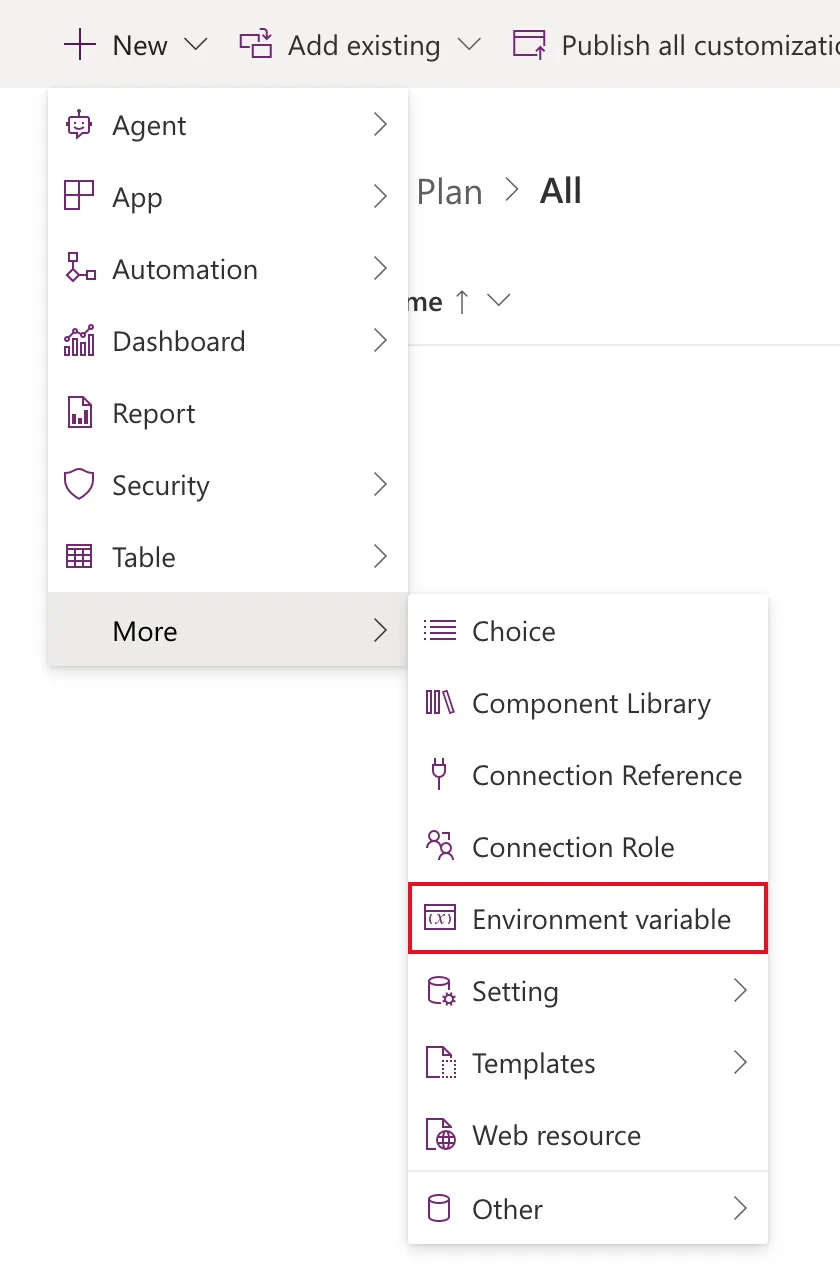
The New environment variable panel opens.
Step 2: Choose SharePoint and Create the Connection
Do this part first, before you type any names. Power Apps lists your sites and lists through a SharePoint connection, and creating one from this panel only goes smoothly while the form is still empty.
- Set Data Type to Data source. The other types are Decimal number, JSON, Text, Yes/No and Secret.
- Set Connector to SharePoint.
- Open Connection. If you already have a SharePoint connection, choose it and go to Step 3. If not, select + New connection.
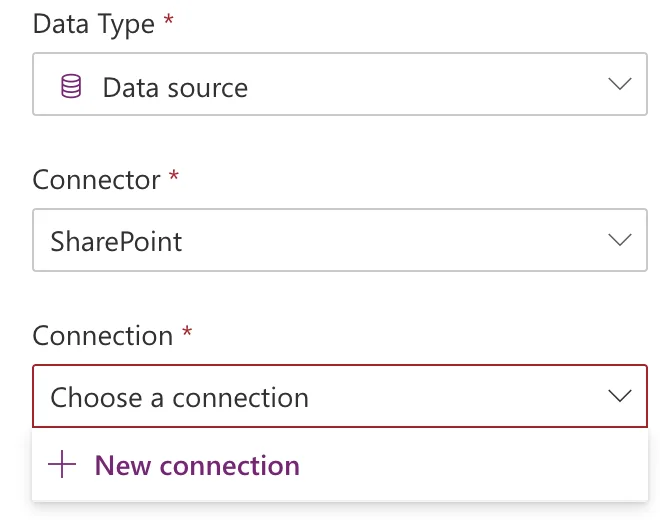
If you've already typed a display name, Power Apps asks whether to discard your changes instead. That's covered in Fixed: "Are You Sure You Want to Discard Changes?".
A new browser tab opens on Connect to SharePoint:
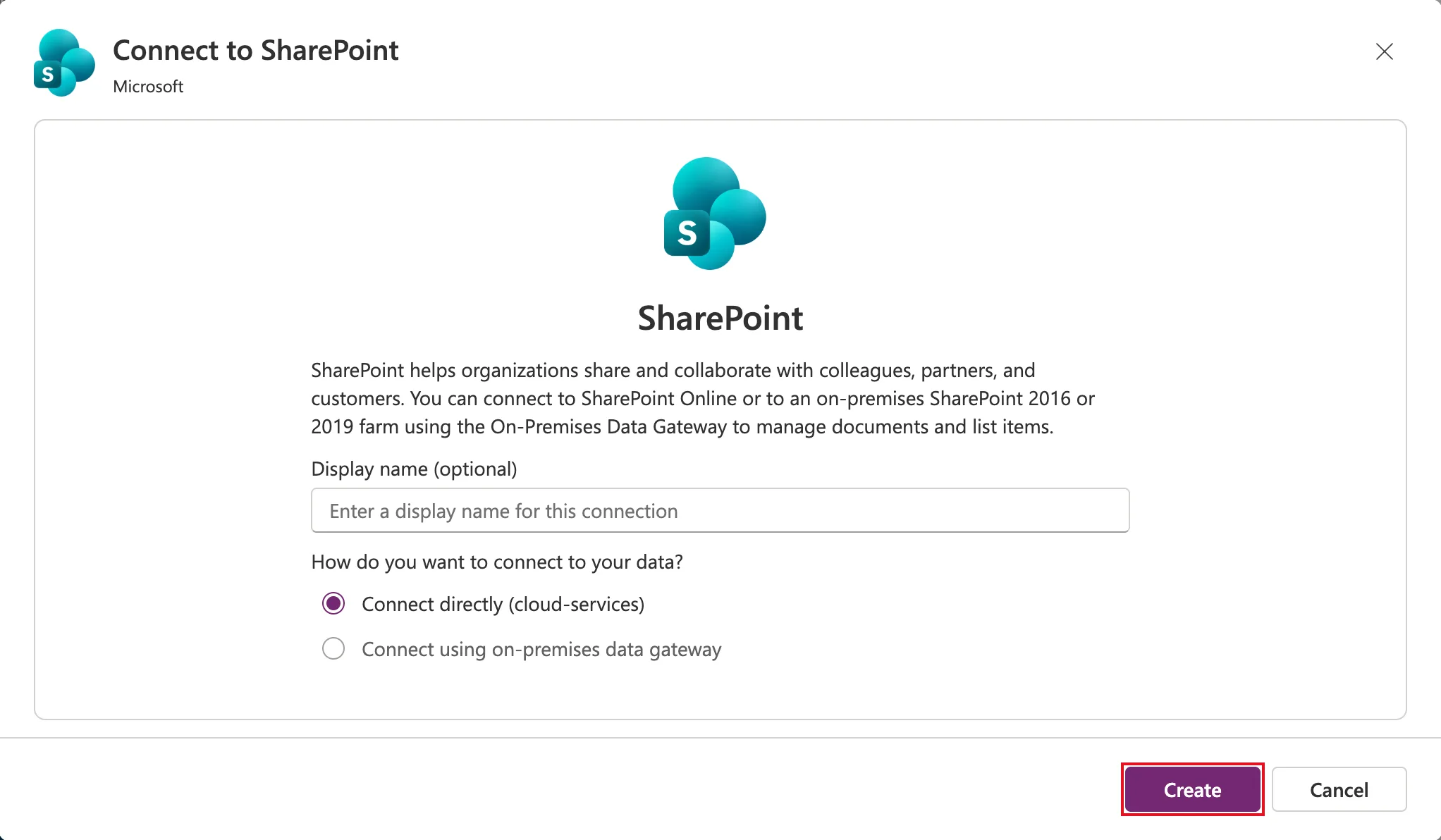
Leave Connect directly (cloud-services) selected and select Create. A Microsoft sign-in window asks you to pick an account: choose the one you're signed in with. The tab then lists the new connection as Connected:

Close that tab. Back in the first tab, Power Apps shows Apply changes: If you've created any new connections, Refresh to add them to the connection list. You will not lose your progress. Select Refresh.
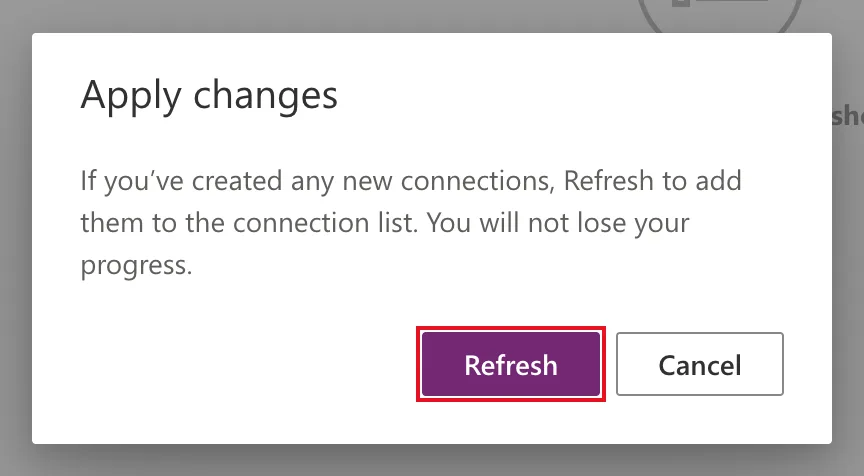
Connection now shows your new connection. Power Apps uses it only to list your sites and lists: Microsoft notes that the connection isn't stored in the environment variable.
Step 3: Name the Site Variable
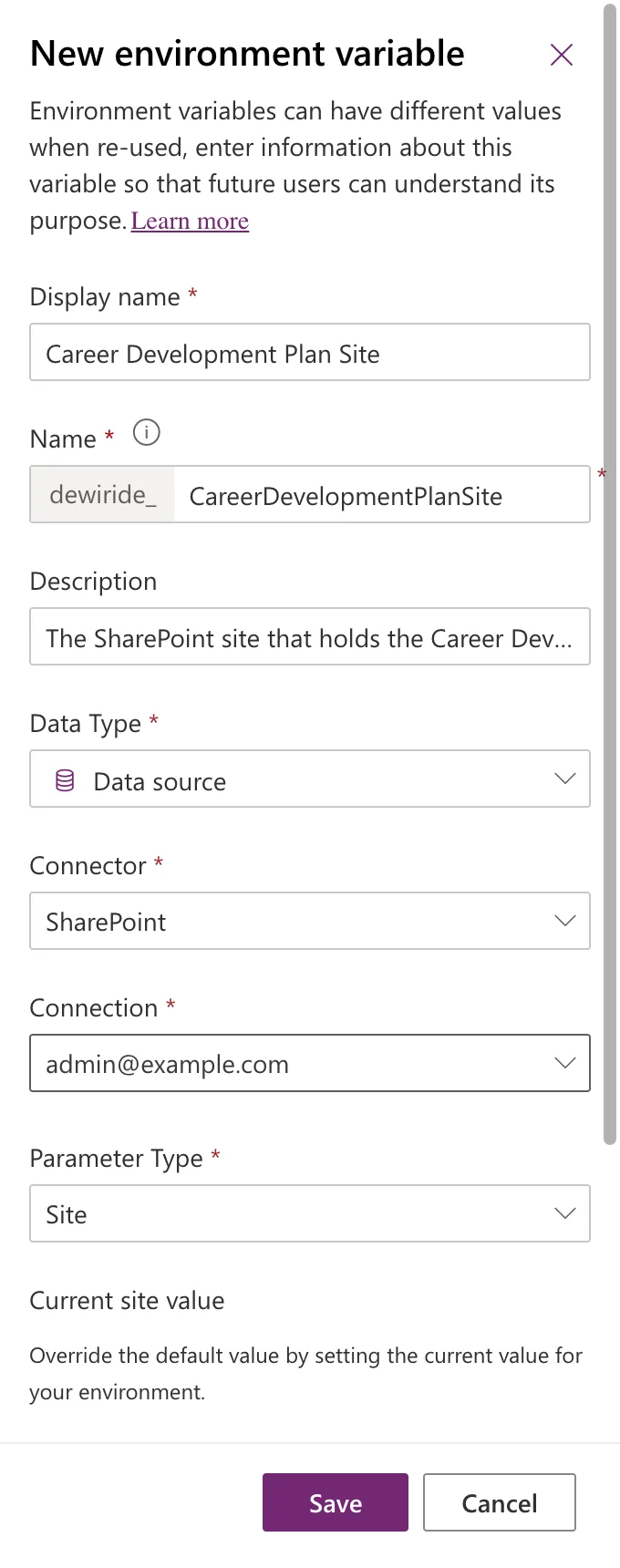
Now fill in the rest:
| Field | Example |
|---|---|
| Display name | Career Development Plan Site |
| Name | Filled in as dewiride_CareerDevelopmentPlanSite. The dewiride_ part is your publisher's prefix |
| Description | The SharePoint site that holds the Career Development Plan lists. |
| Parameter Type | Site |
Step 4: Set the Site
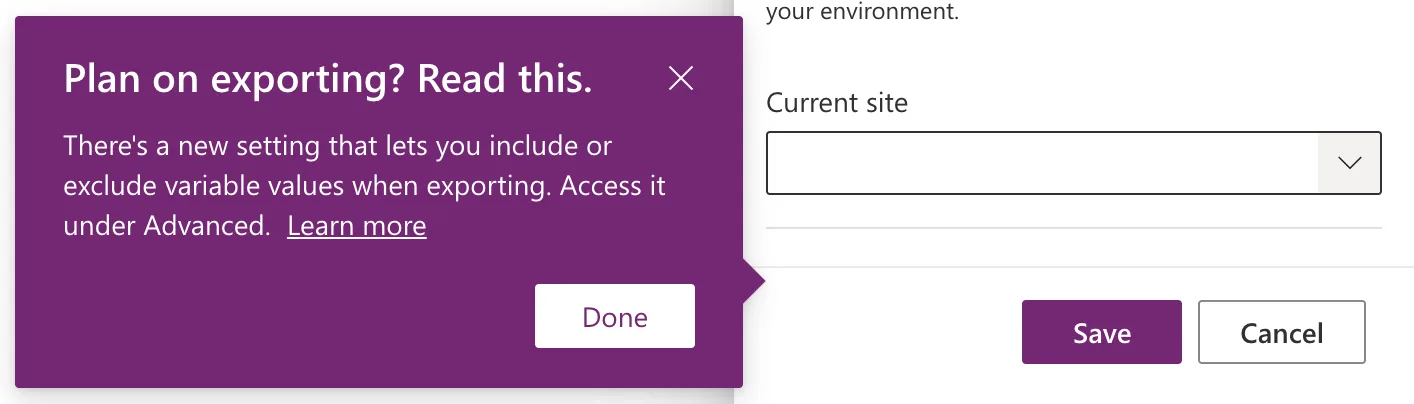
Under Current site value, select + New site value. A tip may appear about choosing whether to export variable values. Select Done; you'll see that setting in a moment.
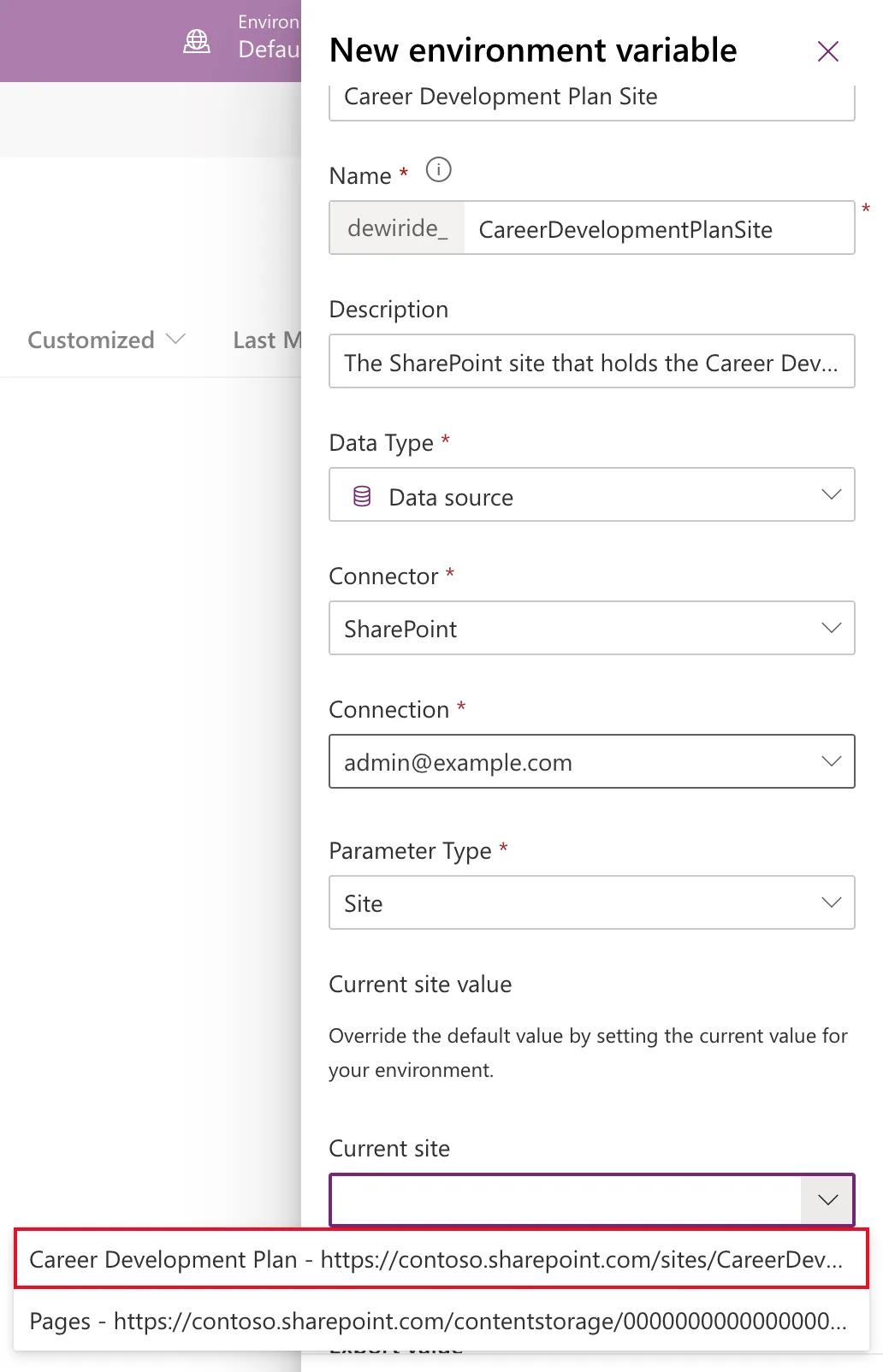
Open Current site. It lists the sites your connection can see. Choose your site:
Then open Advanced:
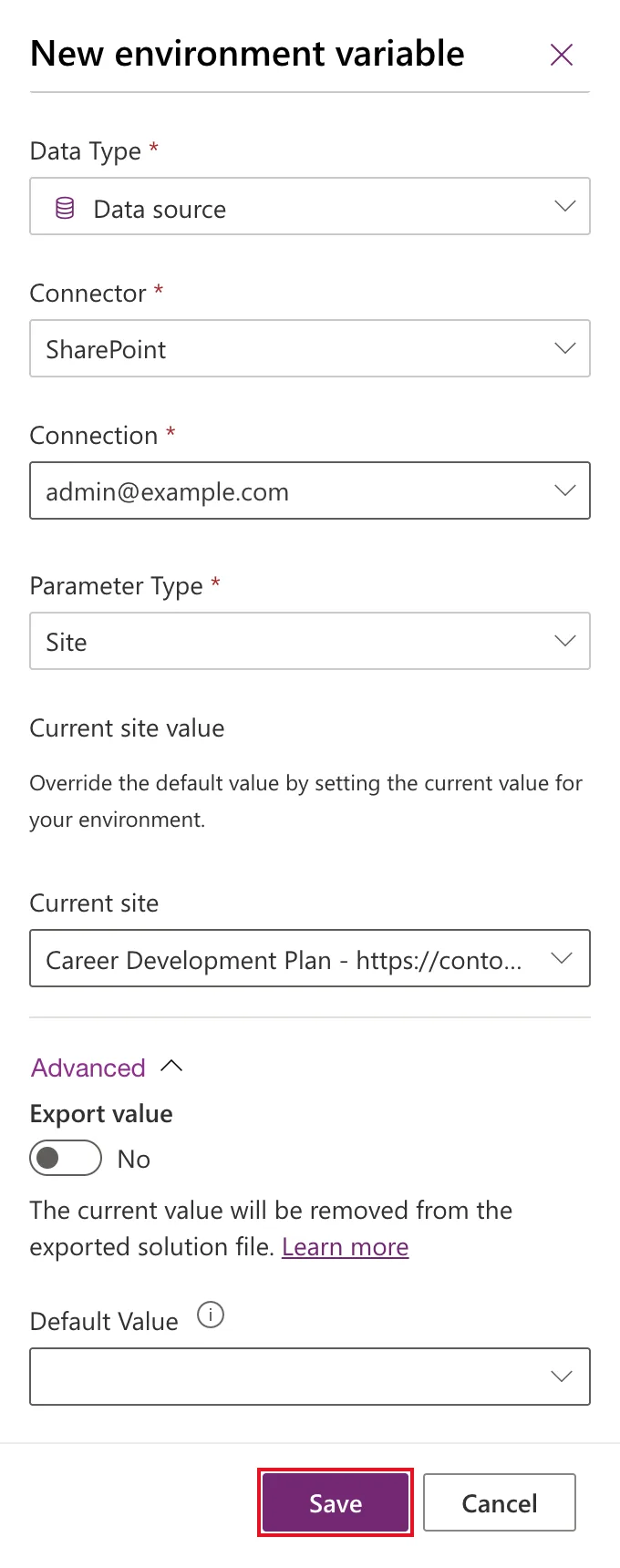
- Default Value: leave it empty. A default value travels inside the solution, while the current value is this environment's. When someone installs a solution whose variable has neither, Power Apps asks them for a value, which is exactly what you want for a site address.
- Export value: whether the current value goes into the exported solution file. No keeps your site out of it. Be aware that when the example's variables were reopened later, this switch showed Yes even though No had been saved. Don't rely on it alone: check the solution's contents before you export it.
Select Save.
Step 5: Create the List Variables
Create one more variable per list, the same way: New → More → Environment variable, Data source, SharePoint, your connection. This time:
| Field | First list | Second list |
|---|---|---|
| Display name | RoleCompetencies | CompetencyResponses |
| Name | Type RoleCompetenciesList after the prefix | Type CompetencyResponsesList after the prefix |
| Description | The SharePoint list of competencies and levels for each job title. | The SharePoint list of employees' responses and their managers' reviews. |
| Parameter Type | List | List |
| Site | Career Development Plan Site | Career Development Plan Site |
| Current list | RoleCompetencies | CompetencyResponses |
Give each list variable the list's own name as its display name. When a canvas app connects to a list through a variable, the app names the data source after the variable's display name. A variable called RoleCompetencies List becomes a data source called 'RoleCompetencies List', which every formula then has to wrap in quotes. Microsoft's coding guidelines name data sources in PascalCase, without spaces. The Name keeps List at the end, so the variables are still easy to tell apart from the lists themselves.
With Parameter Type set to List, Site asks for a site variable, not an address. Choose the one from Step 3:
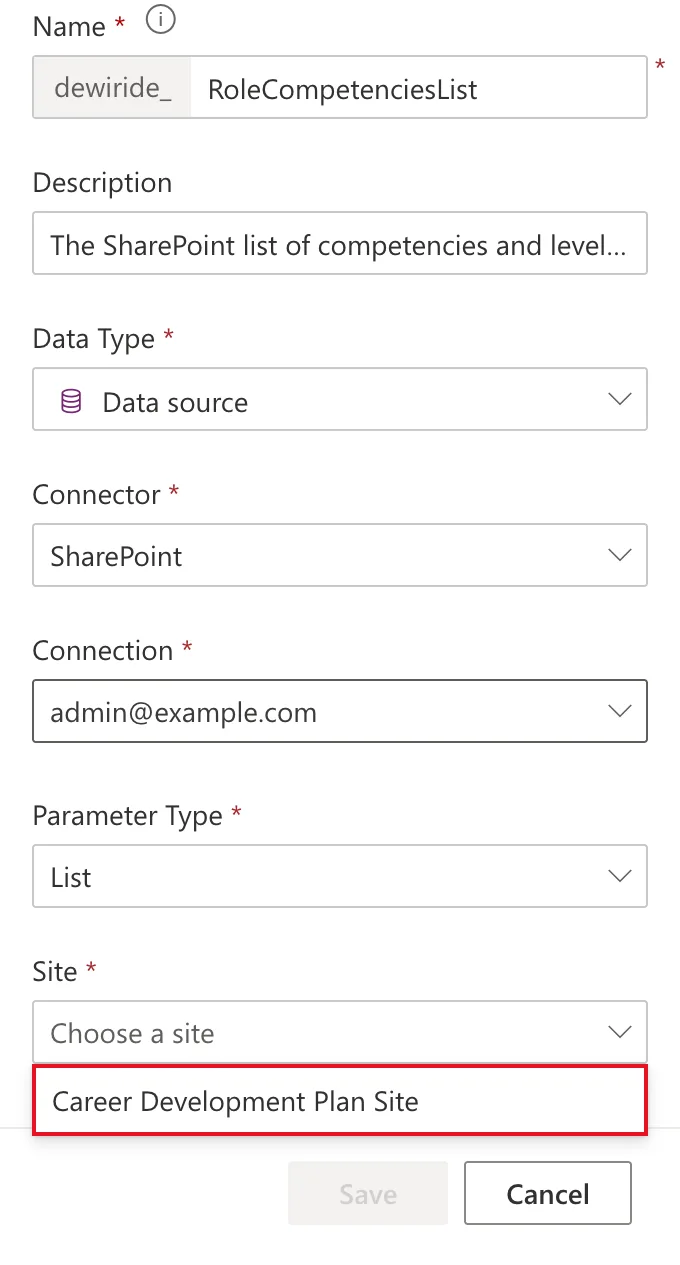
That link is what lets the list follow the site to another environment. Under Current list value, select + New list value and open Current list. It lists the site's lists:
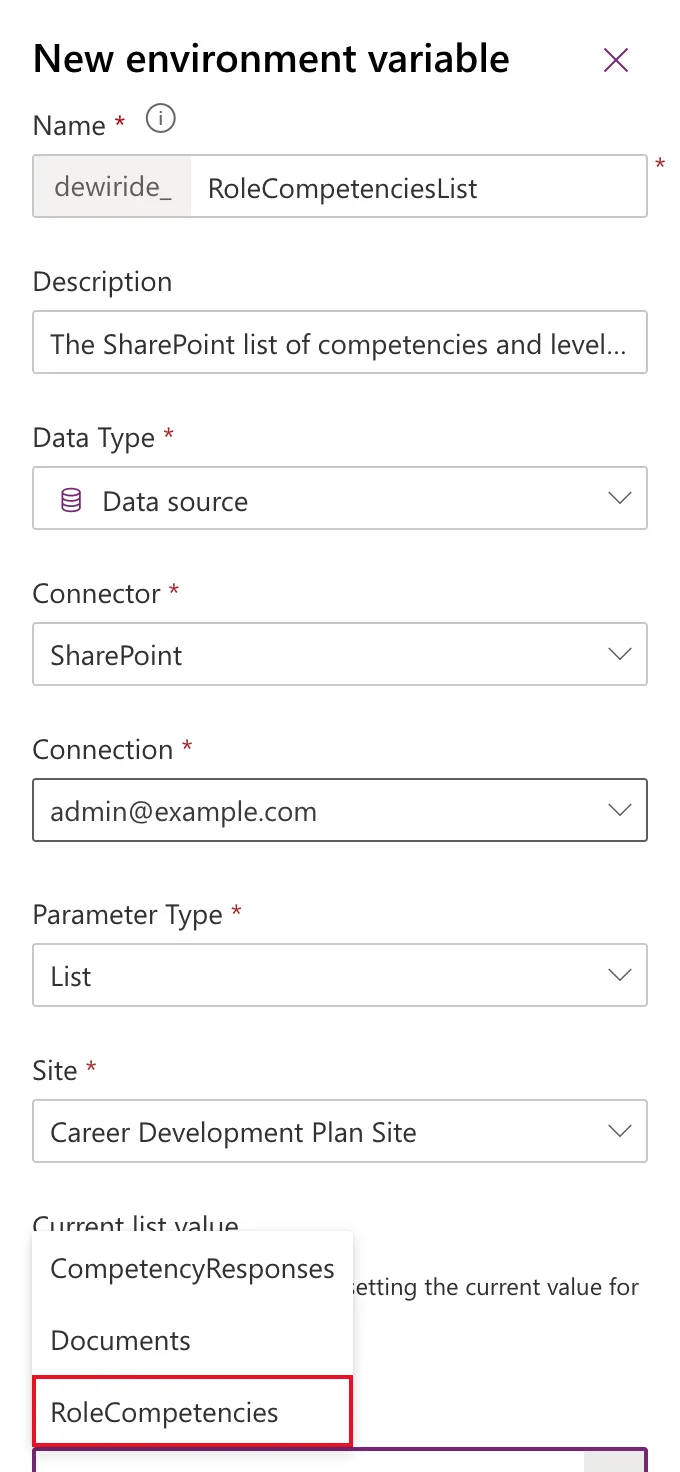
Choose the list. The dropdown shows names, but Power Apps stores the list's ID, so renaming the list later doesn't break the variable. Leave Default Value empty again, and select Save.
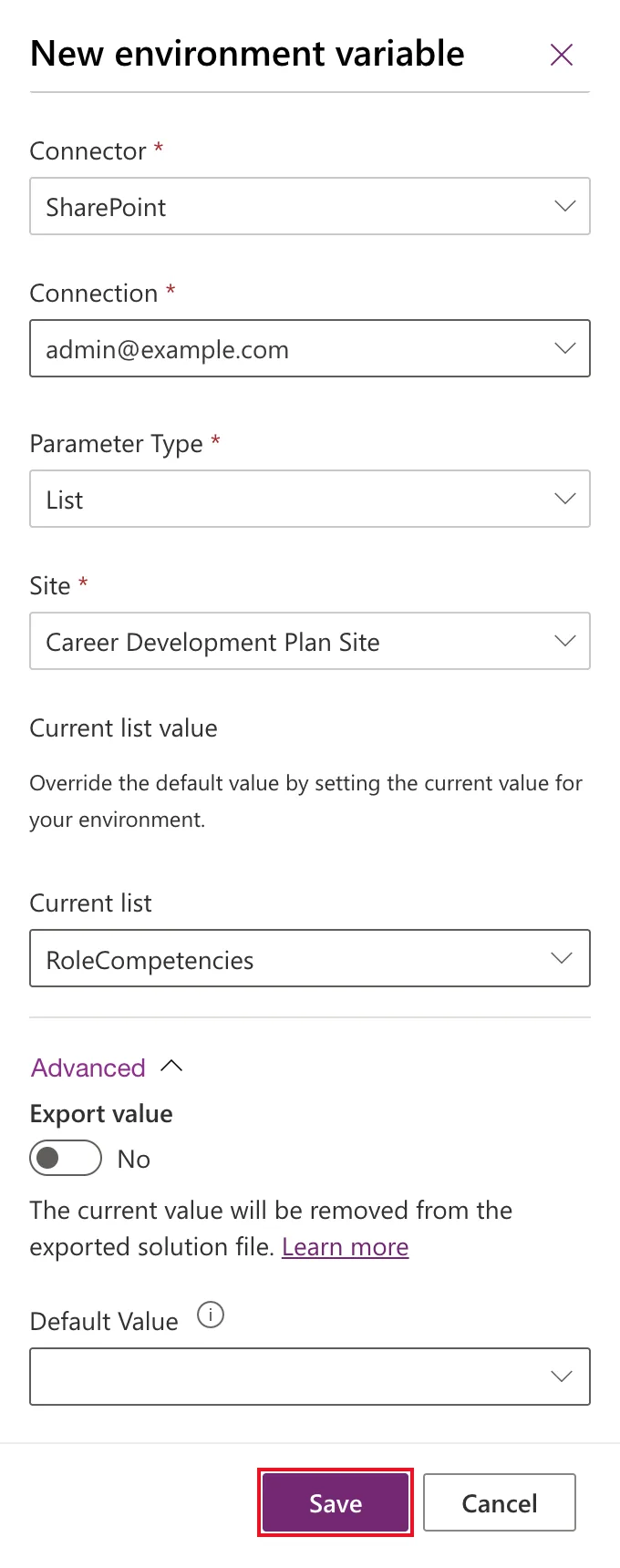
Repeat for the second list.
Step 6: Check the Solution
In the solution, select Environment variables in the Objects pane. All three are there:
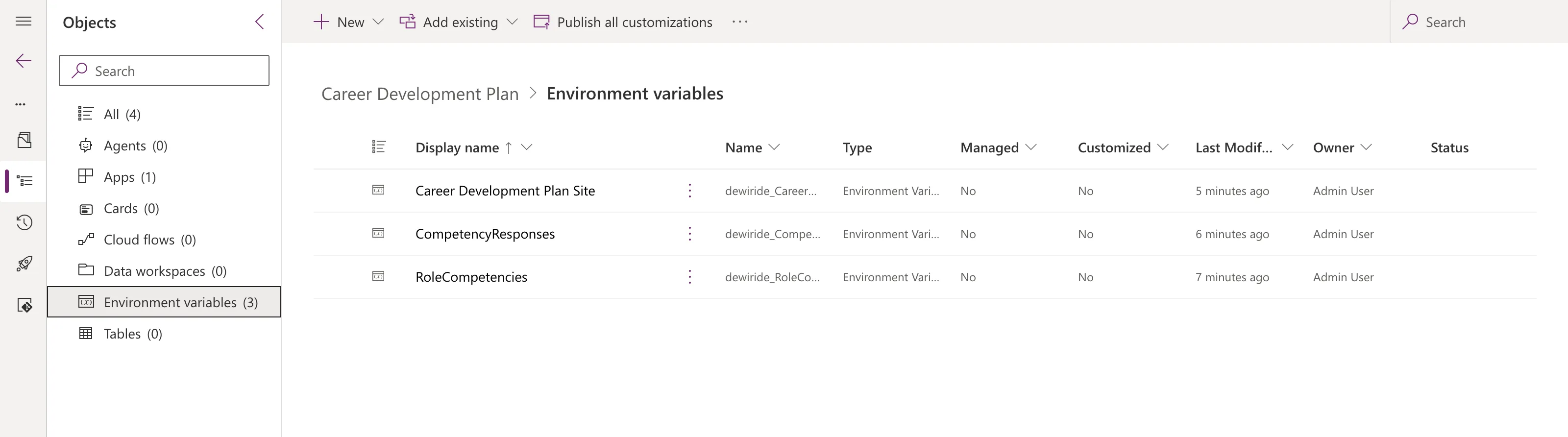
To change one later, select its name. If editing a list variable shows We are unable to find the list, see Fixed: "We Are Unable to Find the List".
Common Mistakes
| Mistake | What happens | Do this instead |
|---|---|---|
| Typing names before choosing New connection | Power Apps asks to discard your changes | Create or choose the connection first |
| Display name RoleCompetencies List | The app's data source is 'RoleCompetencies List' | Use the list's own name |
| Filling in Default Value | Your site goes into the solution, and installers aren't asked | Leave it empty; use the current value |
| One variable for site and list together | SharePoint needs both | One site variable, plus one per list |
| Choosing the list in Recent sites in Power Apps Studio later | The app ignores the variables | Use the Advanced tab, as Part 3 of the series shows |
Troubleshooting
| Symptom | Likely cause | Fix |
|---|---|---|
| Connection offers only + New connection | You have no SharePoint connection yet | Create one, as in Step 2 |
| Current site doesn't list your site | The connection's account can't open the site | Use an account with access to the site |
| Site for a list variable is empty | No site variable exists yet | Create the site variable first |
| A changed value doesn't show in the app | Values are cached | Microsoft notes it can take up to an hour; test in a new browser session |
FAQ
Where is the connection stored?
Not in the environment variable. The connection is yours, and Power Apps only uses it to list sites and lists while you edit. Each person who uses the app later connects with their own account.
What exactly does a list variable hold?
The list's ID, a GUID, plus the link to its site variable. Microsoft's documentation calls this out: it's the ID, not the list's display name.
Can I rename a variable later?
You can change its display name and description. The Name is fixed once saved.
Do environment variables make the app premium?
No. Microsoft's environment variables FAQ is explicit that they don't need premium licenses.
Conclusion
The solution now has a site variable and one variable per list, each pointing at real SharePoint data through its current value. The list variables carry the lists' own names, so the app's data sources will too. The SharePoint connection was created along the way, from the panel itself.
Next, create the app that uses them: How to Create a Canvas App Inside a Solution in Power Apps.
Additional Resources
- Environment variables overview: types, current and default values, and the FAQ.
- Use data source environment variables in canvas apps: SharePoint site and list variables, and how canvas apps use them.
- Add and manage connections: connections in Power Apps.
- Code readability in the Power Apps coding guidelines: naming data sources.
